8 minutes
What does the Desktop timer application track?
How Hubstaff’s desktop timer tracking works
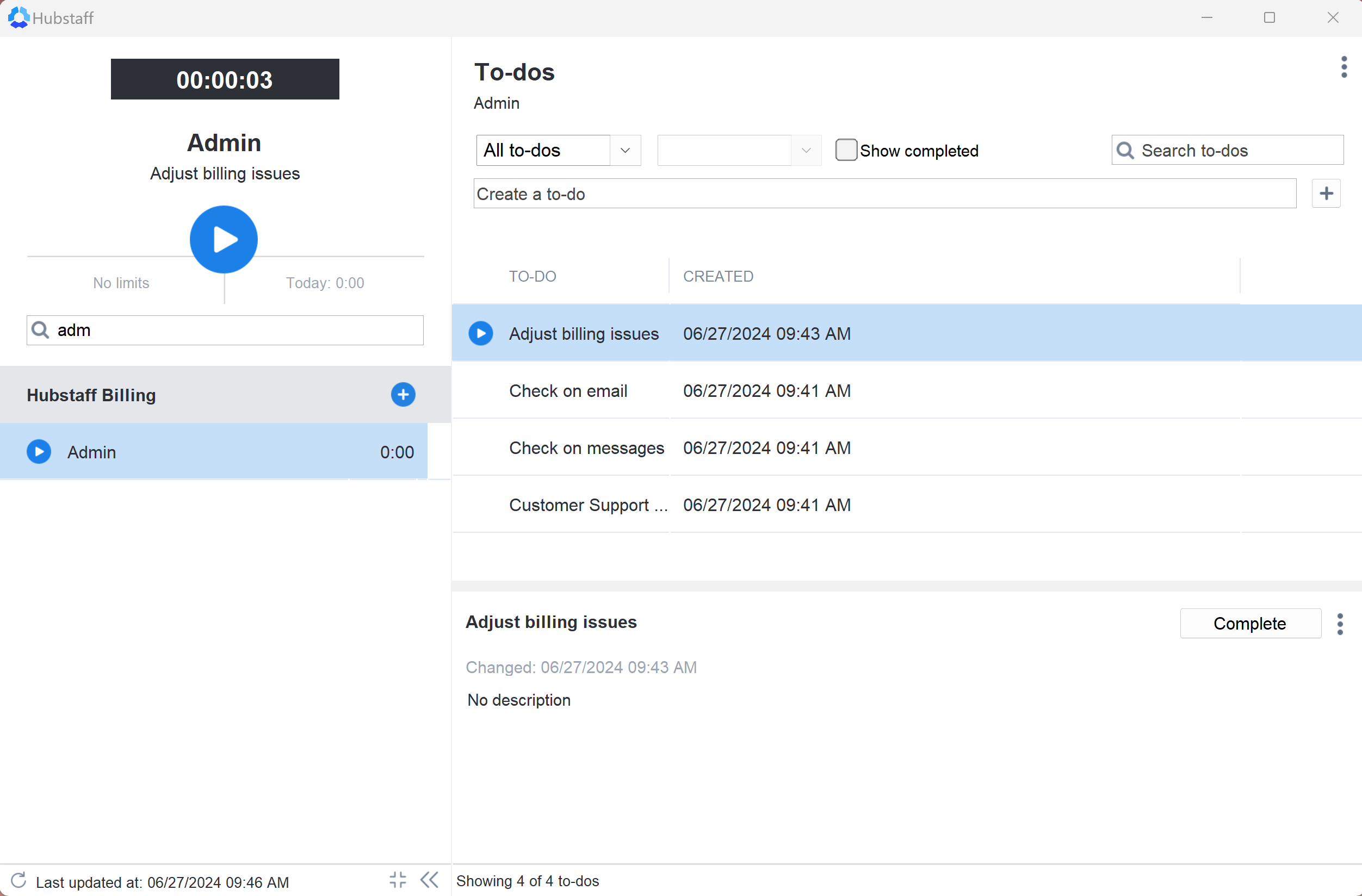
The Hubstaff desktop application tracks the following information while the user is tracking time:
Before time tracking, the data collection consent pop-up will appear, letting you know what information the app records while tracking time. You can also configure what data is recorded by changing the settings on your preferences page.

Screenshots
The desktop application begins recording screenshots when the timer is started. Depending on the organization settings, it can record 1-3x screenshots every 10-minute period, as well as be disabled for individual users or for the entire team.

If a screenshot is still due for the current 10-minute block when you stop the timer, Hubstaff captures that final screenshot as part of the stop action. The image is saved in the background, so the screenshot notification can appear a moment after the stop notification. This reflects only the time already tracked; no screenshots are taken after tracking stops.
Mouse and keyboard activity
Hubstaff records keyboard and mouse activity while tracking time. The app only records in binary (active=1, inactive=0) if there is activity and does not log individual keystrokes or actual mouse movement.
Activity is displayed under each screenshot:

For more information about how Hubstaff calculates activity levels, click here.
Apps
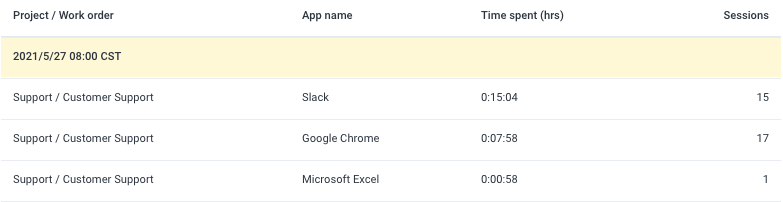
While tracking time, the desktop app also records application data when running. The app will only record application data when a user is actively using the app or a known time fraud application is detected in the background. For example, if a user has Google Chrome and Microsoft Word open while tracking time, the app will only record app data for the app where a user is actively typing or clicking/moving the mouse.
URLs
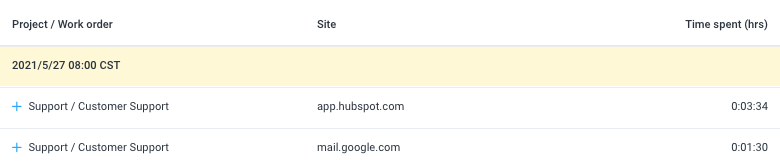
The desktop app records URL/web address data when enabled. Just like the app recording feature, URLs are recorded when a user is active (via keyboard/mouse) on the website.
Network Information
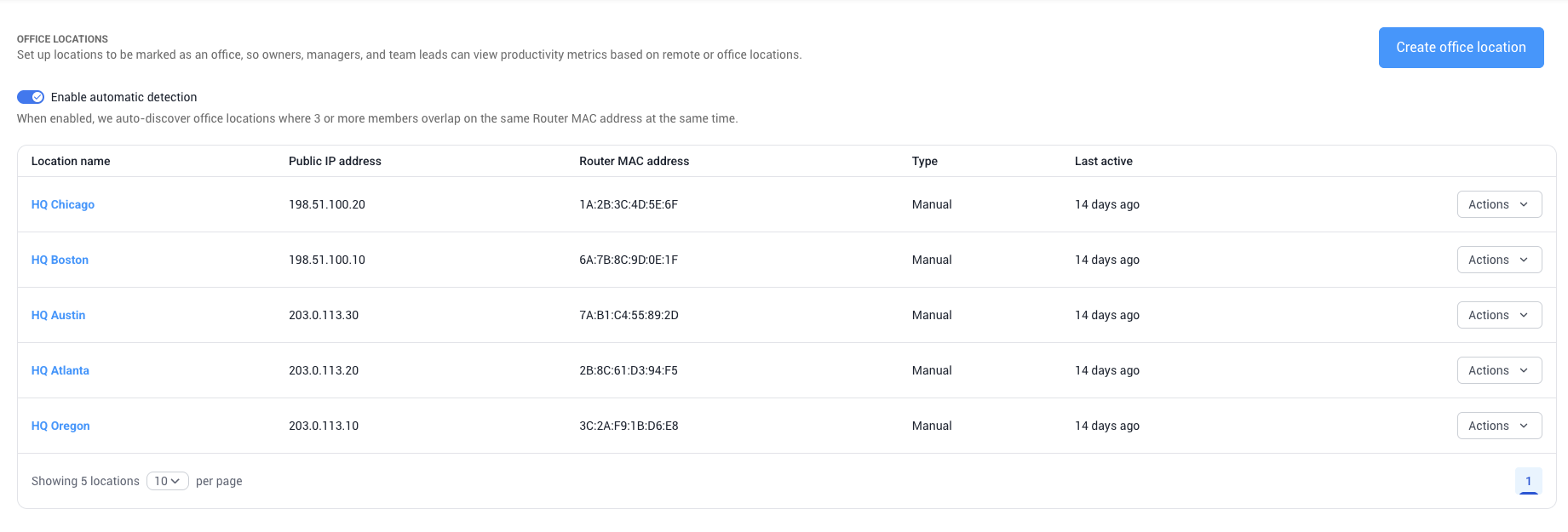
The desktop app collects network data, specifically your device’s public IP address and router MAC address, when your organization has enabled location-based work tracking.
This data is used exclusively to determine whether a team member is working from an office location or remotely. Owners, managers, and team leads can then view productivity metrics segmented by work location.
What’s collected:
Public IP address — identifies the network your device is connected to
Router MAC address — used to match your connection to a known office network
For a detailed guide on how activity recording works, click here.
- The standard Hubstaff desktop timer app requires members to knowingly start tracking time by clicking the start button. Hubstaff also displays consent dialogs before tracking for the first time.
- The Silent app deployed through MDM is the exception. Administrators can install it on company-owned, MDM-managed devices to run and track activity in the background. However, the Linux and macOS Silent apps still require user permission to run.