10 minutes
About Hubstaff’s per-seat pricing
Hubstaff offers a Per-seat subscription pricing model. Under this pricing model, you have the flexibility of being able to add or remove members from your organization whenever you wish and save money by only paying for the number of members occupying a seat on your team.
Plan cost
Click here to see what features are available for each plan type and how much each plan costs.
When charges start
Under our Per-seat subscription model, you will be charged at the end of every billing cycle for every member within your organization. This will happen monthly, quarterly, or yearly depending on which plan duration you have selected.
Any add-ons will also be charged once their trial period expires.
Who counts toward billing (paid seats)?
- Everyone counts as a paid seat, except for Project viewers.
- Owners and managers always count as paid seats, even if they don’t track time or use the timer applications.
- Only Project Viewer roles do not count as paid seats. You can review the access and permissions for each of our available roles on our Roles and Permissions guide.
- Members who are inactive or have tracking disabled will still count as a paid seat.
- The minimum number of seats that will count toward billing is 2.
How to know how many paid seats are in your plan
To learn how many users are counted towards your bill, navigate to the People > Members page and you will see the number of paid, occupied, and open seats (this is shown in the top left corner of the page).
- Paid seats are the total number of seats you are currently paying for.
- Occupied is the total number of seats that are currently filled.
- Open seats will be filled automatically when new members are added. Any open seats will be removed automatically when a new billing cycle starts, bringing down the number of paid seats to match the number of seats occupied.
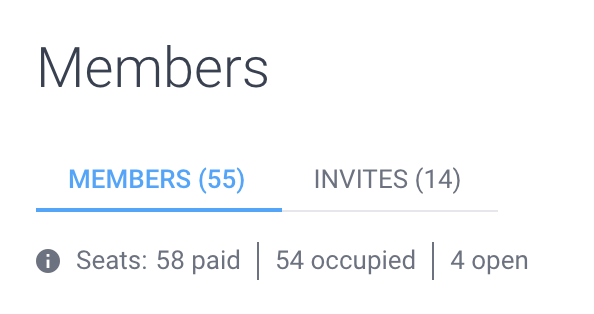
The same information is posted on Settings > Billing page.
What happens when members are added or removed
Your bill is based on the total number of members listed under People > Members at the start of each billing period (excluding users with the Project Viewer role).
Adding members mid-cycle
How you are charged depends on your plan type:
- Monthly plans:
Adding a member in the middle of the month is not prorated. You are charged the full monthly amount for that member for the entire month.
Example: If you have 20 billed members and add a new member halfway through the month, you are billed the full monthly rate for that additional seat. - Quarterly and annual plans:
Adding a member mid‑cycle is prorated. You are billed only for the remaining portion of the current billing period. A separate prorated invoice is generated at the time of the change.
Removing members mid-cycle
There are no refunds or credits when members are removed (or switched to the Project Viewer role) during a billing period. However, the paid “seat” remains available and can be reassigned to another member at any time during that billing period.


Add-ons
Add-ons will only charge filled seats, any open seats will not be included in the charge.

How to increase or decrease seat count
In order to increase the number of seats in your plan, you can simply invite more members to join your organization. No changes are required on your subscription plan.
If you would like to decrease the number of seats, you need to remove members. Once they are removed, you will see open seats available. These open seats will be removed automatically when a new billing cycle starts, bringing down the number of paid seats to match the number of seats occupied.
Single member plan
Our only 1 member plan is our Free plan, which has a limited number of features available. The Free plan comes with 1 seat available and it will be taken by the organization owner (creator of the organization). If you wish to add team members, then that would take you above the 1 seat limit for the free plan and require that you pick one of our paid plans.
Please see our guide here to learn more about the different features available per plan type.
What happens when I change plans?
| Plan change | Scenario | Result |
| Same plan, Different billing cycle | A. Same plan, longer billing cycle (Grow monthly > Grow yearly) | Scheduled to the end of the billing cycle.
Scenario: You are on a Grow monthly plan billed every 3rd of the month starting in January, then switch to Grow yearly on January 4th, your yearly plan will start on February 3rd. |
| B. Same plan, shorter billing cycle (Grow yearly > Grow monthly) | Scheduled to the end of the billing cycle.
Scenario: You are on a Grow yearly plan billed on the 3rd of January, 2024, then switch to Grow monthly plan on January 4th, your monthly plan will start on January 3rd, 2025. |
|
| Different plan, Same billing cycle | A. Upgraded plan, same billing cycle (Grow monthly > Team monthly) | Charge extra immediately.
Scenario: You are on a Grow monthly plan that started on January 3rd, then you switch to the Team monthly plan on January 15th, you will immediately be billed on January 15th for all members. |
| B. Downgraded plan, same billing cycle (Team monthly > Grow monthly) | Scheduled to the end of the billing cycle.
Scenario: You change your plan from Team monthly which was billed on January 3rd, then switch to Grow monthly on January 15th, your Grow plan will start on February 3rd. |
|
| Different plan, Different billing cycle | A. Upgraded plan, longer billing cycle (Grow monthly > Team yearly) | Charge extra immediately.
Scenario: You started with a Grow monthly plan which was billed on January 10, then switched to the Team yearly plan, you will immediately be billed for all seats for the annual plan. |
| B. Upgraded plan, shorter billing cycle (Grow yearly > Team monthly) | Please contact support. | |
| C. Downgraded plan, longer billing cycle (Team monthly > Grow yearly) | Scheduled to the end of the billing cycle.
Scenario: You downgrade from Team monthly which started on January 10, down to Grow yearly plan on January 15th, the annual plan will start on February 10th. |
|
| D. Downgrade plan, shorter billing cycle (Team yearly > Grow monthly) | Scheduled to the end of the billing cycle.
Scenario: You downgraded from Team yearly plan which began on January 10, to Grow monthly plan on January 15th, the monthly plan will start on January 10, the following year. |