8 minutes
Manual Time Approvals
Manual time approvals allow organization owners, managers, and team leads (when enabled) to review any manual time additions or edits before time is added to the team member’s payable timesheets.
Only organization owners, managers, and team leads (when enabled) are allowed to approve time edits.
How to enable manual time approvals
Please follow this guide, to turn on approvals:
Step 1
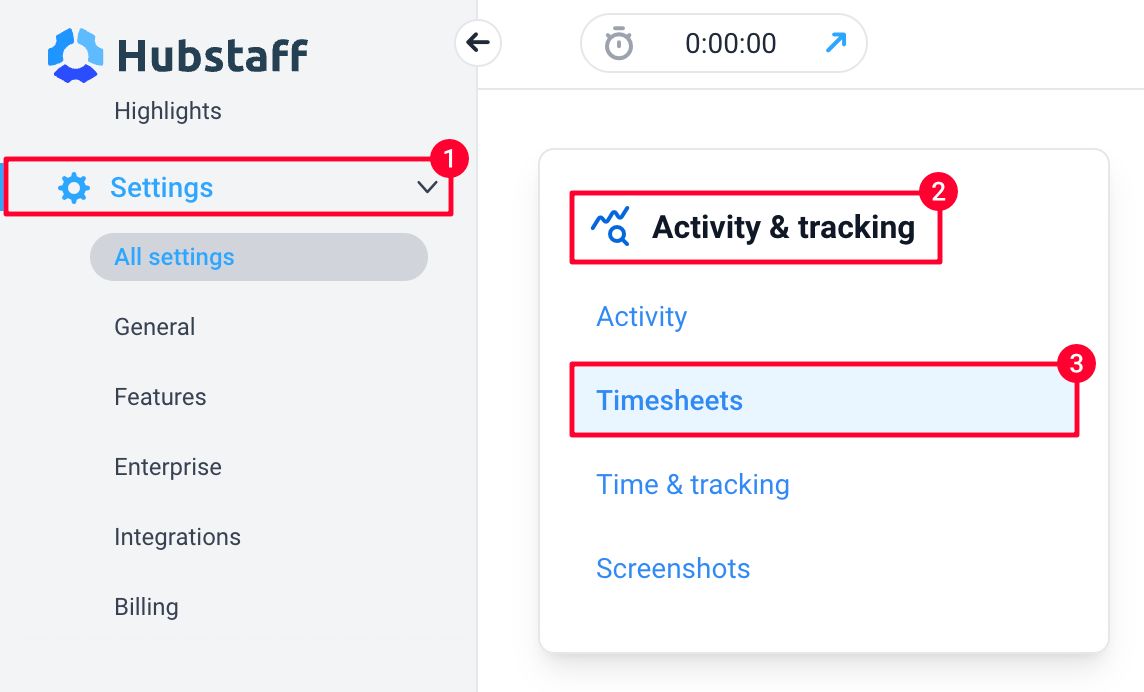
Navigate to Settings > Activity & tracking > Timesheets.
Step 2
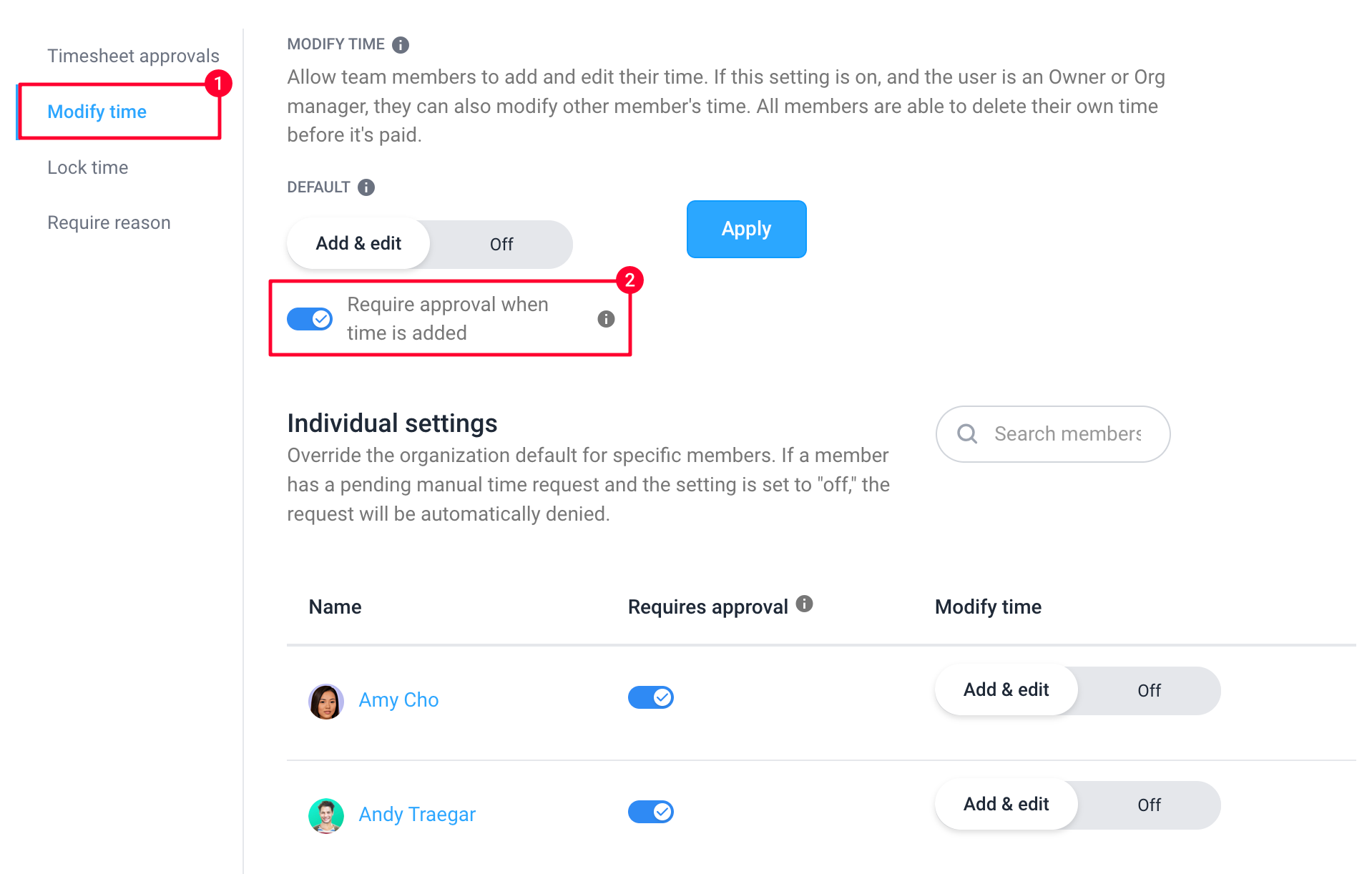
On the Modify time tab, toggle the Require approval when time is added setting.
Approving/denying individual time additions and edits

When the manual time approval feature is enabled, each time team members add or edit time, it will require approval before the time is added to a user’s timesheet.
To approve or deny a request:
Step 1
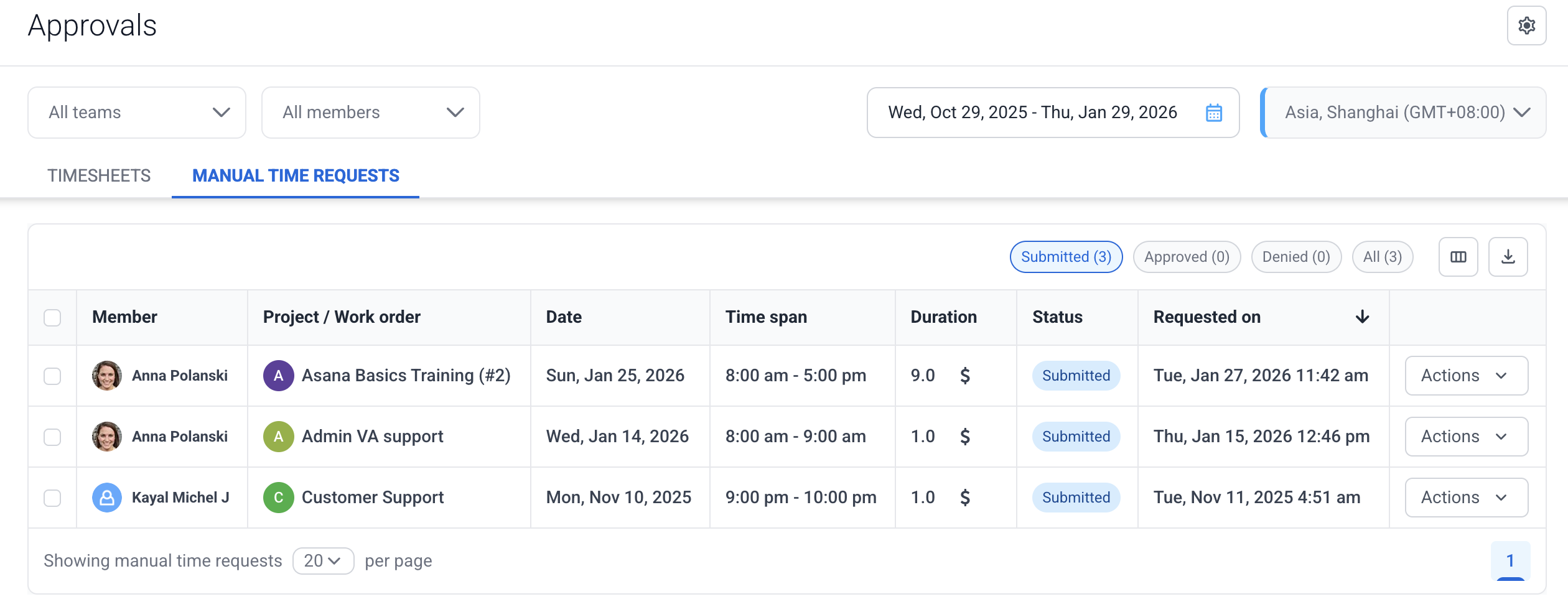
Navigate to Timesheets > Approvals.

Step 2
Click on the Manual time tab.

Step 3
Click the Actions button, where you can either view, approve, deny, or delete the request.
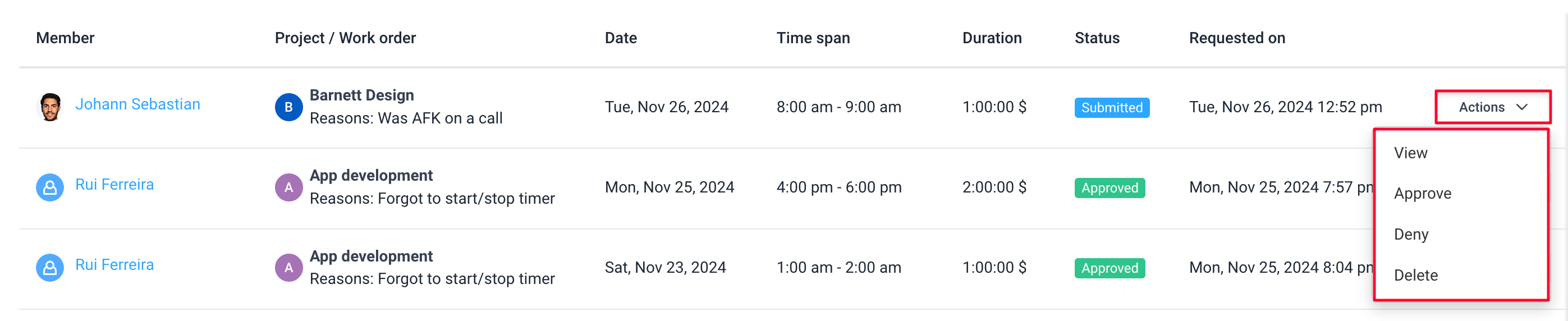
Step 4
Here are the specific dialog screens based on your selection:
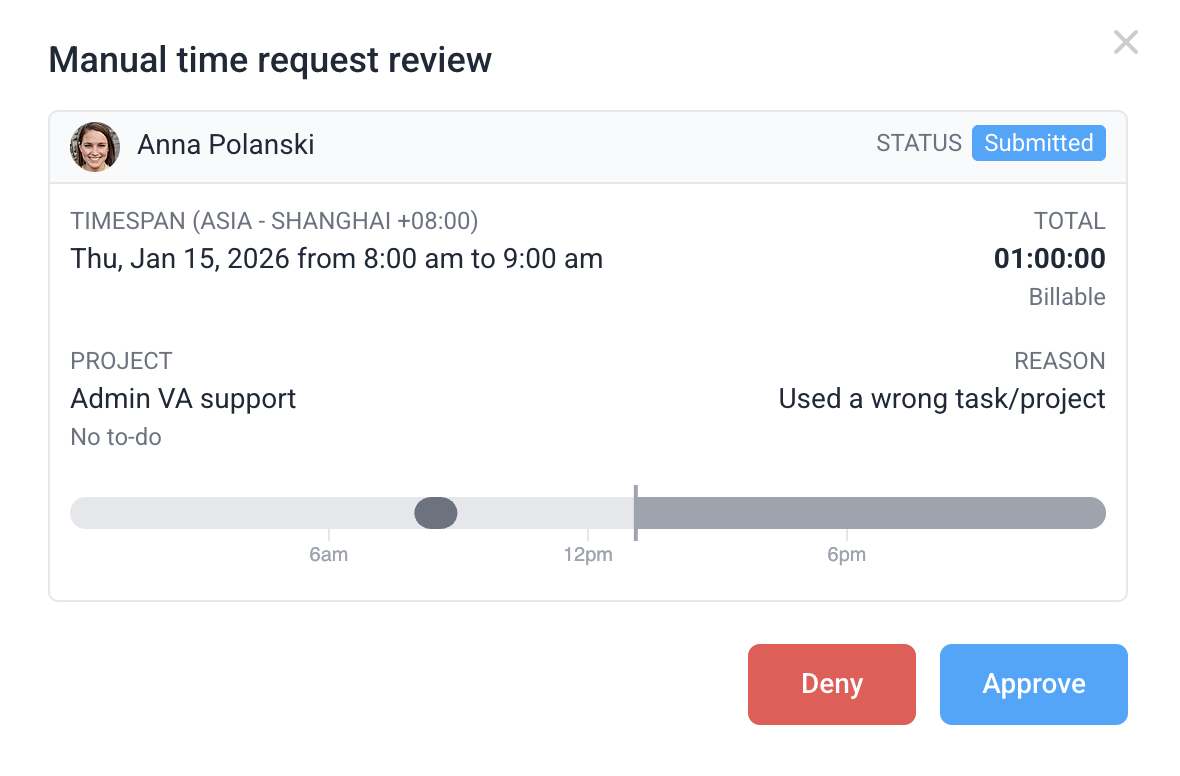
Approve:
On the review dialog, click on the Approve button to add the time to the user’s timesheet.
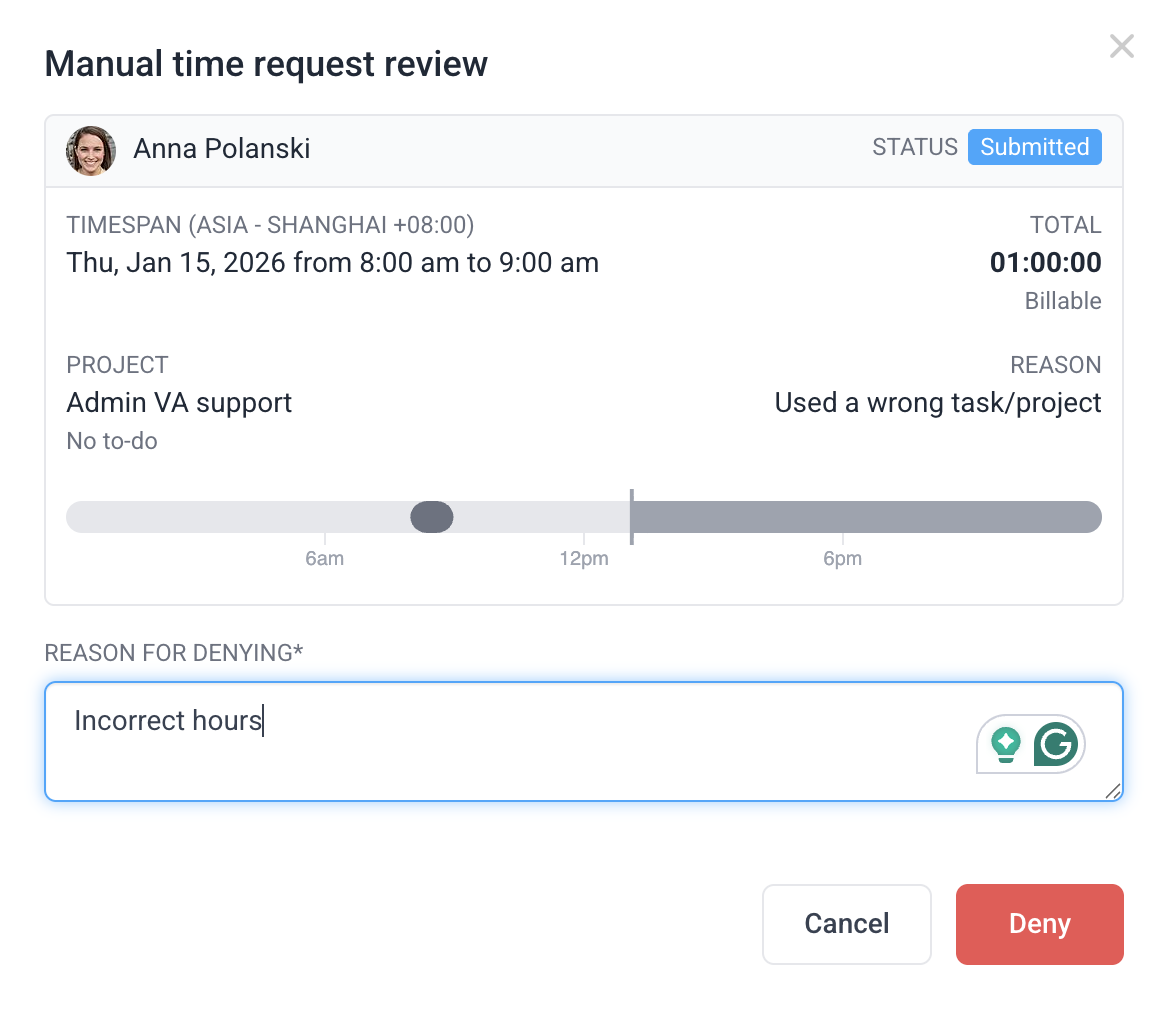
Deny:
On the Deny dialog, you can state the reason for denial, then click the Deny button.
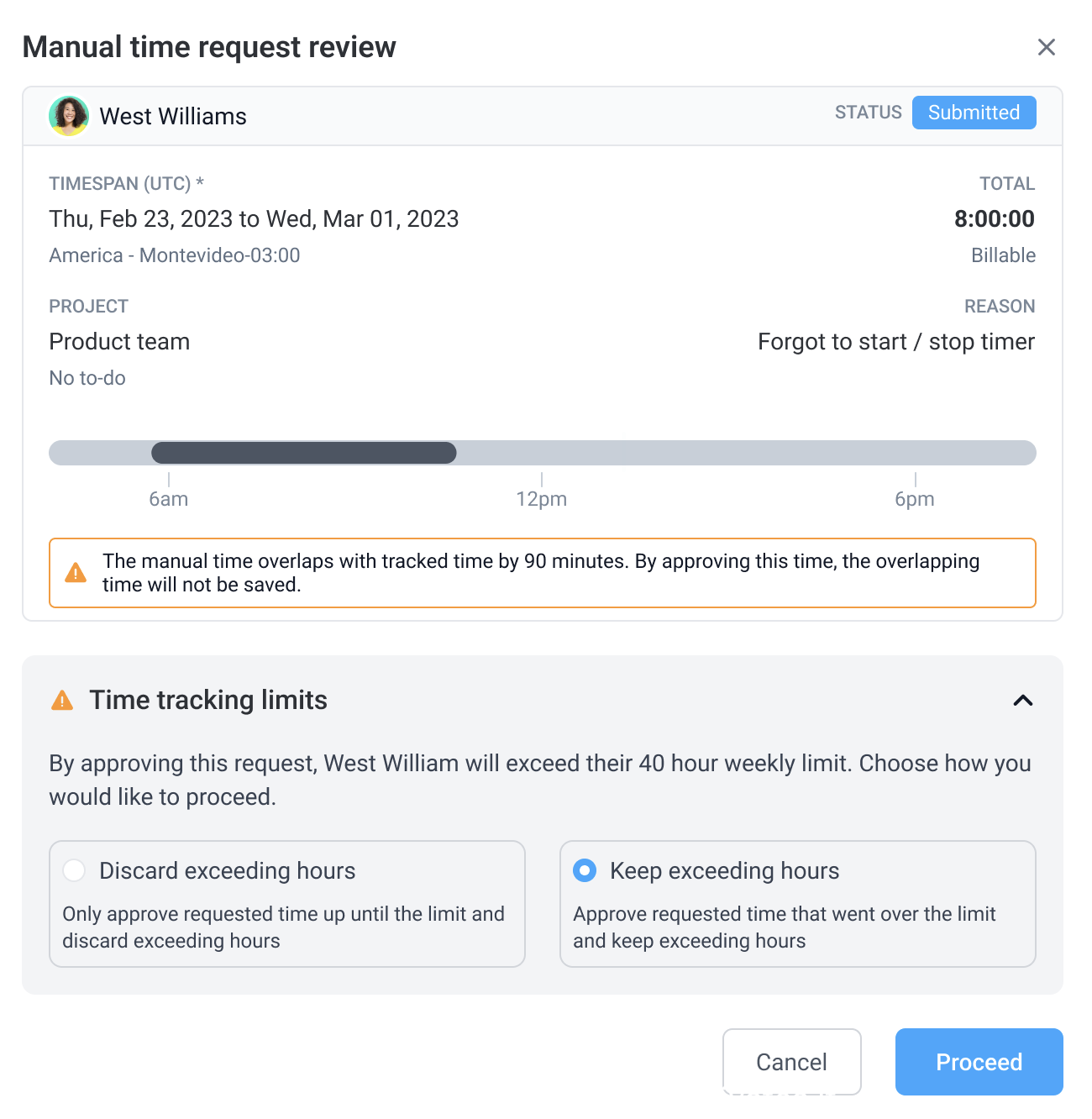
If the manual time overlaps with tracked time, you’ll see this dialog, where you can choose whether to keep or discard the exceeding hours.
Delete:
Click OK to delete the manual time request.

Bulk approving/denying time additions and edits
To bulk approve/deny manual time additions, click on the checkbox located in the top left corner of the table, or select multiple individual checkboxes, then click on Approve or Deny.
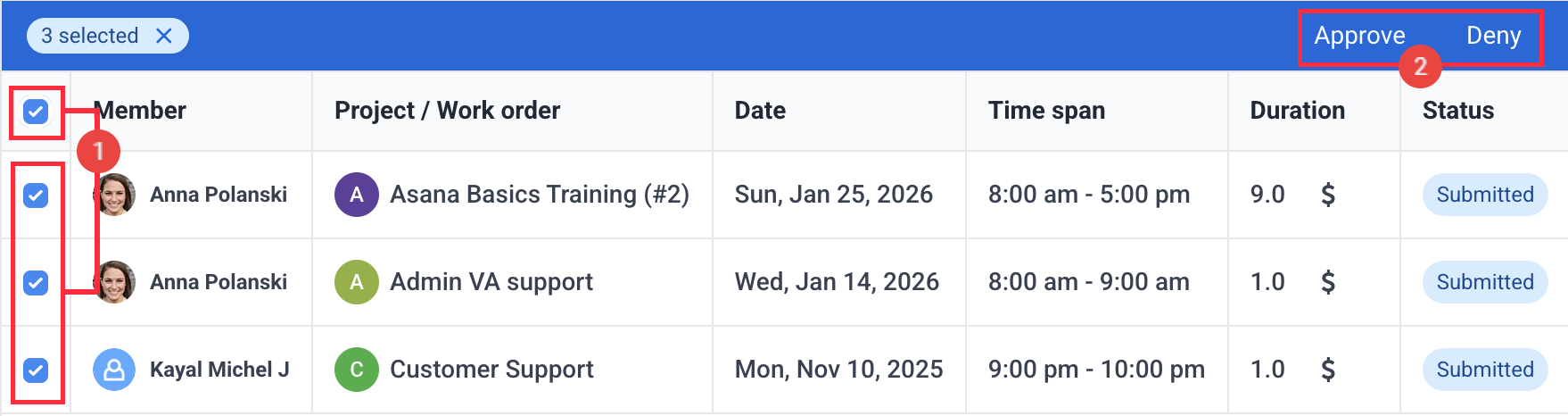
Bulk approve dialog
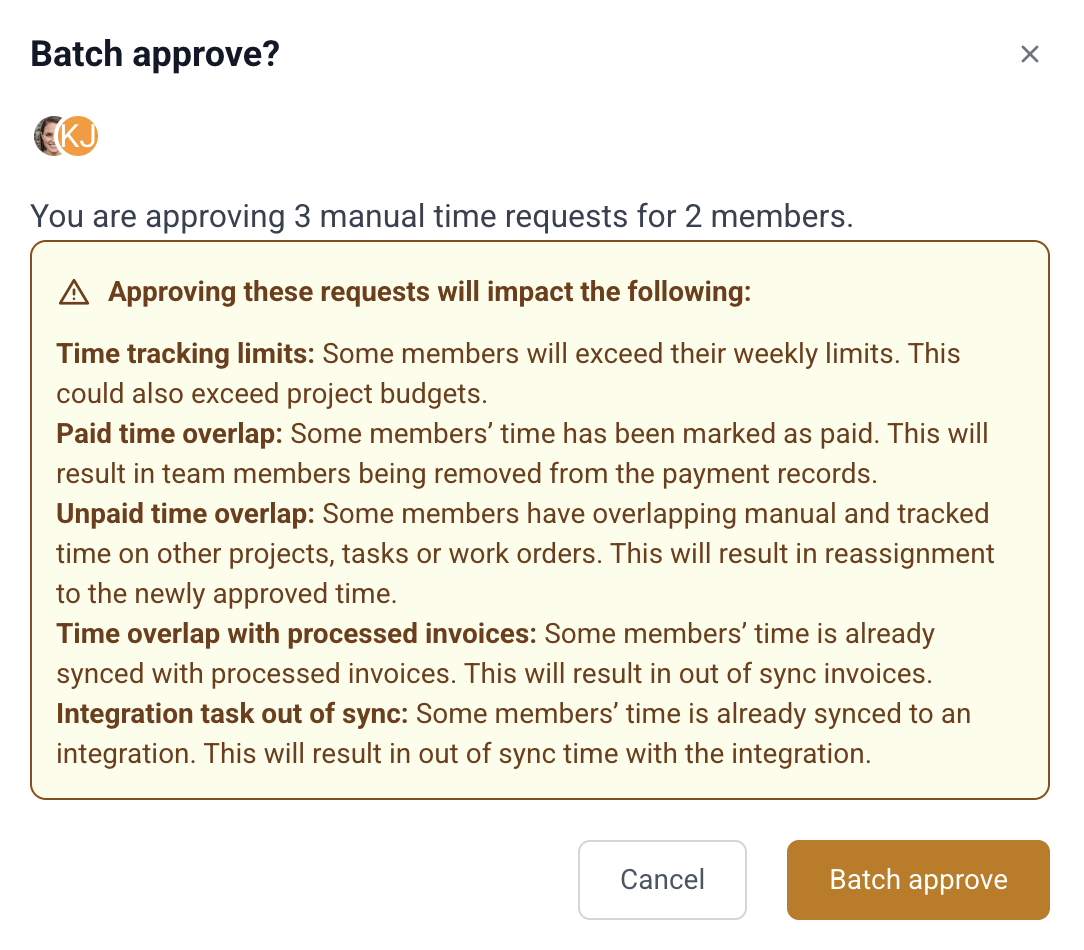
Upon clicking Approve, you will see the batch approval dialog. Click on Batch approve to confirm.
Bulk deny dialog
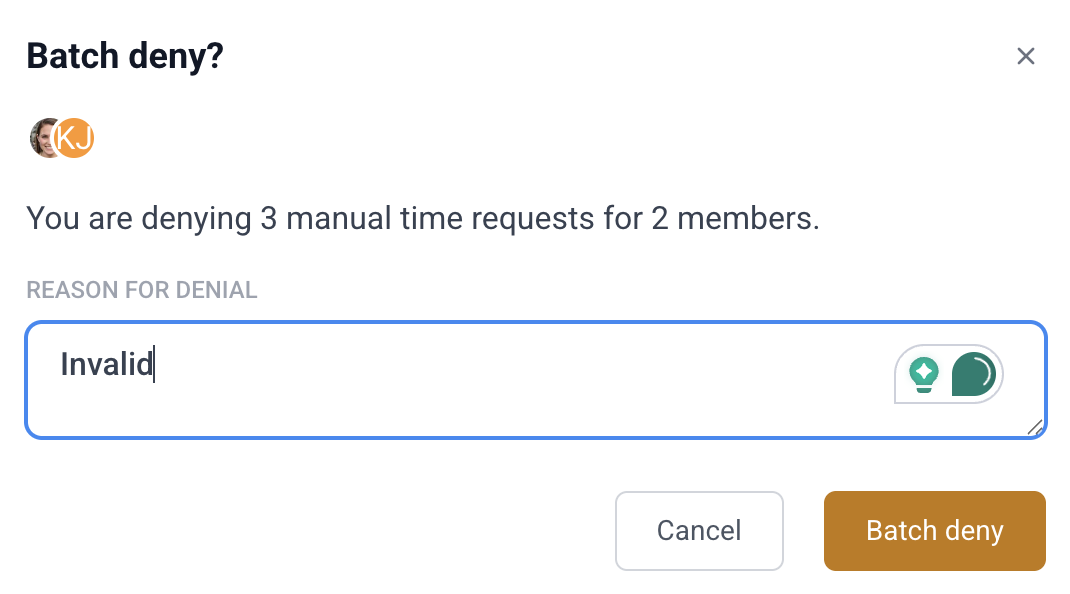
When you click Deny, the system displays the batch deny dialog. Enter the reason for denial, then click Batch Deny to confirm.