23 minutes
Wise Payroll Setup
This guide helps teams process payroll seamlessly using Hubstaff’s Wise integration. For more information about how to pay your team, click here.
- This feature is available on Team plans or higher.
- Each individual Wise Payer account can only be used on one Hubstaff organization.
- If you’re a team member with the User role and need help setting up your Wise account to receive payments, see our guide here.
Required steps before setup
-
- Ensure the Wise account is set up as a business account.
- Enable two-factor authentication for the account.
- Add a balance to your Wise account in your organization’s currency.
Setting up Wise for your organization
Payment Workflow settings
Step 1
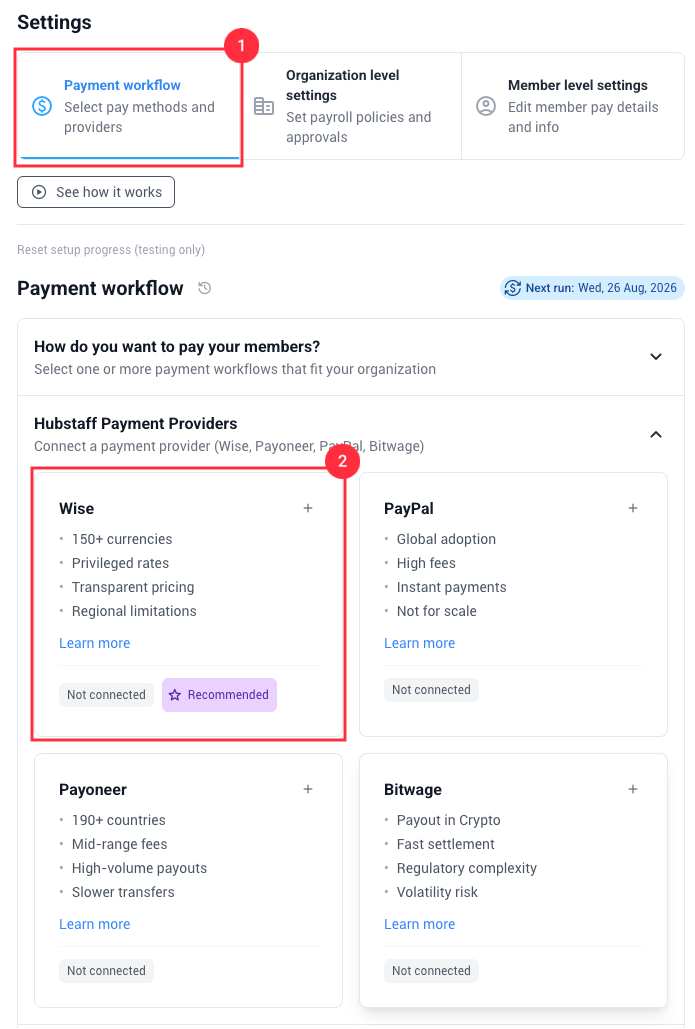
Navigate to Financials > Manage payroll > Payment Workflow > Hubstaff payment providers > Click the + icon to the right of Wise from the list of available providers. A pop-up will show up for you to confirm if you want to connect a Wise account; hit Yes.
Step 2
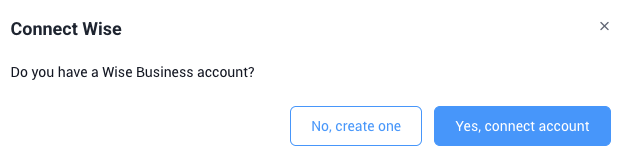
Click the Yes, Connect account button if you already have a Wise account. If you do not, please click No, create one.
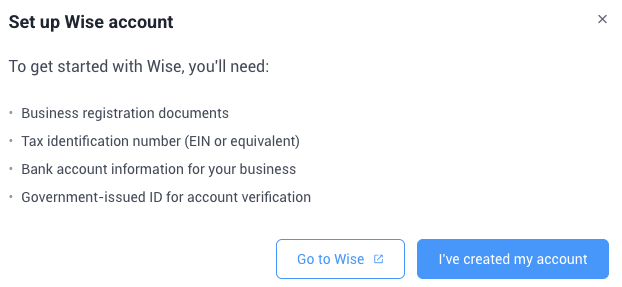
If you have not created an account, click the Go to Wise button and follow the steps to create an account. Once the account is created, click I’ve created my account.
Step 3
Make sure you meet the requirements for the setup and that you are logged in with your Wise account, then select Next.
Step 4
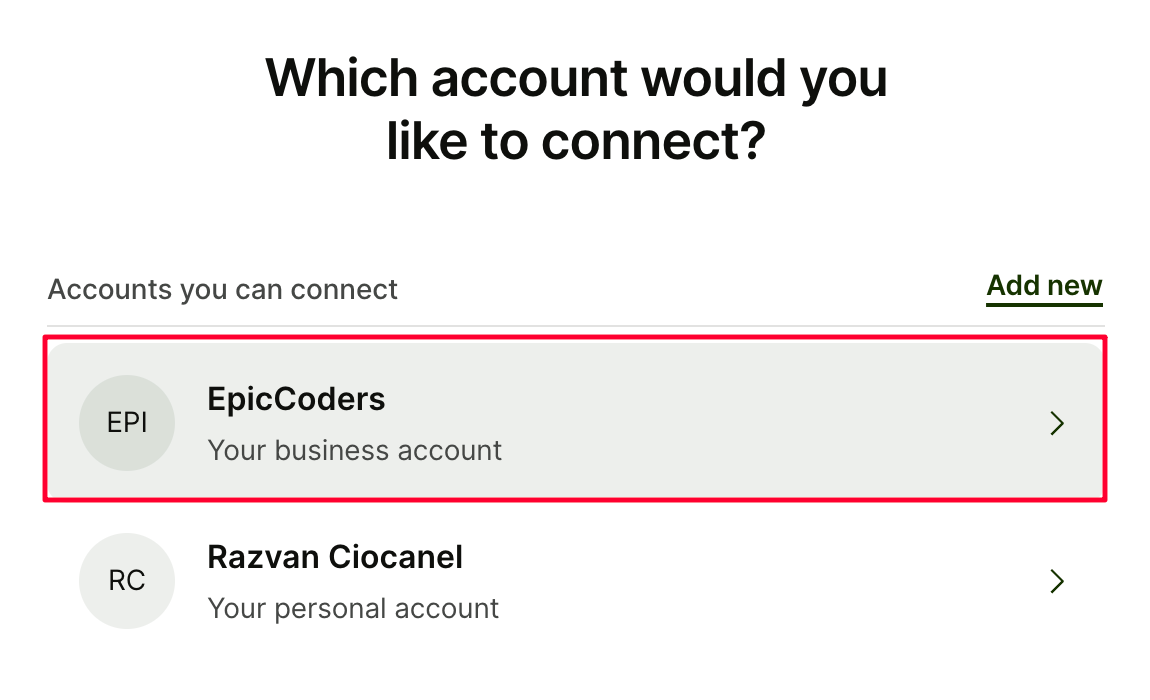
After logging in, you’ll be asked to choose which account you’d like to connect. Please make sure to select your Wise business account – personal accounts cannot process payments.
Step 5
Click the Give Access button to provide Hubstaff authority to access your Wise account.

Step 6
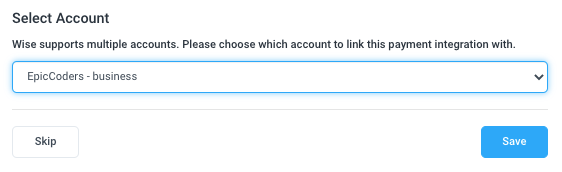
Select your Wise business account on the Hubstaff integration page, then click Save.
Step 7
Select the Wise account you wish to connect to your payroll. Please note that only business accounts are eligible to make payroll payments.

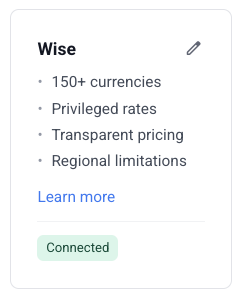
Once you have connected your Wise account, you will be taken back to the payment workflow page, and a “Connected” label will show for your Wise integration.
Step 8
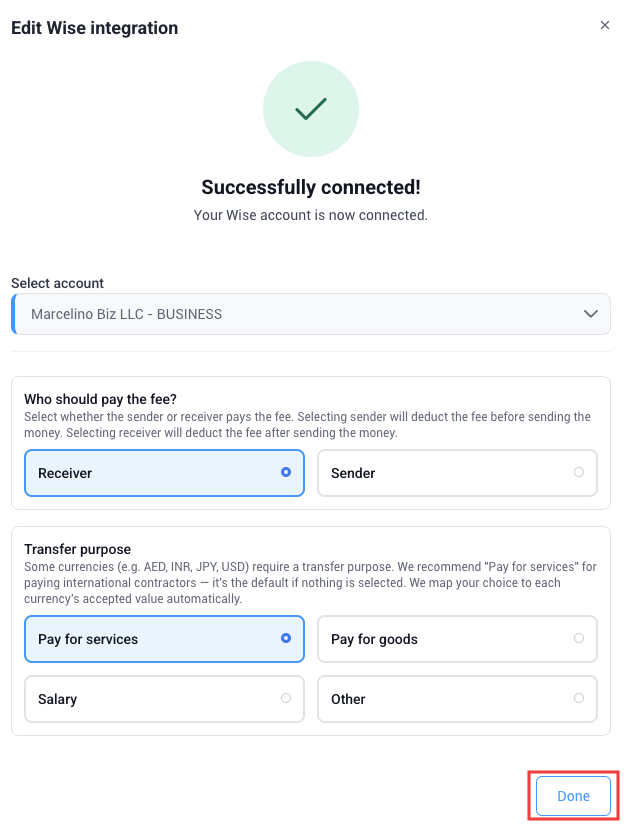
Finally, after connecting Wise, confirm the business account, choose who pays the fees, and select the transfer purpose. Click Done to save. You can update these settings anytime by clicking the pencil (Edit) icon.
Organization level settings
Step 1
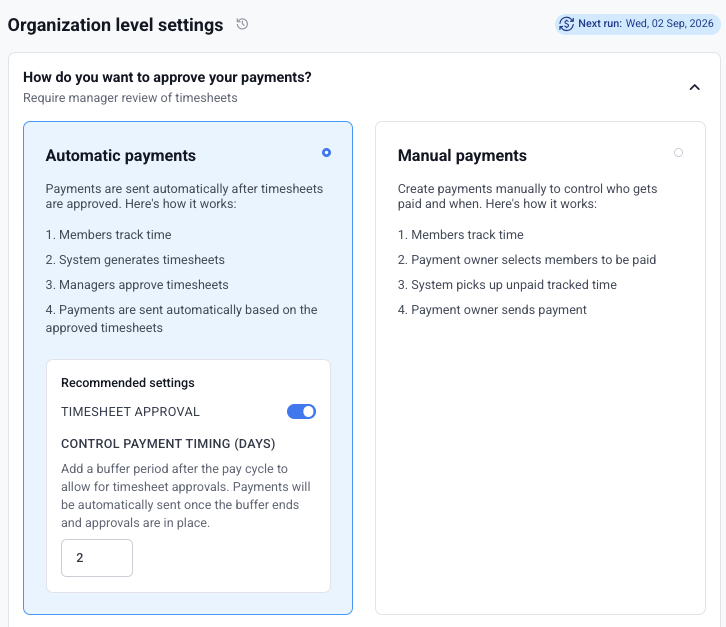
From Financials > Manage payroll > Organization level settings > How do you want to approve your payments?, choose automatic or manual payments. For a seamless payroll experience, we recommend automatic payments with timesheet approvals enabled.
Step 2
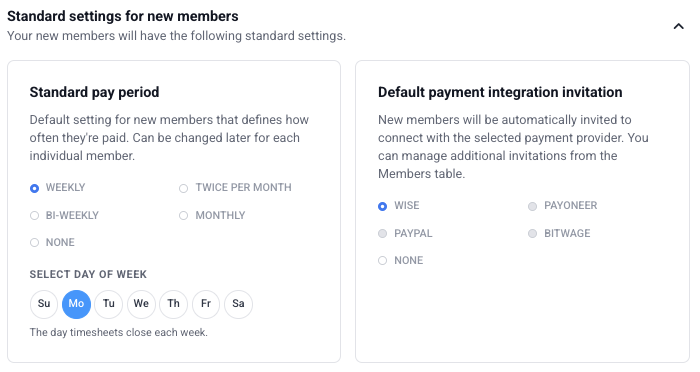
Set the standard pay period and the default payout method for new members.
Member level settings
You can manage additional settings from the Members table by navigating to Financials> Manage Payroll > Member level settings.
Setting up pay rates for your team
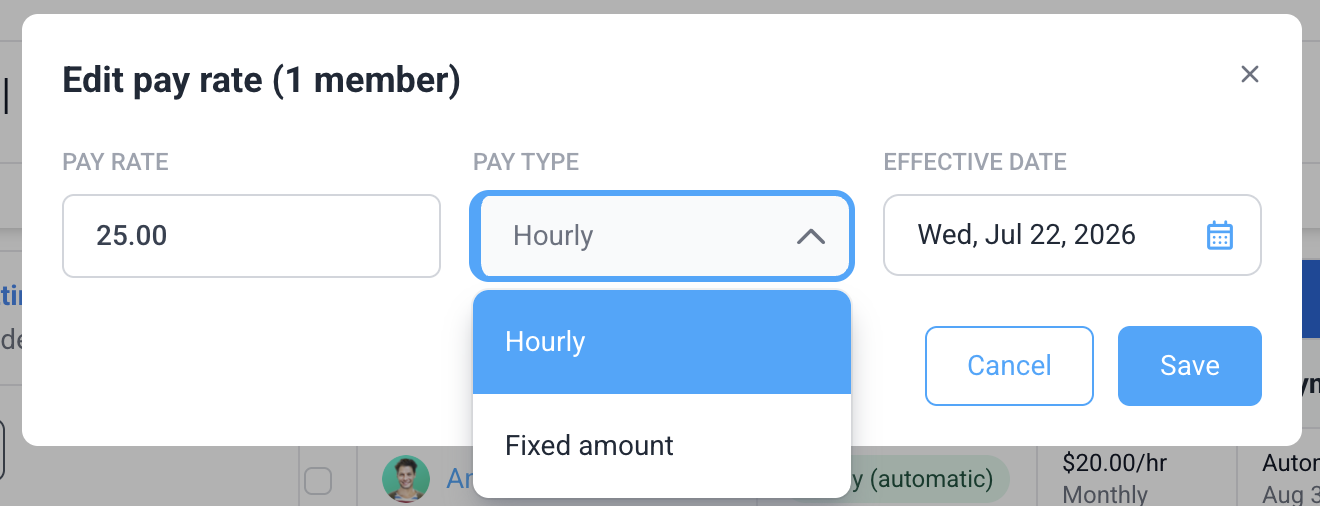
Adjust the users’ pay rate by selecting the users and then clicking the Edit pay rate option in the actions toolbar.

Once the Edit pay rate dialog appears, enter the pay rate, pay type, and effective date, then click Save. The updated pay rate will appear in the member’s pay information under Member-level settings.
Setting up a pay period for your team
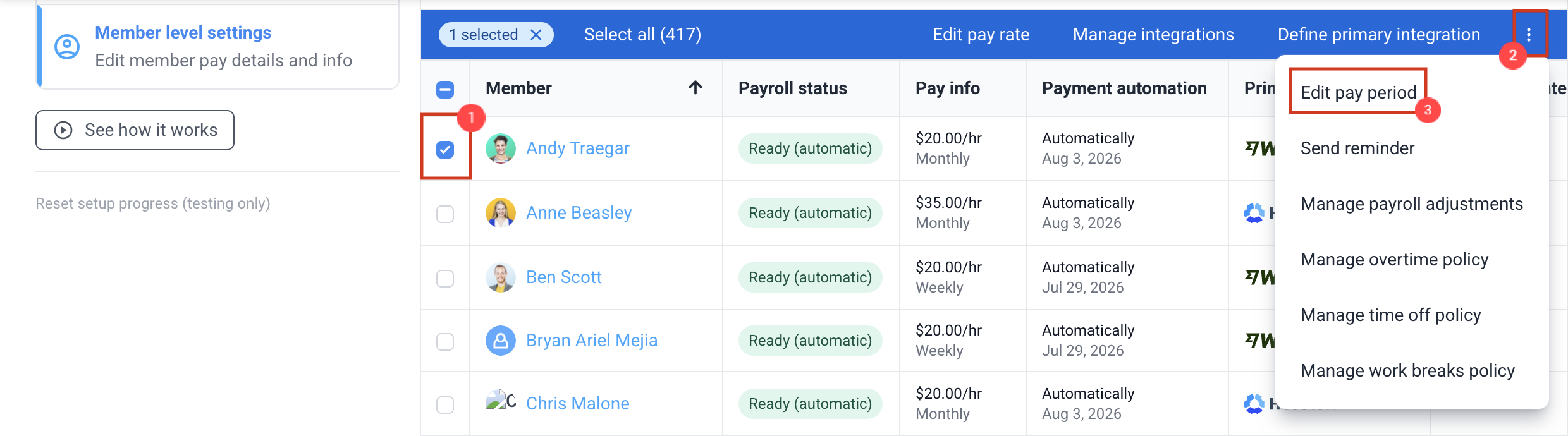
From Financials > Manage Payroll > Member level settings, you can set the users’ pay periods by selecting the users and then clicking the three-dot menu on the actions toolbar. Click Edit pay period.
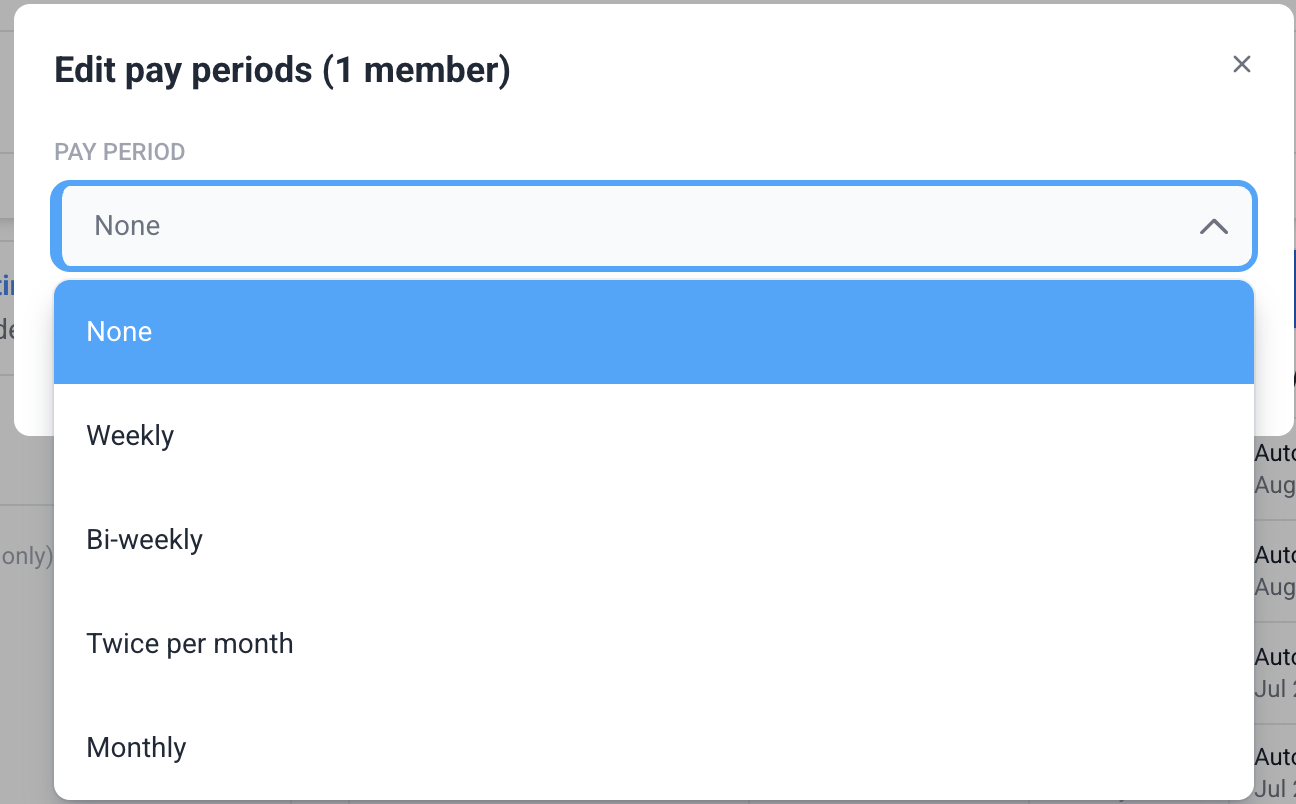
Once the Edit pay period dialog appears, select a pay period and click Save. The adjustment will appear in the member’s pay information under Member-level settings.
Manually invite members to connect their Wise accounts
You can follow the steps below to manually invite members to connect their Wise accounts.
Step 1
Go to Financials > Manage Payroll > Member level settings.
Step 2
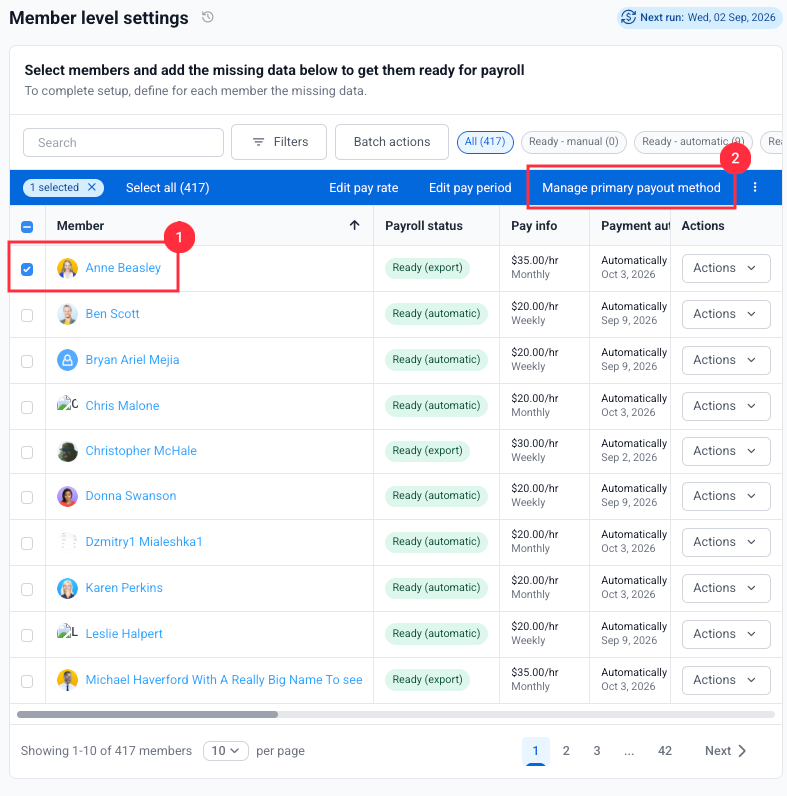
Select the members you want to invite and then click Manage primary payout in the action toolbar.
Step 3
In the Manage Primary Payout dialogue, select Wise as the provider and primary payout method, then click Save.
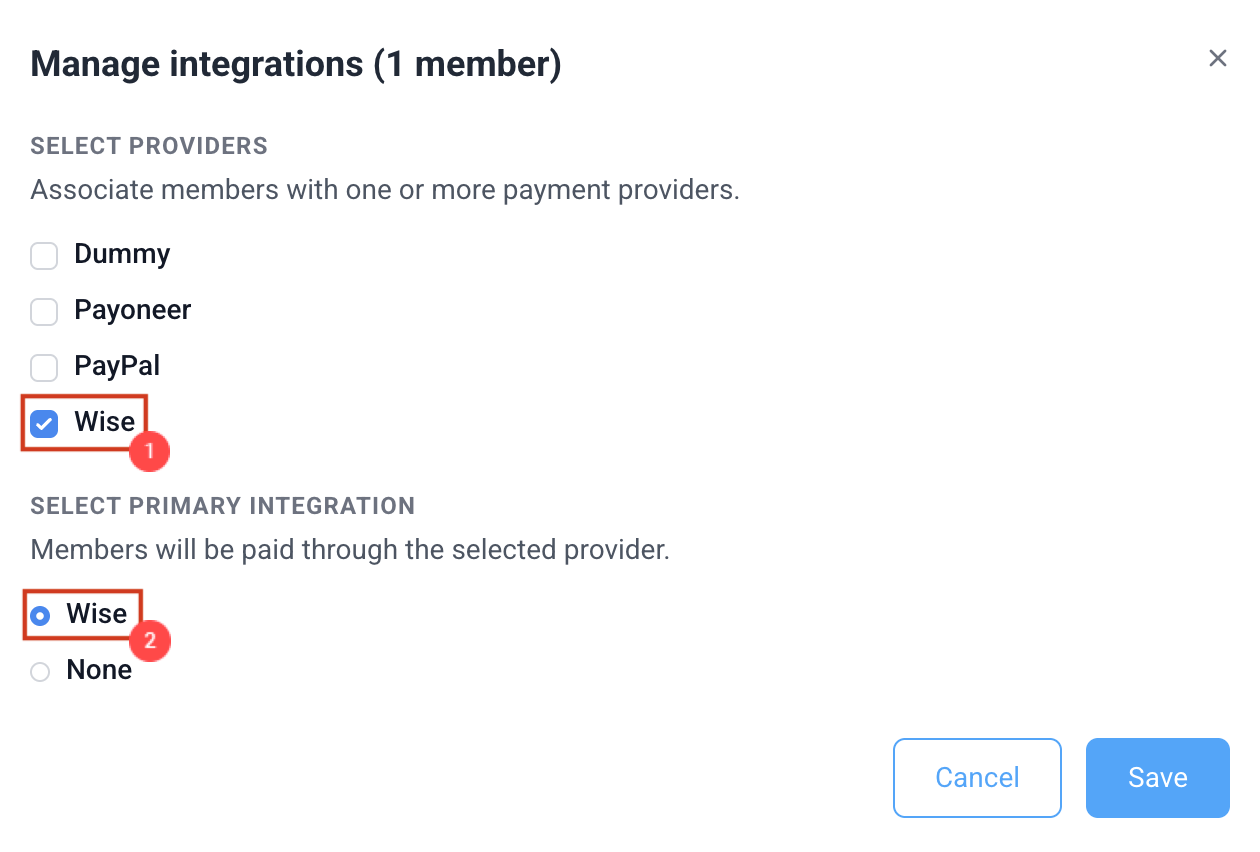
Members will receive an email from Hubstaff with a link to enter their Wise credentials. The integration status in the members table will update from invited to connected once they complete setup.
Enable an interest-earning account
US-based users can start earning interest on their USD, EUR, or GBP accounts that they have open with Wise.
- Go to your USD, EUR, or GBP currencies. If you don’t have these currencies already, you can open a new currency
- Under Options, select Start earning interest, and follow the steps to confirm.
Authorizing your Wise payments in Hubstaff
Wise now enforces Strong Customer Authentication (SCA), a regulatory requirement that requires account holders to verify and approve payments before sending funds.
We’ve introduced a solution that lets you complete this authorization directly within Hubstaff. It adds only a few quick steps to your current payment workflow and requires completion just once per payment batch.
Here’s how it works:
Before you begin
Only certain roles in your organization can complete the authorization step and receive the verification code, so make sure the right person handles this.
The person who authorizes payments is typically the same individual who set up the Wise connection to Hubstaff for your organization.
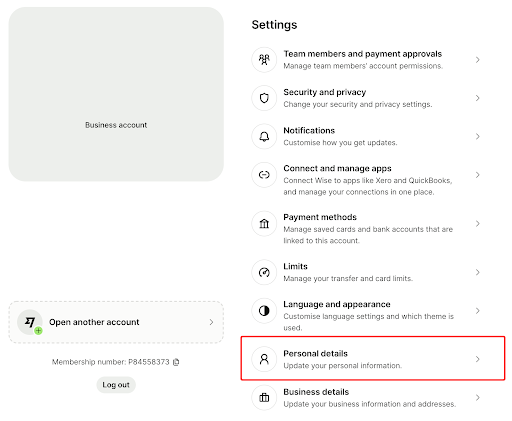
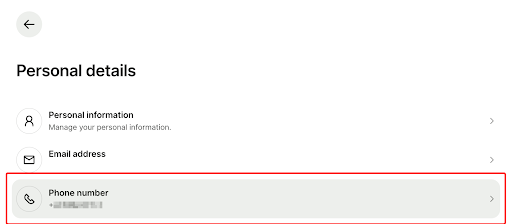
Also, ensure your Wise account includes a valid phone number to receive the verification code. Check this in Settings → Personal details in the Wise app.
Next, add your Phone number.
Make sure your Wise integration is authenticated
This incident may interrupt the integration and require you to re-authenticate it. Don’t worry—you can complete the process in just one click. See the details here.
Creating a payment
Step 1
Complete this step only if you use the Manual Payments flow. If you use Automatic Payments, skip this step and proceed to Step 2 below.
Step 1.1
Navigate to Financials > Create Payments in your Hubstaff account. Select the team members you want to pay, then click the Create Payment button in the top right corner.
For more details on creating manual payments, please see our support article.
Step 1.2
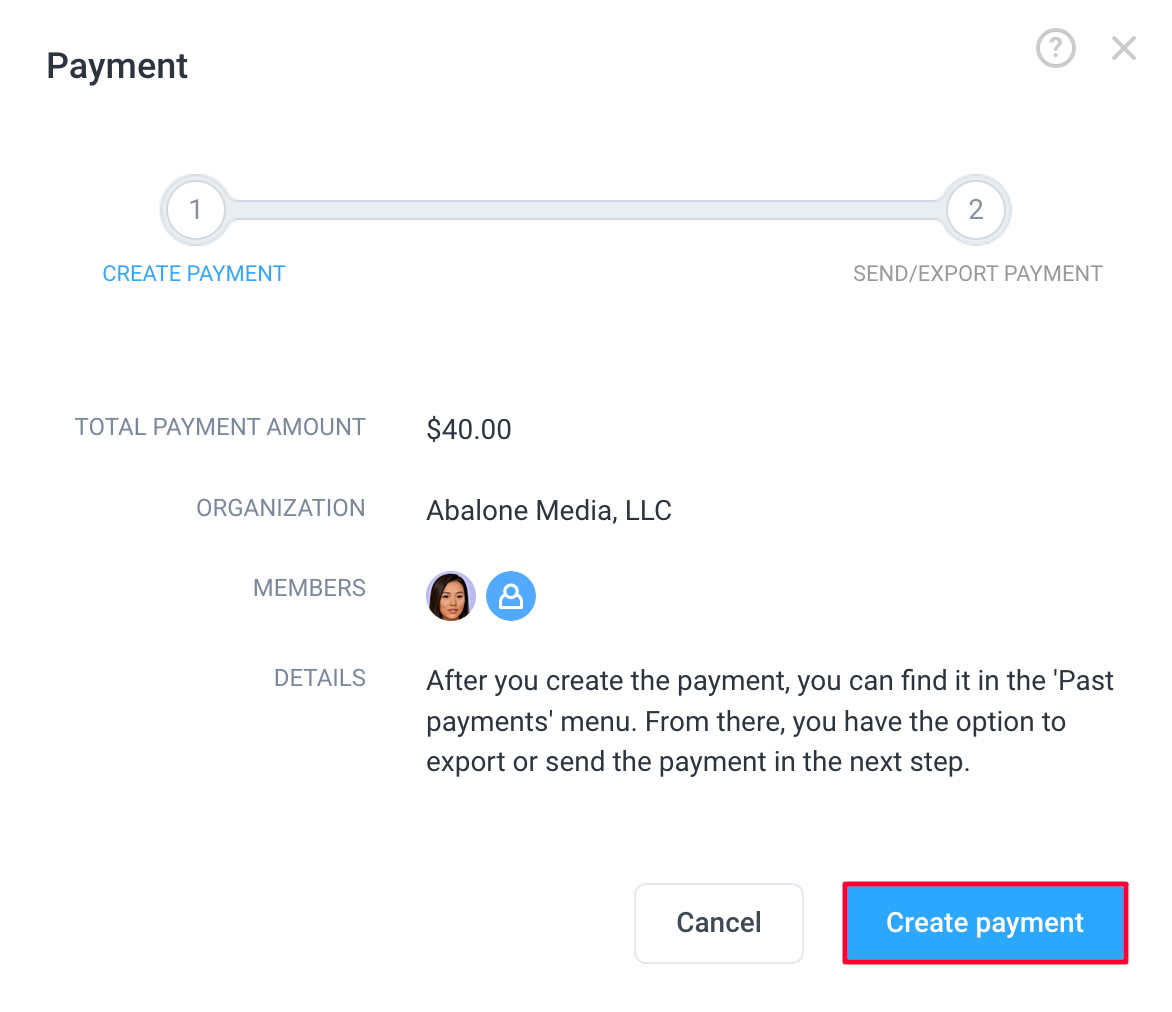
A confirmation dialog will appear showing the total payment amount, your organization name, and the selected members. Review the details and click Create Payment to proceed.
Step 1.3
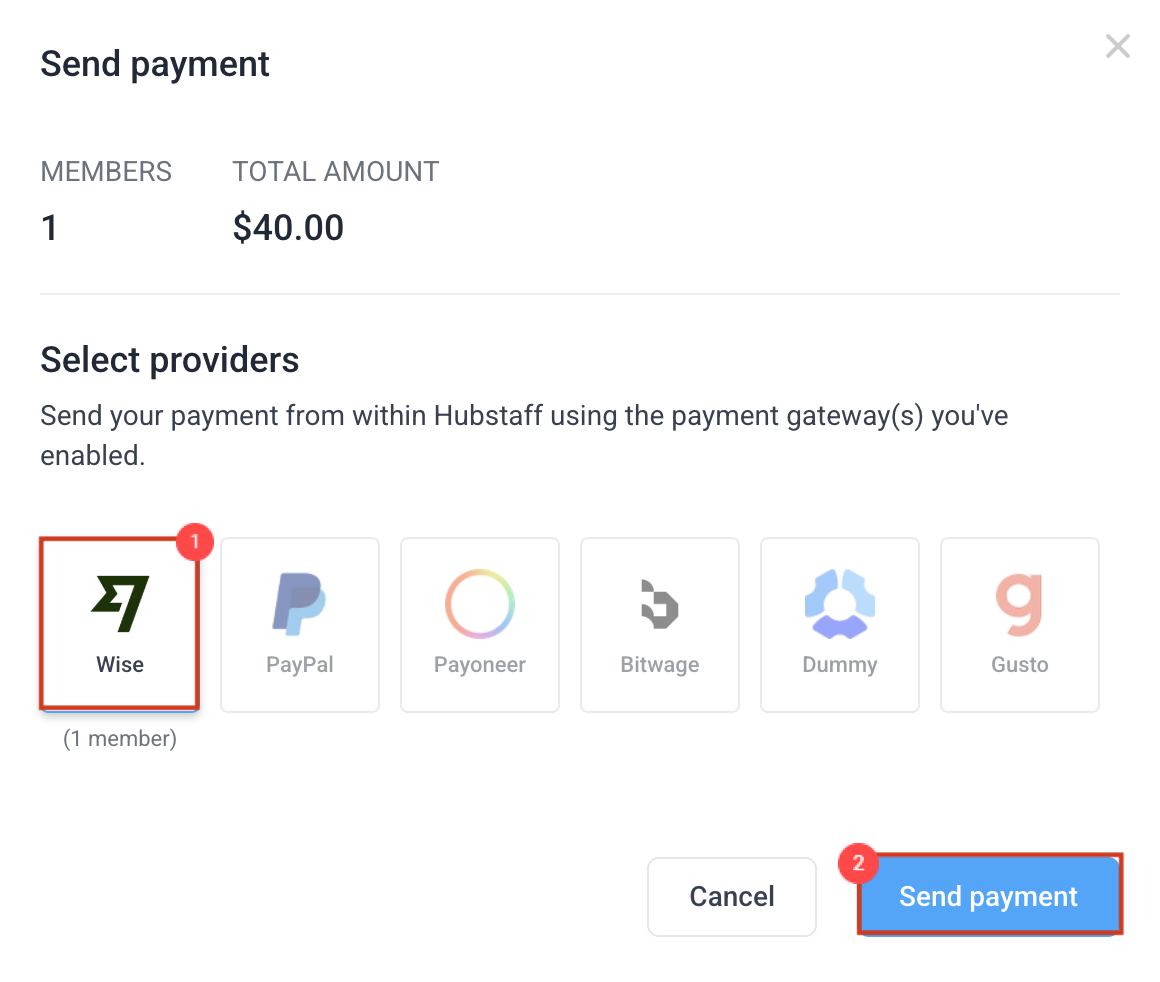
Send the payment via Wise. After you create the payment, Hubstaff will prompt you to send it. Choose Wise as your payment method, then click Send Payment.
Step 2
Authorize the payment – authorization is required for both manual and automatic payments.
Step 2.1.A
Once payment is sent, you can view the payment information under Financials > Payment records. Clicking the team payment will give you all of the information.
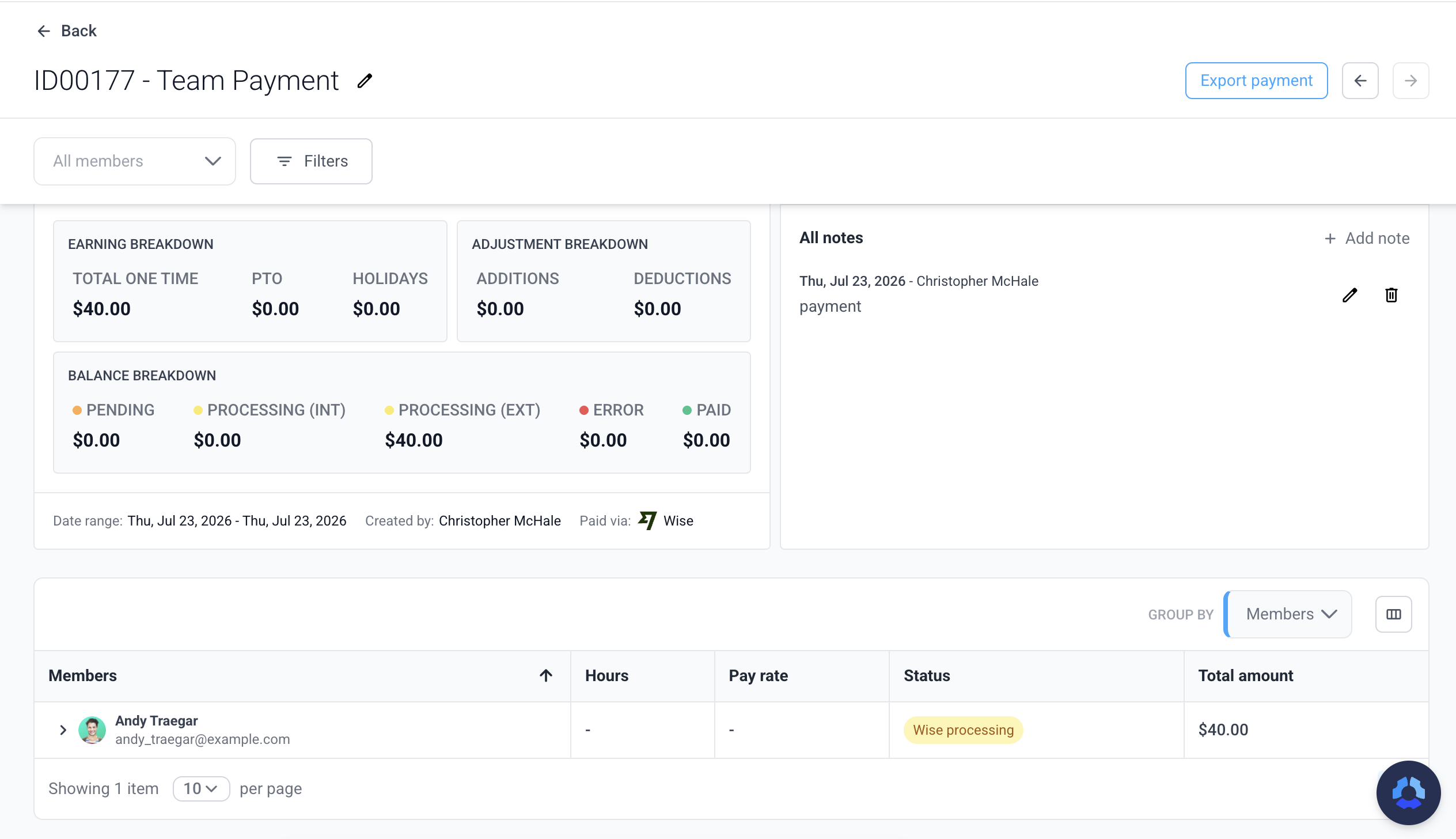
Note: Only the Wise account holder can complete this step. If needed, share the payment link with the authorized person on your team.
Step 2.1.B
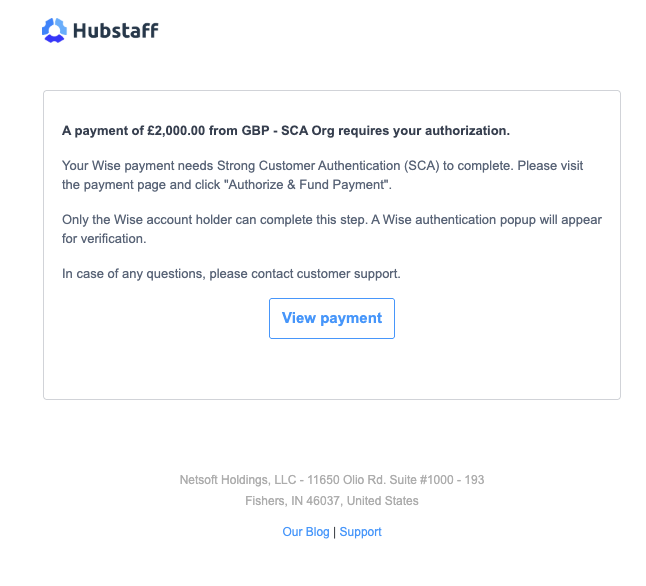
Email notification – At the same time, Hubstaff owners receive an email with the subject line “Payment approval required.” The email includes a View Payment link that opens the payment records page directly if you are not already there.
Step 2.2
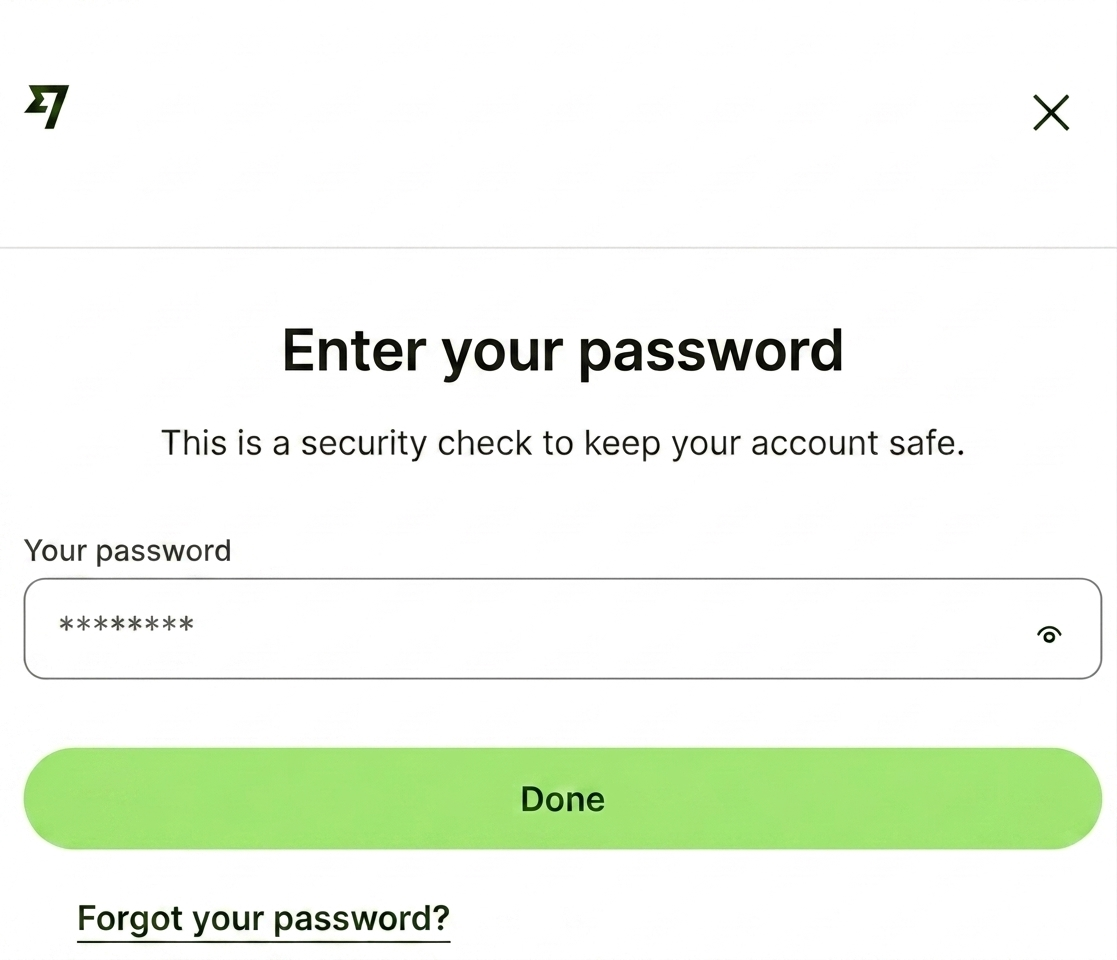
Click on the Authorize & Fund button. Then, a pop-up will show. Enter your Wise password and click Done.
Step 2.3
Enter Your Verification Code — After your password is accepted, Wise may prompt you to choose a verification method; select SMS or a voice call — whichever you prefer. Wise will send a 6-digit verification code to the phone number associated with your Wise account. Enter the code in the dialog and click Done.
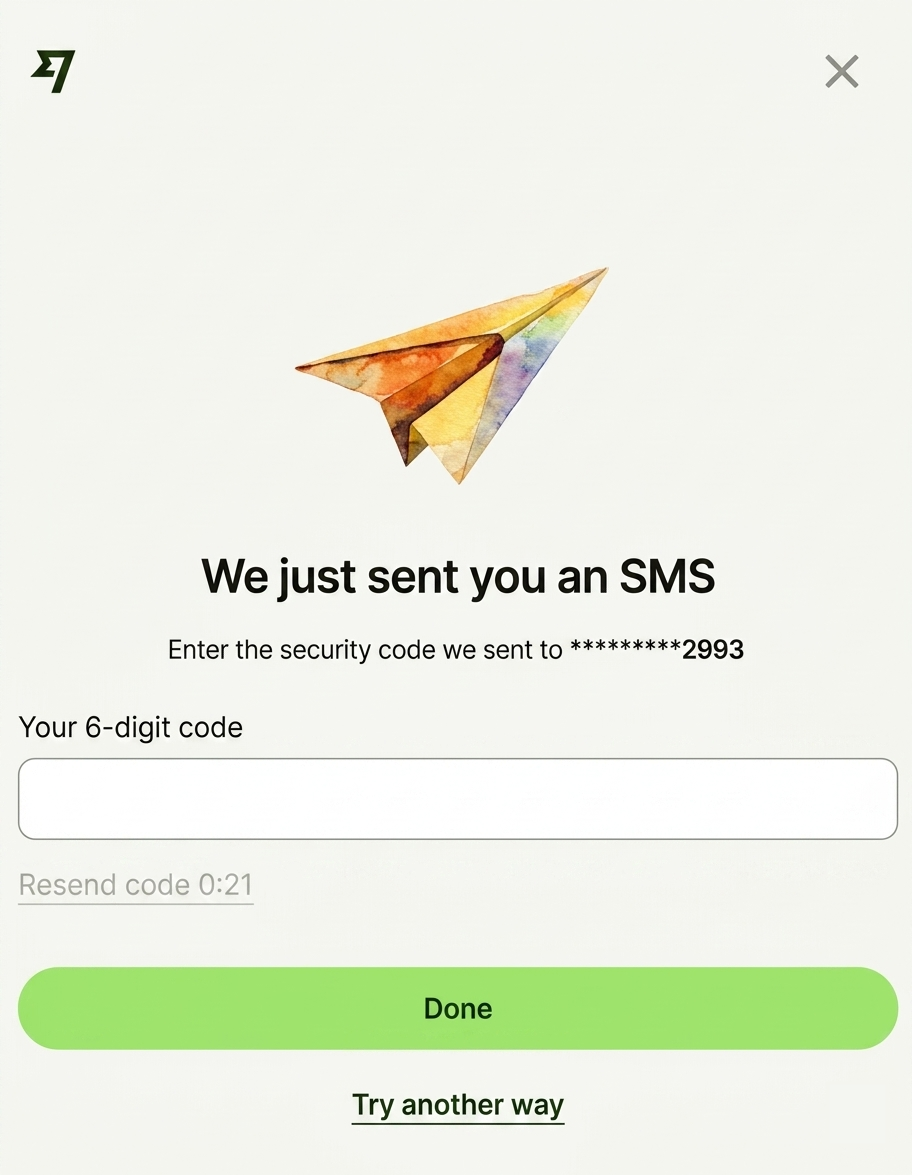
Once the code is accepted, your payment will be authorized and processed. No further action is needed.
Additional notes
Account and setup requirements
- Accepts bank transfers for deposits into the Wise balance. Business accounts are required to make transfers.
- You need at least one business account on Wise to set up this payment account.
- For instructions on adding a member to payroll, see our guide here.
Fees
- Transfer fees vary per country and currency — typically less than 1% of the total transfer amount. Contact Wise support to learn more.
- As of April 1, 2026, Wise has implemented a $0.50 per-transaction fee for USD-to-USD transfers. To help minimize the impact, we’ve partnered with Wise to provide Hubstaff customers with a flat-rate fee structure. You don’t need to take any action; your payments will continue to process seamlessly.
Transfer restrictions
- Some countries or currencies may only support specific payout methods.
- Transfers from BRL, or transfers to PEN, BDT, COP, CNY, INR, UAH, or USD to a bank account outside the US cannot be sent to an email address or primary account.
- Some business transfers are restricted by Wise; check their help article here to learn more.
EU and UK compliance
- Companies based in the EU and UK must complete an authorization step before each payment is sent. This is known as SCA (Strong Customer Authentication) — a European regulatory requirement under PSD2 designed to reduce online payment fraud.