4 minutes
How to Track Your Team’s Wise Migration Progress
This guide helps Organization Owners and Managers with payroll access track which team members have completed the new Wise payout setup, right from your Manage Payroll page, so you know who still needs to migrate before their deadline.
Wise update card
How to access it
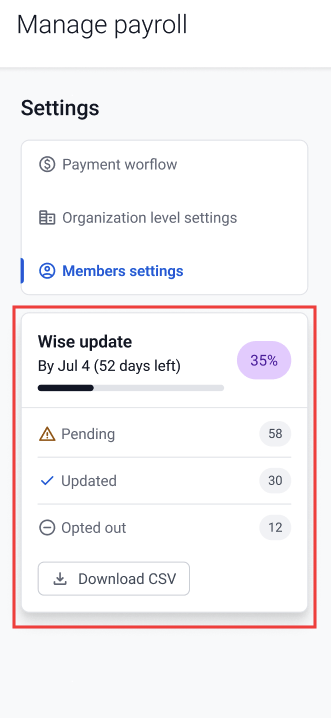
Go to Financials > Manage Payroll (NEW). Look for the Wise Update card in the left panel. Here you’ll be able to see the status of each member at a glance.
Before your migration starts
The Wise Update card shows the migration start date and a countdown, along with how many of your team members currently use Wise. Click the member count to see the full list.
After migration starts
Once migration is underway, the card shows:
- A countdown to your deadline
- A progress bar and percentage of team members who’ve completed setup
- A breakdown by status: Pending, Updated, Not Applicable, and Opted Out
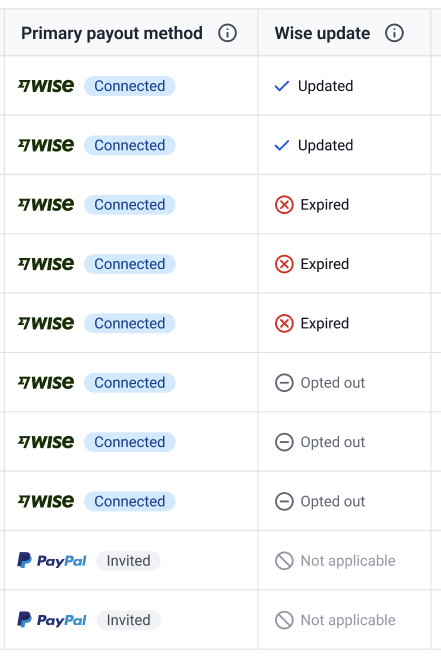
You can also see a Wise Update column in your Members table that shows each team member’s individual status.
Filtering by status
Use the filter button in the Members table header to filter by Wise Update status: Pending, Expired, Updated, or Not Applicable.
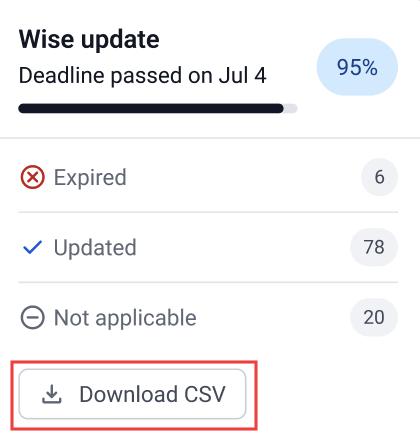
What happens after the deadline
Downloading a status report
Click Download CSV on the Wise Update card to export a list including each member’s name, payment method, and Wise Update status.
Members who don’t need to migrate
Team members using payment providers other than Wise, such as PayPal or Deel, automatically show a Not Applicable status and require no action from you.