8 minutes
Adding Members to Payroll
Add team members to payroll in Hubstaff so they can start receiving automatic or manual payments through Wise, PayPal, Bitwage, or Payoneer.
Before you begin
After connecting your payment provider, we recommend setting up a standard pay period and a default payment integration in Financials > Manage payroll > Organization level settings. This way, all new members will be automatically invited to connect with it as their default payment account and have a pay period set.
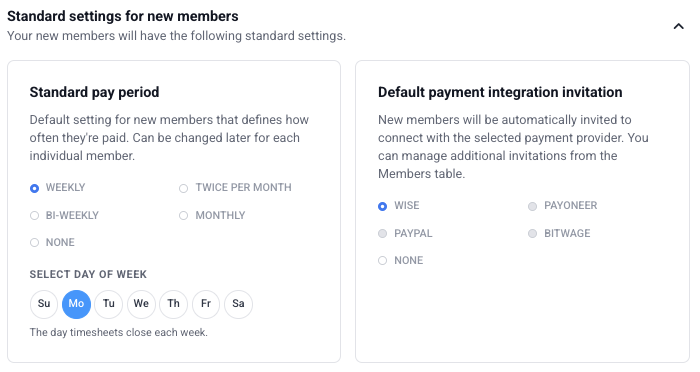
Inviting members to connect a primary payout method
Once a default payment integration is connected at the organization level, new members will be invited to connect through it. You can also manage additional invitations from the Members table.
Step 1
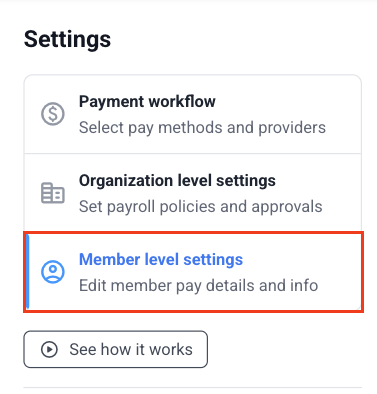
Go to Financials > Manage payroll > Member level Settings.
Step 2
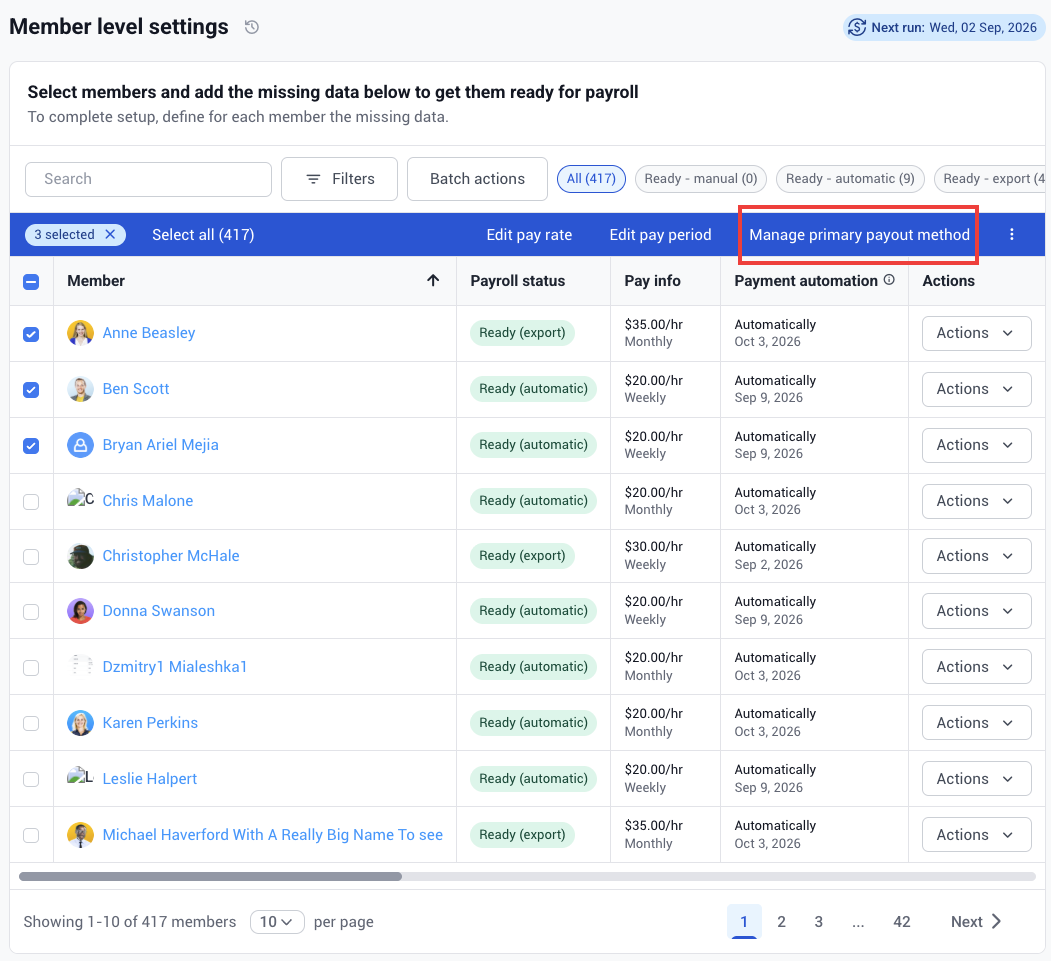
Select the checkbox next to one or more members, then click Manage primary payout method. For a single member, you can also select Actions > Manage primary payout method.
Step 3
Select the payout method to invite them to, and then click Send invitation.
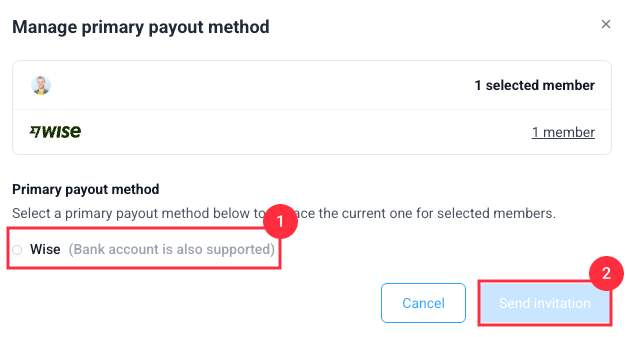
Step 4
You will see a confirmation message indicating that the payout method has been successfully set up and updated for the members.
Members will receive an email with step-by-step instructions to connect their account.
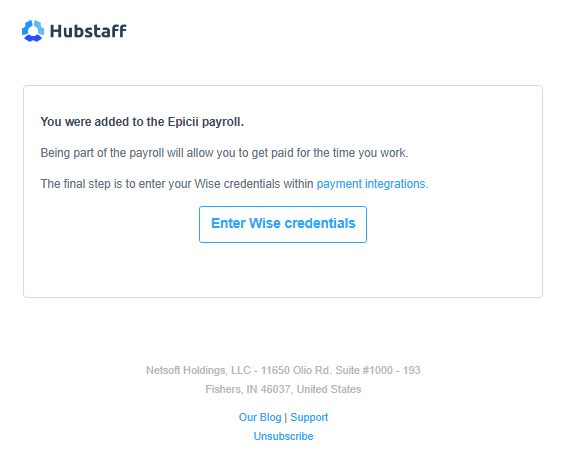
Team members must then enter their own payee account credentials for the payout method they were invited to join. Their Primary payout method status will show as awaiting member input until they complete setup. Once setup is complete, it will show as Connected.
The members table
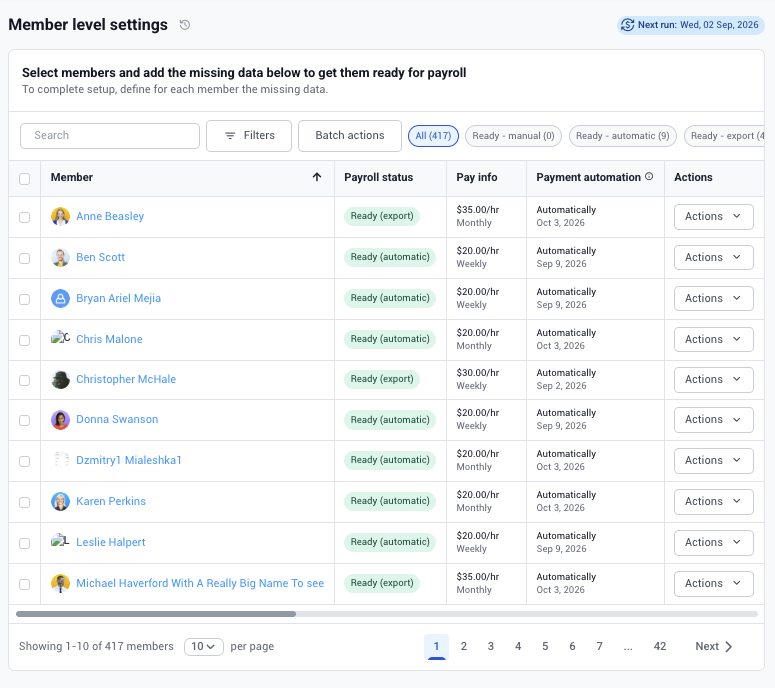
The Members table lists all members in your organization. Each row shows a member’s current payroll configuration at a glance:
- Payroll status — whether the member is ready for payroll or has missing settings
- Pay info — pay rate, pay type (hourly/fixed), and pay period
- Payment automation — automatic or manual, and the next payment due date
- Primary payout method — which payment method is set as primary, and the status of all integrations
- Backup payout method — which payment method is set as secondary or backup.
- Payroll adjustments, Time-off, Overtime, Work breaks — number of active policies applied
- Last payment — amount and date of the most recent payment
- Timesheets approval — whether approval is enabled for this member
Use the horizontal scroll to view all columns. You can filter members by pay period, pay type, integration status, and policy assignments.
Member payroll status
Before a member can be paid, certain settings must be completed. The Payroll status column shows at a glance what’s ready and what’s missing:
| Status | Meaning |
|---|---|
| Ready (automatic) | All required settings are complete. Payroll will run automatically. |
| Ready (manual) | Settings are complete for manual payment. Someone must trigger payment each period. |
| Missing data (N) | One or more required settings are incomplete. The number indicates how many issues exist. Hover for details. |
Required settings for automatic payroll:
- Pay rate (or fixed amount)
- Payment integration connected and set as primary
- HRIS match (if an HRIS integration is set up at the org level)
Required for manual payroll:
- Pay rate only
Setting pay rates
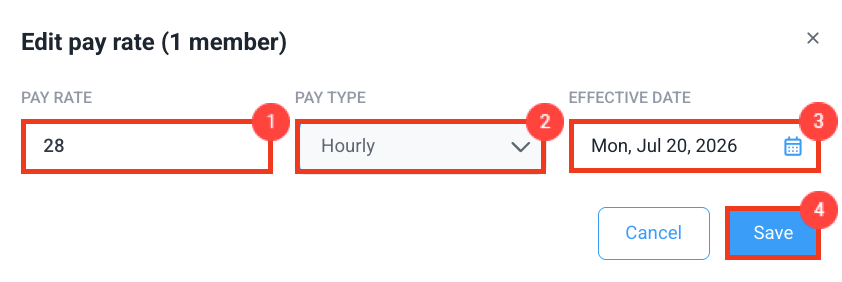
You can set or edit pay rates directly from the Members table, either for individual members or for multiple members at once using batch actions.
- Select the member(s) you want to update
- From the Batch actions banner, click Edit pay rate
- Enter the new rate and effective date
- Click Save
For more details on how to set pay rates, see this article.