10 minutes
How to Update Your Wise Payout Method
Update your Wise payout method to keep receiving payments through Wise without interruption. Hubstaff is moving from the old Wise email-based payout method to a new setup that uses a Wise tag or direct bank transfer, and current Wise users need to complete this update before their deadline.
This guide applies to any team member currently receiving payments through Wise using an email-based credential.
Before you begin
- Have your Wise account information ready, including your Wise tag, or your local bank account details if you’d rather switch to direct bank payout.
- A Wise tag is a unique identifier associated with your personal Wise account. Wise provides a guide on how to find your Wise tag and how it can be used. To find your Wise tag on wise.com, click on your avatar/user in the top right; your tag will begin with an @.
- Know your current payout deadline. You’ll see it in the update pop-up and in the reminder banner on your dashboard.
Why you’re seeing this
Hubstaff is retiring the old Wise integration, which is an email-based Wise credential. Your current credential is still shown as Expiring until you complete the update, and continues to work normally until your deadline passes.
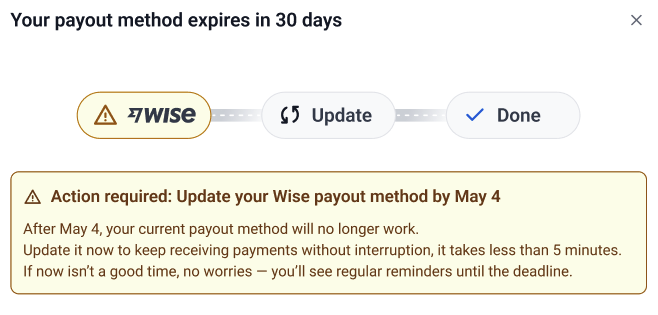
How to update your payout method
You can start the update from the pop-up notification, or from your Payment Accounts page directly.
Option 1: From the Update payout method pop-up
Step 1
When the Your payout method expires in [X] days pop-up appears, review the deadline shown in the yellow banner.
Step 2
Click Update payout method.
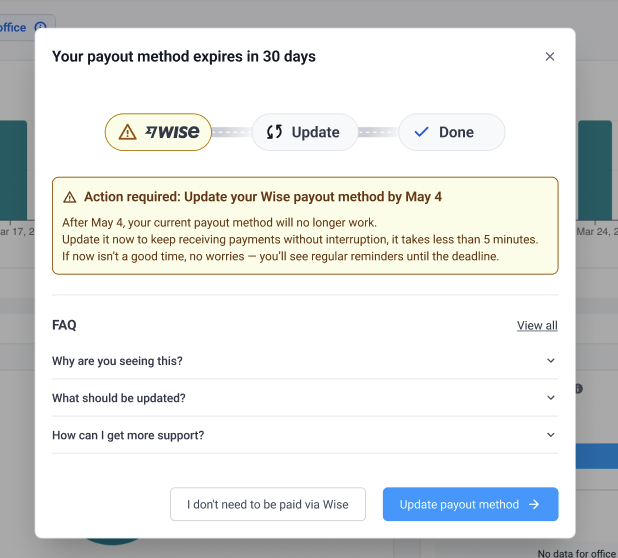
The Payments account page will open.
Step 3
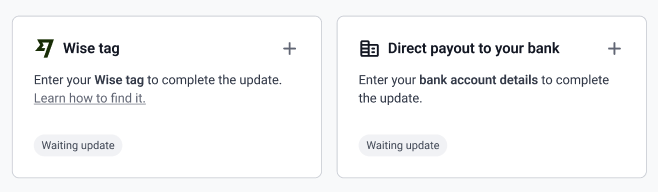
Choose whether to complete setup with a Wise tag or a bank transfer, then click the + on the card to open the update form.
Option 2: From Payment Accounts
Step 1
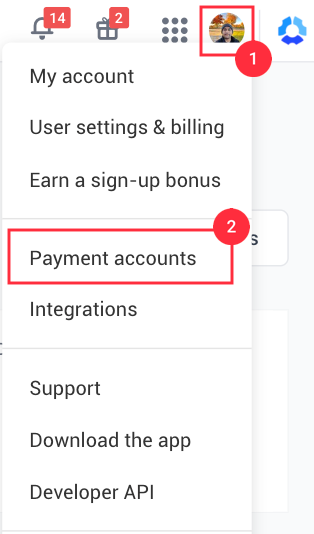
Click on your avatar in the upper-right corner, then click Payment Accounts.
Step 2
Find the card for your current payout method — either Wise tag or Direct payout to your bank — showing a Waiting update tag.
Step 3
Click the + on the card to open the update form.
Completing the update
If you’re updating with a Wise tag:
Step 4
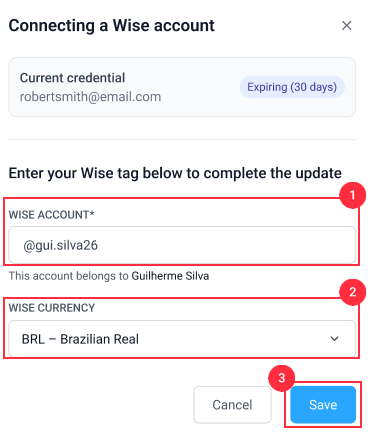
In the Connecting a Wise account dialog, review your current credentials shown at the top.
Step 5
Enter your Wise tag in the Wise account field. Select your Wise currency from the dropdown. Confirm the account name shown below the field matches you, then click Save.
Step 6
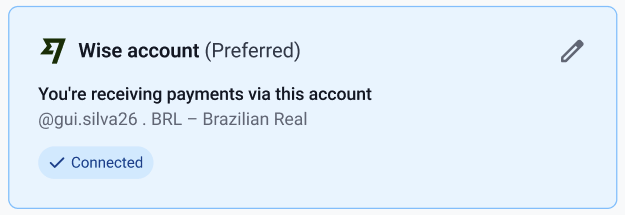
You will see your Wise account connected on the Payment Accounts page.
If you’re updating with a direct bank payout:
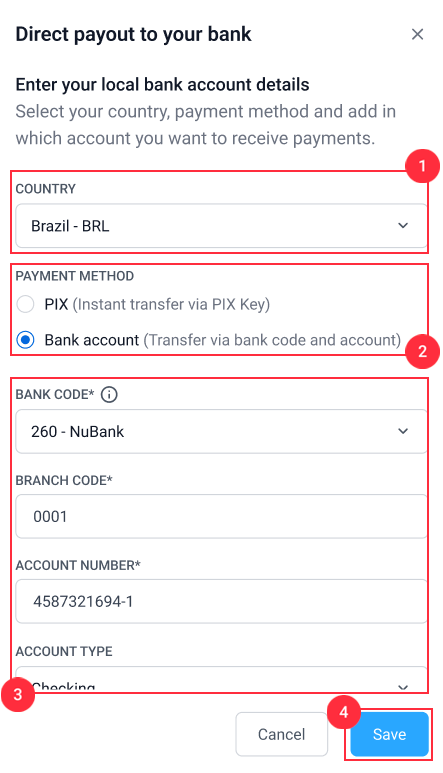
- In the Direct payout to your bank dialog, select your Country.
- Choose your Payment method. Available options vary by country — for example, Brazil offers PIX (instant transfer via PIX key) or a standard bank account transfer.
- Enter your bank details. For a standard bank account, this includes Bank code, Branch code, Account number, and Account type.
- Click Save.
What happens if you don’t update before the deadline
- Your status shows Waiting update. You haven’t completed the update yet. You can still receive payments as normal through your current method until the deadline passes.
- Your deadline passes. Payments through Wise are paused. You can still complete the update at any point to resume receiving payments.
- Your status stays unresolved for more than 30 days past deadline. Your old Wise connection is removed completely. To receive payments through Wise again, your organization owner needs to re-invite you, and you’ll need to set up your payout method from scratch.
Can I opt out?
Yes. Click I don’t need to be paid via Wise from the update pop-up if you no longer need a Wise payout method. This removes your existing Wise payment information, and you won’t be able to receive payments through Wise going forward.
Quick reference
| Situation | What it means | What to do |
|---|---|---|
| Status: Waiting update | Update not yet completed | Complete the update before your deadline |
| Status: Updated | Update completed | No action needed |
| Status: Not Applicable | Marked as not needing an update by your organization owner | No action needed |
| Deadline passed | Payments paused | Complete the update to resume payments |
| Unresolved 30+ days past deadline | Wise connection removed | Ask your organization owner to re-invite you |