19 minutes
Hubstaff Silent App Setup macOS
The Hubstaff Silent app enables organizations to monitor team productivity on company-owned or managed devices, operating in the background.
For a complete deployment hub including guides, troubleshooting, and advanced configuration, visit the Silent App Deployment Center.
Who can access this feature: Organization Owners, Organization Managers, and Users with the Manage IT custom permission assigned to their account.
The Hubstaff silent app is a completely different application from the standard application. To download the standard Hubstaff apps, click here.
Silent apps are deployed on corporate machines and can be managed via a separate UI by an administrator.
Creating a silent automatic tracking policy
Before installing the silent application, you’ll need to create an automatic tracking policy so that new members can track time. All new corporate users will automatically be added to this policy.
To add a new policy:
Step 1
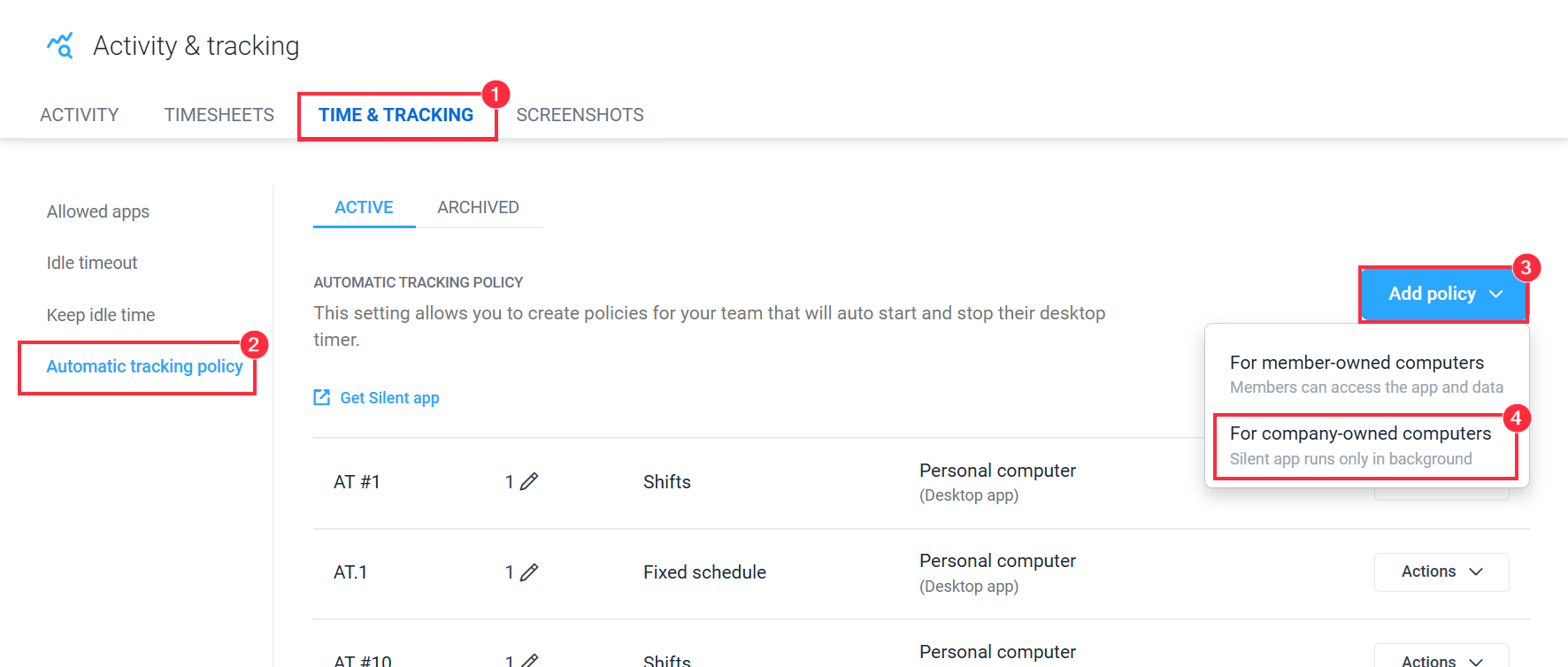
First, visit your policies page, or select Settings > Activity & tracking in the left Hubstaff sidebar. Next, navigate to the Timer & Tracking tab, then under Automatic tracking policy, click on the Add policy button and choose For company-owned computers.
Step 2
Fill in the following:
- Policy name
- Teams/members (this can be blank if you do not yet have members)
- Automatically add new members to this policy (required ON for silent app)
- Timer start/stop rules
- All time – records activities as long as there is computer activity.
- Fixed schedule – record activity based on a custom fixed schedule.
- Shifts – record activity during scheduled shifts.
- Don’t start the timer until the first activity – this means the recording won’t start until there is any detected keyboard/mouse activity.
- Days of the week and start/stop times – set the days and times the timer will start tracking time.
- Starting project – (optional) This is the project where activity will be logged when the timer starts. A default project will be used automatically if you do not select one.
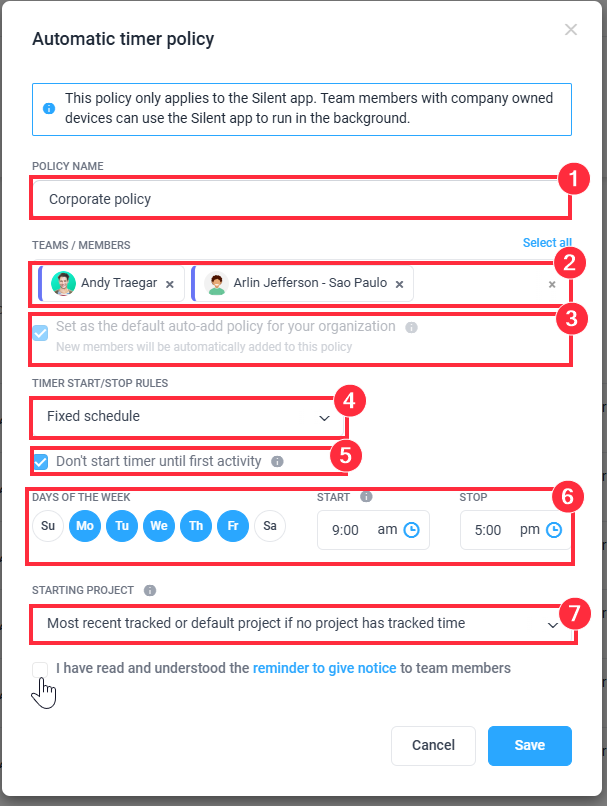
Be sure “Set as the default auto-add policy for your organization” is ON.
Hit Save to commit your changes.
Choose your operating system.
Step 1
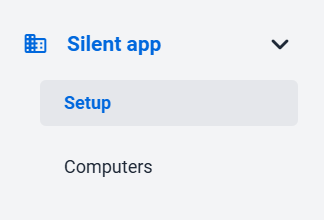
Click on the Silent app > Setup guide page.
Step 2
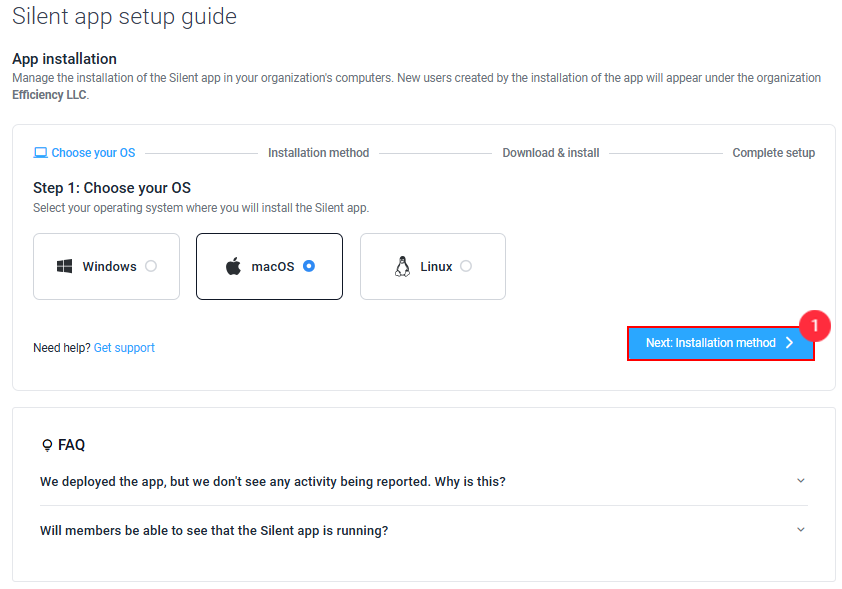
Select the operating system on which you will install the Silent app. Then, click on Next: Installation method.
Step 3
Select how you want to install the Silent app: Individual install or Group/batch install (MDM). Then, click Next: Download & install.
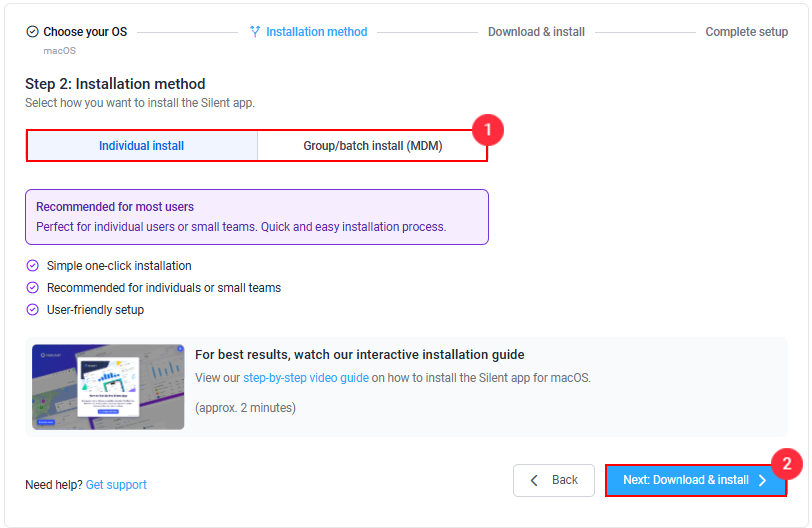
Installation Methods
Important Notes:
- Screen Recording requires manual acceptance on macOS
Screen Recording is a global macOS permission. Due to Apple’s privacy controls, it cannot be granted silently, is not automatable via a .mobileconfig / PPPC profile, and cannot be pre-approved through an MDM profile on the user’s behalf. Set this expectation with end users before rollout.
Your options:
- Manual acceptance per device: the user approves the prompt once via System Settings > Privacy & Security > Screen Recording. Straightforward for small fleets or pilot rollouts, but cannot be skipped or delegated remotely.
- Disable screenshot capture: if a fully silent install is required, turn off screenshots in Hubstaff Settings for macOS users to avoid the prompt entirely.
Heads up: macOS updates can silently revoke this permission, which typically surfaces as missing screenshots or URLs. After major OS updates, have users re-check System Settings > Privacy & Security and confirm Hubstaff is still listed and enabled.
- For macOS and Linux, there is also a terminal command(standard curl command) that, when run on the machine, will download the installer and install the app. (Useful for mass distribution or one-time installation). macOS and Linux have different commands.
- We recommend you install the silent application on 1-2 computers to start, then a larger group of 3-4 before rolling it out to the entire organization.
Individual install
Step 1
Download the Silent app for macOS and follow the instructions. Then, click on Next: Complete Setup.
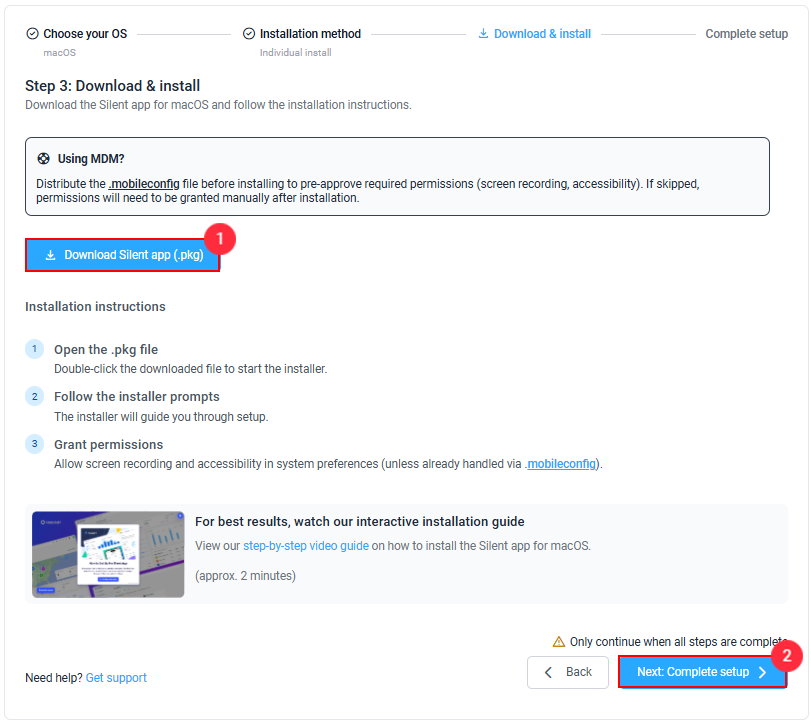
Step 2
After downloading the installer file, go to the download history on your web browser and click on it:
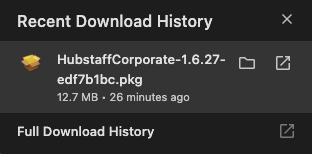
Step 3
Follow the installer prompts:
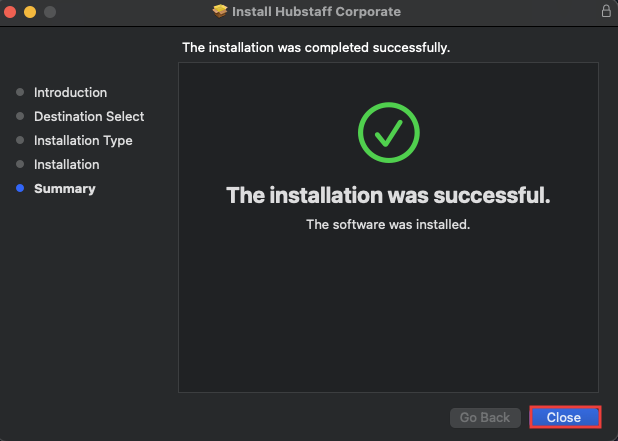
Step 4
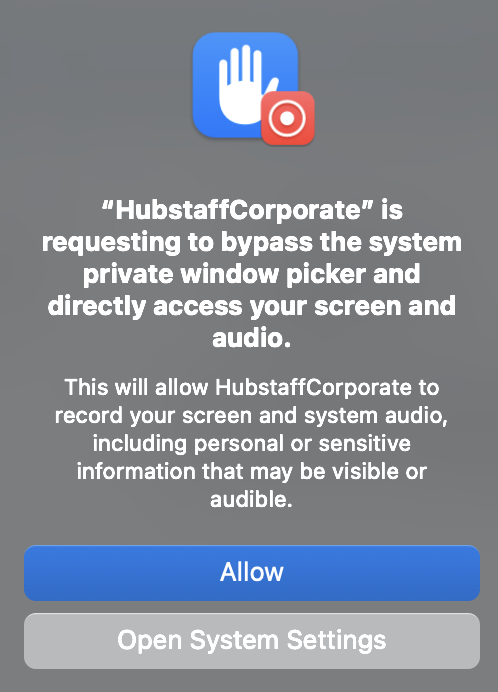
Allow screen recording and accessibility in System Preferences (unless already handled via .mobileconfig)
Step 5
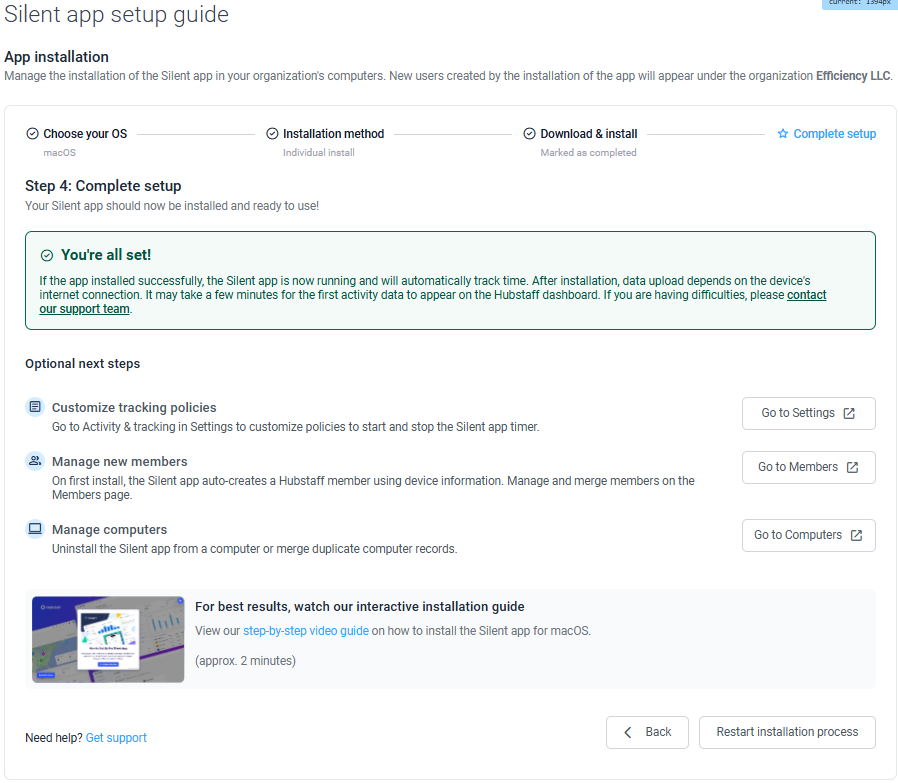
Complete setup: If the app installs successfully, the silent app will now run and automatically track time.
Group/batch install (MDM)
Step 1 (Optional)
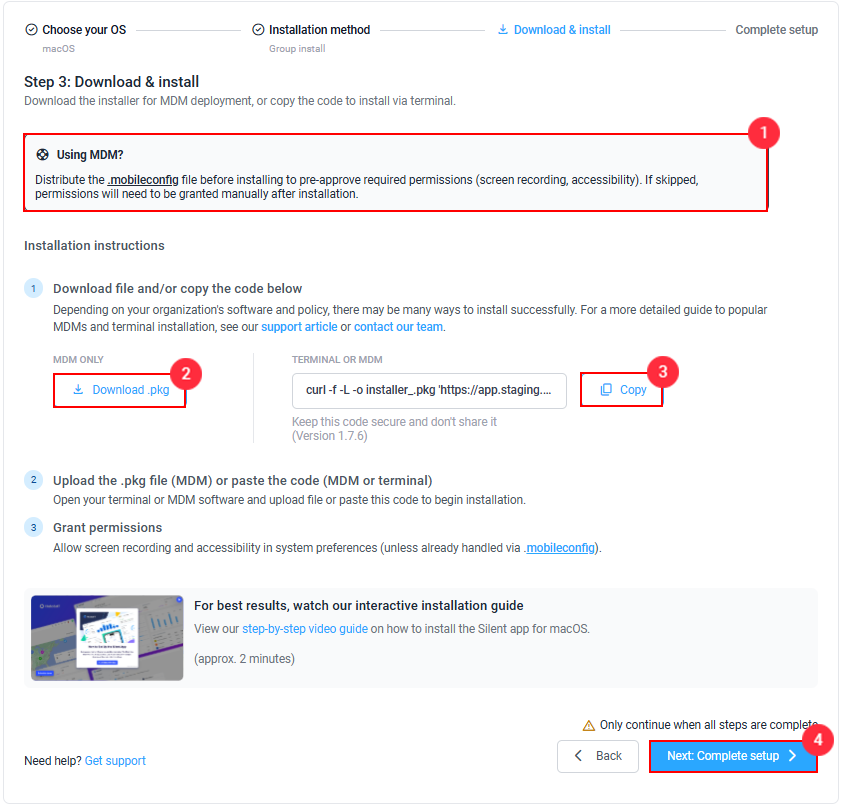
Download the .mobileconfig file and distribute it to your devices. If not, new members will be prompted to allow permissions after the silent app is installed.
Step 2
Distribute the Silent app .pkg: Download and upload the .pkg file to distribute via your preferred MDM tool.
Step 3 (Optional)
Distribute the Silent app via a script: Copy the code and deploy it to your devices using your preferred MDM tool.
Step 4
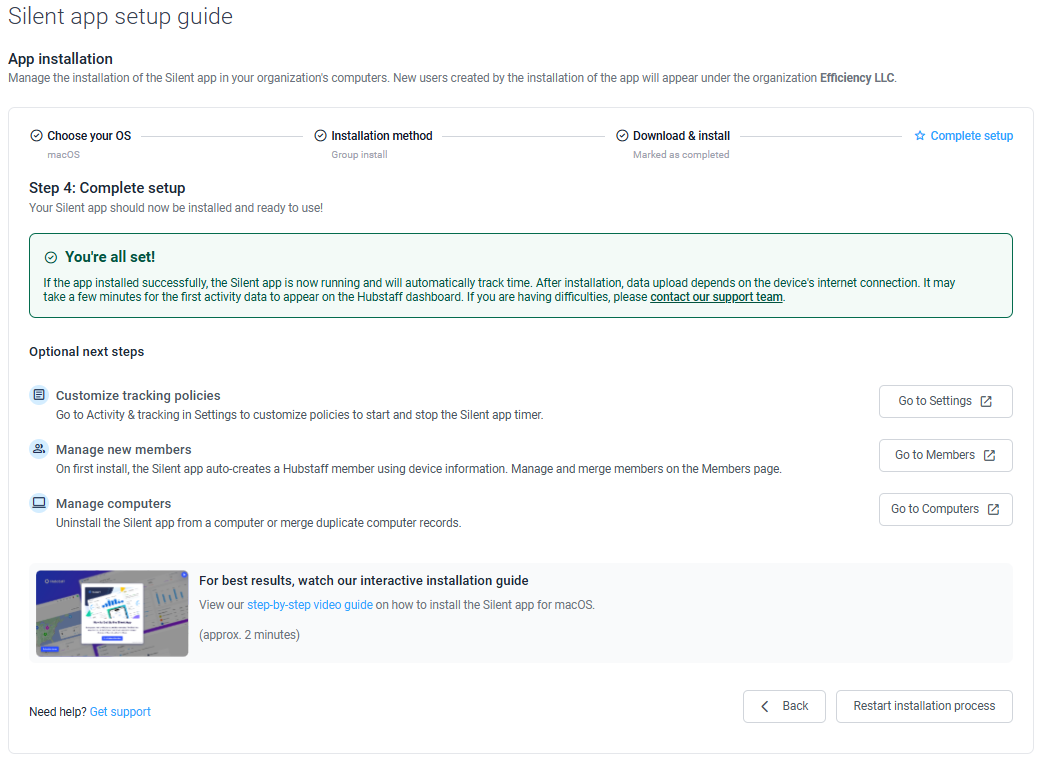
Complete setup: If the app installs successfully, the silent app will now run and automatically track time.
Account Provisioning
If an earlier version of the silent app is already installed and running on the computer when a newer version is installed, a new user account will not be created if a silent app user already exists for that computer or user.
When installing the silent app on a machine for the first time, after install/restart, a new Hubstaff member will be automatically created using the following information collected from the machine:
- os_username
- If available: Firstname / Lastname
- OS and version
- Machine name
Following installation
- Time tracking should begin immediately / data should be visible within the Hubstaff web-app within 10-15 minutes of install completion.
- If not reflected, you can force a process restart by doing one of these options:
- Sign out / Sign in from the operating system session.
- Restart the device.
Granting permissions
- The mobile.config file for macOS includes the necessary permissions within the file itself, so no additional system-level permissions are required to run Hubstaff time tracking.
- If the mobile.config is not used, permissions must be granted on the computer for the user before app/URL tracking and screenshot capture are possible.
Computers page
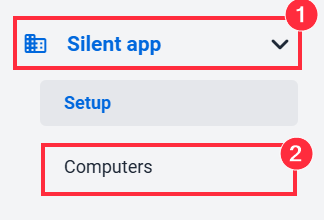
All new computers added via the silent app will appear within the Computers page, found in the left sidebar under the Silent app. Filtering by the “Date added” column will show the most recently added computers at the top.
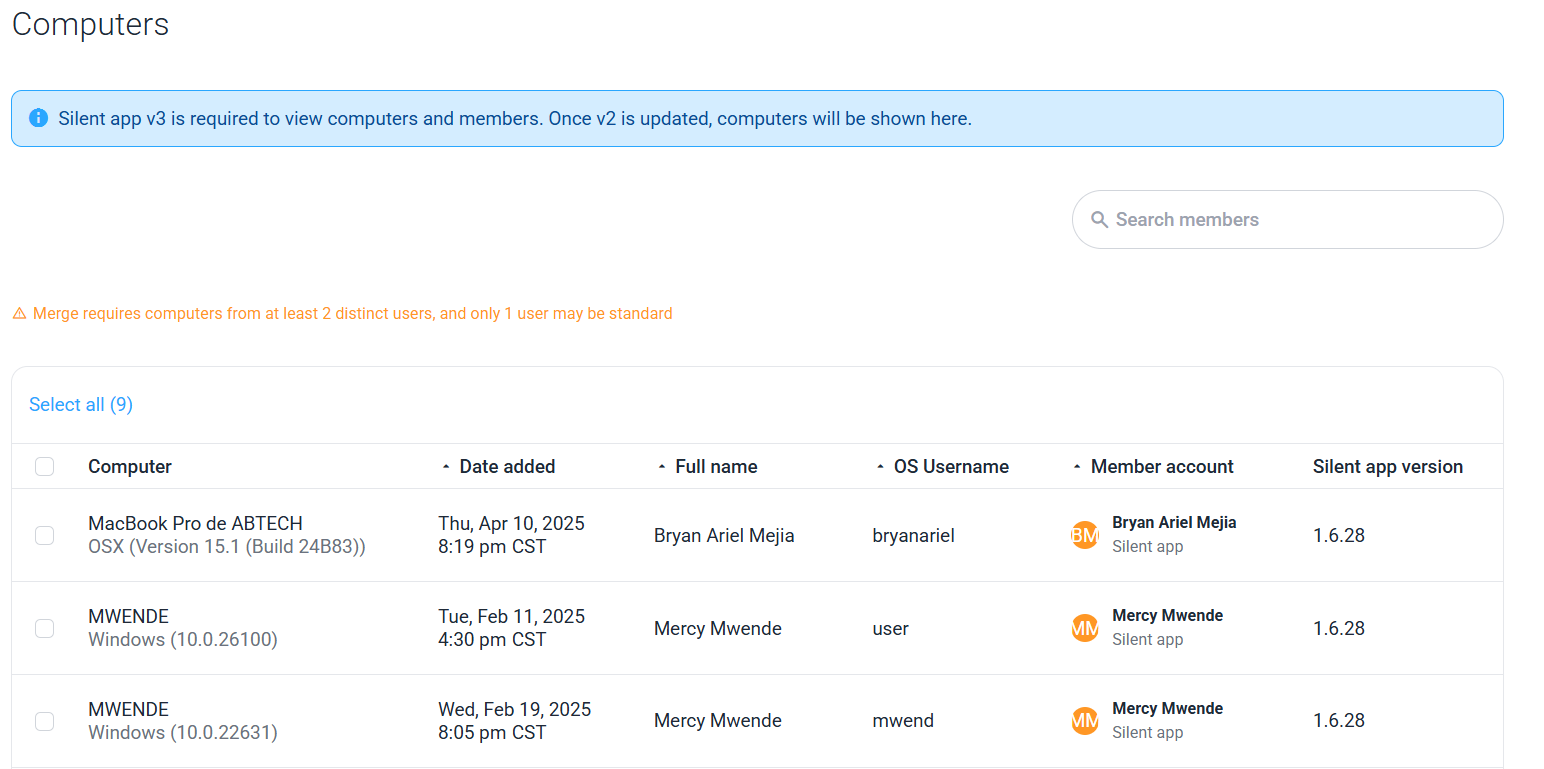
Merging Silent app members
The silent app will auto-provision Hubstaff members after installation on a new computer. If the new computer member already has a Hubstaff member, you can use the Merge Members page to select both and merge devices from both into a single member. Detailed steps are in the How to Merge Silent App Members article.