10 minutes
Ignored Usernames in the Silent App
What are Ignored Usernames?
When the Silent app is installed on a computer, it automatically creates a Hubstaff member for every OS user that logs in. In most cases this is the intended behavior — but it also captures IT admin accounts, service accounts, LAPS accounts, and other system logins that should never be tracked as employees.
Ignored Usernames lets you define a list of OS username patterns. Any login that matches a pattern is skipped entirely — no Hubstaff member is created and no time is tracked for that session.
Who this applies to
- Access: Organization Owners, Managers, and Users with the Manage IT permission
- Required: Silent app add-on enabled
How to add an ignored username pattern
Step 1
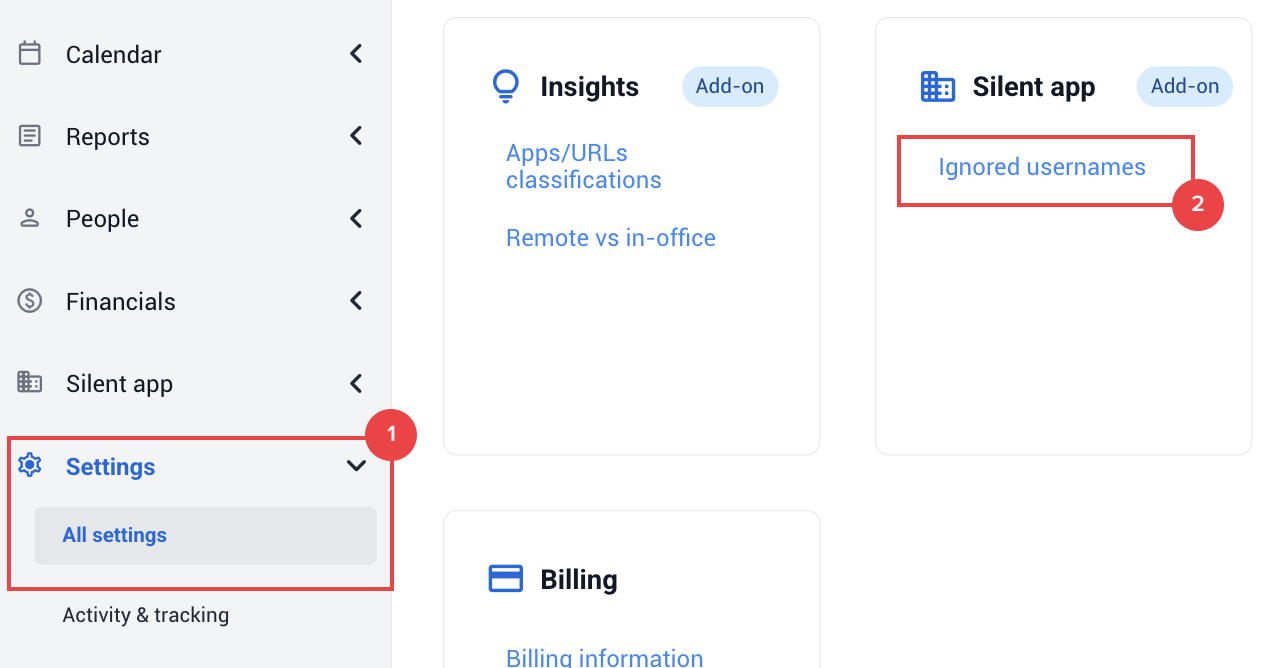
Go to Settings > Silent app > Ignored usernames.
Step 2
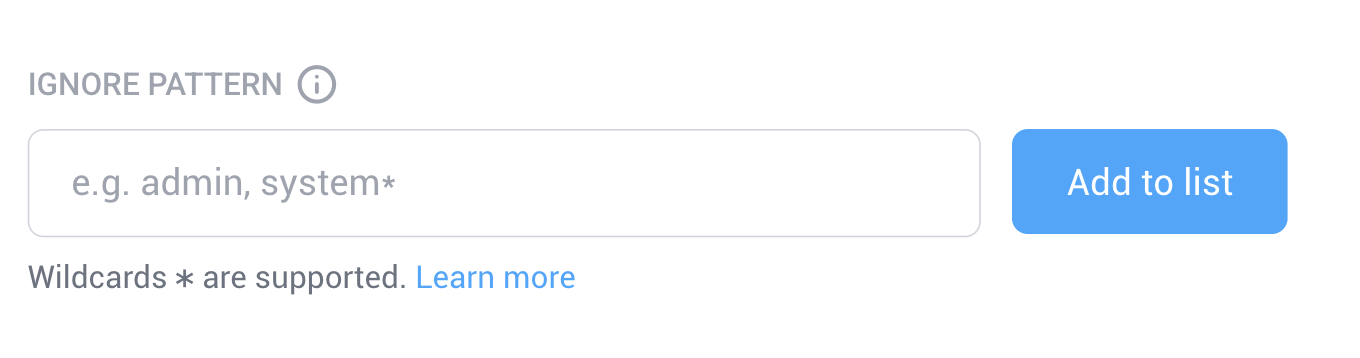
In the Ignore pattern field, enter the OS username or pattern you want to exclude and click Add to list or hit Enter on your keyboard.
Step 3
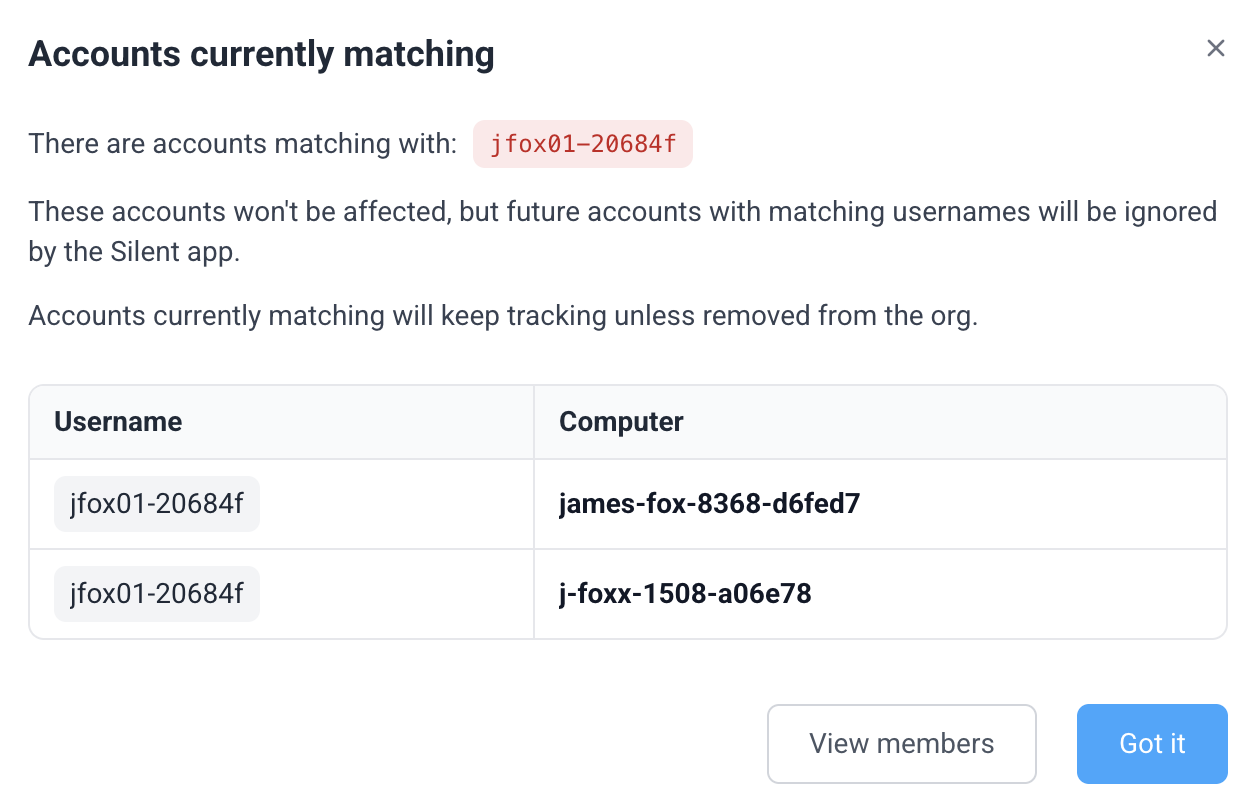
If any already-provisioned members match the pattern, a warning modal will appear listing those accounts — review them before confirming. Existing members are not affected, but any future login matching the pattern will be ignored.
Step 4
Confirm to save the pattern.
How patterns work
| Pattern | What it ignores |
|---|---|
| administrator | Exact match only — ignores administrator but not admin |
| admin* | Any username starting with admin — e.g. admin, administrator, adminlocal |
| svc_* | Any username starting with svc_ — e.g. svc_backup, svc_deploy |
| LAPS* | Any username starting with LAPS — commonly used for LAPS admin accounts |
| *admin* | Any username containing admin anywhere — e.g. itadmin, hubstaffadmin |
Common patterns to consider
The following OS account types are commonly seen in enterprise deployments and are good candidates to exclude:
| Account type | Suggested pattern |
|---|---|
| Windows built-in administrator | administrator |
| Generic admin accounts | admin* |
| LAPS accounts | LAPS* |
| Service accounts | svc_* |
| System accounts | system* |
Viewing ignored username history
The Ignored usernames column in the patterns table shows how many unique OS usernames each pattern has matched and blocked. Click the count to open the Ignored usernames history modal, which shows the matched usernames along with the device and timestamp for each blocked login.
If the count is 0, it is not clickable — no logins have matched that pattern yet.

How to remove a pattern
- In the patterns table, click Remove next to the pattern you want to delete
- Confirm the deletion in the dialog
Pattern limits and validation
- Maximum 200 patterns per organization
- Maximum 70 characters per pattern
- Spaces are not allowed in patterns
- A pattern of only wildcards (e.g. *, **) is not accepted
- Duplicate patterns are blocked — including duplicates that are identical after wildcard normalization (e.g. admin* and admin** are treated as the same pattern)
- Patterns are matched case-insensitively
Troubleshooting
An IT admin account was still provisioned after I added a pattern.
Confirm the OS username matches your pattern exactly. Remember that matching is case-insensitive but the pattern must otherwise match the full OS username. For example, admin matches only admin — not admin01. Use admin* to match any username that starts with admin.
I added a pattern but I still see the member in my member list.
Ignored Usernames only prevents future provisioning. Members that were already created before you added the pattern are not affected. Use the How to Merge Silent App Members article to clean up existing ghost users.
The Ignored usernames section doesn’t appear in my Settings.
This section requires the Silent app add-on. If you have the add-on enabled and still can’t see it, confirm that your role is Organization Owner, Manager, or User with the Manage IT permission.
I’ve reached the 200 pattern limit.
Review your existing patterns and consolidate where possible. For example, multiple patterns like svc_backup, svc_deploy, svc_monitor can be replaced with a single svc_* wildcard pattern.