6 minutes
How to Merge Silent App Members
Prevent this issue going forward: If duplicate members are being created by IT admin accounts, service accounts, or other non-employee OS logins, you can prevent future occurrences using Ignored Usernames under Settings > Silent app > Ignored usernames. Note that this feature does not retroactively remove already-provisioned members — use the merge steps below to clean up existing duplicates.
This guide will show you how to merge silent app members to:
- Streamline user management,
- Eliminate duplicate users from being billed,
- Prevent users from having multiple logins.
- Keep activity data accurate
Silent App Deployment Center
For a complete deployment hub including guides, troubleshooting, and advanced configuration, visit the Silent App Deployment Center.
For a complete deployment hub including guides, troubleshooting, and advanced configuration, visit the Silent App Deployment Center.
Follow the steps below to complete this process.
Step 1
First, navigate to People > Members.

Step 2
Next, navigate to the Merge members tab.

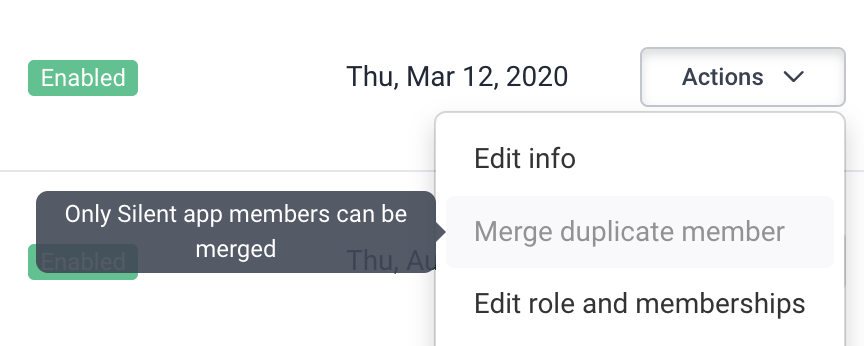
Alternatively, you can click on the Members tab, then click Actions > Merge duplicate member.
Step 3
On the right-hand side of the user you wish to merge, click Merge duplicate.

Step 4
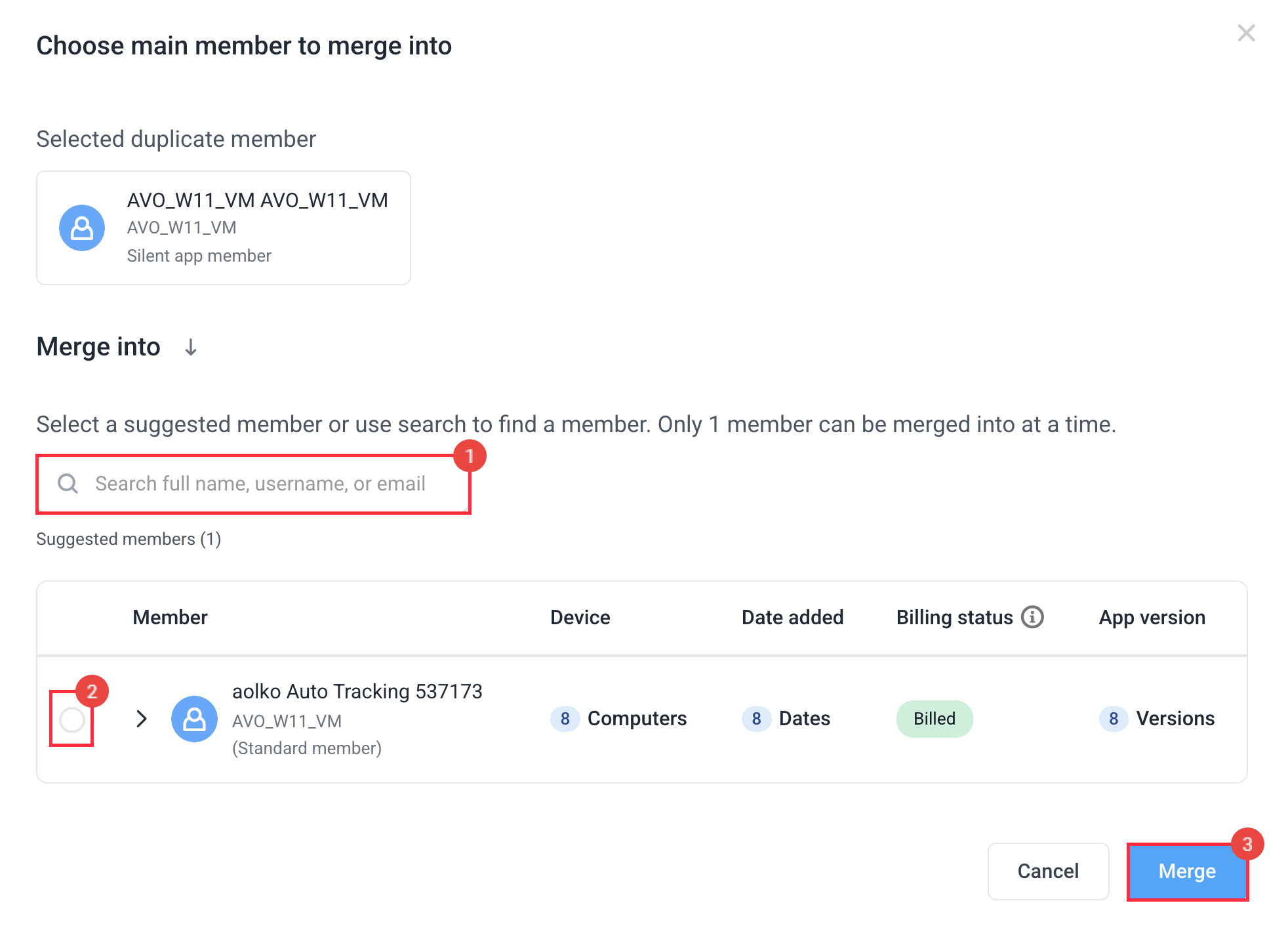
Choose whether to:
- Search for a user to merge, or
- Select from a list of pre-determined user/s
Then, click Merge.
Important: Merging is permanent and not reversible. Please make sure that you are merging the correct users and double-check before confirming a merge. When you merge duplicate members, all their tracked time and activity data (including screenshots, apps, and URLs) are preserved and combined under the selected main profile.
Step 5
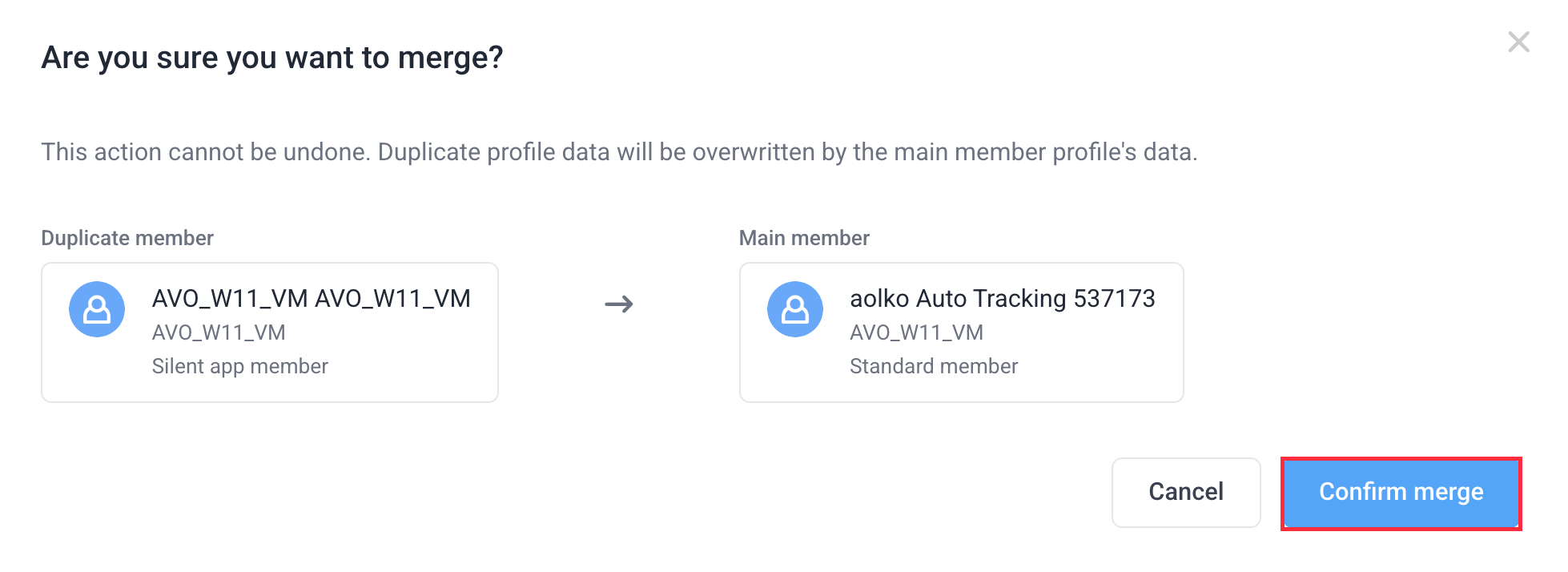
Click on Confirm merge to finalize the merge process.
- New users will be billed after a 16-day grace period.
- If the member being merged has computers running different operating systems — for example, one Windows machine and one macOS machine — note that screenshot settings apply per OS after the merge. A macOS machine will follow the macOS screenshot setting for your organization, and a Windows machine will follow the Windows setting, regardless of which member record was kept. To review or update your per-OS screenshot settings, see: How to disable screenshots per OS in the Silent app