5 minutes
How to change screenshot frequency
The frequency with which Hubstaff records screenshots can be changed in Settings.
Only organization owners and managers have access to modify this setting.
Some subscription plans have screenshot limits. Click here to find out more.
Some subscription plans have screenshot limits. Click here to find out more.
To change the screenshot frequency, follow these steps:
Step 1
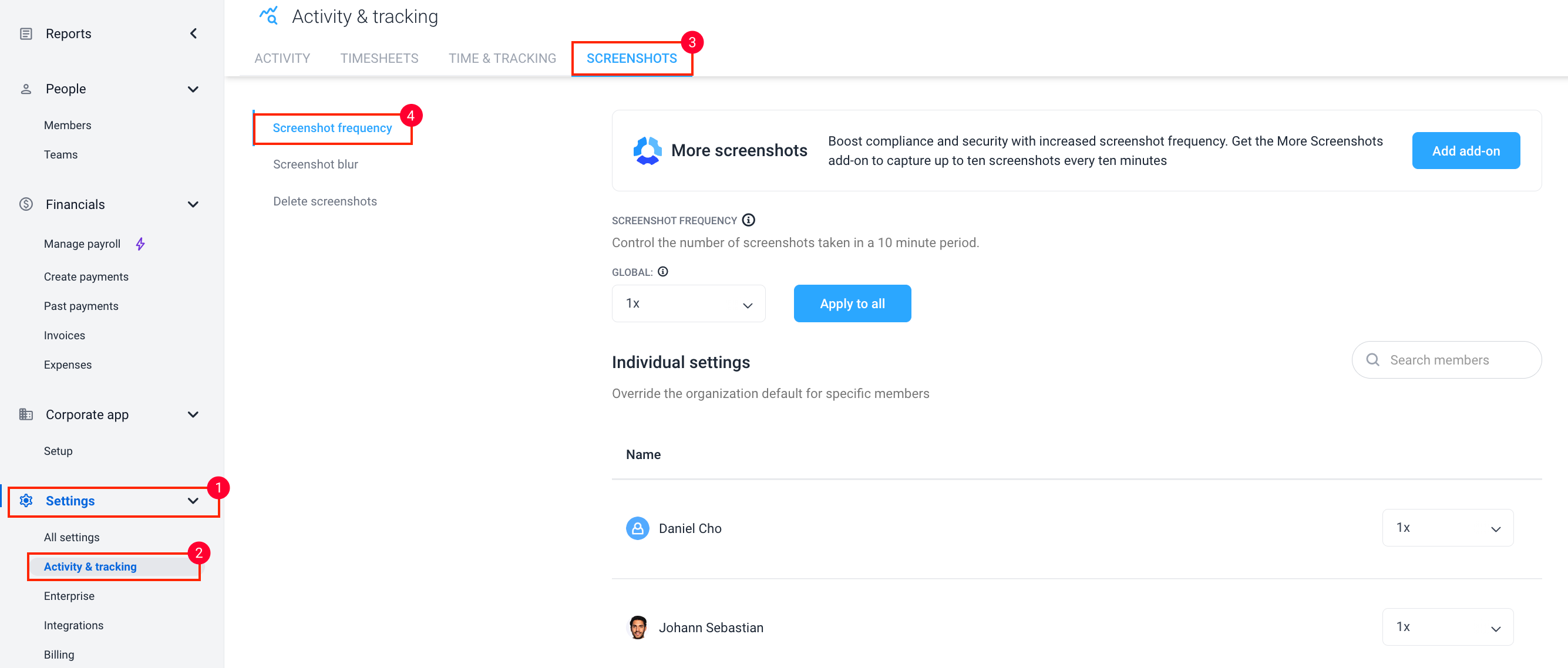
Click on Settings from the sidebar, then select Activity & tracking from the drop-down menu. Select the Screenshots tab, and then click on the Screenshot Frequency option.
Step 2
Then you can select between 1x, 2x, and 3x screenshot frequencies that you want the application to take every 10 minutes by default.

Optional
You can also adjust the Screenshot frequency for each team member.

Additional notes
Frequency and behavior
- Hubstaff captures screenshots randomly within the selected interval (1x, 2x, or 3x per 10‑minute block). Screenshots are not taken at fixed times.
- Screenshots are not captured during idle time. When idle time is kept, you will see “Idle time” instead of a screenshot.
- When screenshot frequency is enabled, members using desktop timer apps cannot disable screenshots while continuing to track time.
- Screenshot resolution adjustments are not supported.
Platform limitations
- Mobile apps (iOS and Android) do not capture screenshots.
- The Chrome extension is limited to 15‑second activity granularity and cannot display separate keyboard vs. mouse activity breakdowns.
Related settings
- To capture screenshots more frequently than 3x per 10 minutes, see the More Screenshots add‑on.
- If you use the Silent app and want to disable screenshots on macOS only—without changing frequency for other operating systems—use Screenshot per OS. See: How to disable screenshots per OS in the Silent app.
- For a full breakdown of feature support by app and platform, see Supported operating systems, browsers, and devices.