7 minutes
How to Disable Screenshots per OS for the Silent App
The Silent app screenshots per‑OS feature lets Owners, Organization Managers, and IT Managers control screenshot capture independently for macOS, Windows, and Linux. This is especially helpful because macOS requires a system‑level screen‑recording permission prompt, which interrupts users and reveals the Silent app.
Why you may disable macOS screenshots
macOS requires users to approve a screen‑recording permission prompt before screenshots can be taken. Because this prompt interrupts the user, many organizations choose to disable macOS screenshots while keeping Windows and Linux screenshots enabled.
Windows and Linux do not require any permission prompt, so screenshots remain silent and uninterrupted.
Who can manage this setting
Only the following roles can view or change screenshots per OS:
-
- Owners
- Organization Managers
- Members with Manage IT permission
Default behavior for new organizations
New organizations with the Silent app add‑on start with:
- macOS screenshots OFF
- Windows and Linux screenshots ON
Existing organizations keep their previous settings until an admin changes them.
Where this setting appears in Hubstaff
Screenshot frequency page — If macOS screenshots are turned off while screenshot frequency is still enabled, a banner appears explaining that macOS screenshots are disabled. The banner includes a link to the Screenshot per OS page.
Silent app setup (macOS step) — During Silent app installation on macOS, users will see a note showing whether macOS screenshots are currently enabled. Authorized users will also see a link to change the setting.

How to disable or enable screenshots per OS
Step 1
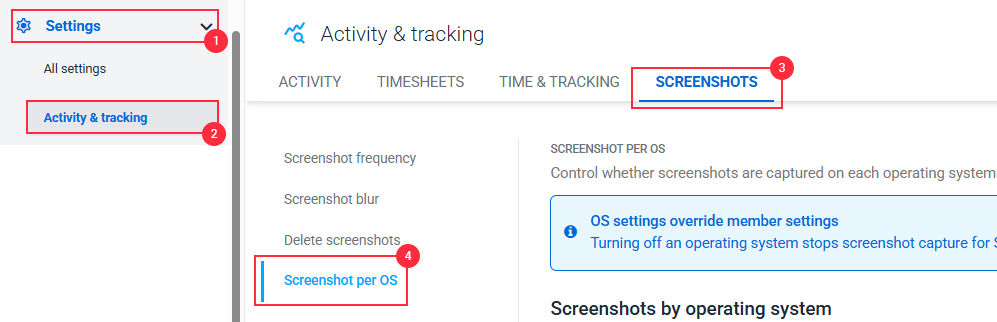
Go to Settings > Activity & Tracking > Screenshots > Screenshot per OS. This tab appears only for organizations with the Silent app add‑on.
Step 2
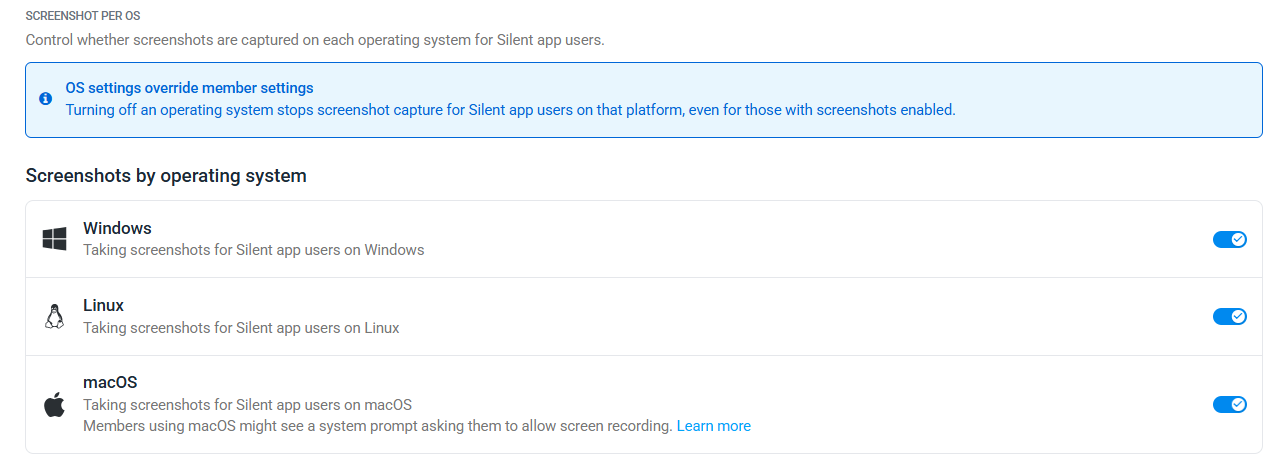
Click the toggle next to the operating system you want to update.
Turning an OS off
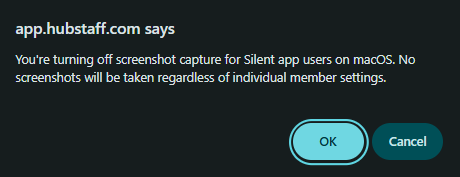
A confirmation message will appear. Click OK to turn off screenshots or Cancel to keep the current setting.
Turning an operating system back on
Re‑enabling screenshots restores the organization’s normal screenshot frequency for that OS.
For macOS, the system‑level permission prompt will appear again the next time each Mac syncs. Screenshots resume only after the user approves the prompt.
How screenshot per OS works
This setting affects Silent app members only. Standard desktop apps continue following the organization’s regular screenshot frequency.
A ceiling, not a floor — The OS toggle can disable screenshots but cannot force them on. A screenshot is captured only if the organization’s screenshot frequency is above 0, the OS toggle for that operating system is on, and the member’s individual screenshot setting is on.
Applies per OS, not per member — The toggle affects all Silent app members on that operating system. To disable screenshots for one specific member, set their screenshot frequency to 0 instead. You cannot disable one OS for a single member only.
Mixed‑OS members — If a member uses more than one device, the toggle applies only to the operating system that’s turned off. For example, macOS off with Windows on means screenshots only capture on Windows.
Takes effect on next sync — Devices update within 5–10 minutes when online. Offline devices update the next time they sync.
Frequently asked questions
Does this affect the Standard desktop app? No. Only Silent app users are affected.
Can I disable screenshots for one macOS user only? Not with this setting. Screenshot per OS applies to all Silent app users on that OS.
Why is macOS off by default for new organizations? New organizations start with macOS screenshots disabled to avoid the permission prompt.
Will I lose existing screenshots if I turn an OS off? No. Existing screenshots remain stored.
Does turning macOS back on trigger the permission prompt again? Yes. macOS users will see the prompt the next time their device syncs.