17 minutes
Payroll Adjustments
Payroll adjustments let you automatically add or deduct amounts from your team members’ payments each pay period — for bonuses, commissions, reimbursements, and recurring deductions. You can create and manage adjustments from the Manage Payroll Page or the legacy Manage Payroll page.
Pay periods are required to receive payroll adjustments. You can set pay periods after creating the payroll adjustment.
Only members with time worked, PTO, or holidays will receive adjustments.
Managing payroll adjustments
Create a payroll adjustment
Step 1
Navigate to Financials > Payroll adjustments.
Step 2
Click on Create payroll adjustment.

Step 3
In the Create payroll adjustment dialog, fill in the following details:
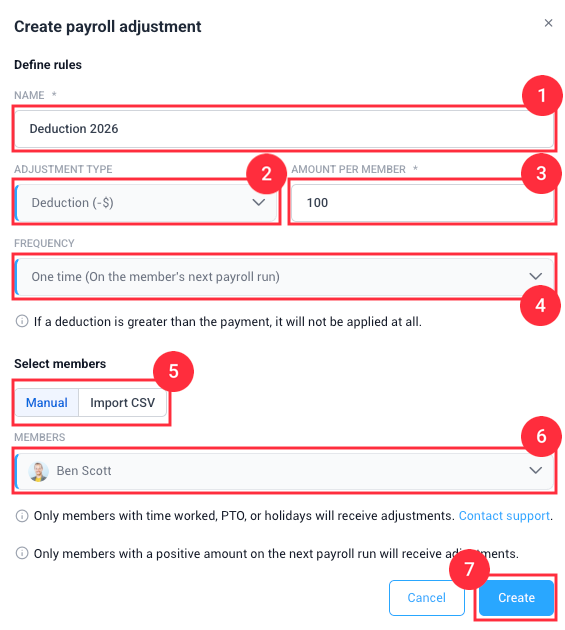
Define the rules for the payroll adjustment:
- Name: Enter a name for the adjustment.
- Adjustment type: Choose whether the adjustment is an addition or deduction.
- Amount per member: Enter the amount to add or deduct for each member.
- Frequency: Choose One time, Every pay period, or First payroll of the month.
- Add members: Choose whether to add members manually or through a CSV import.
- Members: Select the team members whose pay will be adjusted.
- Click Create payroll adjustment to save the adjustment.
ℹ️ Recurring adjustments only apply to automatic payments.
ℹ️ If a deduction exceeds the payment amount, it won’t be applied. The deduction carries over to the next pay period as long as the payment meets the required criteria.
Edit a payroll adjustment
To edit a payroll adjustment item, follow these steps:
Step 1
Navigate to Financials > Payroll adjustments.
Step 2
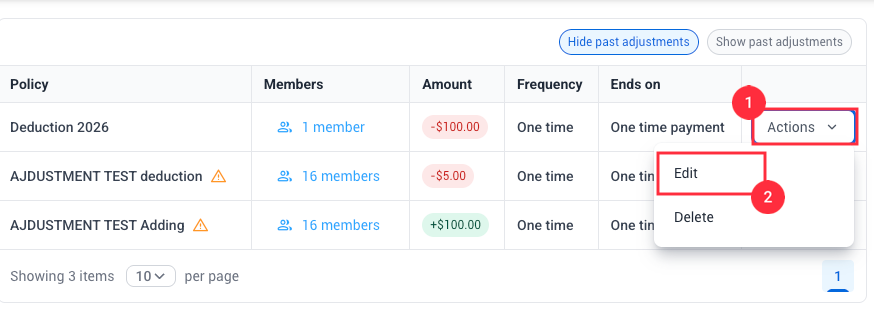
Click Actions > Edit next to the adjustment you want to revise.
Step 3
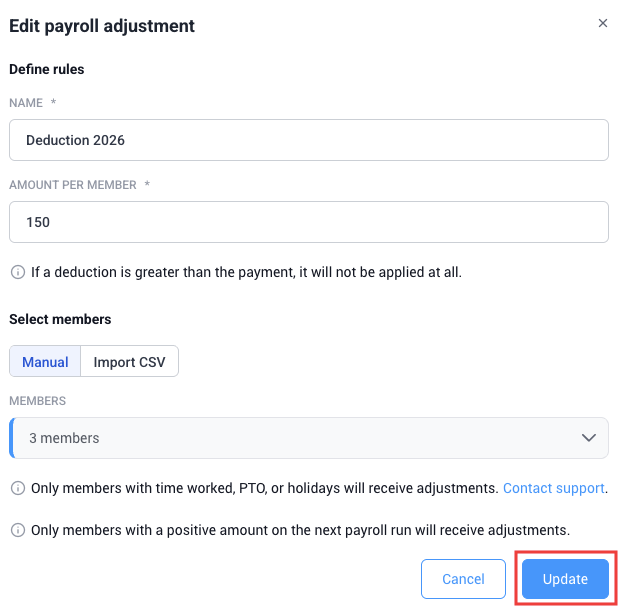
Make your changes, then click Update.
Delete a payroll adjustment
To delete a payroll adjustment item, follow these steps:
Step 1
Navigate to Financials > Payroll adjustments.
Step 2
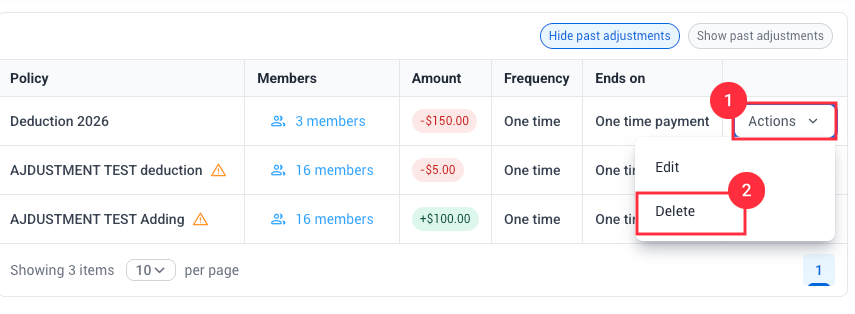
Click Actions > Delete next to the adjustment you want to remove.
Step 3
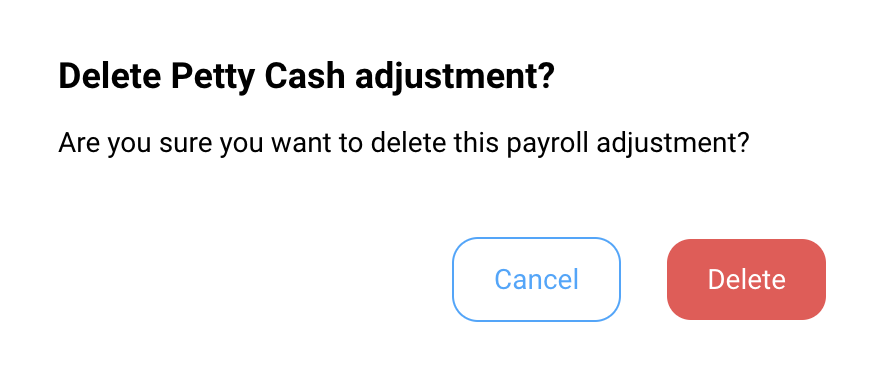
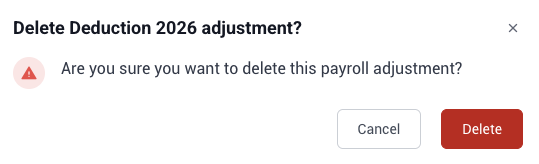
Confirm you want to delete the payroll adjustment by clicking the Delete button.
Bulk import members to payroll adjustments
When creating a payroll adjustment policy for a large number of members, we recommend using the CSV import option.
Step 1
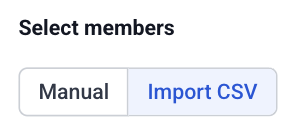
From the Create payroll adjustment dialog, go to the Select members section and click Import CSV.
Step 2
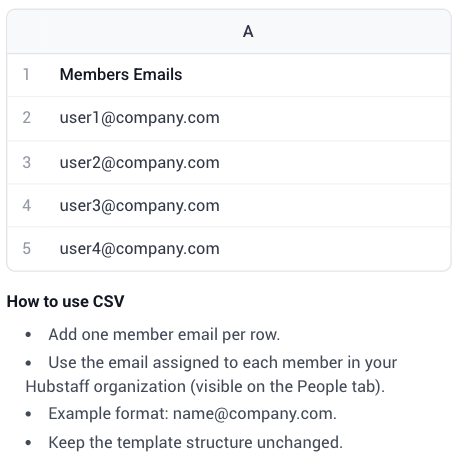
Download the CSV template.
Step 3
Enter the email addresses of the members you want to include.
Step 4
Upload the completed CSV file. The maximum file size is 5 MB.
Managing payroll adjustments from the new Manage Payroll page
You can access and manage payroll adjustments for team members directly from the members table in the Manage Payroll Page.
Step 1
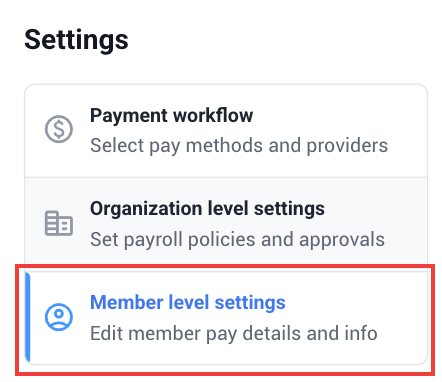
Navigate to Financials > Manage Payroll > Member-level settings.
Step 2
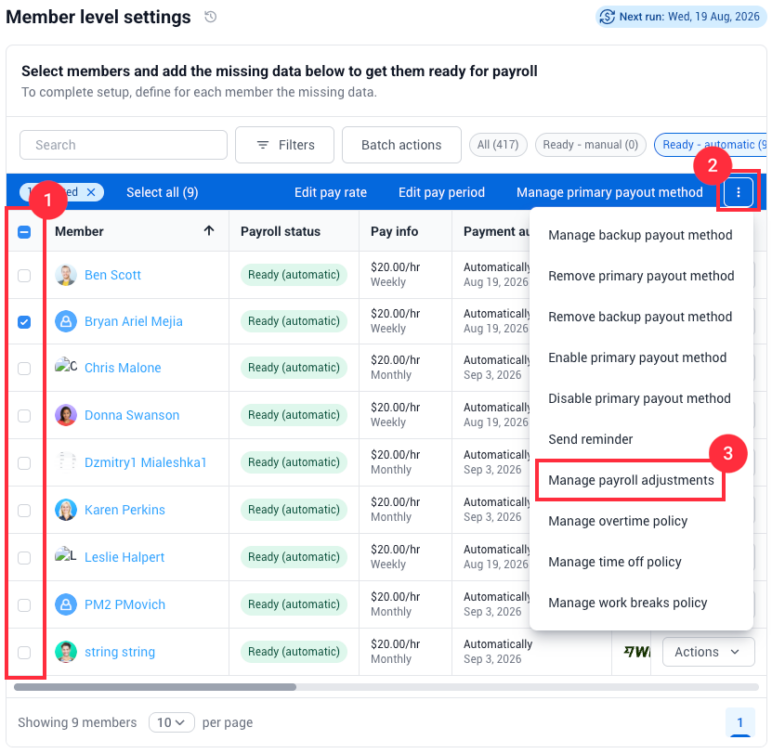
In the members table under Member-level settings, select one or more team members. Then click the three-dot icon in the actions toolbar that appears and select Manage Payroll adjustments.
Step 3
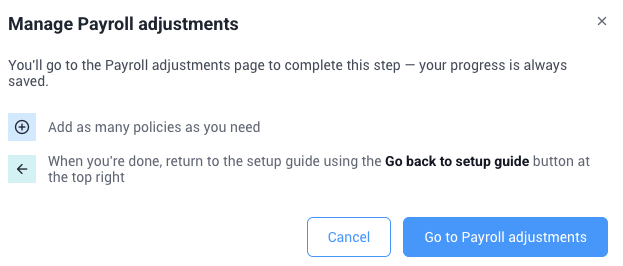
A pop-up window will appear with a button to go to the Payroll adjustments page. Click Go to Payroll adjustments.
Step 4
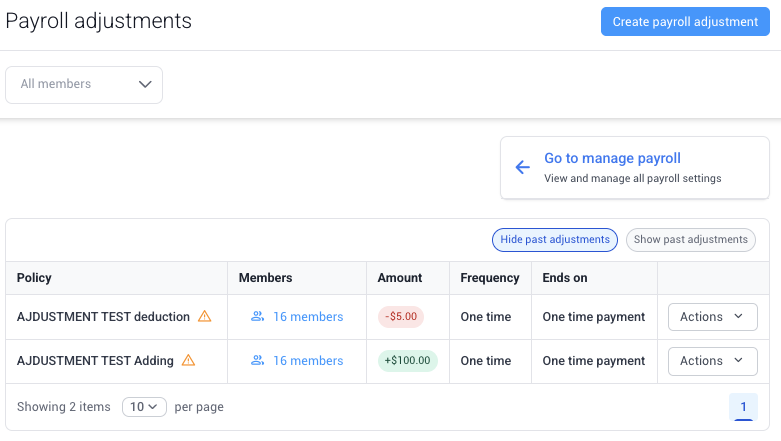
Add or manage adjustment policies as needed. Once finished, use the on-screen option to return to the Manage Payroll page.
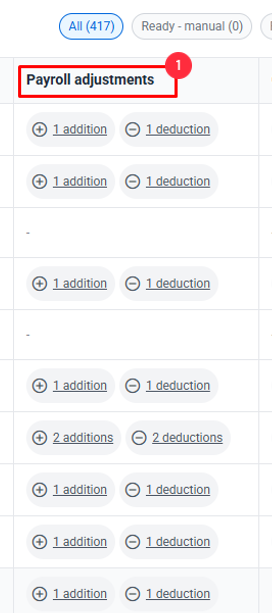
In the members table, find the Payroll adjustments column — it shows how many active adjustment policies each member has.
Managing payroll adjustments from the Legacy Manage Payroll page
Setting up a One-time payroll adjustment
One-time payroll adjustments are single additions or deductions applied to a team member’s payroll.
Step 1
Navigate to Financials > Manage Payroll (Legacy) > Payroll Adjustments tab.
Step 2
Click on Create payroll adjustment.
Step 3
In the Create payroll adjustment dialog, fill in the following details:
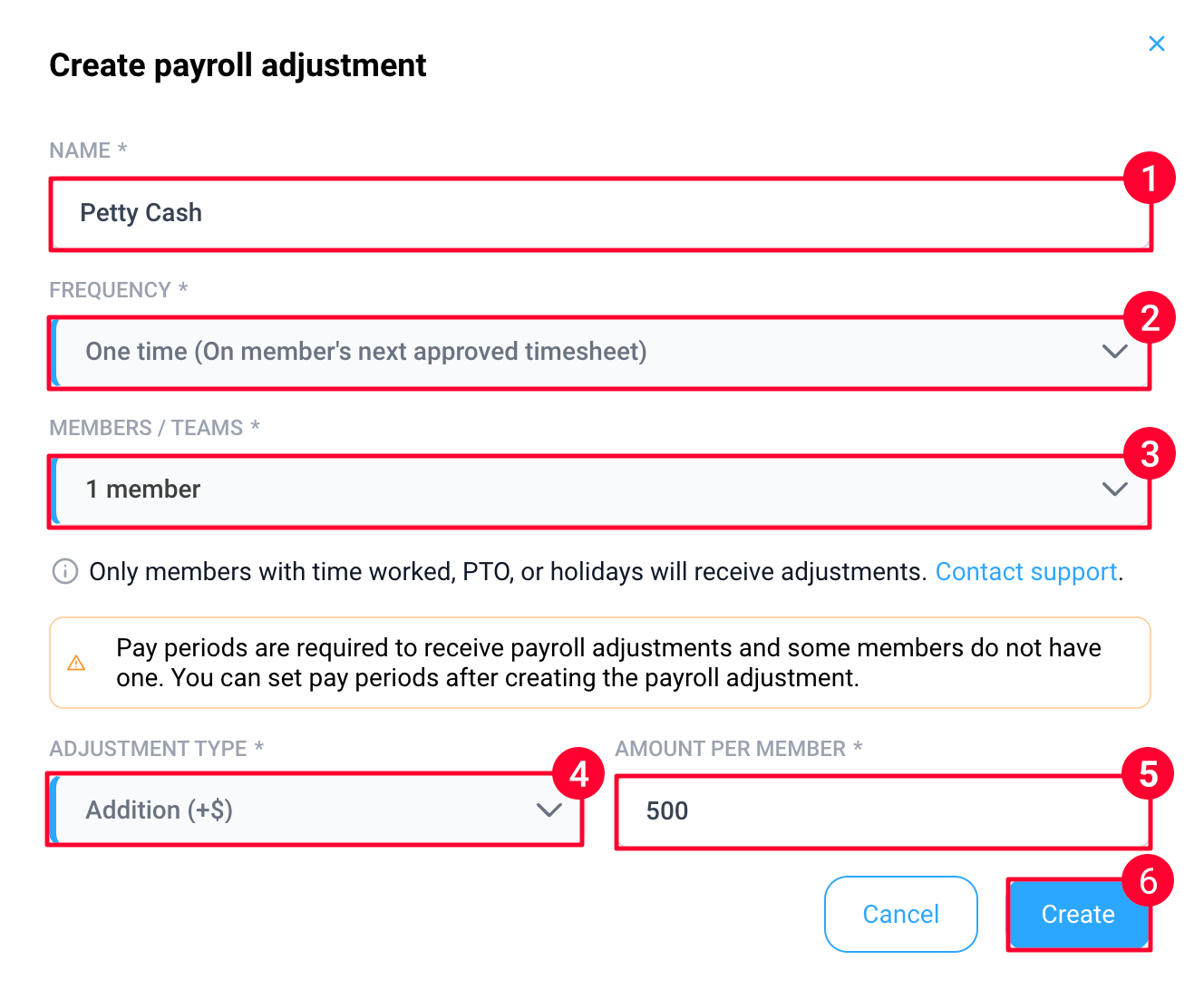
- Adjustment name
- Frequency – set to one time
- Members – persons whose pay will be added or deducted.
- Adjustment type – addition or deduction
- Amount per member
Then click Create.
Step 4
The new adjustment will appear in your payroll adjustments list.

Setting up a recurring payroll adjustment
Recurring payroll adjustments repeat as an addition or deduction every pay period.
Step 1
Navigate to Financials > Manage Payroll (Legacy) > Payroll Adjustments tab.
Step 2
Click on Create payroll adjustment.
Step 3
In the Create payroll adjustment dialog, fill in the following details:

- Adjustment name
- Frequency – set this to Every pay period.
- Members – persons whose pay will be added or deducted.
- Adjustment type – addition or deduction
- Amount per member
Then click Create.
ℹ️ Recurring adjustments only apply to automatic payments.
ℹ️ If a deduction exceeds the payment amount, it won’t be applied. The deduction carries over to the next pay period as long as the payment meets the required criteria.
Example of adjustment showing when creating a manual payment:

Editing a payroll adjustment
To edit a payroll adjustment item, follow these steps:
Step 1
Navigate to Financials > Manage Payroll (Legacy) > Payroll Adjustments tab.
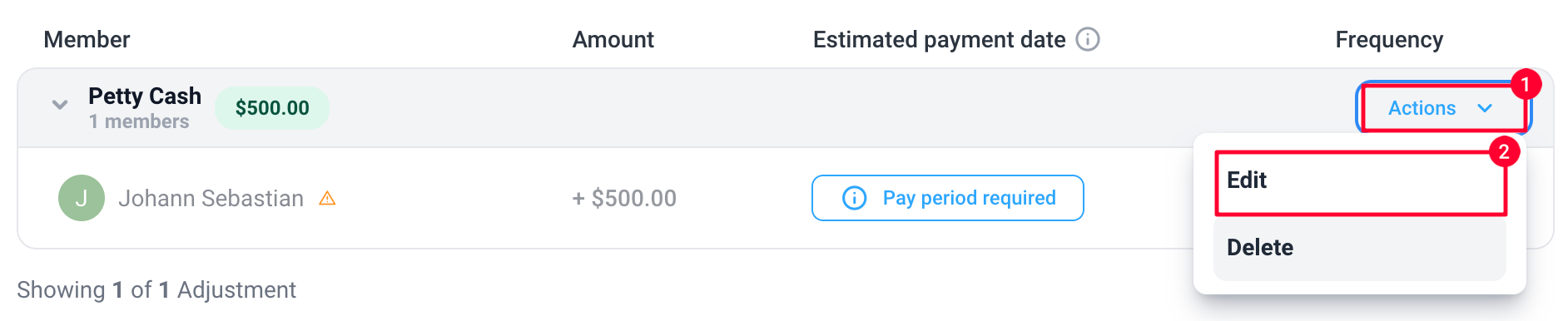
Step 2
Click Actions > Edit next to the adjustment you want to revise.
Step 3
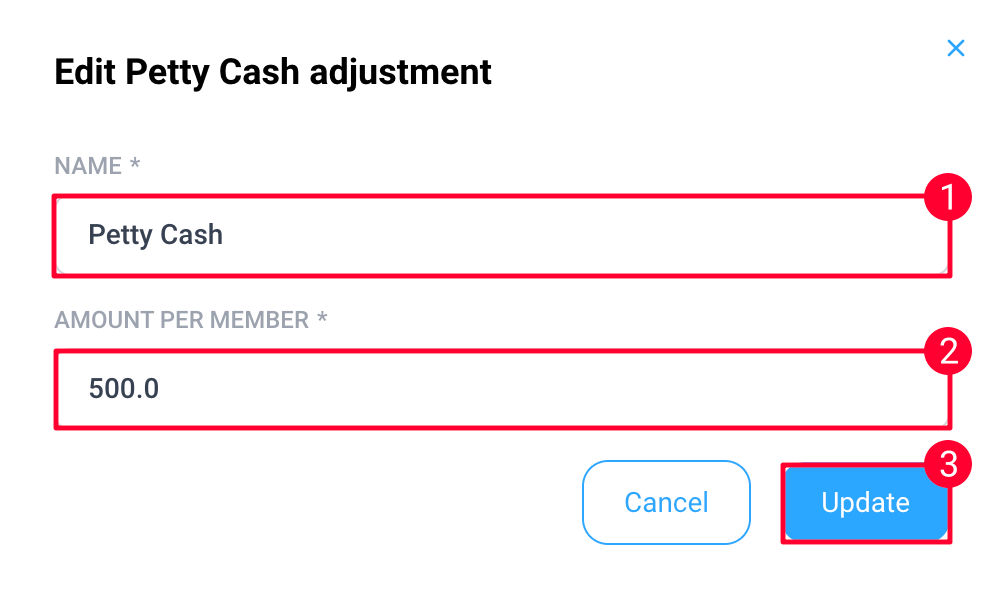
Make your changes, then click Update.
Deleting a payroll adjustment
To delete an existing payroll adjustment, follow this guide:
Step 1
Navigate to Financials > Manage Payroll (Legacy) > Payroll Adjustments tab.
Step 2
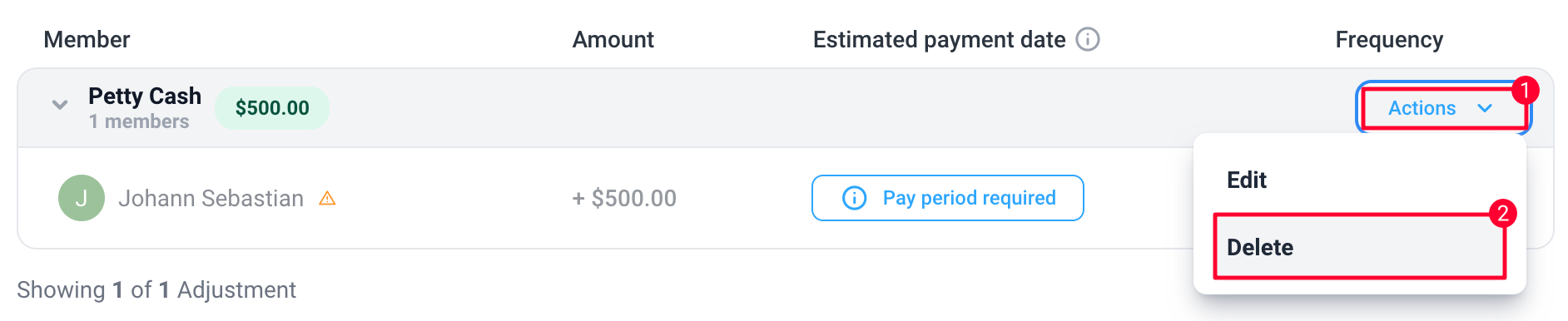
Click on Actions > Delete next to the name of the payroll adjustment line item you wish to delete.
Step 3
Click Delete to confirm.