6 minutes
Delaying Payroll Payments
Delaying payroll payments provides organizations with additional time to review and edit timesheets after the pay period ends, enabling staggered approvals and the consolidation of all employees into a single, streamlined payroll run.
How to delay payroll payments
To delay payments, follow this guide:
Step 1
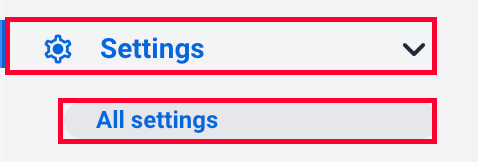
Navigate to Settings > All settings.
Step 2
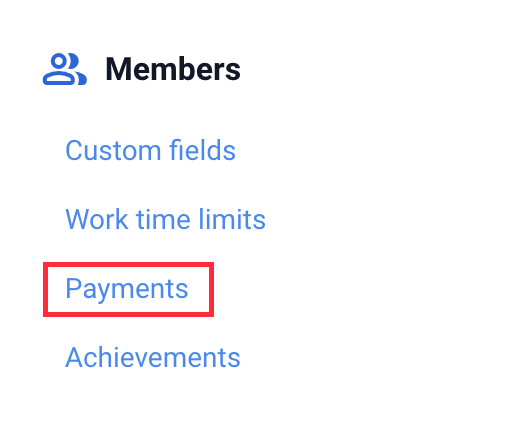
Next, click the Payments option from the Members section.
Step 3
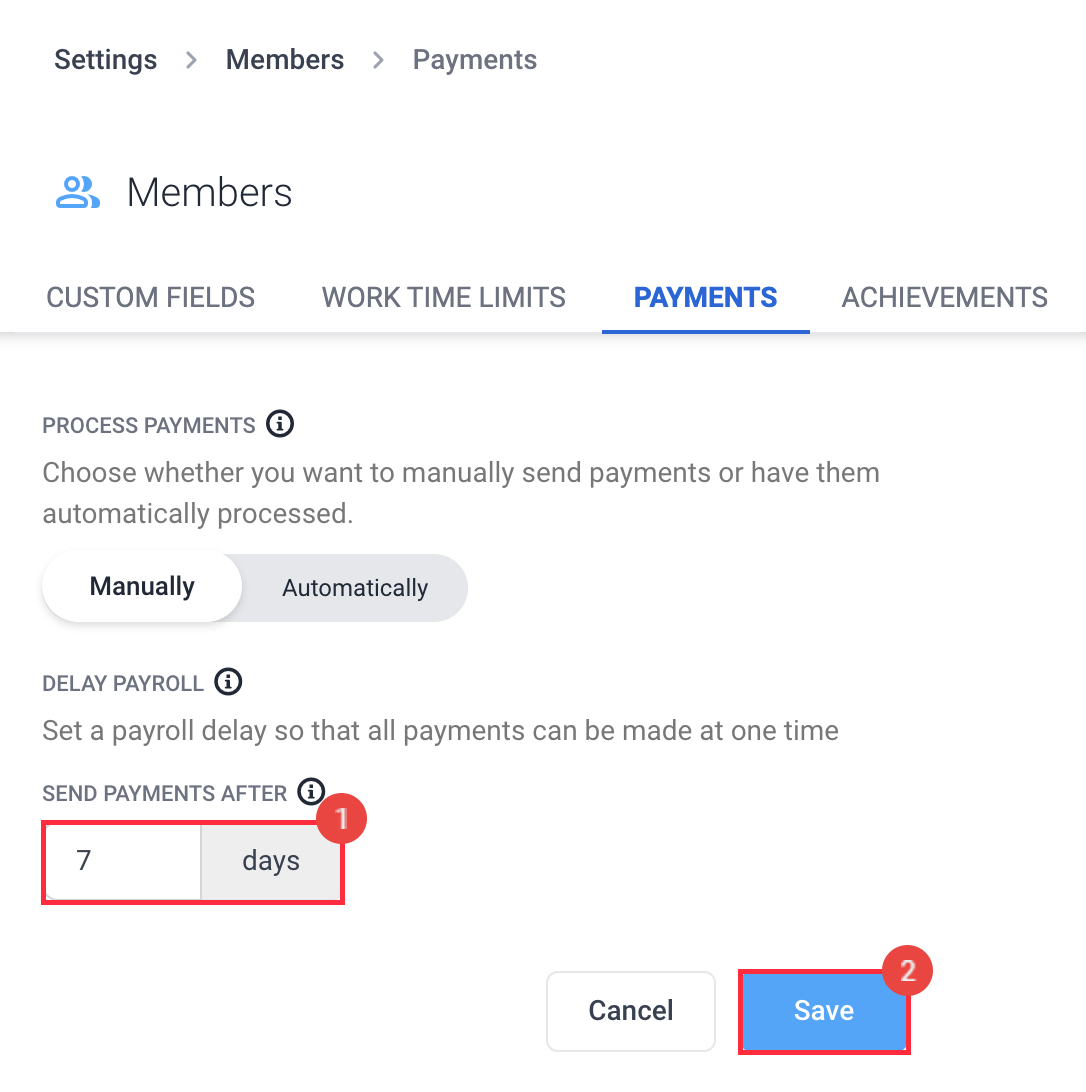
Under Delay payroll, enter the number of days in the Send payments after field, then click Save.
- ℹ️Delays apply only when Process Payments is set to Automatically and Payroll setup is complete. With Manually, Hubstaff doesn’t schedule payments, and the delay isn’t used.
- ℹ️The Payment Approval Window in Financials > Manage Payroll > Organization level settings is the same setting as Delay payroll. Changing one changes the other.
When will payments be made after adding a delay?
Hubstaff pays each pay period the day after it ends, plus the number of delay days you set. Delays count calendar days, including weekends.
Payment date = pay period end date + delay days + 1 day
For example, with a 0-day delay, a pay period that ends on the 15th is paid on the 16th. With a 3-day delay, the same period is paid on the 19th.
Hubstaff has 4 pay periods:
Weekly:
Pay periods run Monday to Sunday, or based on your selected start day. With a 0-day delay, you issue payments the day after the period ends (Monday by default). With a 3-day delay, you issue payments on the following Thursday.
Bi-weekly:
Pay periods run over two weeks, typically starting on a Monday. For instance, if a pay period begins on Monday, July 1 and ends on Sunday, July 14, a 0-day delay processes payroll on July 15. A 3-day delay processes payroll on July 18.
Twice per month:
Organizations run two pay periods each month: one from the 1st to the 15th, and the other from the 16th to the end of the month. With a 0-day delay, you process payroll on the 16th and on the 1st of the following month. With a 3-day delay, you process payroll on the 19th and on the 4th of the following month.
Monthly:
Pay periods run from the 1st to the last day of each month. With a 0-day delay, you run payroll on the 1st of the following month. With a 3-day delay, you run payroll on the 4th.
Where can I view each team member’s payroll run date?
To check when each team member will be paid:
Step 1
Navigate to Financials > Manage payroll.
Step 2
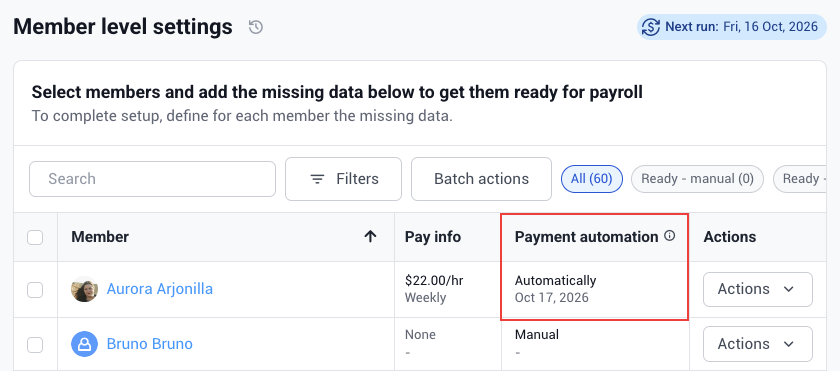
In the Members table, under Member-level settings, you’ll see each member’s scheduled pay date for automatic payments.