16 minutes
Deel Payroll Setup
Hubstaff now offers Deel as a payment integration option, providing a one-stop payroll solution for remote teams.
Only users in Deel with Pay as You Go time-based contracts can be paid using this integration.
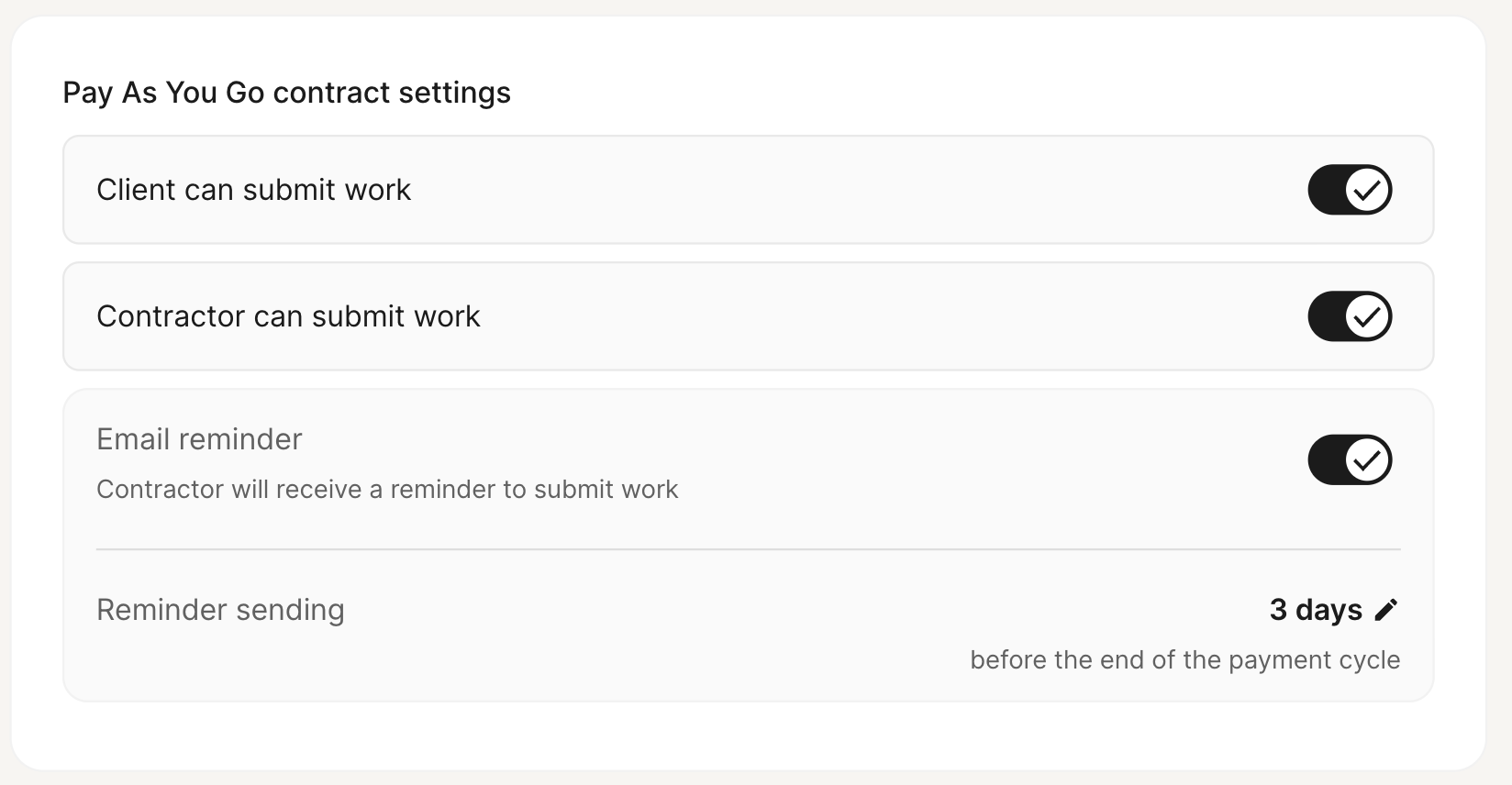
To ensure proper integration, both Deel’s Client and the Contractor must have permission to submit work. Organization Admins in Deel can verify this by following these steps from Deel’s dashboard:
- Click on the Organization Settings (gear icon in the top right corner).
- Navigate to Contract Settings.
- Select Adjustments and Work Submissions.
- Finally, enable the toggles for Client can submit work and Contractor can submit work under the Pay As You Go contract settings.
Setting up your Deel payroll
Step 1
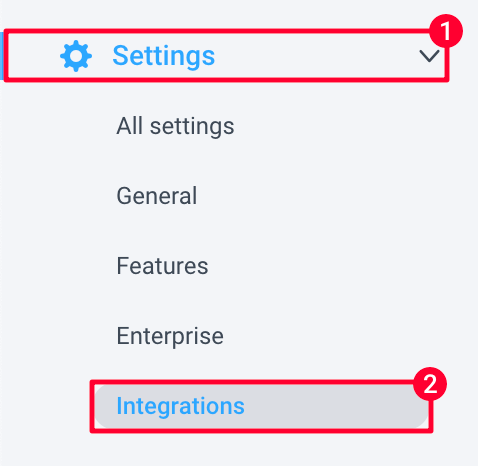
Navigate to Settings > Integrations.
Step 2
Click on Add integration.

Step 3
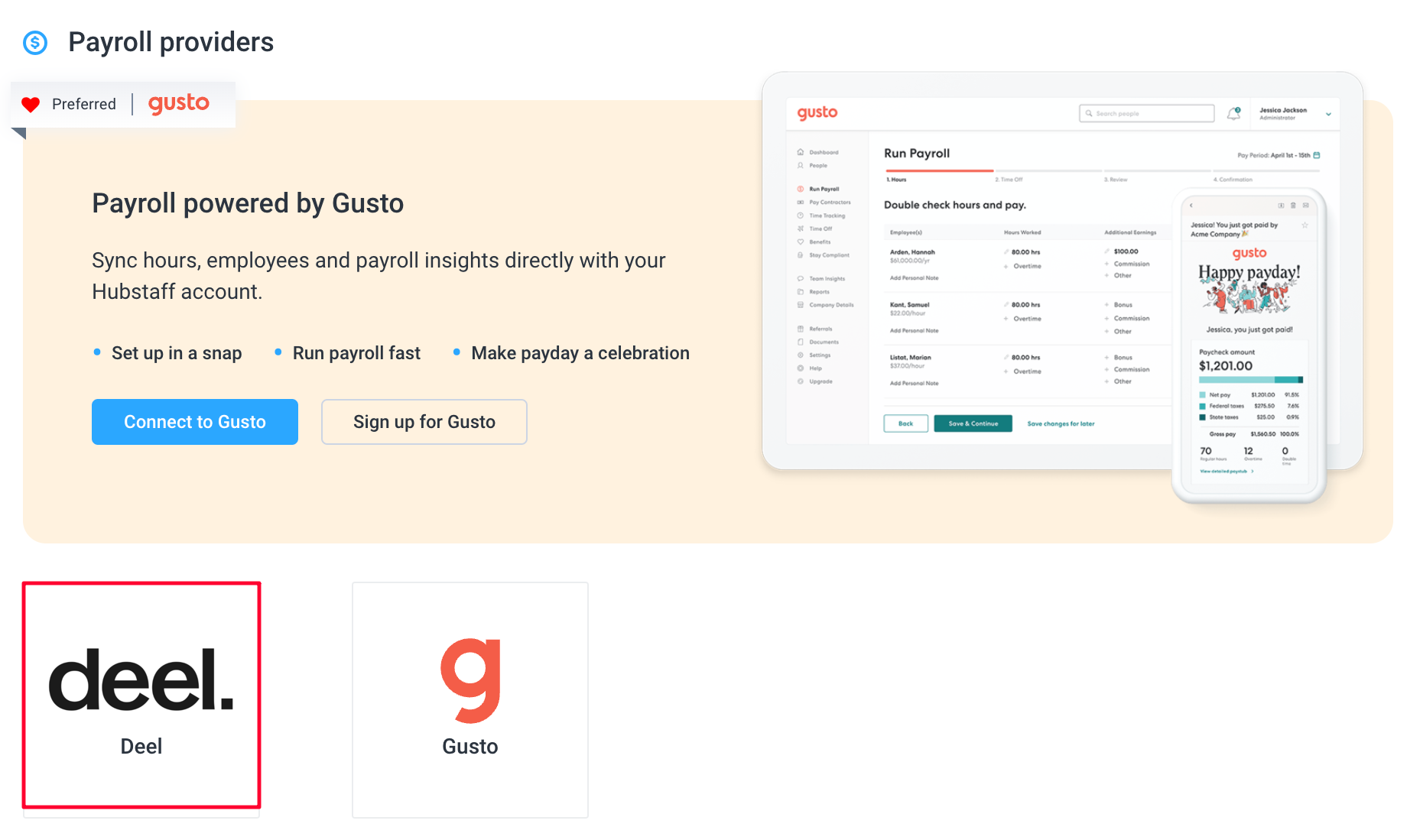
Navigate to Payroll providers, then click on Deel.
Step 4
Click Next on the initial setup page. Please make sure you have an active Deel account created before proceeding.

Step 5
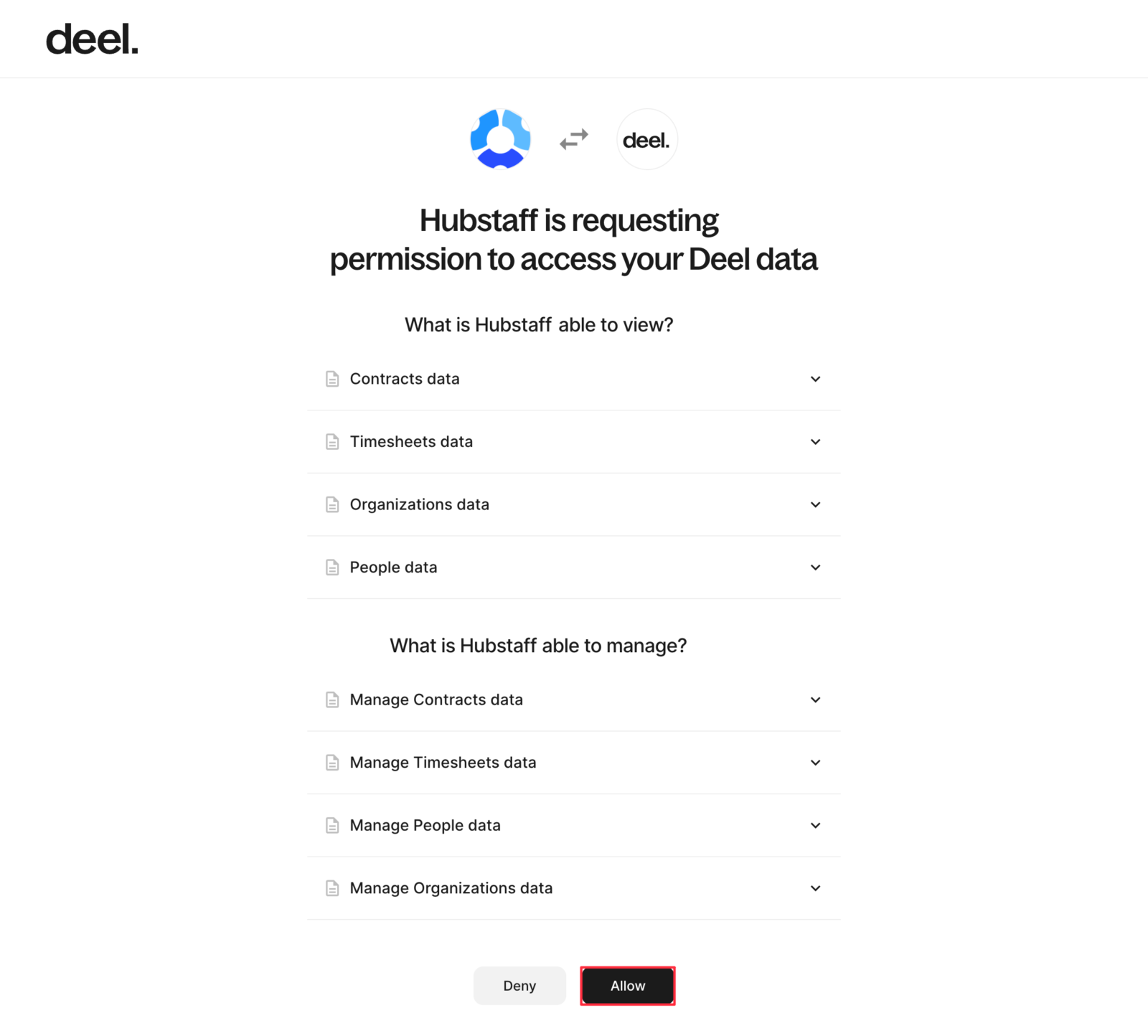
You will be taken to Deel and asked permission to access your Deel data. Click Allow to continue.
Step 6
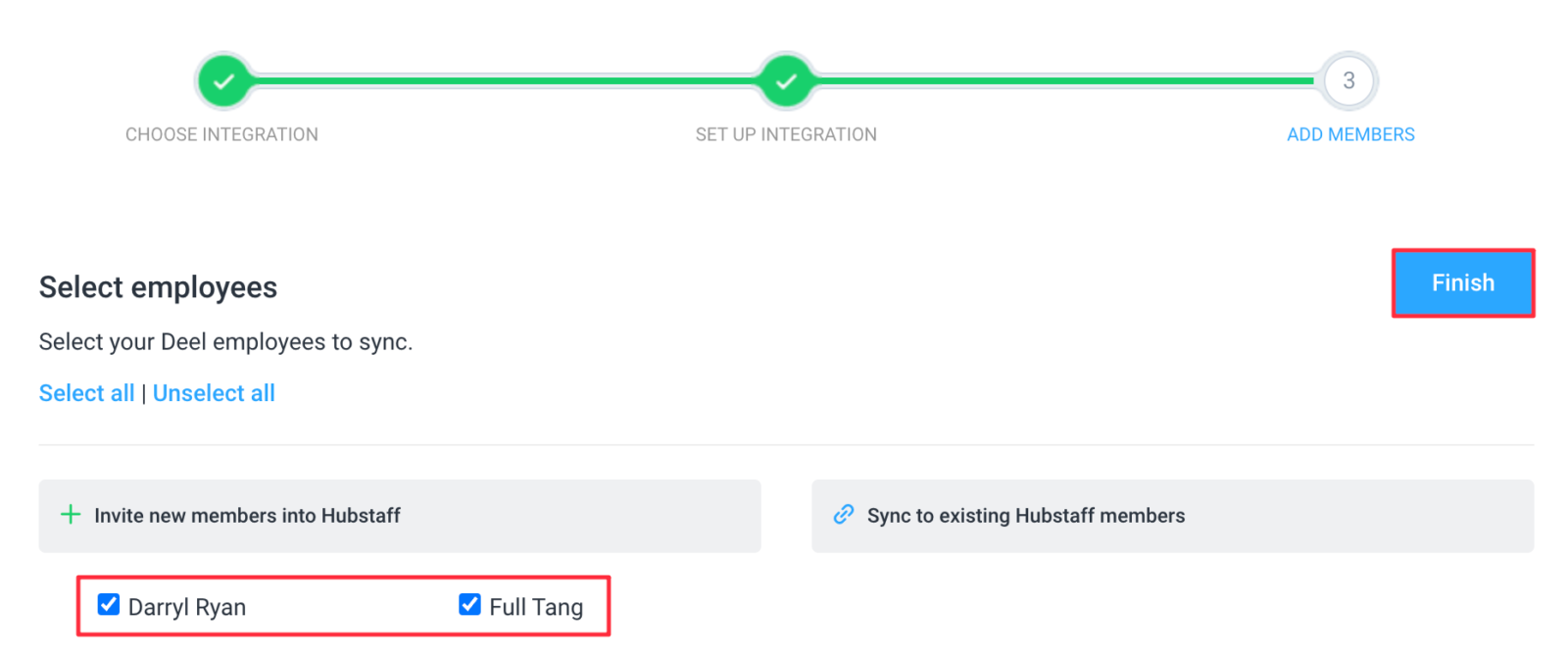
Choose which team members to include in your integration, then click Finish to complete the setup.
Step 7
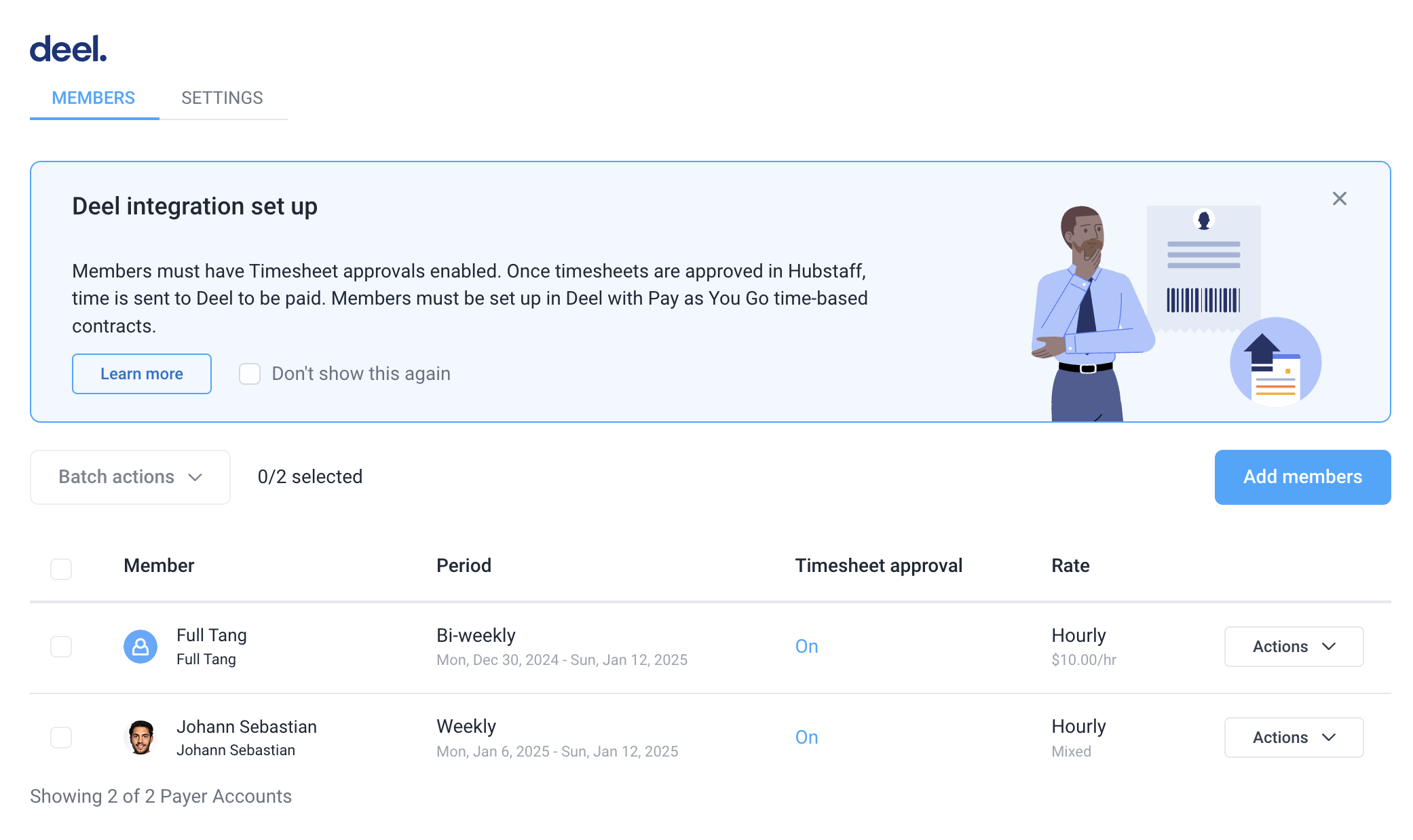
Once you’ve completed the setup, you’ll see a list of team members in your Deel integration.
Paying your team
To get time to sync to Deel from Hubstaff:
Step 1
Navigate to Timesheet > Approvals.

Step 2
Approve the team member’s timesheet.

Step 3
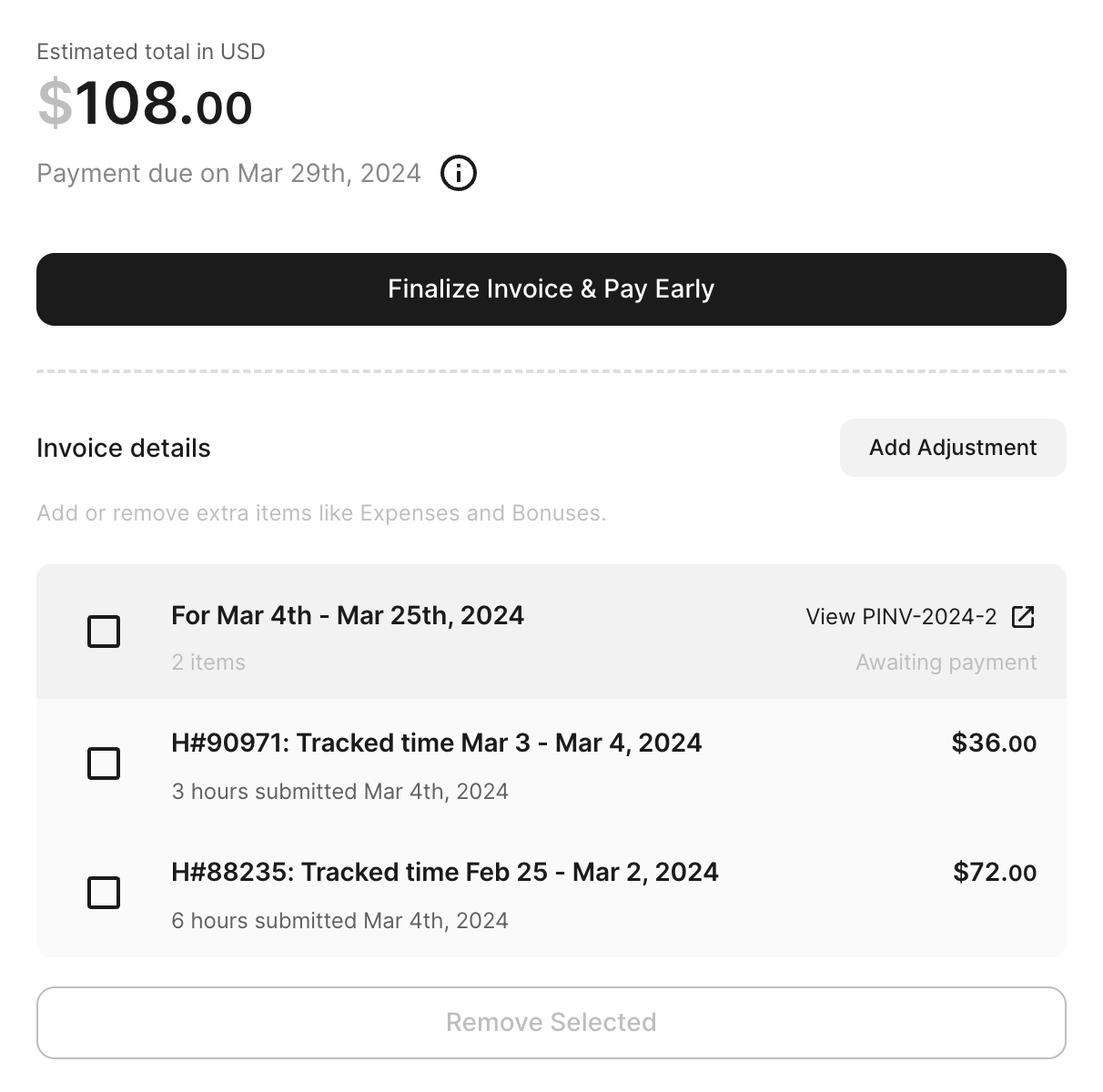
Once the timesheet is approved for a linked member in Hubstaff, you will see a payment scheduled for that timesheet under the invoice details section of the contractor in Deel.
Team members need to have a signed contract/begun onboarding in order to appear under the integration.
Only hours are synced to Deel, if there is a pay rate conflict, the rate on Deel will be followed.
Hubstaff only syncs regular time hours to Deel, we do not sync time off or holiday hours
Best Practices
Avoiding Missed Deel Invoice Cycles
When using Hubstaff + Deel for Pay As You Go (time-based) contractors, it’s important to ensure that your Hubstaff timesheet approval process aligns with how Deel groups and processes contractor payments.
If these systems are not aligned, approved hours may unintentionally be included in the next payment cycle, delaying payment for your contractor.
How the Hubstaff → Deel sync works
- Hubstaff syncs hours to Deel only after a timesheet is approved in Hubstaff
- Approved hours are sent to Deel as Pay As You Go time entries, which appear as line items on the contractor’s invoice.
- Deel assigns submitted time to a payment cycle based on when the time is submitted, and whether the invoice for that cycle is still open.
Key Deel Concept: Invoice Cycle and Invoice Due Date
For Pay As You Go contractors, Deel uses invoice cycles, such as weekly or monthly.
Each cycle has:
- A cycle end date (for example, “January 31”), and
- An invoice due date, which determines how long the invoice remains open for review and payment.
The invoice due date acts as a grace period. Once the invoice is due (and effectively closed), Deel will place any newly submitted time into the next open invoice cycle
Why this matters (example scenario)
Example: Monthly contractor, the month ends on a weekend
- Contractor timesheet covers Jan 1 – Jan 31 2026
- Jan 31 falls on a Saturday
- Manager reviews and approves the Hubstaff timesheet on Monday, Feb 2
- Hubstaff syncs the approved time to Deel on approval.
If the Deel contract is configured with:
- Monthly cycle ending Jan 31, and
- Invoice due date set to the same day or 0 days after cycle end
Then:
- The January invoice is already closed
- Deel assigns the submitted hours to February
- The contractor does not get paid for January unless corrections are made
How to update invoice cycle settings in Deel (Pay As You Go contractors)
These settings are configured on each contractor’s contract in Deel. They are not part of Hubstaff, and they are not global payroll settings.
Step-by-step: Where to find the settings
- Log in to Deel
- Go to People
- Navigate to the Contractor’s profile you wish to view/edit.
- Select the Contract you wish to view/edit.
- The current settings will be displayed under the Invoice policy details section.
- Select the Edit contract button at the top of the page.
- Locate the Select invoice policy section to modify Invoice cycle and Invoice due date settings.
This is where Deel controls how often invoices are created and how long they remain open for review.
Recommendations (Configuration)
To prevent time from rolling into the next cycle, configure a buffer window in Deel.
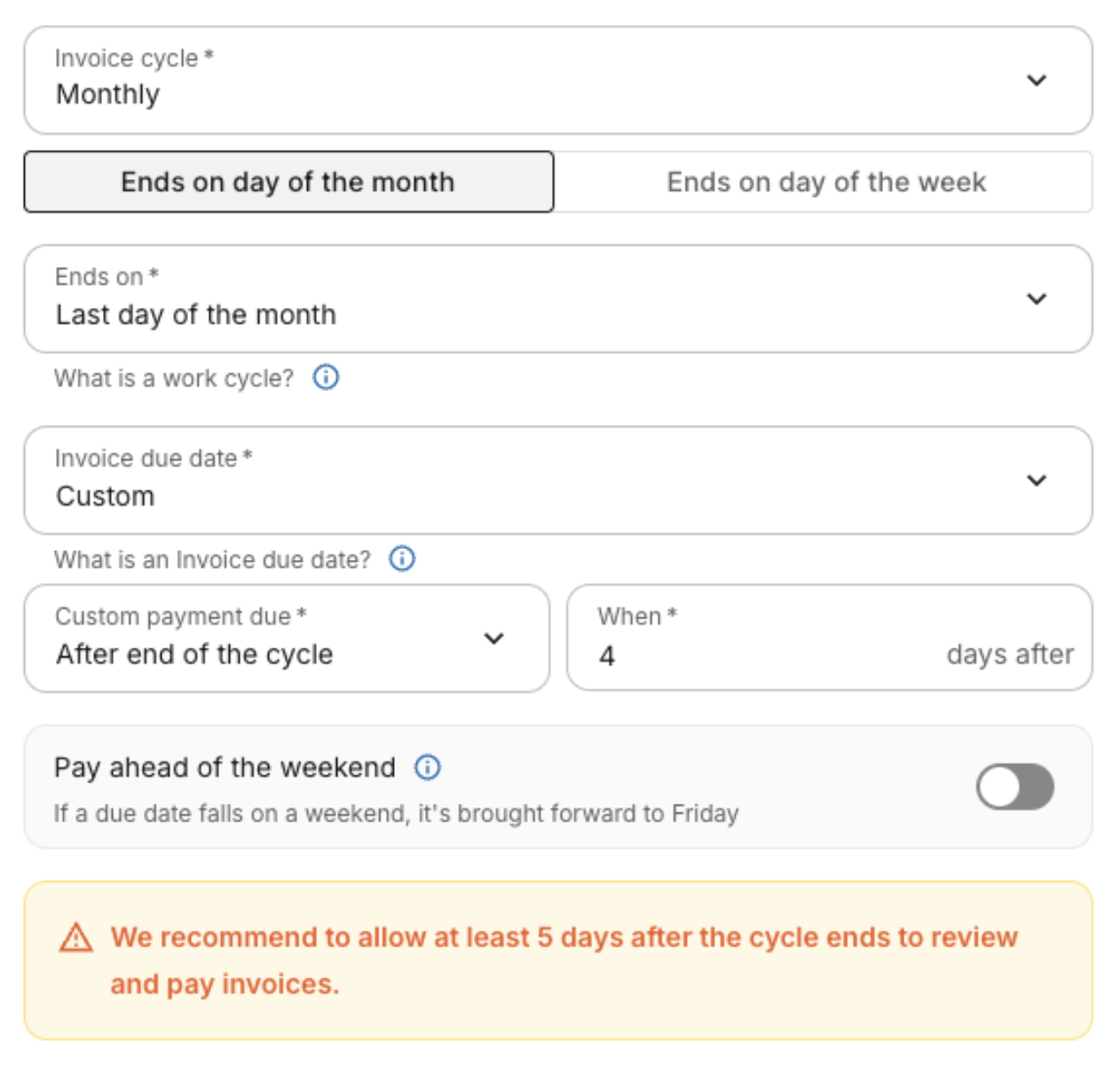
Deel contract settings for Pay As You Go contractors:
- Invoice cycle: Monthly
- Cycle ends: Last day of the month
- Invoice due date:
- Custom
- Custom payment due: After end of the cycle>
- When: 5+ days after
- Custom
This keeps the invoice open long enough to account for:
- Weekends and holidays
- Delayed approvals
- Month-end timing gaps
- Timezone differences
Optional
- Leave “Pay ahead of the weekend” turned off, or ensure your buffer is long enough that weekend adjustments don’t shorten it too much.
Notes
- These settings apply per contractor contract.
- An invoice policy can be created to let you reuse the same invoice cycle and due date settings across multiple contractors.
- Changing invoice policies does not affect past, already-closed invoices.
- If you update the settings, they apply to future invoice cycles.
Recommendations (Process)
- Approve Hubstaff timesheets as soon as possible after the period ends.
- Confirm your team can realistically approve timesheets within the invoice buffer window.
- Review the submitted time in Deel and finalize payment before the invoice due date.
Recommendations (Initial Setup)
Before running your first payroll with Hubstaff + Deel, confirm:
- Your Deel contract invoice cycle matches your intended pay frequency
- The invoice due date includes a sufficient buffer (≥ 5 days)
- Your internal approval process fits within that window
Correcting Missed Cycles
If the timesheet cutoff date is missed due to a late timesheet approval and payroll for the intended cycle is locked, Deel recommends processing changes either in the next cycle or via an off-cycle payment.
- Off-cycle / one-off payments can be used to pay a contractor outside of their regular payment cycle when needed.
- If further adjustments need to be made, please contact your Deel CSM