14 minutes
Why Was My Shift Marked Late, Missed, or Abandoned?
If you received an automated email about your shift status, this article explains exactly why it happened and what you should do next. Each section includes the most common causes and clear steps to resolve the issue.
How Hubstaff determines shift status
Hubstaff compares your tracked time against the scheduled shift window to determine status. It evaluates:
-
-
- Whether you started tracking within the shift window (and within the grace period).
- Whether you tracked enough time to meet the minimum required hours for the shift.
- Whether your tracked time fell inside the shift window — not before or after it.
- Whether your timer successfully synced with the server before the shift window closed.
-
- Note: Even small delays in timer upload can affect the final status. If your device had an unstable internet connection during a shift, data may have synced after the shift window was evaluated.
1. Late
Hubstaff marks a shift as late when tracking begins after the scheduled shift start time and beyond the grace period.
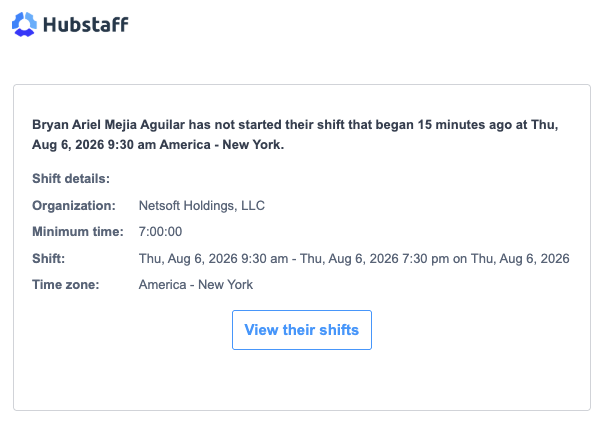
This status triggers the automated emails: “Your shift started X minutes ago” and “[Member name] has not started their shift that began X minutes ago.”
Why this happens
- The member started tracking after the grace period expired. The grace period is a short buffer after the shift start time — if tracking begins within it, the shift is not marked late. If tracking begins after it, the shift is marked late.
- Timer sync delay. The member may have started tracking on time, but the app took several minutes to upload the data to the server. Hubstaff uses the server-received timestamp, not the local device time.
- Timezone mismatch. If the shift was created in a different timezone than the one the member is working in, the system may register tracking as starting late when it wasn’t.
What to do?
If you are the member: Start tracking before the grace period expires. Confirm your device has a stable internet connection. Check that your timezone in Hubstaff matches the timezone in which the shift was created.
If you are the manager: Go to Calendar > Schedules and confirm the shift start time and timezone. Review the member’s activity timestamps in Reports > Time & Activity to check when the data was received vs. when tracking started.
- The grace period is configured by the organization and can vary from 5 minutes up to 30. Managers can review or adjust it under Settings > Schedules > Calendar > Grace Period.
- In some cases, the member starts tracking on time, but the app takes several minutes to upload the data to the server. Sync delays are temporary. Once the timer finishes uploading, the shift status will correct itself automatically. If a member receives a “late shift” email but was already tracking on time, they can safely ignore the notification.
2. Missed
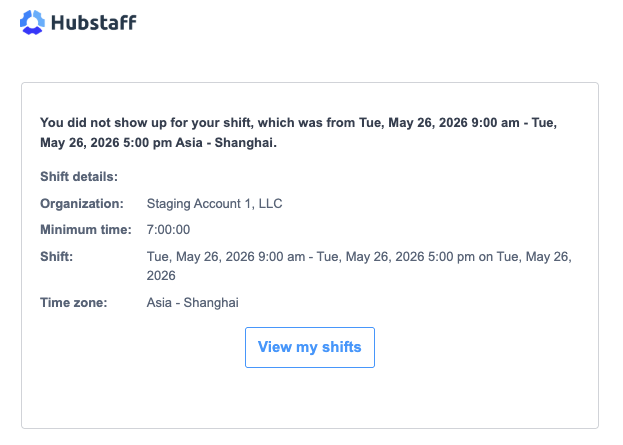
Hubstaff marks a shift as missed when no tracked time is recorded within the scheduled shift window. This status triggers the automated emails: “You missed your shift” and “[Member name] missed their shift”.
Why this happens
-
-
- The member tracked time earlier or later in the day, but not during the shift window. Hours tracked outside the window — even if the total for the day is correct — do not count toward a shift.
- The shift was set up with the wrong time or timezone, so the scheduled window didn’t match when the member was actually working.
- The member did not start tracking at all.
- The timer failed to upload any data before the shift window closed due to connectivity issues.
-
What to do?
If you are the member: Always track during the shift window, not before or after. Verify that your timezone in Hubstaff matches the timezone your shift was created in.
If you are the manager: Go to Calendar > Schedules and confirm the shift time and timezone are correct. Check Reports > Time & Activity to see whether the member tracked time on that day and whether it fell inside or outside the window. If the shift was configured incorrectly, update it and notify the member.
3. Abandoned
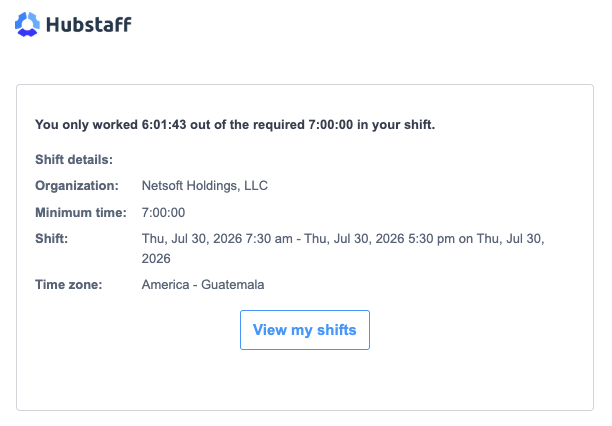
Hubstaff marks a shift as abandoned when a member starts tracking but does not meet the minimum required hours for the shift within the scheduled shift window.
This status triggers the automated emails: “You abandoned your shift” and “[Member name] abandoned a shift.”
Why this happens
-
-
- The member stopped tracking before reaching the minimum required hours and before the shift ended.
- Part of the member’s tracked time fell outside the shift window. Only time tracked within the window counts toward the minimum hours requirement — time tracked before the shift starts or after it ends is excluded.
- The shift or timezone was configured incorrectly, so tracking that appeared complete was interpreted as incomplete.
- Tracking was interrupted — the timer was stopped manually or due to inactivity and was not restarted before the shift window closed.
-
What to do?
If you are the member: Track continuously until the shift ends. Confirm you are meeting the minimum required hours. Avoid stopping the timer early. If your timer stops unexpectedly, restart it as soon as possible before the shift window closes.
If you are the manager: Go to Calendar > Schedules and confirm the shift’s end time, timezone, and minimum required hours setting. Review the member’s activity timestamps in Reports > Time & Activity to see exactly how much time was tracked within the window.
Does approved time off stop shift alerts?
No. Approving time off doesn’t stop shift alerts on its own. Hubstaff removes the shift, and its late and missed alerts, only when the approver selects Remove shifts while approving the request. Hubstaff keeps the shift by default.
A kept shift stays on the schedule, still sends late and missed alerts, and still shows as Missed in the Shift attendance report.
Remove the shift when you approve time off
Go to Calendar > Time off requests, approve the request from the Submitted tab, and select Remove shifts. For the full steps, see Holidays and Time off Requests in Hubstaff.
If you already approved the request and kept the shift
Use one of these options to stop the alerts:
- Delete that day’s shift. Go to Calendar > Schedules, click the shift, click Delete, and choose to delete only that shift. Other days stay on the schedule. Deleted shifts are permanently removed and can’t be recovered.
- Turn off Shift Alerts. Go to Settings > All settings > Schedules > Calendar > Shift Alerts and set alerts to never send. This applies to all of the shifts in that scope, not only the day of the time off, so turn alerts back on afterward. You can set it for your whole organization or for one member.
Can a shift status be corrected?
Shift statuses are calculated automatically based on tracked time. If an incorrect shift configuration caused the wrong status, managers can make retroactive changes by going to Calendar > Schedules and selecting the affected shift.
From there, you can either edit the existing shift or delete it and create a new one. When making changes, you can choose whether they apply to the selected shift only or the selected shift and future shifts.
If you believe a status is incorrect due to a timer sync issue or you’re unable to resolve it by updating the shift configuration, contact Hubstaff Support for assistance. For more information on adding/editing past shifts, see our Hubstaff Schedules article.
Quick reference
| Status | What Happened | How To Avoid This |
|---|---|---|
| Late | Tracking started after the shift began | Start tracking within shift hours; verify timezone |
| Missed | No tracking occurred during the shift | Track during shift window; check shift setup |
| Abandoned | Tracking started but didn’t continue through the shift | Track until shift ends; meet minimum hours; verify timezone |
Glossary
Shift window — The scheduled block of time during which a member is expected to track. Tracked time outside this window (before or after) does not count toward the shift.
Grace period — A short buffer after the shift start time during which a member can begin tracking without being marked late. If tracking begins after the grace period ends, the shift is marked late. The grace period duration is configurable by the org owner.
Minimum required hours — the minimum amount of time a member must track within the shift window. If a member tracks less than this amount, the shift is marked abandoned. This threshold is set per shift.