7 minutes
Automatic tracking policies (Start/Stop timer)
To ensure accurate data recording for your team members, you can now enable automatic tracking policies. On the desktop timer, time tracking can auto-start/stop based on a scheduled shift on the calendar or a fixed schedule with specific start and end times on selected dates.
Additionally, for company-owned computers that use the Silent app, there’s an option to apply an “all the time” policy. This ensures that tracking runs continuously without relying on a schedule.
For a complete deployment hub including guides, troubleshooting, and advanced configuration, visit the Silent App Deployment Center.
Adding an Automatic tracking policy
The timer will not automatically start if the application is closed.
In order to activate the automatic start/stop timer feature, check out the steps below:
Step 1
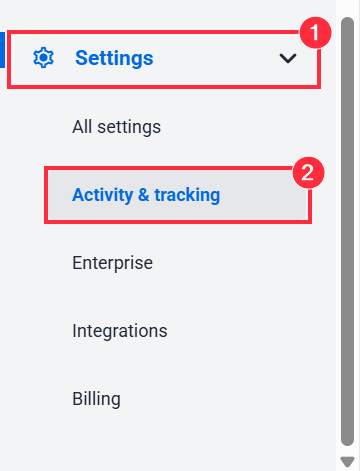
First, navigate to Settings > Activity & tracking.
Step 2
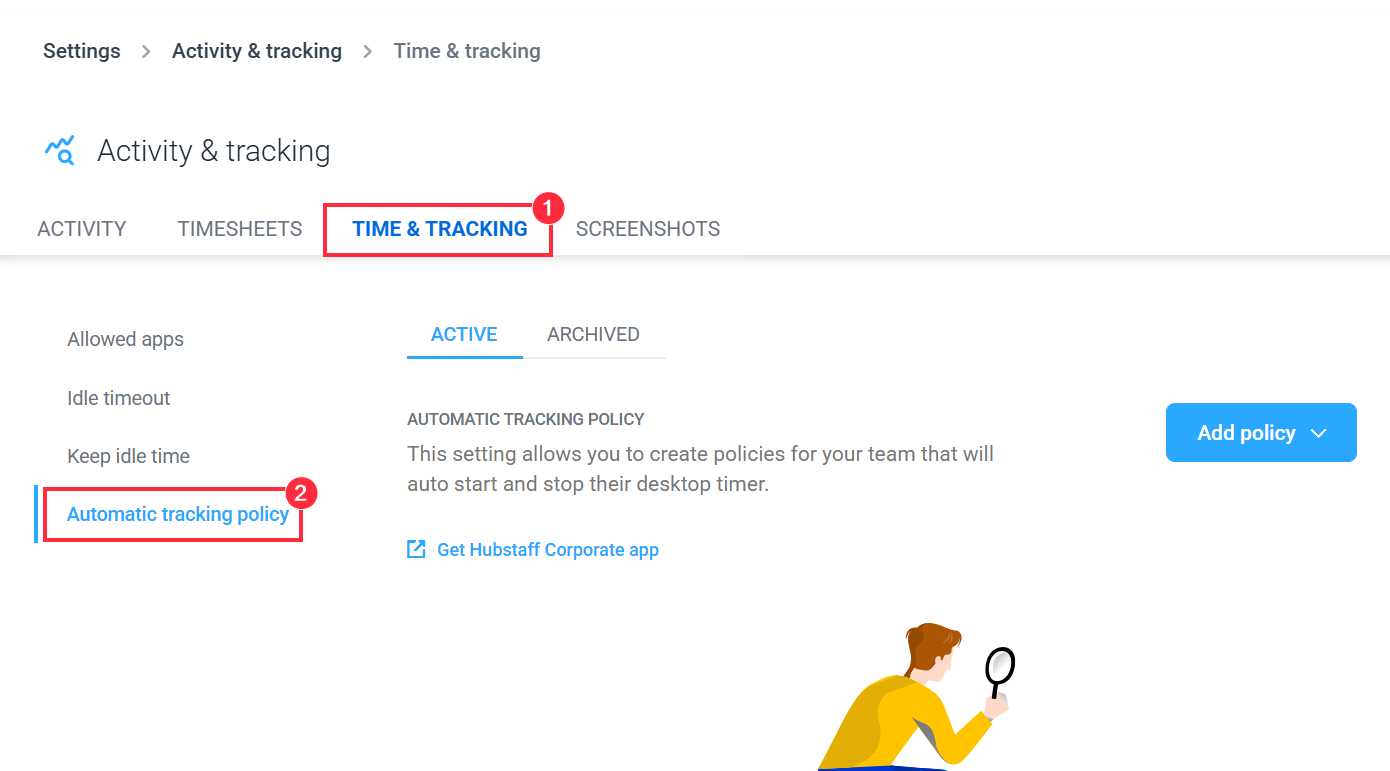
Under Activity & tracking, click on Timer & Tracking > Automatic tracking policy > Add policy.
Step 3
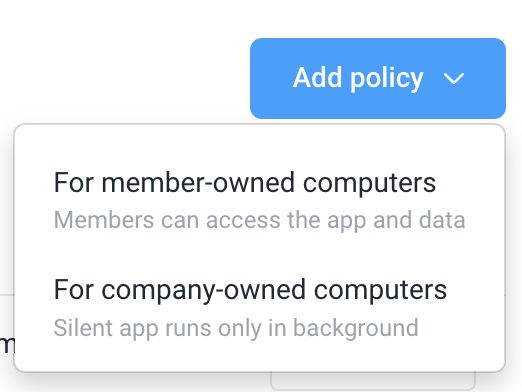
Select the preferred option, depending on your use case:
Step 4
Next, the Automatic timer policy dialog will appear. Fill in the following details:
- Policy name
- Teams/Members -you can select members to join the policy.
- Timer start/stop rules – can be set to existing shifts or a fixed schedule. An “All the time” option is also available for company-owned devices.
- Don’t start the timer until the first activity (optional) – the recording will only start when the team member uses the keyboard/mouse.
- Days of the week – specify the days of the week the timer will automatically start and stop, as well as the start and stop times. Note: this follows the team member’s (not the organization’s timezone).
- Starting project – here you can define what project the timer will track time to when it starts recording.
Step 5
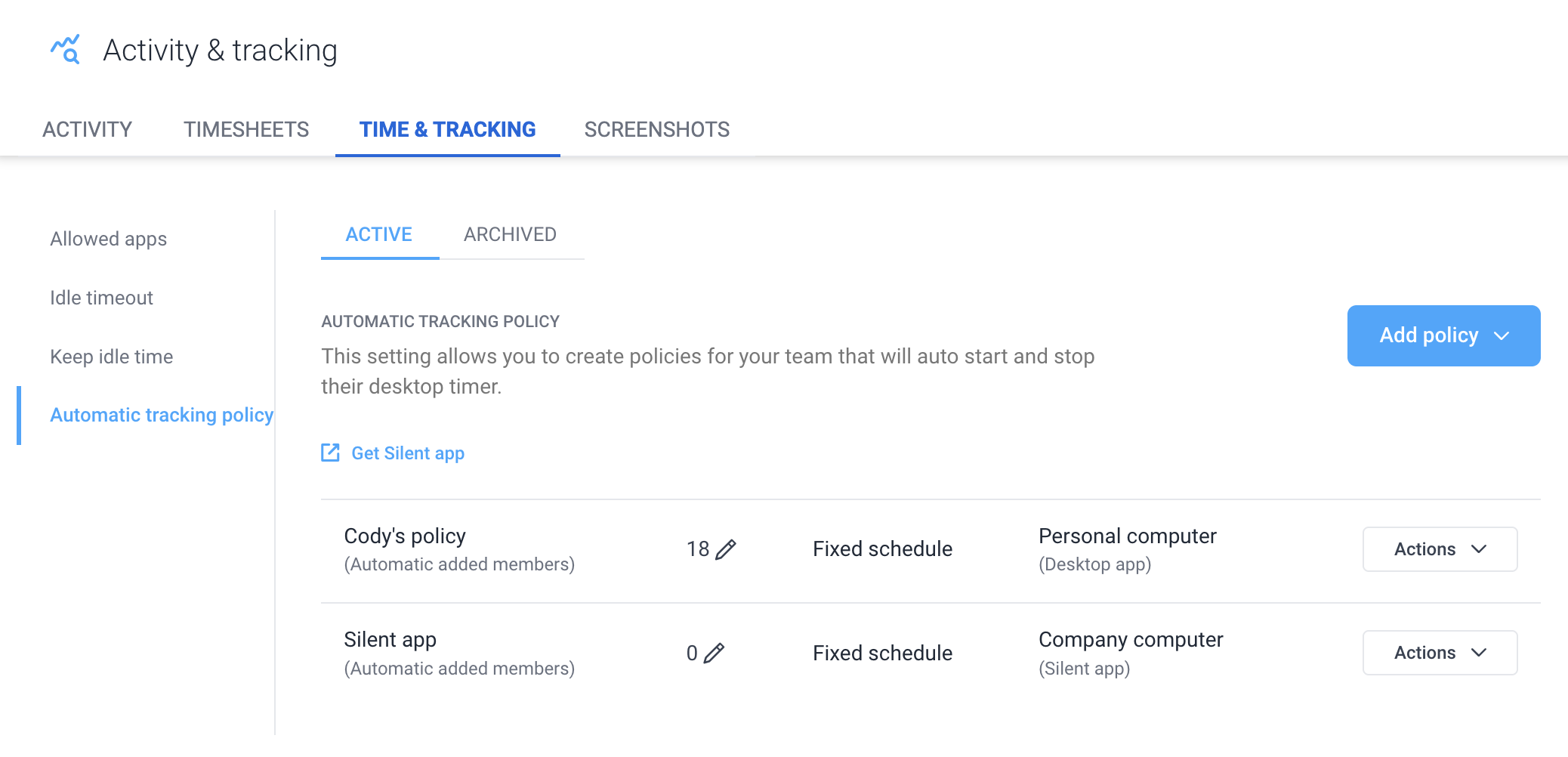
After saving, you’ll see the automatic tracking (start/stop timer) policy you created.
Step 6
After the policy has been set up, and during the designated time, the user will be prompted whether they would like to allow the timer to automatically start/stop.
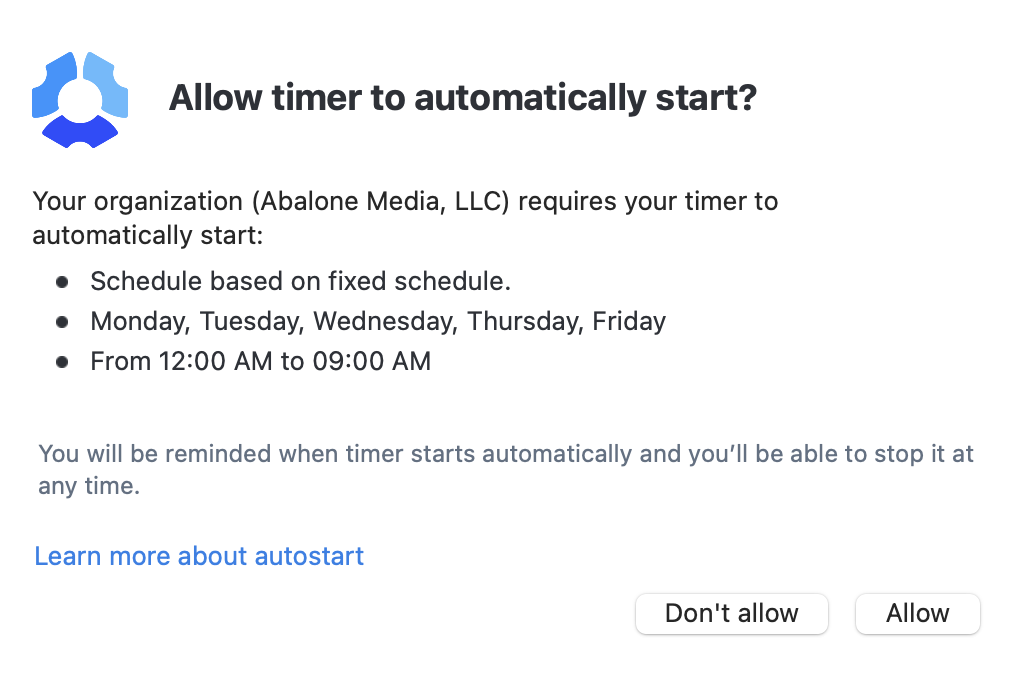
Step 7
Once allowed, the timer will start and stop tracking time to the designated project as scheduled.
