5 minutes
Timer not resetting on a new work day
Occasionally, you might notice that your timer application isn’t resetting itself back to zero (00:00:00) on a new work day. This can be frustrating, but rest assured, there are usually logical explanations for this happening. In this article, we’ll explore why the timer may not be resetting, along with steps to identify and resolve that issue.
Connectivity issues
The most common reasons for the timer to not reset on a new day are internet connectivity issues, an unstable connection, or slow upload speeds. As soon as Hubstaff finds a good/stable internet connection all the queued data will get uploaded and the timer will reset itself back to zero. Recorded data is stored locally on the member’s computer prior to upload.
If this issue keeps affecting you, here are some steps you can try:
- Leave the timer open for a few minutes after you finish your work day (you can stop the timer, just leave it open. Don’t close the app). This will allow it some extra time to upload the data.
- Close and re-open the timer to force it to refresh and attempt a connection to our servers.
- Click the refresh button in the bottom left corner of the app.
- Identify and address any internet issues you may be facing where you are working.
Last Update Failed or Offline (App Not Updating)
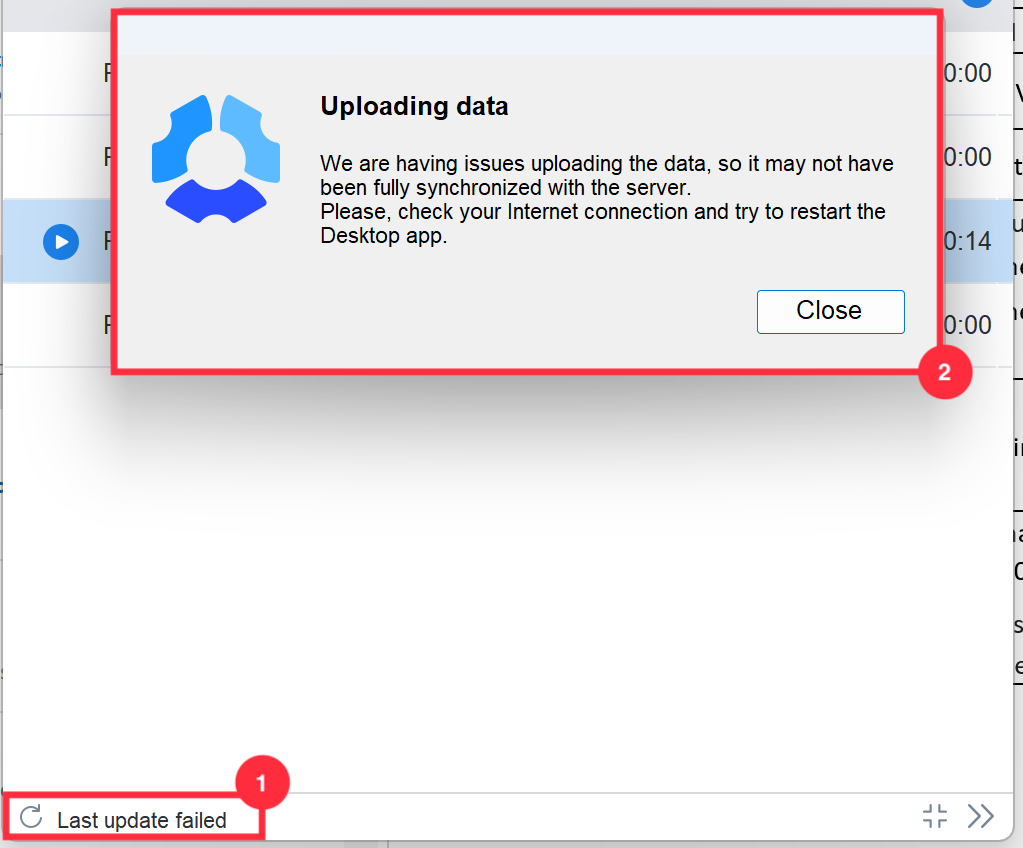
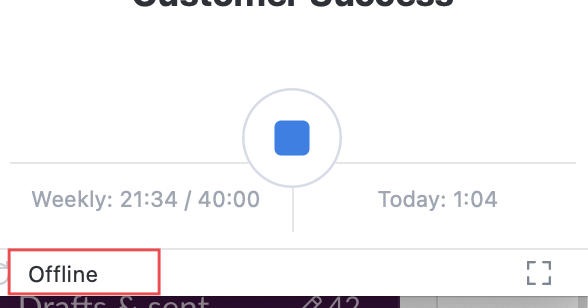
Our desktop timer app is designed to be able to track time and capture activity even when being offline. That said, in order to upload said time and activity and reset the timer back to zero for a new work day, the app needs a reliable and stable internet connection to upload the previous day’s data first. If you’re having internet issues, the desktop app may show an error message at the bottom left corner of the app that reads either:
- “Last Update Failed”
- “Offline”
How to fix issues with the app not updating:
To fix either of these errors, you will need to:
- Check your internet connection. Try rebooting your modem/router.
- If you’re on Wi-Fi, make sure you have a strong signal and a good internet speed. You can use https://www.speedtest.net/ to check your internet speed.
- Check if you’re having packets loss or latency. You can go to https://freeola.com/line-test/ and run a free test.
- If you’re using a VPN and or an antivirus, temporarily disable them.
- Try rebooting your computer. Sometimes a simple system restart can fix such issues.
- Fully close the desktop timer app and relaunch it. This will trigger a reconnect to our servers and issue should be resolved.
- If the issue still persists, please contact our Support team via email at support@hubstaff.com or try chatting with us for a faster response (if applicable to your plan).
If you try to close the desktop app during an internet issue and see a “Last Update Failed” error, a pop-up will appear with troubleshooting steps. You may notice that there is missing time and activity, and this is due to connectivity issues. Once the issue is resolved, the time and activity data will be uploaded to our server and it will then show up on your timesheet and dashboard.
If you are running a VPN or a proxy server, please make sure to whitelist the Hubstaff domains to make sure the app is able to connect to our servers.