6 minutes
Payment Records
Use Payment Records to review all team payments in one place, including both payments currently in progress and those previously completed. Each record includes a full breakdown of earnings, adjustments, and payment status for each member, so you can track exactly how each payment was calculated.
Viewing payment records
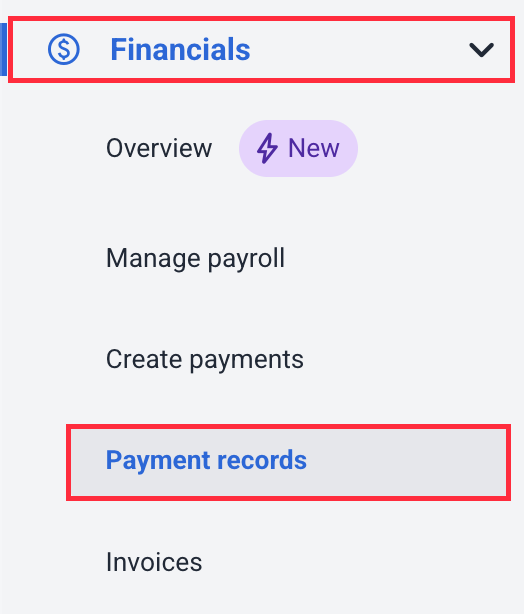
To view payment records, navigate to Financials > Payment records.
On the Payment Records page, you can filter the view by team, member, date range, or other criteria using the filters at the top of the page.
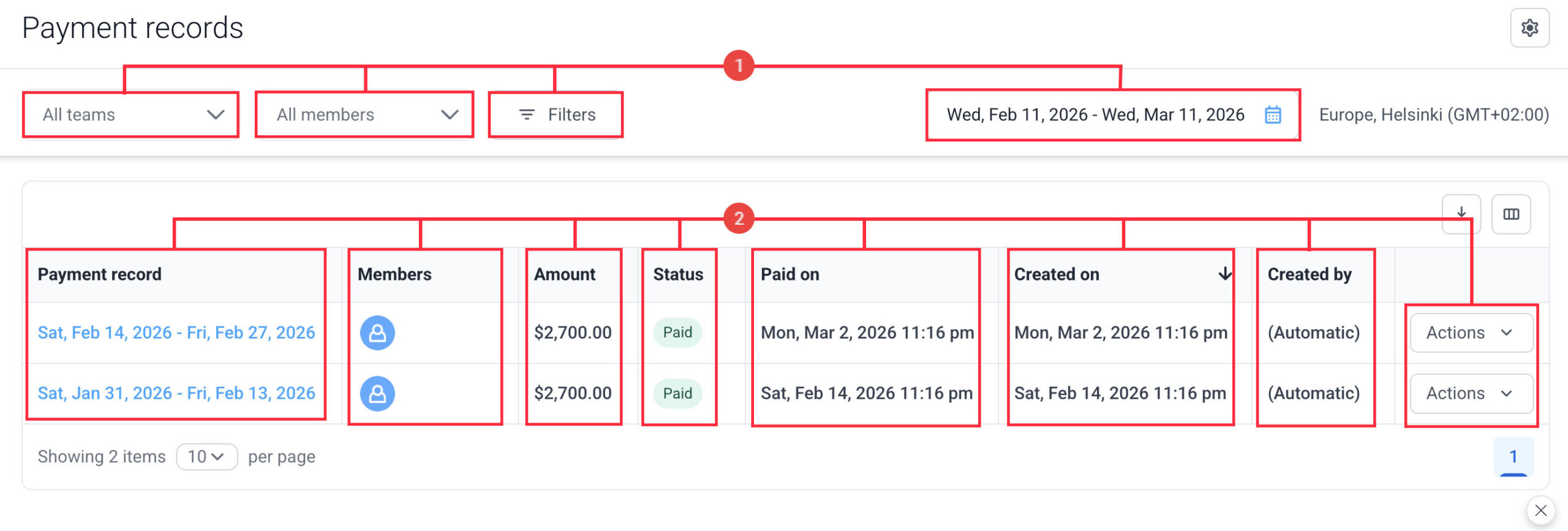
The following details are shown for each payment:
- On this page, you can filter the view by:
- Teams
- Members
- Filters
- Calendar
- Next, you can view the following payment details:
- Payment record
- Members paid
- Amount
- Status
- Paid on
- Created on
- Created by
- You can also:
- Download the report
- Add columns to the report
- Payment record
- Members
- Amount
- Status
- Paid on
- Created on
- Created by
- Payment type
- Integration
- Payment details
Expanding a Payment
To view the details of a payment, click the dates under the Payment record column.
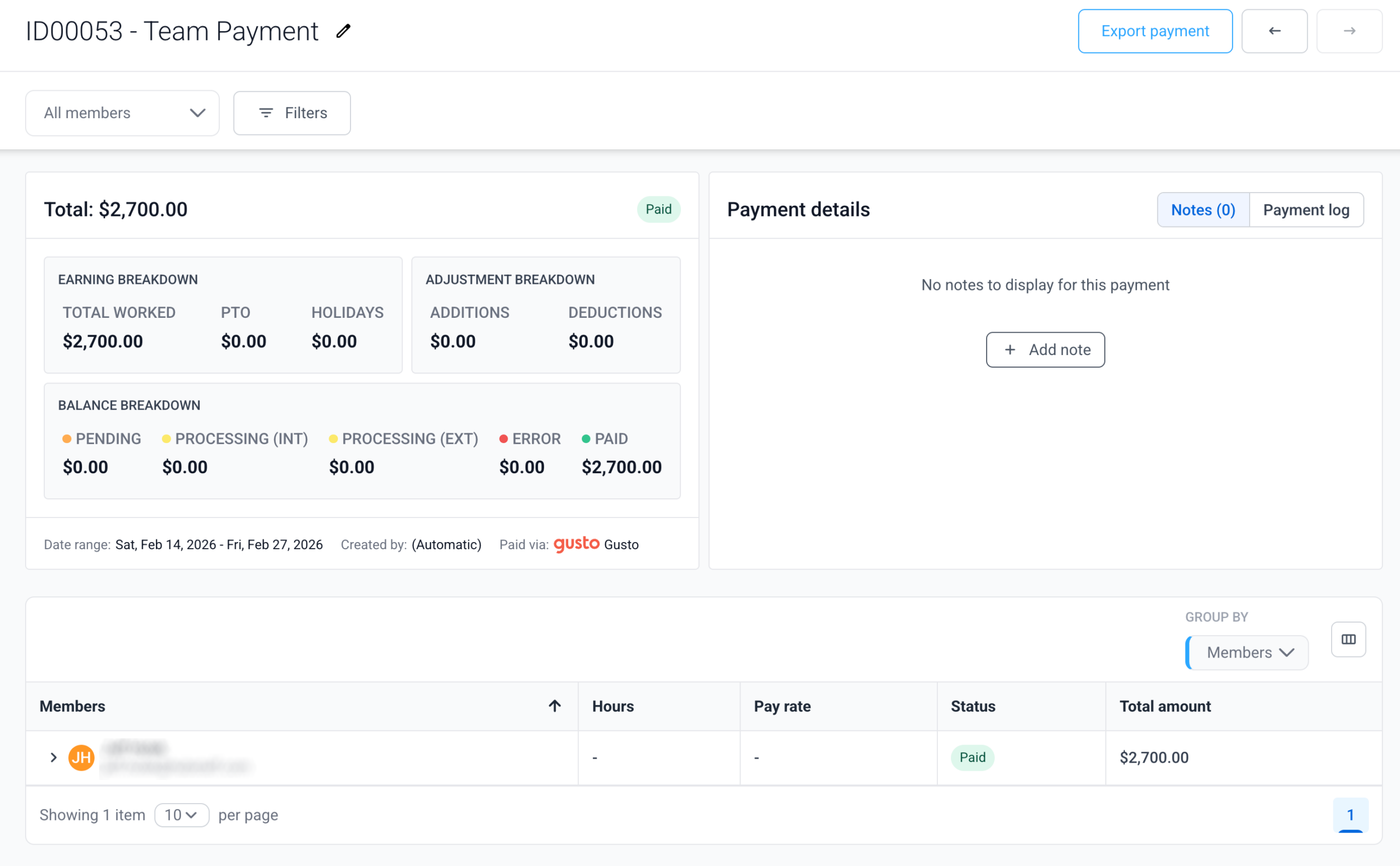
The payment detail page shows a summary of earnings and payment status breakdowns. From here you can also manage notes, review the payment log, and navigate between payments.
Renaming a Payment
To update a payment name, click the pencil icon next to the payment title. The updated name will also appear on the payment page.

Earnings Breakdown
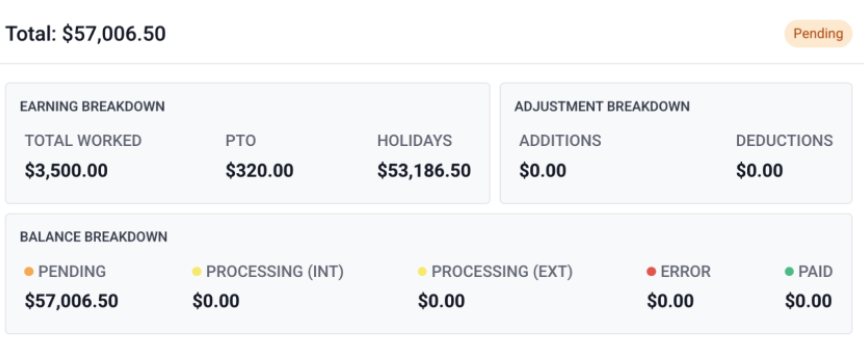
The summary includes the following breakdowns:
Earning breakdown
- Total worked
- Paid time off
- Holidays
Adjustment breakdown
- Additions
- Deductions
Balance breakdown
- Pending
- Processing (Internal)
- Processing (External)
- Error
- Paid
Filtering Within a Payment
Use the filters to find specific members, projects, or transaction statuses. Your filter selections update both the summary and the detailed breakdown simultaneously.
When a payment has failed transactions, additional filters become available to help you review transactions by error type.
Adding notes to payments
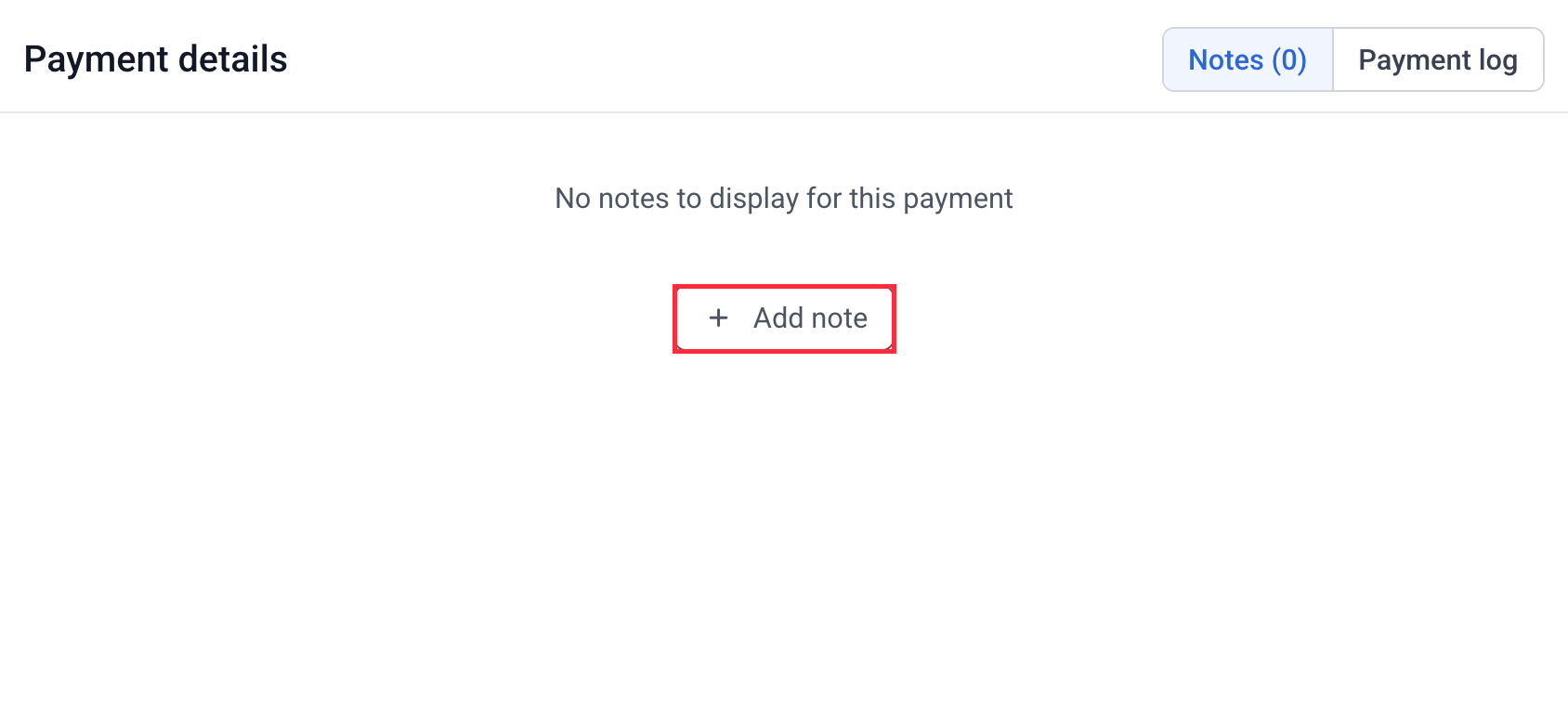
To add notes to payments, click on the Add note button.
Add your note, then click on Save.
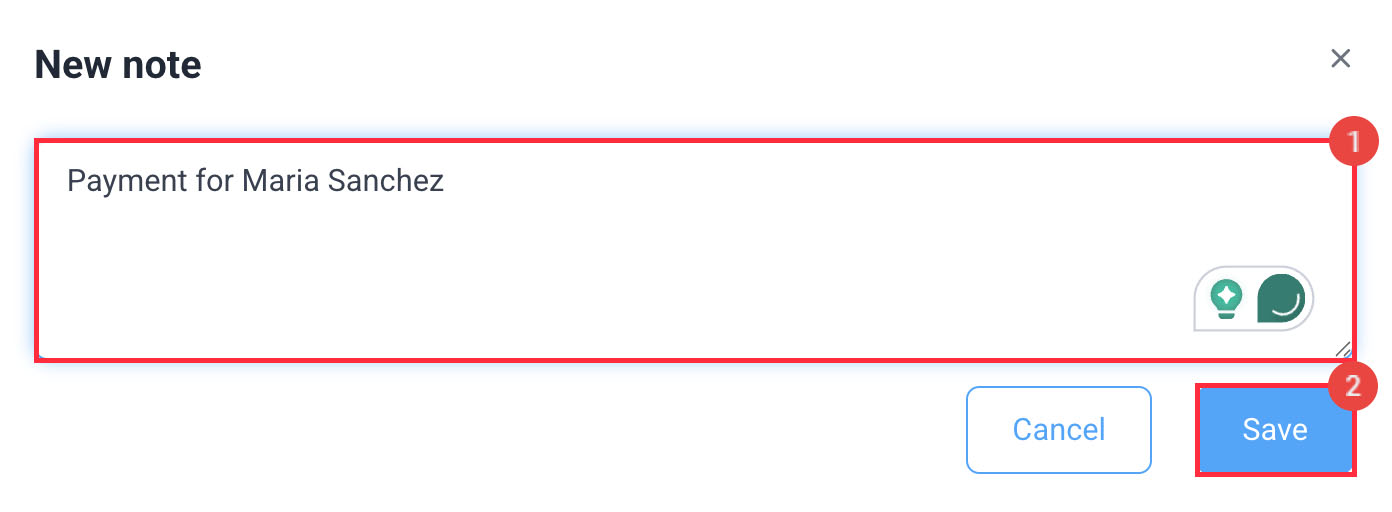
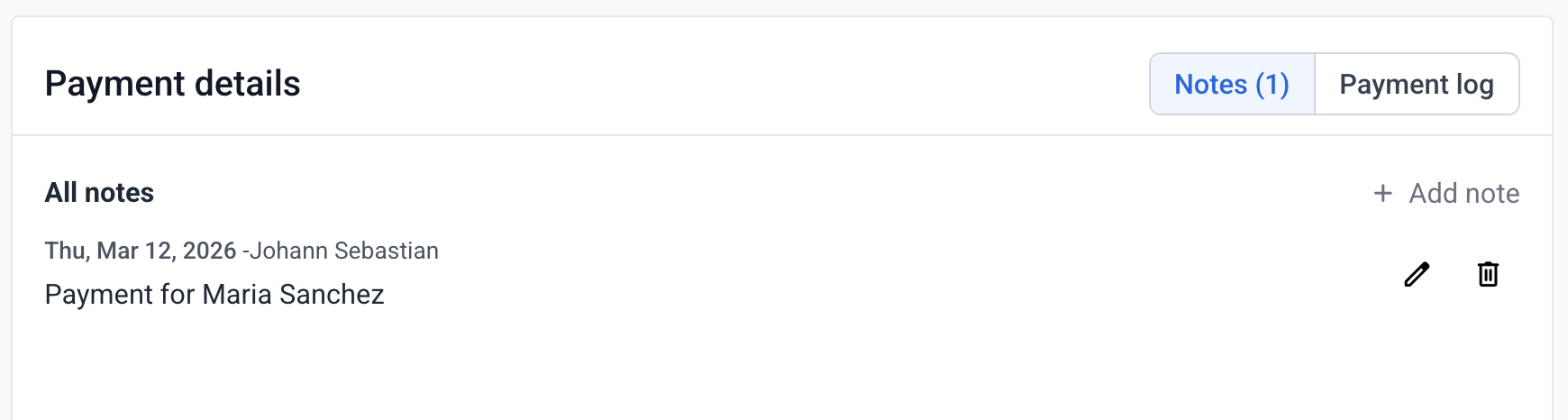
Once done, you’ll see the note added to the Payment details section.