5 minutes
Adding and Editing Past Timesheets
Adding and editing past timesheets is useful when a team member is missing a timesheet for a specific pay period, or when their pay period dates need to be aligned with the rest of your team. This ensures consistency across payroll reporting and scheduling.
Use this guide if:
- A new team member joined mid-pay-period, their timesheet dates don’t match the rest of your team, and you need to correct them.
- A team member is missing a timesheet for a pay period that was never generated.
Note: If a team member’s timesheet isn’t appearing in your Approvals queue and the issue isn’t related to pay period dates, see Setting up Timesheet Approvals instead.
For adding or editing past timesheets, follow this guide:
Step 1
Navigate to People > Members.

Step 2
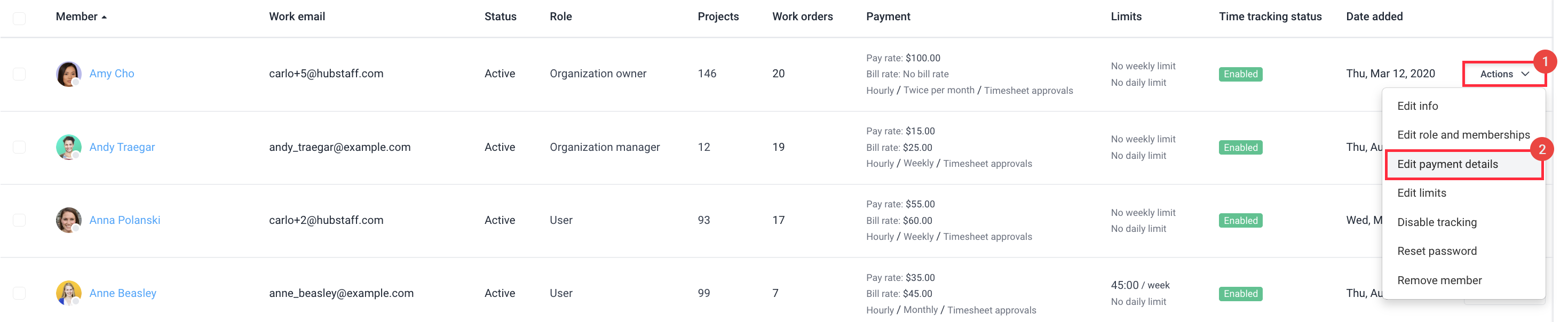
On the right-hand side of the user’s name, click on Actions > Edit payment details.
Step 3
Click on the Edit timesheets button.

Step 4
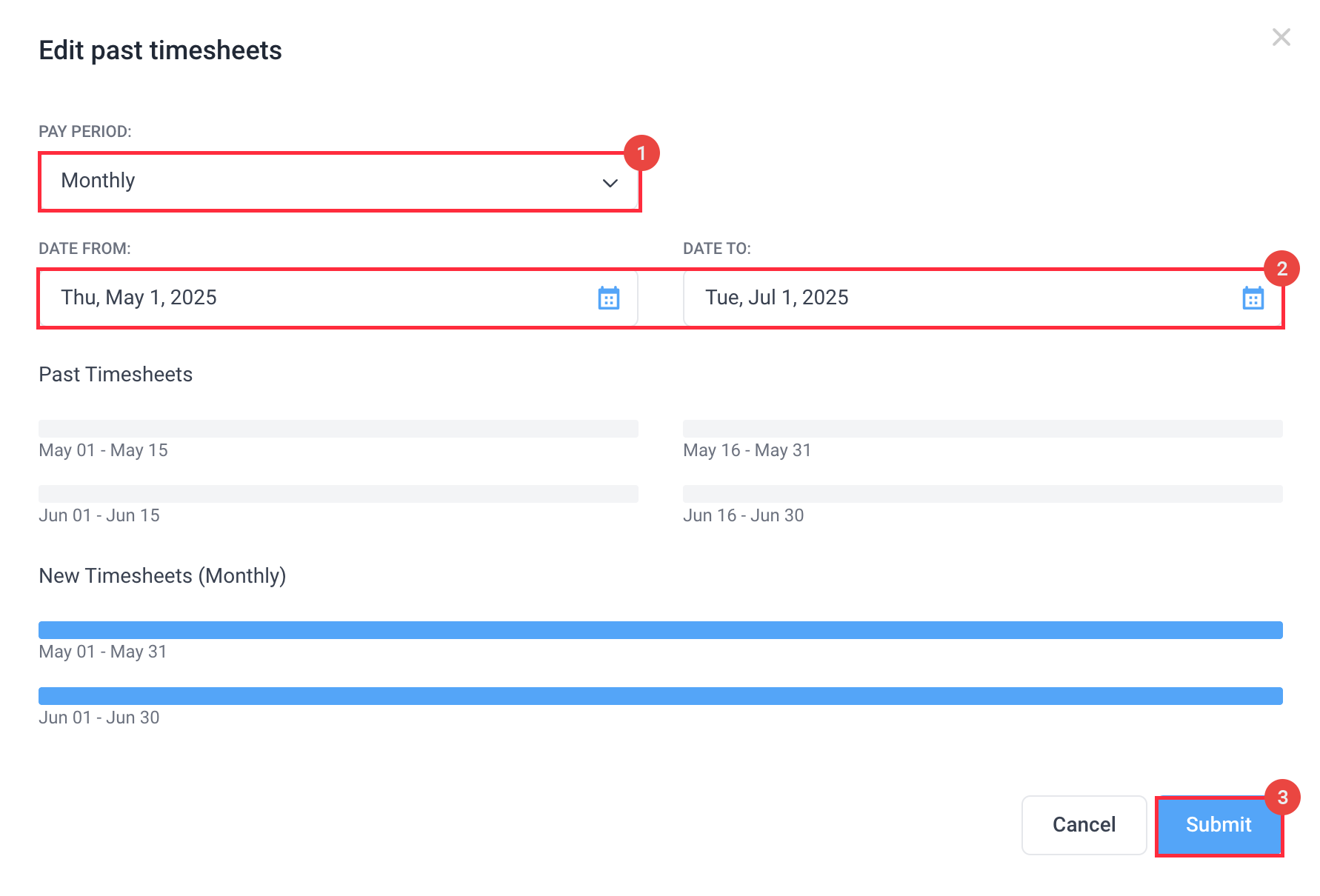
On the Edit past timesheets dialog box, change the pay period, choose the start and end dates, then click Submit. Here you can choose past dates to add back-dated pay periods. The pay periods will be divided according to the dates you’ve selected.
Note: Editing or adding a pay period here does not delete or alter any tracked time. It will only create or adjust the timesheet approval record that the existing time will appear in.
Step 5
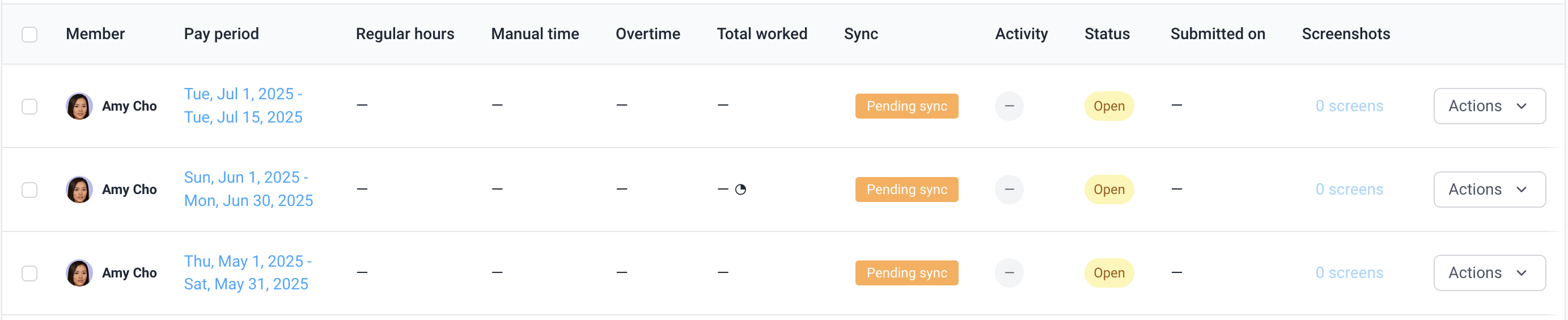
Navigate to Timesheets > Approvals to check if the timesheet pay periods have been corrected or created.
For additional help, please contact support.