17 minutes
Silent App Setup Jamf Pro (macOS)
The Hubstaff Silent App enables organizations to monitor team productivity on corporate-managed Mac devices. Once deployed via Jamf Pro, it runs entirely in the background and remains invisible to the end user, with no installation prompts, no visible interface, and no user interaction required.
ℹ️ Before deploying at scale: Configure Ignored Usernames under Settings → Silent app → Ignored usernames to prevent IT admin accounts, LAPS accounts, and service accounts from being auto-provisioned as tracked members.
For a complete deployment hub including guides, troubleshooting, and advanced configuration, visit the Silent App Deployment Center.
Screen Recording is a global macOS permission. Due to Apple’s privacy controls, it cannot be granted silently, and it is not automatable via a .mobileconfig / PPPC profile and cannot be pre-approved through an MDM profile on the user’s behalf. Set this expectation with end users before rollout.
Your options:
- Manual acceptance per device: the user approves the prompt once via System Settings > Privacy & Security > Screen Recording. Straightforward for small fleets or pilot rollouts, but cannot be skipped or delegated remotely.
- Disable screenshot capture: if a fully silent install is required, disable screenshots in Hubstaff Settings for macOS users to avoid the prompt entirely.
Heads up: macOS updates can silently revoke this permission, which typically surfaces as missing screenshots or URLs. After major OS updates, have users re-check System Settings > Privacy & Security and confirm Hubstaff is still listed and enabled.
Prerequisites
Make sure you have the following in place:
- A Jamf Pro subscription (Jamf Now is not supported)
- Devices enrolled in Jamf Pro
- Hubstaff paid plan with the Silent app add-on enabled
- Target devices running macOS 12.0 (Monterey) or newer
For help enrolling devices, refer to the Jamf Pro enrollment documentation.
Suppress background item notifications
On macOS Ventura (13) and newer, macOS displays a notification whenever an application running in the background is first detected. This must be configured before deploying the installer, uploading this profile first ensures end users never see any indication that the Silent app is running.
Click on the Silent app > Setup guide page. 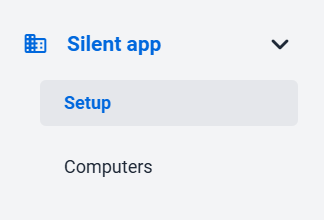
Choose your operating system: 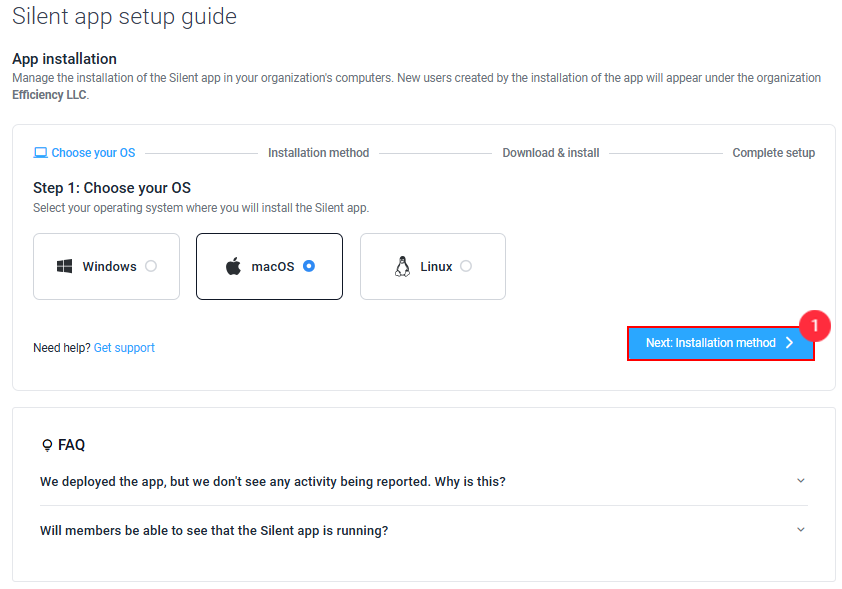
Choose Group installs as your installation method. Download the .mobileconfig file. 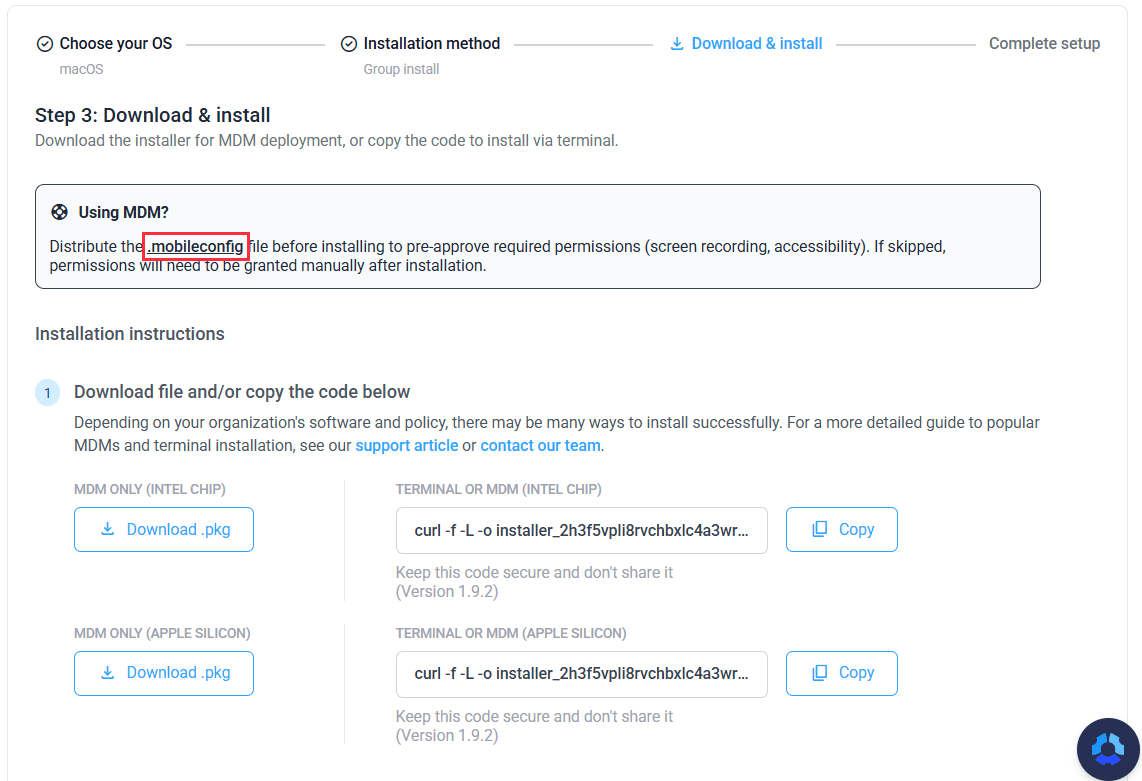
Create and upload the PPPC profile:
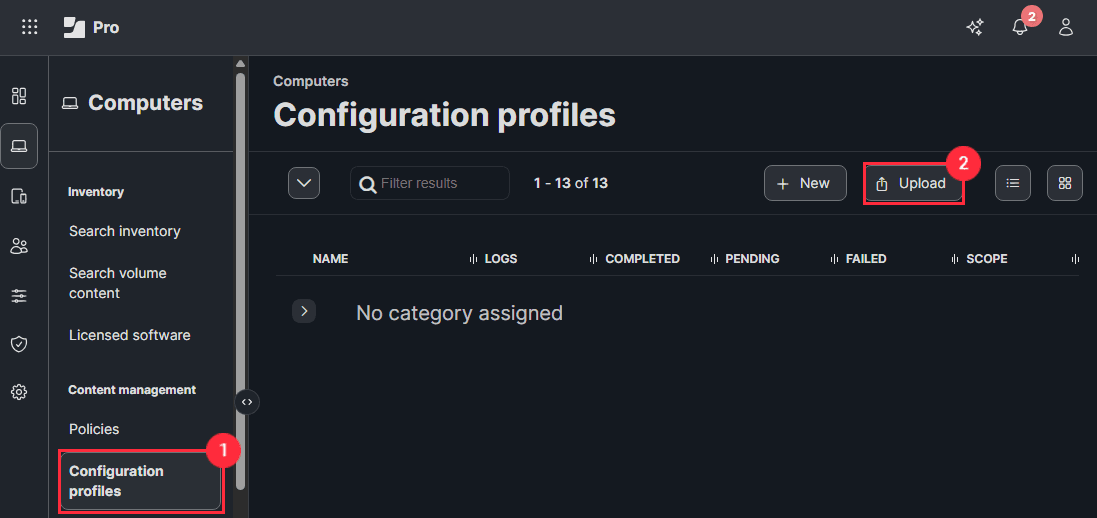
- In Jamf Pro, navigate to Computers > Configuration Profiles.
- Click Upload in the top-right corner and select the downloaded file:
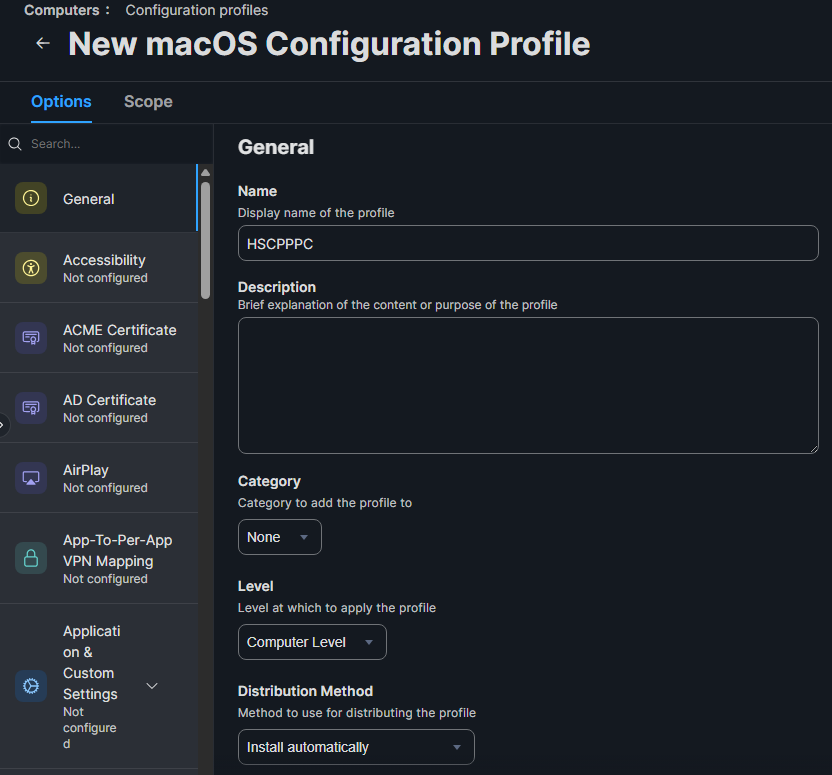
- Review the settings and confirm two values before saving:
- Level: Computer (not User)
- Distribution method: Install Automatically:
- Under Scope, assign the profile to the target computers or computer group, then click Save.
Download the Hubstaff Silent app installer
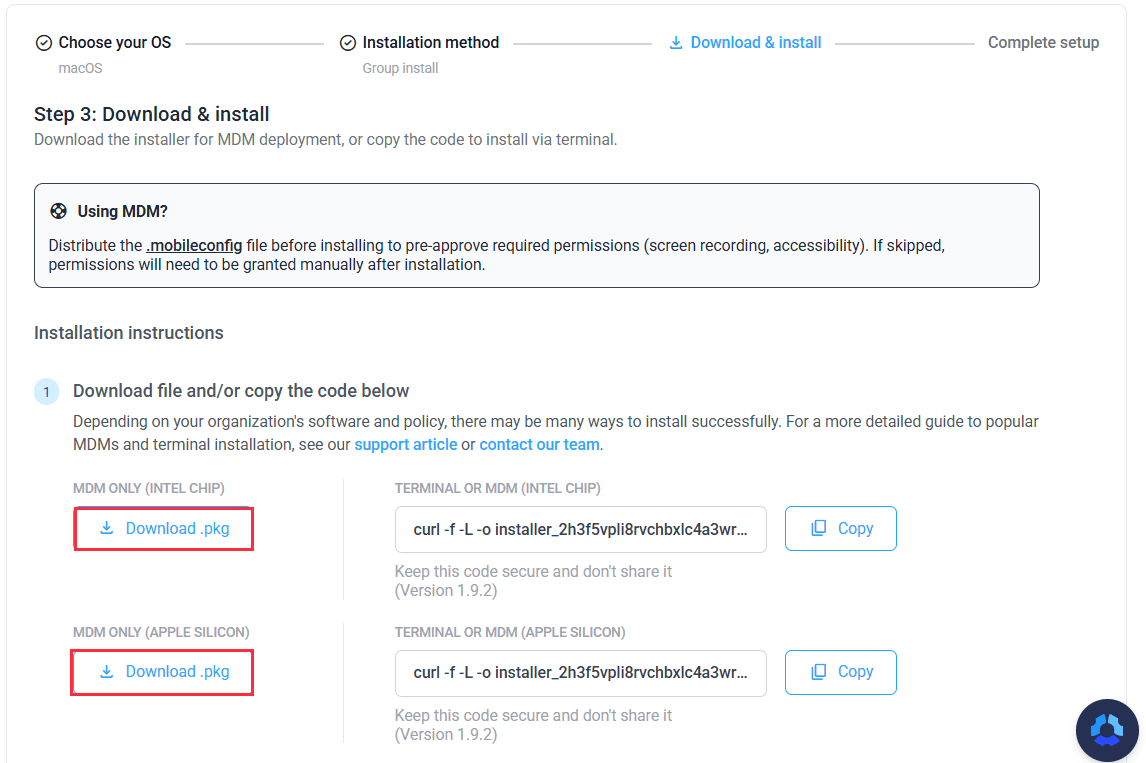
In the Hubstaff web app, click Silent app > Setup guide > macOS > Group install > Download & install
ℹ️ Apple Silicon (M1, M2, M3, M4, M5): Your Mac uses Apple’s own chip. Download the arm64 (Apple Silicon) version of the Hubstaff Silent app installer.
Upload the Hubstaff Silent app package to Jamf Pro
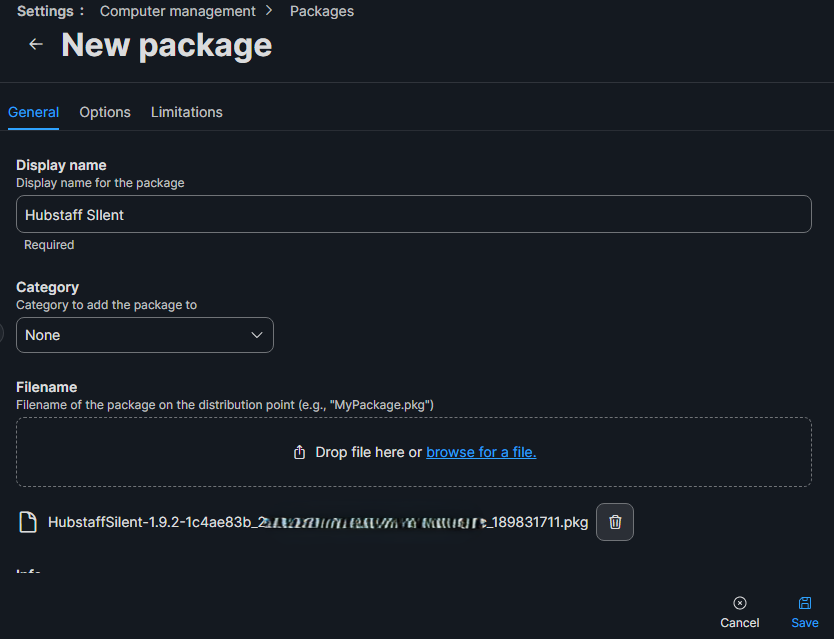
- In Jamf Pro, navigate to Settings > Computer Management > Packages.
- Click New and upload the .pkg file you downloaded from Hubstaff.
- Give the package a name. End users will not see this name; choose a name your team recognizes (e.g., Hubstaff Silent or Confidential).
- Leave the Info and Notes fields empty unless you want to add internal documentation.
- No manifest file or additional scripts are needed.
- Click Save to upload the package.
Monitor the Silent app deployment
Monitor – Jamf Pro console
Installation status updates in the Jamf Pro console after each device checks in. Navigate to Computers > Policies > [Your Policy] > Logs to see a per-device breakdown of pending, completed, and failed installations. If a device shows as pending for longer than expected, see Troubleshooting below.
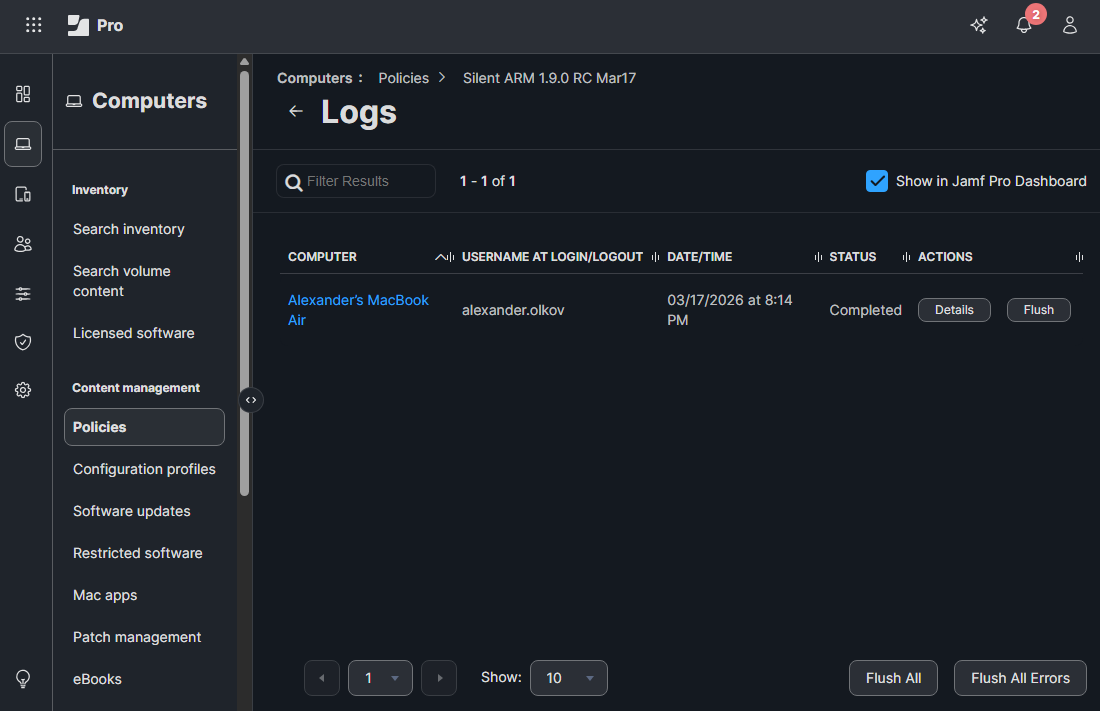
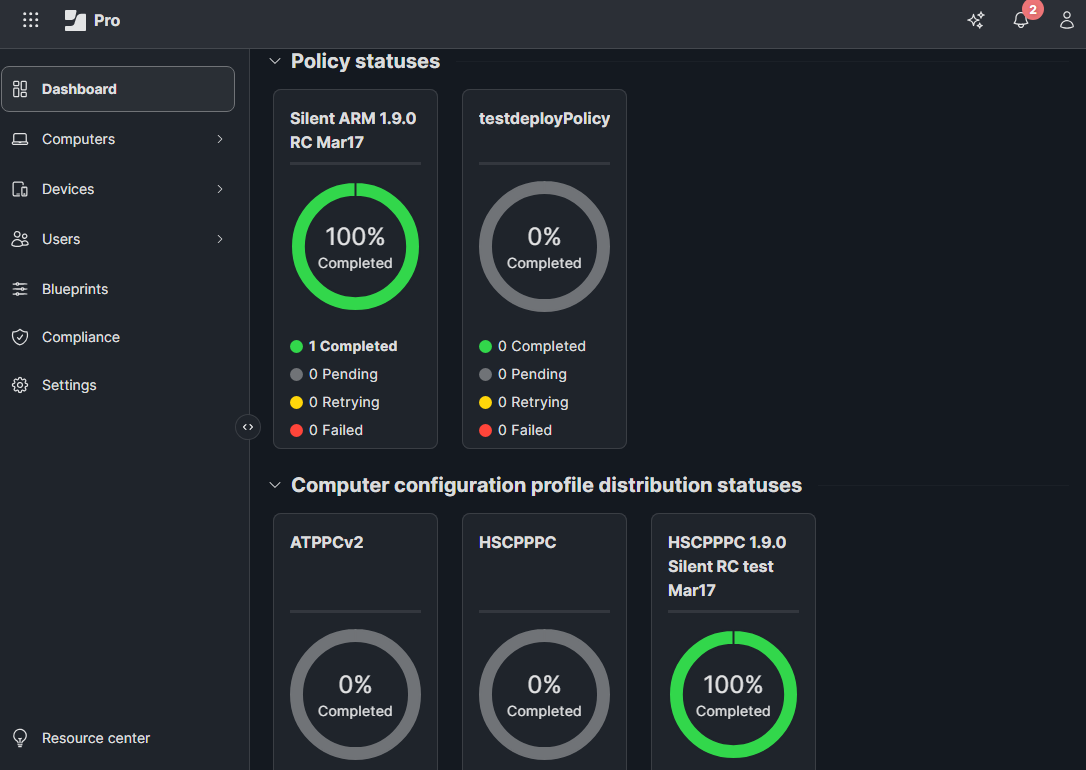
Additionally, for each policy and configuration profile, you can check the “Show in Jamf Pro dashboard” checkbox. This will show the profile on the Dashboard page, where you can see whether it is installed or not yet:
Monitor – Hubstaff dashboard
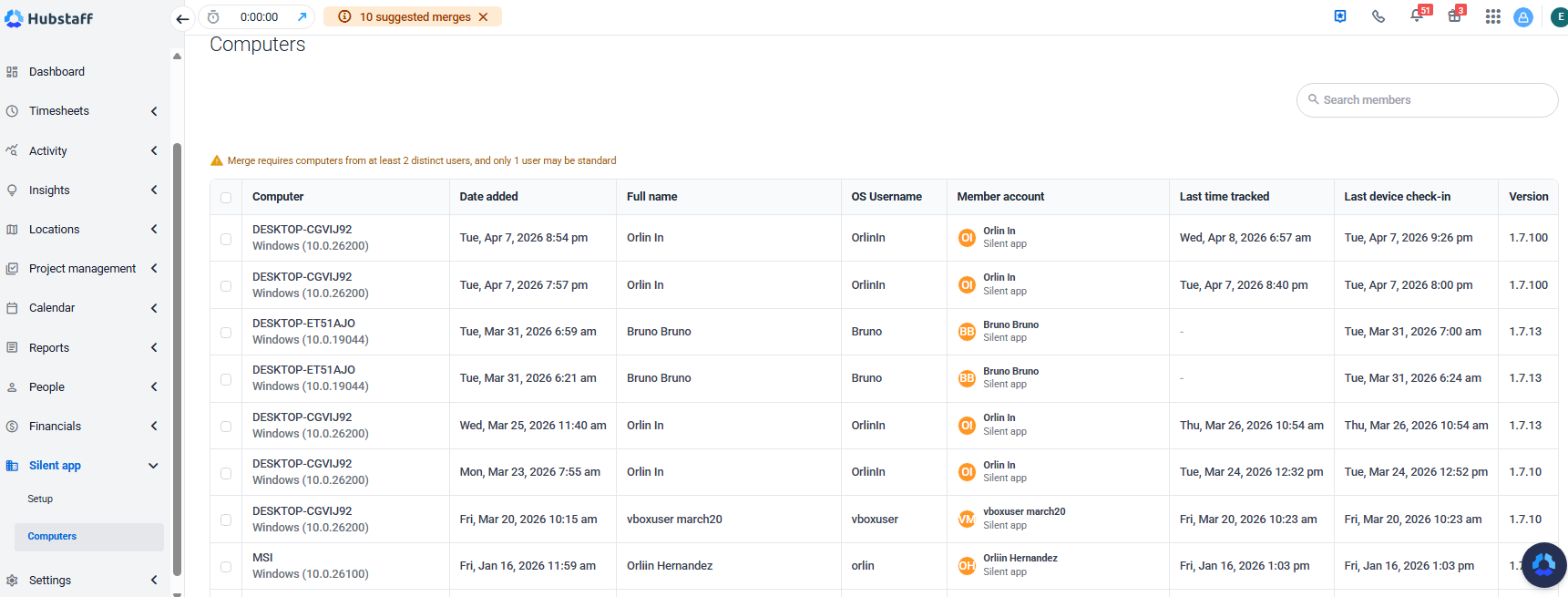
As soon as the installer runs successfully on a device, that machine registers in Hubstaff and begins tracking. Navigate to the Silent app > Computers, and filter by Date added or Last time tracked to confirm that new devices are checking in.
Force a policy check
Jamf check-ins happen on a schedule, typically every 15–30 minutes. If you need to test deployment on a specific machine without waiting, open Terminal on the target Mac and run:
sudo jamf policyThis triggers an immediate policy evaluation. If there are pending assignments for that device, they will run immediately. A successful Hubstaff Silent installation will produce output along these lines:
Checking for policies triggered by "recurring check-in"...
Executing Policy Install Hubstaff Silent...
Downloading HubstaffSilent-x.x.x-xxxxxxxx.pkg...
Verifying package integrity...
Installing HubstaffSilent-x.x.x-xxxxxxxx.pkg...
Successfully installed HubstaffSilent-x.x.x-xxxxxxxx.pkg.sudo jamf policy immediately after saving a policy change in the console, allow 1–2 minutes for the change to propagate before the device picks it up.Troubleshooting deployment
Check whether the app bundle is present
Run the following in Terminal to confirm the app was installed to the expected location:
ls /Applications/HubstaffSilent.appIf the path exists, the package was installed successfully. If you get a “No such file or directory” error, the installer has not run yet. Check the policy logs in Jamf Pro for errors.
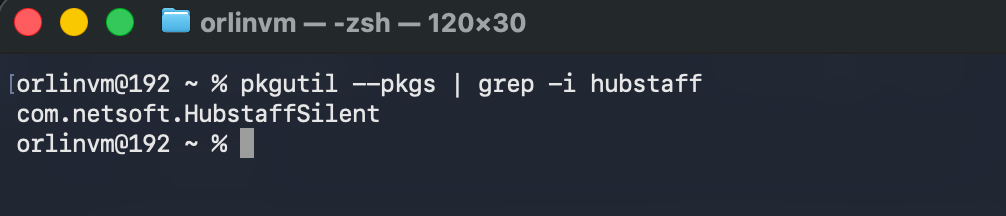
Confirm the package receipt is registered with macOS
macOS logs a receipt for every installed package. You can query it directly:
pkgutil --pkgs | grep -i hubstaffA matching identifier confirms macOS recorded the installation. No output means the package either never ran or was installed without pkgutil registration, which can happen if the install failed partway through.
Check whether the process is active
If the app is installed but you’re not seeing data in Hubstaff, verify the process launched:
pgrep -l HubstaffSilentA PID and process name will appear if the process is running. No output means the process hasn’t started. Sign out and back in to the macOS session, or restart the device to trigger it.
The device is not picking up the policy
If a device is enrolled but the policy hasn’t applied, start by refreshing its inventory record and triggering an immediate policy check from Terminal:
sudo jamf recon && sudo jamf policyJamf Recon updates the device’s inventory in Jamf Pro, which re-evaluates Smart Group membership. If the device wasn’t matching your Smart Group because the Extension Attribute hadn’t run yet, this will fix it.
Smart Group does not include the device
Navigate to Computers > Smart Computer Groups > [Your Group] and check the membership list. If the device is missing, the Extension Attribute script likely hasn’t run on it yet. Run sudo jamf recon on the device, wait a minute, then refresh the group membership page.
Following installation
- Time tracking should begin immediately. Data will be visible in the Hubstaff web app within 10–15 minutes of the installation completing.
- If tracking data is not reflected after 15 minutes, restart the Hubstaff Silent process by doing one of the following:
- Sign out and back in to the macOS session.
- Restart the device.