22 minutes
Silent app setup Intune
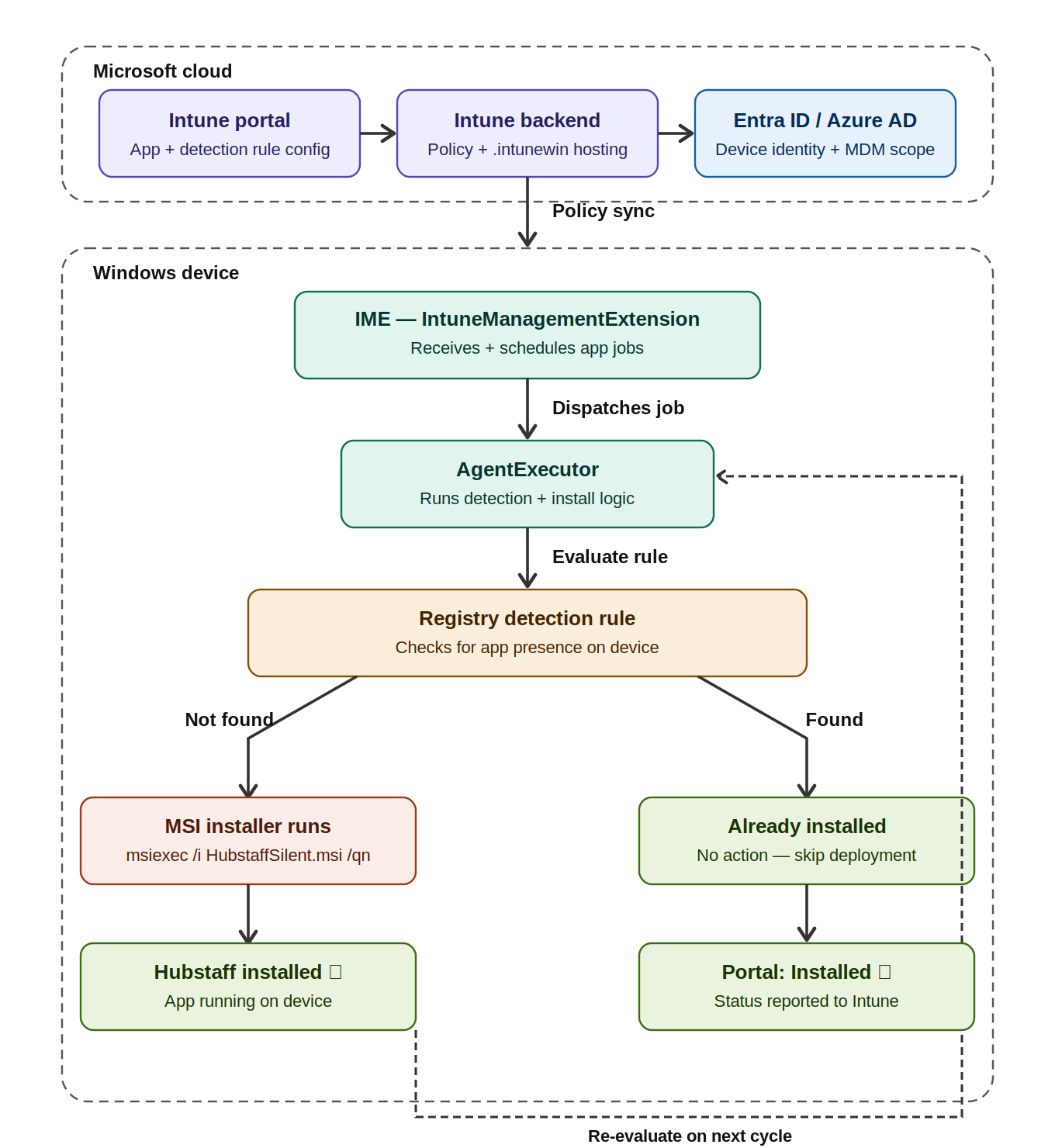
The Hubstaff Silent App enables organizations to monitor team productivity on corporate-managed Windows devices. Once deployed via Microsoft Intune, it runs entirely in the background and remains invisible to end users, with no installation prompts, no visible interface, and no user interaction required.
Deployment is handled through Intune’s Win32 app pipeline, which silently pushes the MSI to enrolled devices, verifies installation via a registry detection rule, and automatically reports the status to the Intune portal.
For a complete deployment hub including guides, troubleshooting, and advanced configuration, visit the Silent App Deployment Center.
Before deploying at scale: Configure Ignored Usernames under Settings → Silent app → Ignored usernames to prevent IT admin accounts, LAPS accounts, and service accounts from being auto-provisioned as tracked members.
Microsoft Intune Hubstaff’s Silent App Setup
- Adding Users: Add users and grant permissions – Microsoft Intune | Microsoft Learn
- Adding Groups: Add groups to organize users and devices – Microsoft Intune | Microsoft Learn
- Manage Intune Licenses: Licenses available for Microsoft Intune | Microsoft Learn
- Enroll Devices in Microsoft Intune: Device enrollment guide for Microsoft Intune | Microsoft Learn
Download the Hubstaff Silent app installer
Step 1
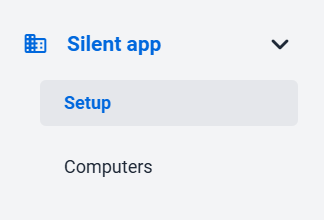
Click on the Silent app > Setup guide page.
Step 2
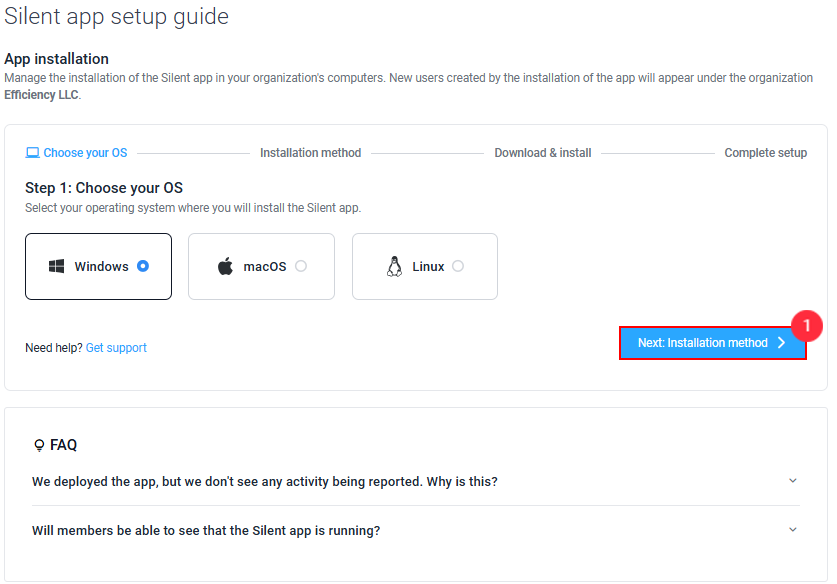
Choose your operating system:
Step 3
Choose Group installs as your installation method. Download and upload the .msi package to your MDM software, such as Microsoft Intune, for deployment.
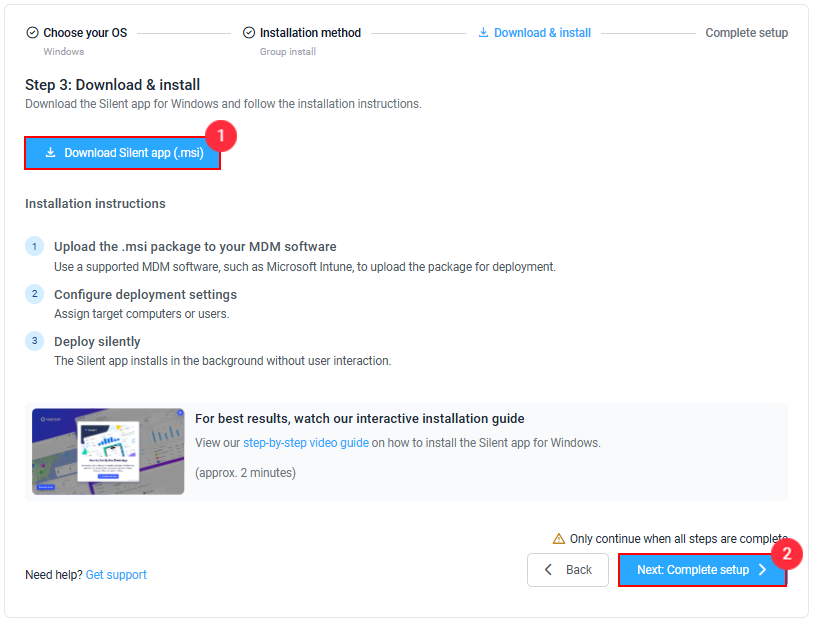
Add a Windows app (Win 32) to Microsoft Intune
Before proceeding, ensure the following requirements are met:
- The app installer must be in .intunewin format. Use the Microsoft Win32 Content Prep Tool to convert your .msi file into a .intunewin package.
- The device must be running Windows 10 1607 or later.
- The Intune Management Extension must be installed on the target device.
For full packaging requirements, refer to Microsoft’s official Win32 app documentation.
Create Windows app (Win32):
- Sign in to the Microsoft Intune admin center.
- Select Apps > All apps > Create.
- In the Select App type dropdown, select Windows app (Win32).
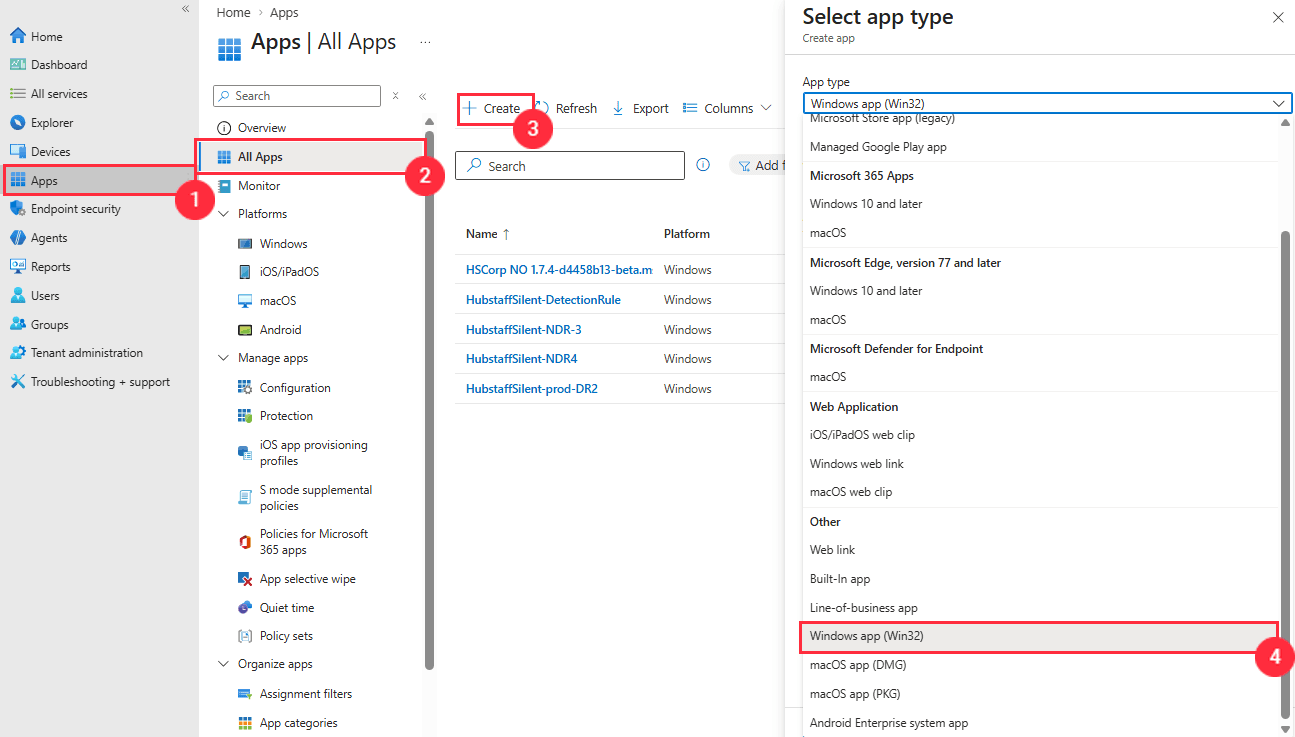
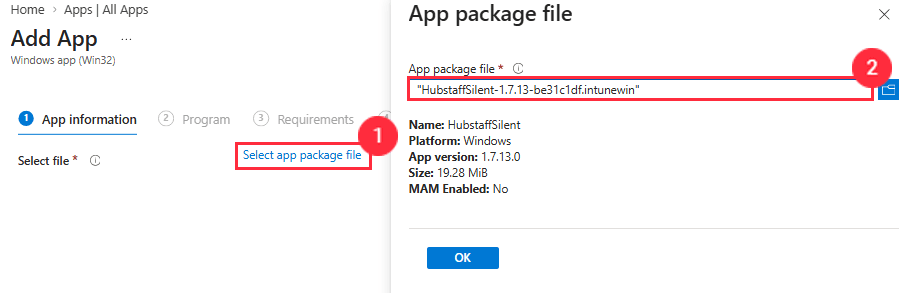
Upload .intunewin package:
In the Add app pane, click Select app package file and upload the .intunewin package:
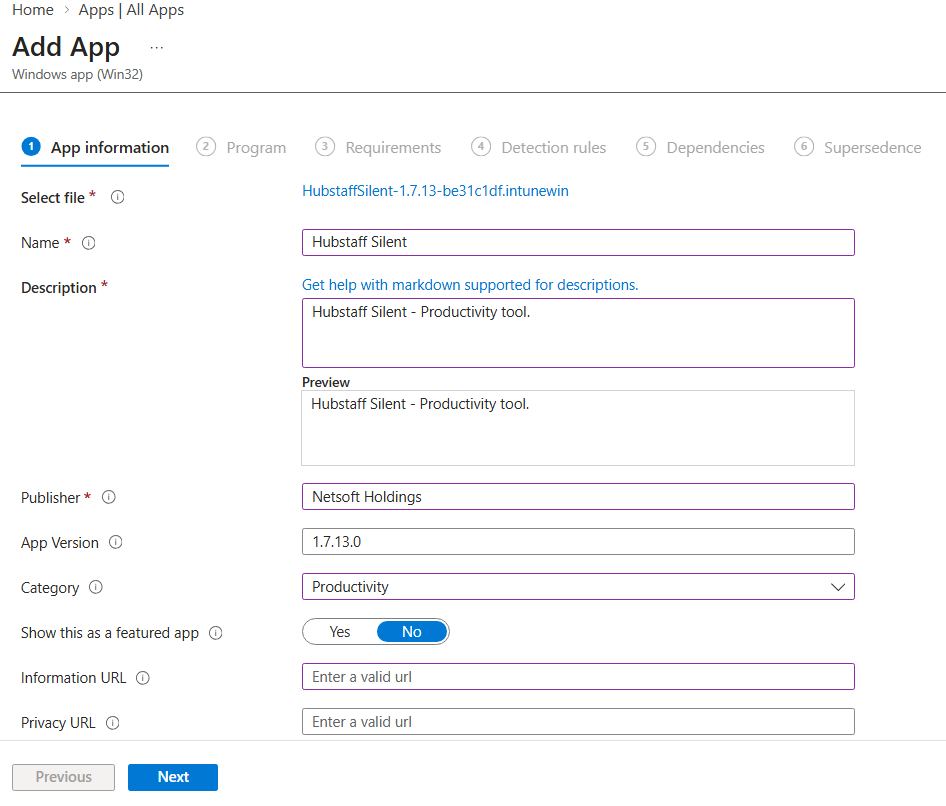
App information:
- Name: Give any name to your app, e.g, Hubstaff Silent, Confidential, etc.
- Description: Enter any description of the app.
- Publisher: Netsoft Holdings LLC.
- App version: Optional, typically is autofilled and grabbed from the installer; if not, you will find the version in the .MSI file name.
- Category: Optional, e.g, Productivity
- Show this as a featured app: No
- Information URL: Optional.
- Developer: Optional, Netsoft Holdings LLC.
- Owner: Optional, enter a name for the owner of this app.
- Notes: Optional, enter any notes that you want to associate with this app.
- Logo: Optional, upload an icon that is associated with the app. This icon is displayed with the app when users browse through the company portal.
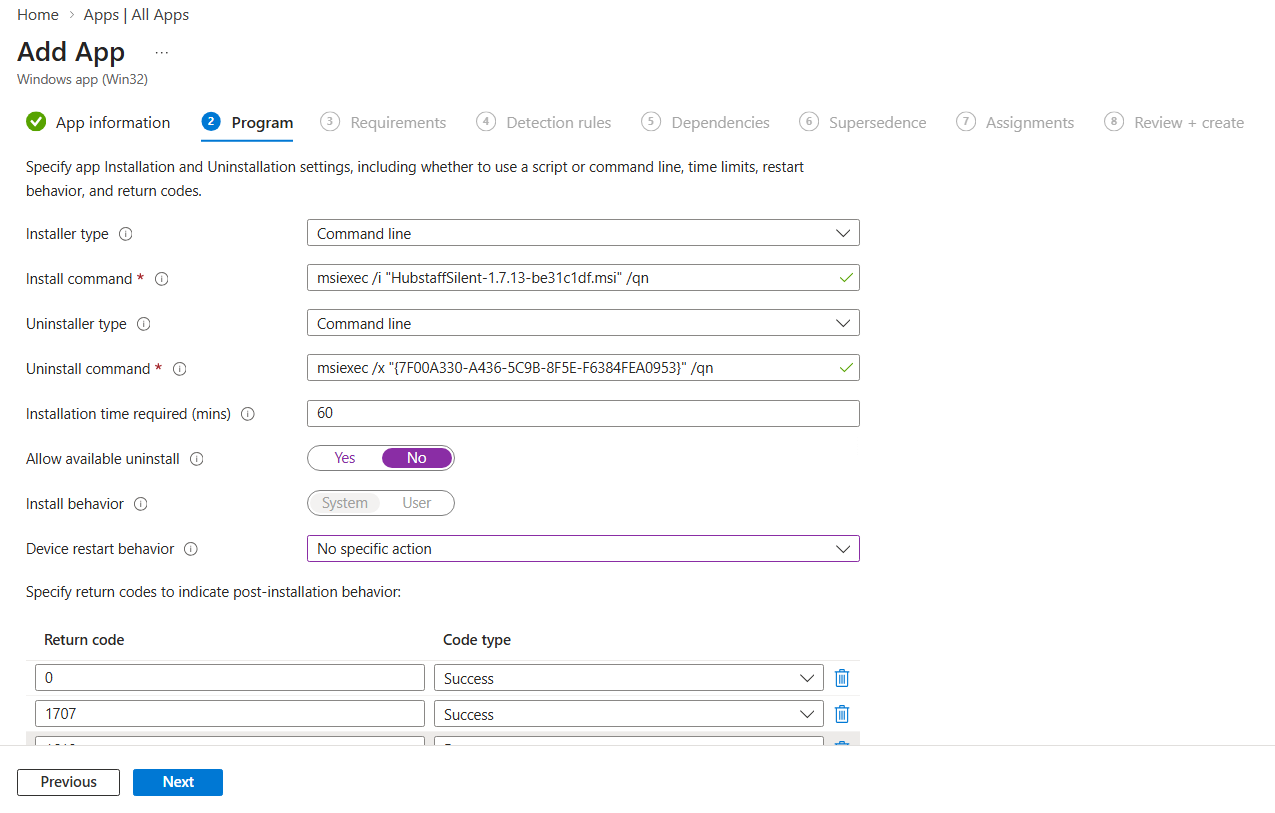
Program:
- Installer type: Command line
- Install command: Typically autofilled, if not, it needs to match the .MSI file name, e.g: msiexec /i “HubstaffSilent-1.7.13-be31c1df.msi” /qn
- Uninstaller type: Command line
- Uninstall command: Autofilled
- Installation time required (mins): Intune sync times may vary; the recommended time is 60 minutes.
- Allow available uninstall: No
- Install behavior: System
- Device restart behavior: No specific action.
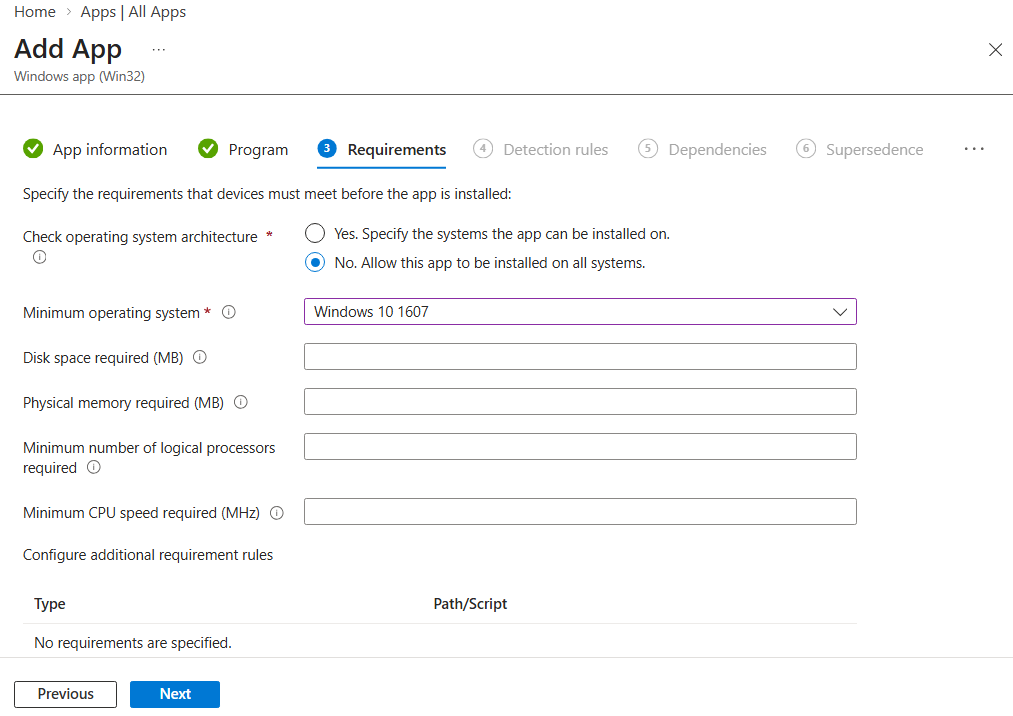
Requirements:
- Check operating system architecture: Select “No” (default) to allow the app to be installed on all systems.
- Minimum operating system: You can select the minimum Windows 10 version from the dropdown.
- Disk space required (MB): Optional
- Physical memory required (MB): Optional
- Minimum number of logical processors required: Optional
- Minimum CPU speed required (MHz): Optional
- Configure additional requirement rules: Not required.
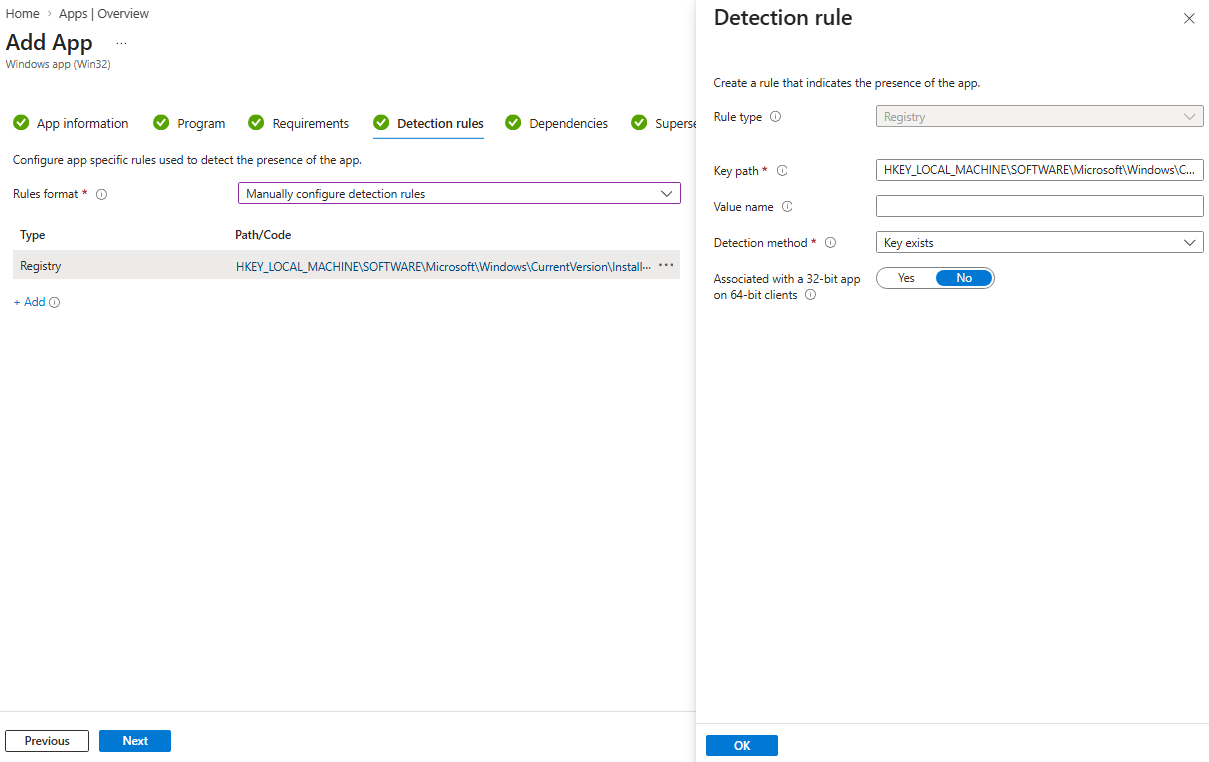
Detection rules:
- Rule format: Manually configure detection rules.
- Rule type: Registry
- Key path:
HKEY_LOCAL_MACHINESOFTWAREMicrosoftWindowsCurrentVersionInstallerUpgradeCodes11EB33B5C00C73C56B9DE705E9B889F9 - Value name: Empty
- Detection method: Key exists
- Associated with a 32-bit app on 64-bit clients: No
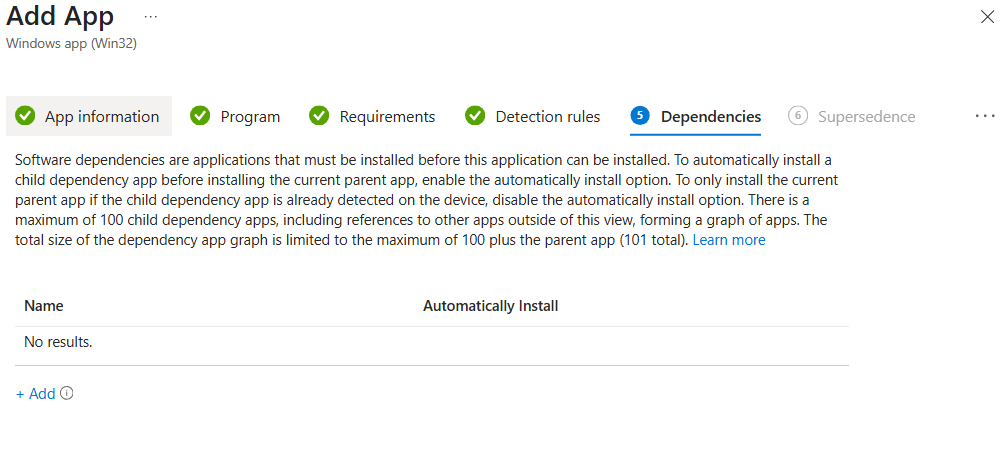
Dependecies:
No dependencies, can be left blank by default > click next.
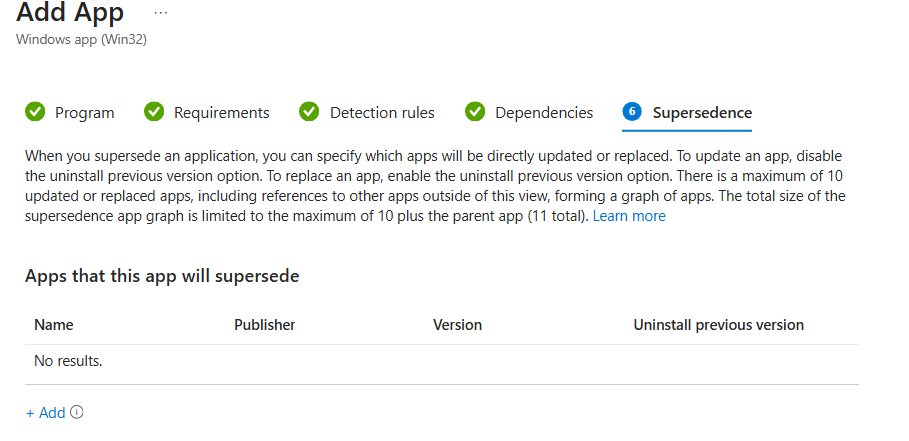
Supersedence:
No supersedence; can be left blank by default or customized if required.
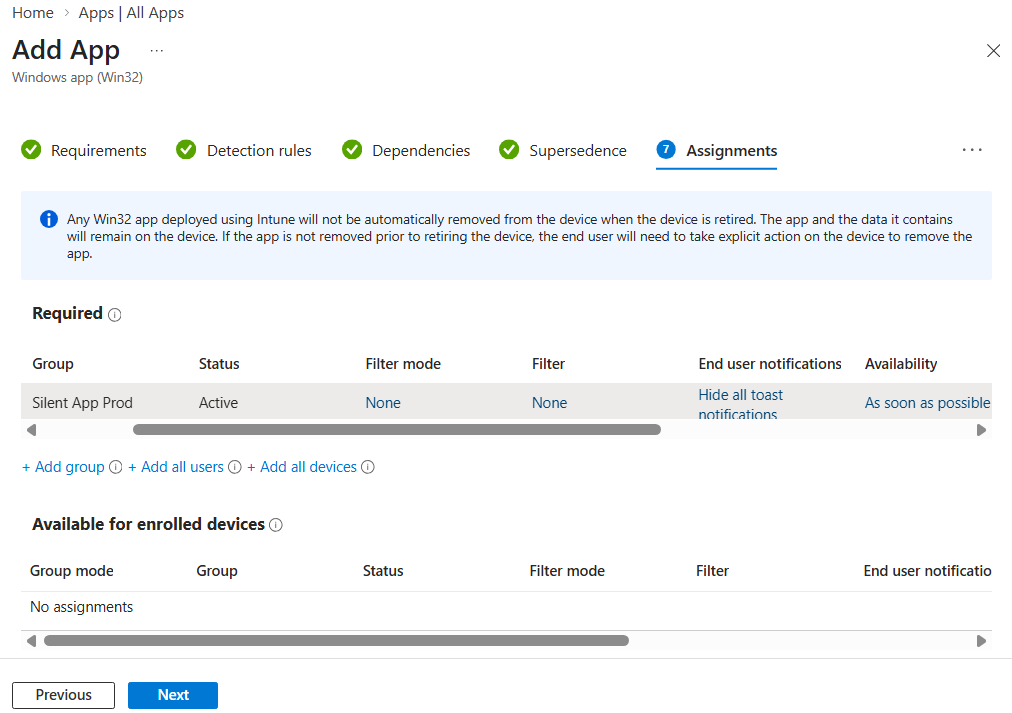
Assignments:
- Required: Add your destination group
- End user notifications: Hide all toast notifications (Important)
- Installation deadline: As soon as possible
- Restart grace period: Disabled
- Delivery optimization priority: Content download in the background
Monitor silent app deployment
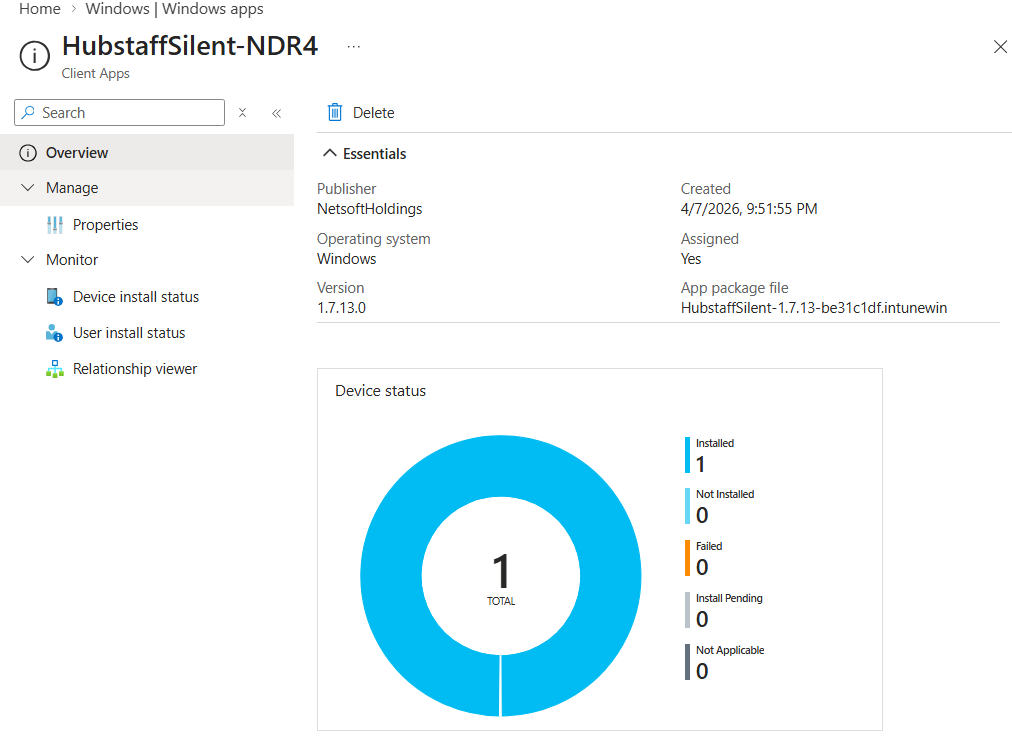
Monitor – Intune’s Dashboard
As soon as the Intune management extension installs the MSI, you will see the device status update. Please navigate to: Home > Windows apps > Select your app > Overview.
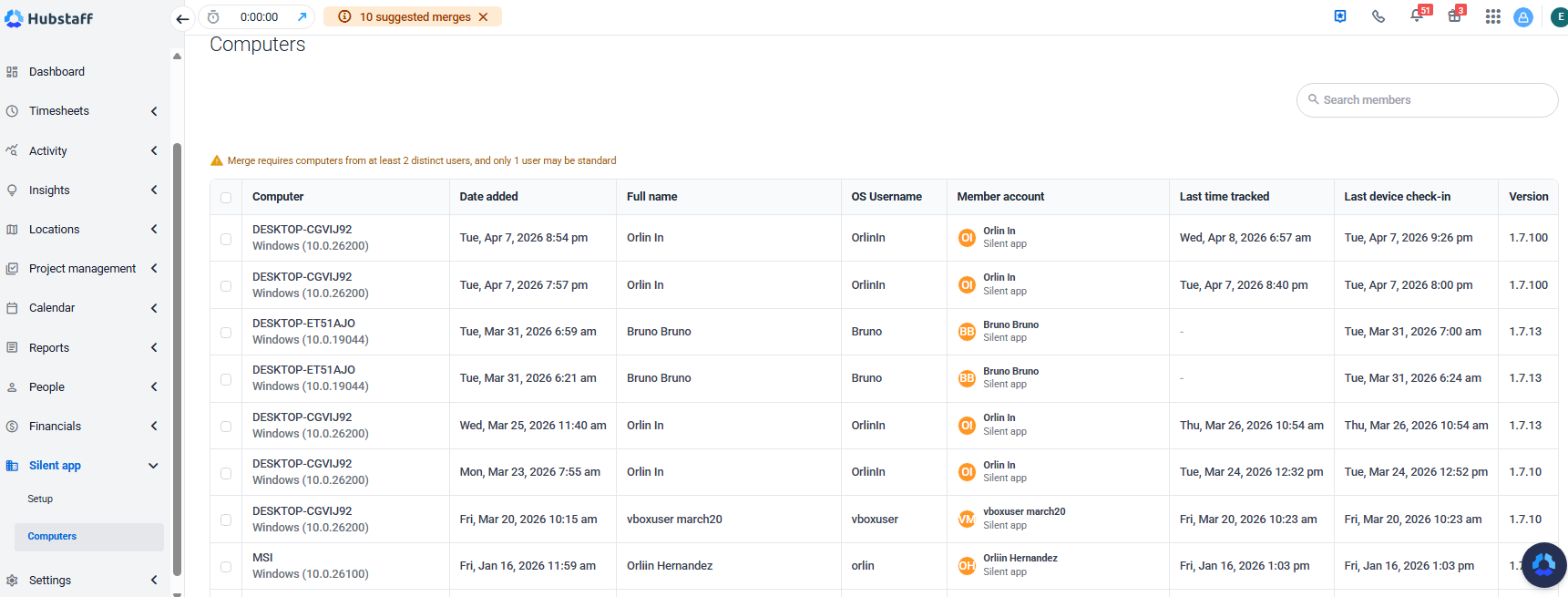
Monitor – Hubstaff’s Dashboard.
Once Intune has successfully deployed the MSI, you will see a new record appear in Hubstaff. Please navigate to: Silent app > Computers > Filter by Date added or Last time tracked.
Troubleshooting deployment
Force Sync – Intune Dashboard
It can take 20-40 minutes for the latest changes to appear in Intune’s dashboard. You can accelerate the process by syncing the device: go to Devices > Overview > Windows devices, select the device, then click Sync.
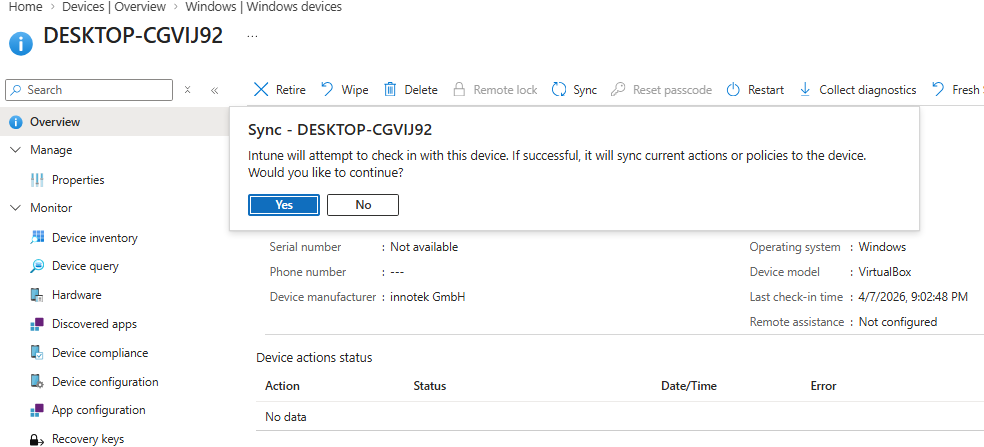
Force Sync from the destination machine:
If you have access to the destination machine, you can force a sync by doing the following:
Settings > Accounts > Access work or school > click your work account > Info > Sync :
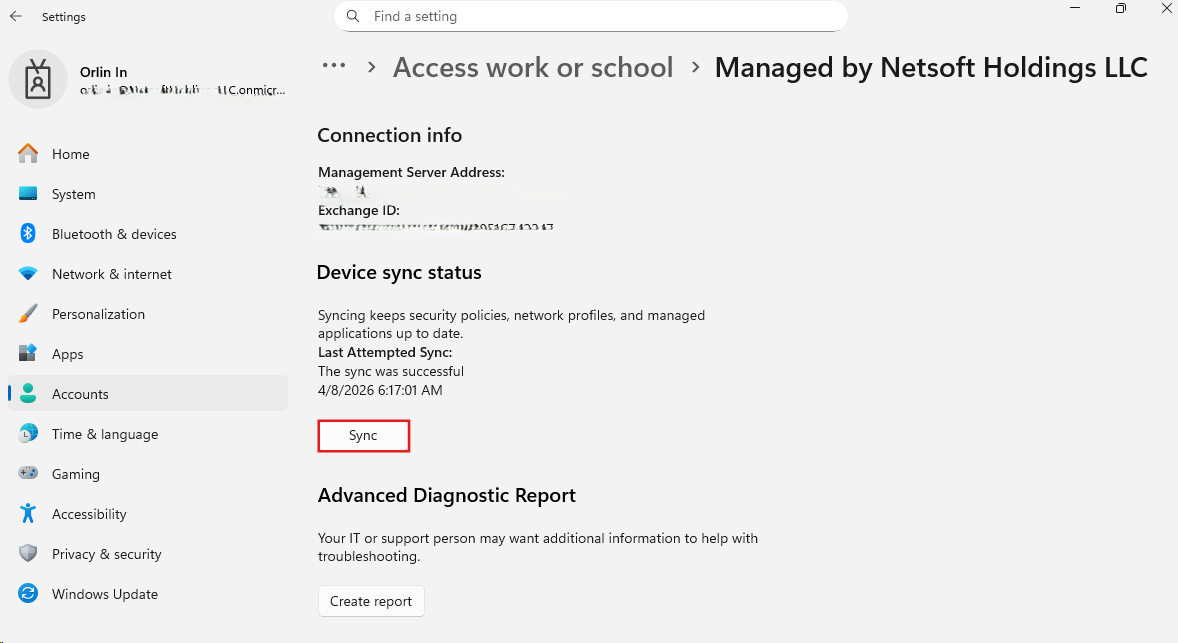
Verify Device Enrollment and Azure AD Join Status:
Before investigating Intune-specific issues, confirm the device is properly enrolled and joined:
PowerShell command:
dsregcmd /statusLook for AzureAdJoined: YES and MDMEnrolled: YES. If either is no, we need to fix enrollment before the app deployment will work.
Restart the Intune Management Extension:
If the device is enrolled but not receiving policies or app assignments, restart IME to force a fresh check-in:
PowerShell command:
Restart-Service -Name IntuneManagementExtension -ForceNote: After a restart, IME intentionally delays Win32 app processing by 3-4 minutes before evaluating assignments.
Monitor IME Log in Real Time:
To watch the app deployment pipeline live after a restart or sync, tail the IME log, filtering for relevant events.
PowerShell command:
Get-Content "C:ProgramDataMicrosoftIntuneManagementExtensionLogsIntuneManagementExtension.log" -Wait -Tail 50 | Select-String -Pattern "Win32|SideCar|Download|Install|Detection|policy|Got [0-9]"Key things to look for:
- Load 0 policy results: device is receiving no app assignments, indicates a portal-side issue with the app configuration or detection rule
- Load 1 policy results: app assignment is reaching the device correctly
- Win32AppAsync Starting app check in: IME has begun evaluating app assignments
- Delaying PS and Win32 app workload checkins by seconds = X — normal post-restart delay, wait for it to expire
Verify App Installation on the Device:
To confirm whether the target app is actually installed and what version is present.
PowerShell command:
Get-WmiObject -Class Win32_Product | Where-Object { $_.Name -like "*Hubstaff*" }
Verify App Installation Registry key is in the Device:
To confirm whether the detection registry key is actually installed.
PowerShell command:
Get-ItemProperty "HKLM:SOFTWAREMicrosoftWindowsCurrentVersionInstallerUpgradeCodes11EB33B5C00C73C56B9DE705E9B889F9"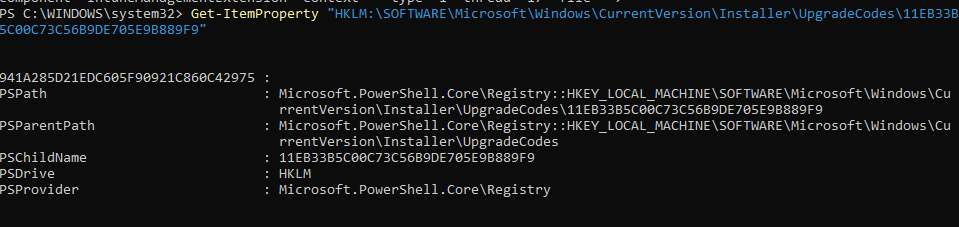
Following installation
- Time tracking should begin immediately / data should be visible within the Hubstaff web-app within 10-15 minutes of install completion.
- If not reflected, you can force a process restart by doing one of these options:
- Sign out / Sign in from the operating system session.
- Restart the device