9 minutes
How to Add Time in Bulk for Multiple Team Members
Add the same manual time to several team members in one step, instead of repeating the entry member by member every week. You can add time for whole teams or hand-picked members, with one or more time entries, all from the Timesheets page.
Before you begin
- You need to be an organization Owner, manager, or a team lead.
- Make sure the project you select includes all the team members you want to add time for.
- The dialog displays your organization’s time zone for the page. Hubstaff uses this time zone when adding time.
How to add time for multiple team members
Step 1
Navigate to Time tracked > Timesheets. The All Members Timesheets page opens.
Step 2
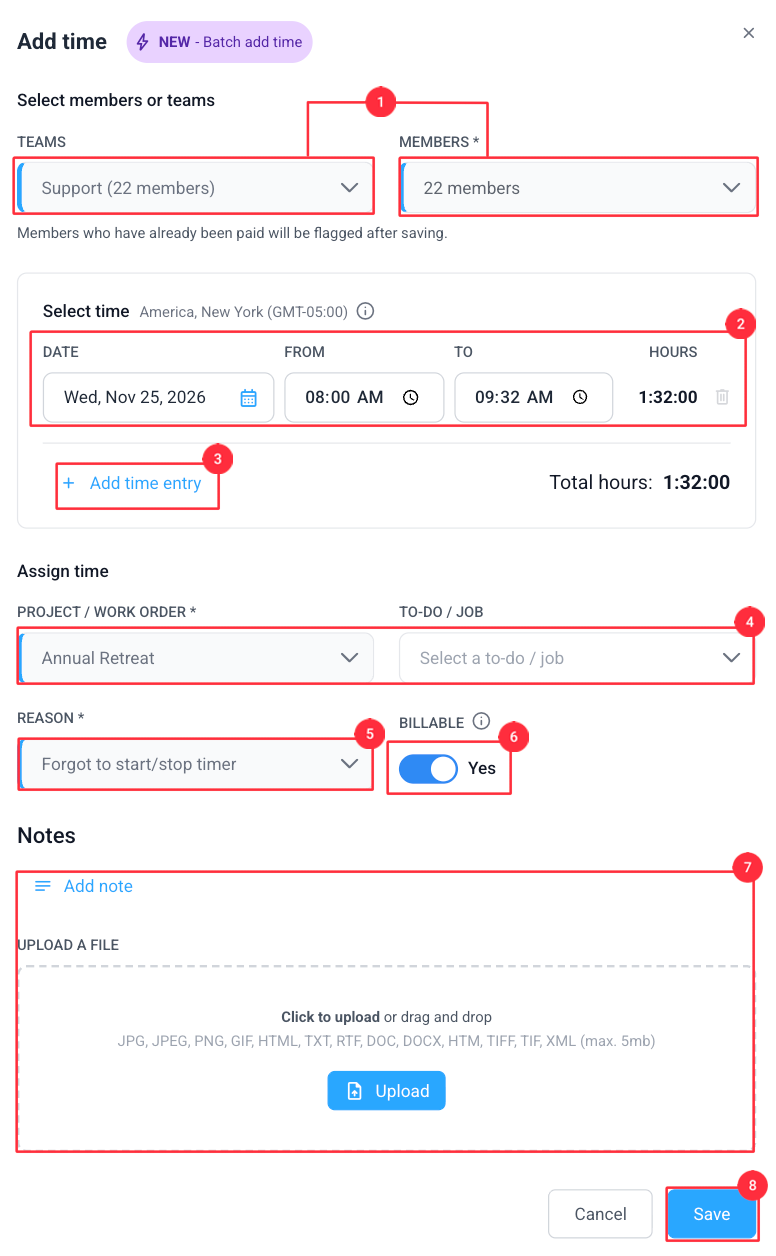
Click Add time at the top right of the page. The Add time window opens with a Batch add time label. The numbered callouts in the image below match the steps that follow.
Step 3 (callouts 1 and 2)
Under Select members or teams, choose one or more teams, one or more members, or both. When you select a team, all of its members are added to the Members field. You can still add or remove individual members afterward.
Step 4 (callouts 3 and 4)
Under Select time, choose the Date, then set the From and To times. The hours calculate automatically.
To add more time, click + Add time entry. To remove an entry, click the trash icon next to it. The total hours for each team member appear at the bottom.
Step 5 callouts 5 and 6)
Under Assign time, select a Project. You can also select a To-do. Use the Reason drop-down to say why you are adding the time, and turn Billable on or off.
Step 6 (callout 7 and 8)
Optional: click Add note to include a note of up to 1,000 characters. You may also upload an attachment to support your manual time entry.
Step 7 (callout 8)
Click Save. A message tells you the time was added and how many members it was added for.
What happens when time overlaps or a timesheet is affected
Hubstaff checks each team member’s existing time and timesheets before it adds the new time.
Overlapping time.
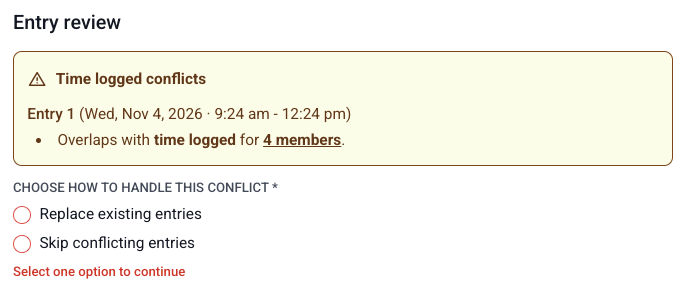
If the new time overlaps with existing time entries, an Entry review section will appear above Notes, displaying a Time logged conflicts warning.
This section lists each new time entry and the number of members with overlapping time. Click the member count to view the conflicting time entries and the affected members.
Under Choose how to handle this conflict, select one of the following options:
- Replace existing entries: Overwrite the existing time that overlaps with the new entries.
- Skip conflicting entries: Keep the existing time and skip any new entries that overlap with it.
You must select one of these options before you can save your changes.
Approved timesheets.
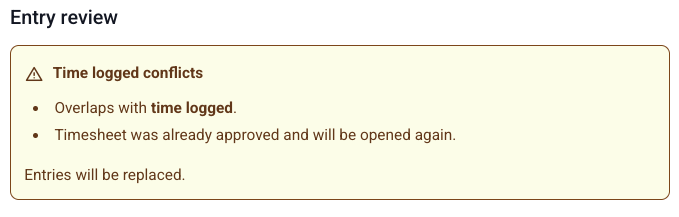
If any member has an approved timesheet, Hubstaff displays a message informing you that adding time will reopen the affected timesheets. Confirm to continue. Hubstaff will reopen the timesheets, and you will need to submit them for approval again.
Time that has already been paid.
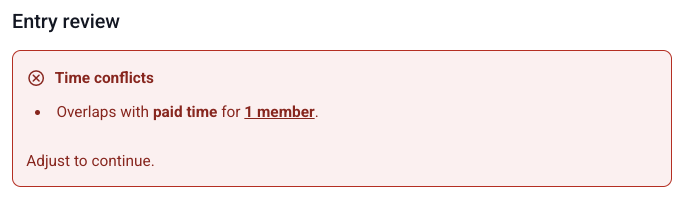
Hubstaff does not allow you to add time to a timesheet or time entry that payroll has locked. If you attempt to do so, Hubstaff displays an error for the affected members.
If the new time overlaps with previously paid time, Hubstaff displays a warning prompting you to adjust the time duration before you can continue.
Hubstaff locks paid time regardless of whether you enable or disable Timesheet Approvals. You cannot edit or overwrite this time.
Members not assigned to the project.
Hubstaff skips members who do not have an assignment to the selected project or to-do and displays a message listing those members.
Troubleshooting
I don’t see Batch add time on the Timesheets page.
You need to be an organization owner, manager, or team lead to see the All Members/Teams Timesheets page when navigating Time tracked > Timesheets. You won’t see the Batch add time on an individual’s timesheet.
Some team members didn’t get the time.
Members who aren’t assigned to the project you selected are skipped, and so are members whose timesheet is locked for payroll. The message after saving lists them. Assign them to the project or change the project, then add their time again.
The new time replaced time that was already tracked.
When time overlaps, you choose between replacing the existing entries and skipping the conflicting ones. If you choose Replace, the existing time is removed. To keep existing time next time, choose Skip conflicting entries. If only one member overlaps, check the warning before you save, because it may say the entries will be replaced.