6 minutes
Use the Members Tab to Track Team Member Activity
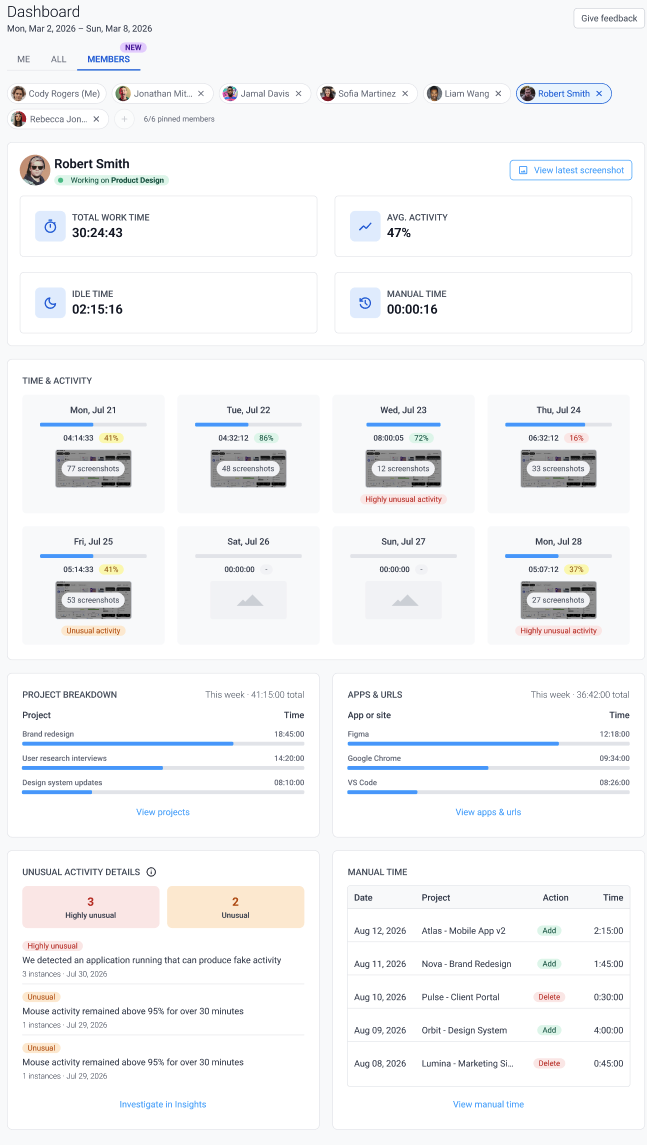
The Members tab shows one team member’s work for the current week at a time, so you can review their tracked time, projects, activity, and screenshots without switching between reports.
- This is a new feature recently out of beta. Hubstaff is rolling it out to more organizations over time, so your dashboard may look different from a colleague’s at another organization.
- The Members tab is available to organizations with 10 or fewer team members. If your team grows past 10, you’ll keep the Members tab; it isn’t removed once it’s turned on.
Who this applies to
The Members tab is available for organization owners and managers only. Team members with the standard User role don’t get the Members tab — they keep access to Me and All if they had it before.
What the Members tab shows
The Members tab has a fixed set of widgets for the selected team member. You can’t add, remove, or customize them the way you can on the All and Me tabs.
- Total work time, average activity, idle time, and manual time for the current week
- Time & Activity — a daily breakdown with screenshot counts and daily activity percentage. Days with unusual activity are flagged.
- Project breakdown — hours by project, shown as a percentage of the member’s total hours worked that week, with the week’s total hours displayed at the top
- Apps & URLs — time by app or website, using the same percentage-of-total-hours format as Project breakdown
- Unusual activity details — counts of highly unusual and unusual activity, with up to 4 detail lines and a link to investigate further in Insights
- Manual time — a table of manual time entries added for that member, including project, action, and time
- Unusual activity details require the Insights Add-on. Without it, this section shows an option to upgrade your plan instead of activity data.
- The current week follows your organization’s configured week, which may not start on Monday.
How to switch between team members
Step 1
Go to Dashboard from the side menu.
Step 2
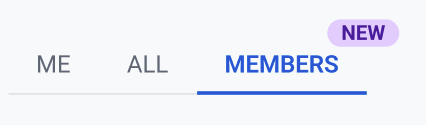
Click the Members tab.
Step 3
Click a team member’s name to view their data. Your own pill always appears on the far left.
Step 4
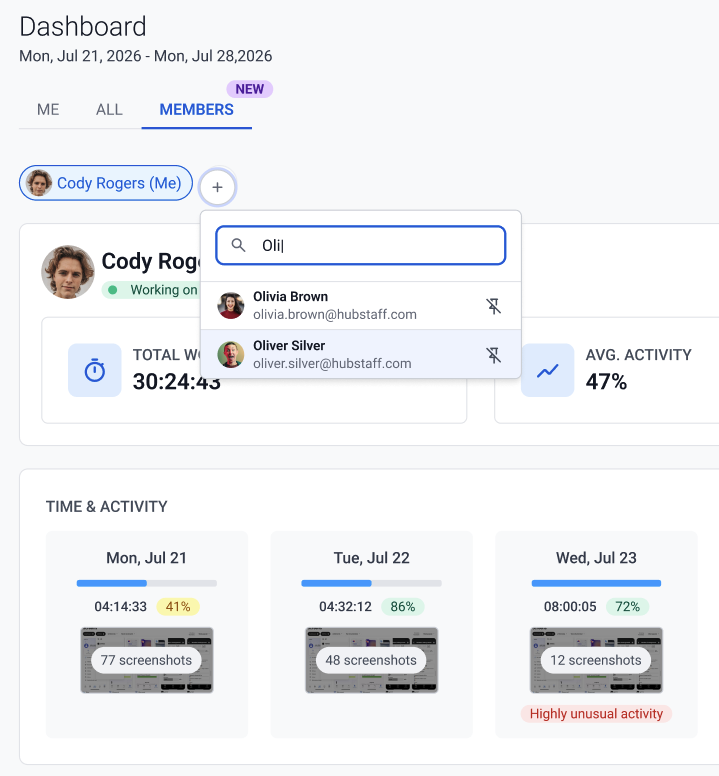
To find someone not already pinned, click + and use the search field to look them up. To pin a team member so they’re easier to find next time, click the pin icon next to their name in the search results.
Turning off the Members tab
If you’d rather not use the Members tab, contact Hubstaff Support to have it turned off for your organization. There’s no setting to do this yourself.
Troubleshooting
I don’t see a Members tab.
The Members tab is rolling out gradually to smaller organizations. If your organization qualifies and you still don’t see it, contact Hubstaff Support.
A team member isn’t showing up in search.
Confirm the member is still active in your organization. Deactivated members don’t appear in the Members tab.