12 minutes
How to Update the Hubstaff Silent App on Any Device
Keep your team’s Silent App Add-on current so tracking, screenshots, and activity data keep syncing without interruption. This guide covers identifying devices that need an update, deploying the correct installer for each operating system, and troubleshooting devices that don’t update successfully.
Before you begin
Use these steps when specific computers need to be updated to a newer version of the Silent App.
If your computers are managed through MDM, RMM, endpoint management, or another deployment tool, update the Silent App through that same tool. Your IT team should adapt the deployment step to match your platform’s standard software deployment process.
How to identify computers that need the update
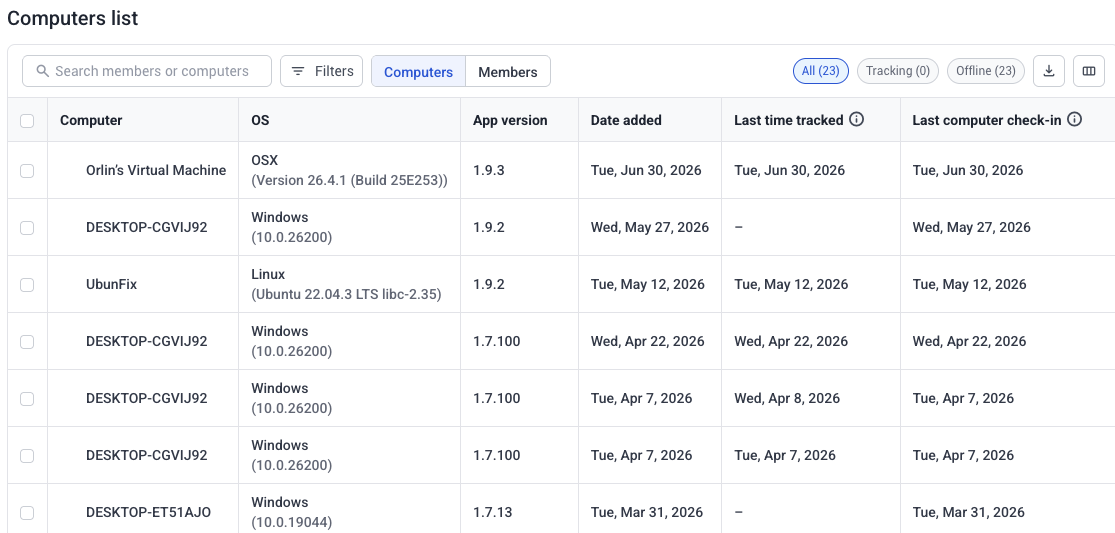
- Go to Silent app > Computers.
- Confirm which computers need the update by checking the computer name, current Silent App version, and last device check-in.
- Use this list to verify each device is active and online before proceeding.
How to download the installer
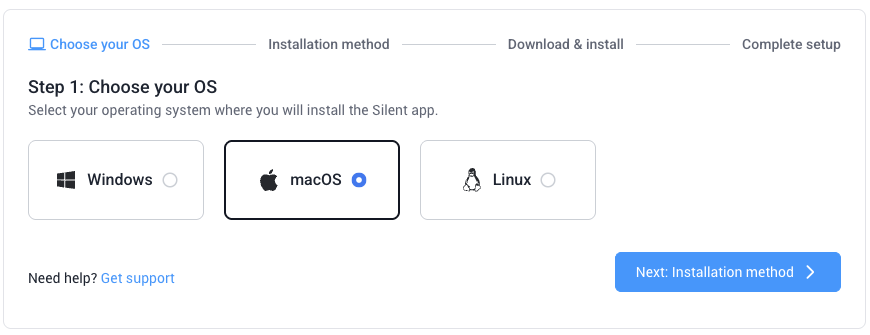
Download a fresh installer from Silent app > Setup in the same Hubstaff organization where the computers are listed.
How to select the correct installer and deploy the update
Match the installer to each computer’s operating system:
- Windows: .msi
- macOS: .pkg
- Linux: .sh
If your devices are centrally managed, deploy the installer through your MDM, RMM, or endpoint management tool using your platform’s standard software deployment process. If your devices are not centrally managed, run the installer directly on each computer with administrator permissions.
Windows deployments
For Windows silent installation, this command can be used as a reference. Your deployment platform may handle this differently:
msiexec /qn /i "<downloaded MSI file name>"Replace
<downloaded MSI file name>with the exact file name downloaded from Hubstaff. Do not rename the installer.
Tools such as Intune, Jamf, Kandji, NinjaOne, and ConnectWise each have their own detection and deployment processes. Check with your IT team for platform-specific steps. See Hubstaff Silent App Setup Windows for more detail.
ℹ️ Intune Win32 detection rule: Use a registry-based detection rule where possible. File path detection rules can become unreliable across Silent App versions because installation paths may change. For step-by-step instructions, see Silent App Setup for Intune.
macOS deployments
For macOS silent installation, this command can be used as a reference. Your deployment platform may handle this differently:
sudo installer -pkg "<downloaded PKG file name>" -target /Replace
<downloaded PKG file name>with the exact file name downloaded from Hubstaff. Do not rename the installer.
See Hubstaff Silent App Setup macOS for more detail. If you manage Mac devices through an MDM platform, see Silent App Setup Jamf Pro (macOS) or Silent App Setup JumpCloud (macOS).
macOS has several privacy permissions that affect the Silent App, so team members may see multiple system prompts during deployment, including requests for browser access, Screen Recording access, and local network access.
ℹ️ To prevent the browser access and local network prompts, install a .mobileconfig profile, found in the macOS section of Silent app > Setup. Update this file periodically, since it can also receive changes over time. Install it before installing the Silent App. If the Silent App and an earlier .mobileconfig profile are already installed, you can still install the new .mobileconfig profile.
Linux deployments
For Linux silent installation, this command can be used as a reference. Your deployment platform may handle this differently:
sudo "<downloaded SH file name>" -- --silent --ui stdioReplace
<downloaded SH file name>with the full path to the file downloaded from Hubstaff. Do not rename the installer. See Hubstaff Silent App Setup Linux for more detail.
If your organization wants fully silent installation with app, URL, and screenshot tracking, IT admins must enable the Hubstaff GNOME Shell extension themselves. A notification prompting this appears as soon as the Silent App is installed and launched. If the extension is already enabled, updates will not trigger this prompt again.
All platforms
Starting with version 1.6.28, you can install updates directly over an existing Silent App installation without uninstalling the previous version first.
All platforms also support installation from the command line. This method downloads the installer and starts installation in a single step, so you do not need to download the installer beforehand. Find the exact command for your organization at Silent app > Setup > Step 2 > Group/batch install.
How to restart or sign back in
After installation, restart the computer when possible. If a restart cannot be done right away, have the team member sign out of the operating system and sign back in. This helps ensure the updated app and related services resume correctly.
How to verify the update
- Return to Silent app > Computers.
- Confirm each device shows a recent check-in and reports the updated Silent App version.
- Confirm tracking has resumed according to the assigned automatic tracking policy.
Troubleshooting
A device did not update successfully
Before contacting support, verify the following:
- The computer is online and reachable.
- The installer was run with administrator permissions.
- The installer was not renamed before running, and the deployment tool completed without errors.
- Also confirm antivirus, firewall, proxy, SSL inspection, DNS filtering, or endpoint protection did not block the installer, the Silent App service, or Hubstaff’s update and connectivity endpoints.
- If your organization uses SSL inspection or a security proxy, your IT team may need to allow Hubstaff endpoints and bypass SSL inspection for Hubstaff traffic.
The app updated but screenshots or URLs are missing
Confirm the required OS permissions are still granted. macOS permissions can be revoked by OS updates and may need reapproval.
The installer fails silently
Do not repeatedly reinstall. Contact Hubstaff Support for cleanup guidance before attempting another reinstall.
For unmanaged computers, you can also uninstall the existing Silent App and reinstall using the latest installer from the same Hubstaff organization. Select the computer on Silent app > Computers and click Uninstall. If the computer has a stable internet connection, the uninstall completes within 10–15 minutes. For managed computers, confirm with your IT team before uninstalling or reinstalling manually.