16 minutes
Sprout Integration
Hubstaff’s integration with Sprout Solutions lets organizations in the Philippines sync time‑tracking data from Hubstaff directly into Sprout’s HRIS and payroll platform.
The integration ensures that the hours your team tracks in Hubstaff flow seamlessly into Sprout for payroll processing, so you can pay people for the time they actually worked without manually exporting timesheets.
Only Owners of a Hubstaff organization can connect and configure the Sprout integration. Other roles cannot set it up or modify its settings.
The integration is initially being rolled out to selected Sprout customers. If you are a Sprout client and do not see the option yet, please contact your Sprout representative.
How the integration works
Hubstaff integrations follow a three‑step process:
- Authenticate the external service by contacting your Sprout representative.
- Once enabled, the Sprout integration option will appear on the integrations page
- Link your Hubstaff and Sprout members.
- Track and approve timesheets.
Once set up, the Sprout Integration works as follows:
Member linking.
- You link each Hubstaff member to their matching employee record in Sprout.
- When the automatically sync new members option is enabled, Hubstaff automatically searches Sprout for a matching email address and links the records when a new Hubstaff user is added.
- If there is no email match, you can link members manually from the integration’s Users tab.
- Unmatched members will not sync time until they are linked.
Timesheet approval triggers sync
- Once a member is linked and has timesheet approvals turned on, Hubstaff waits for a manager or owner to approve the member’s timesheet.
- Time data only syncs to Sprout after the timesheet is approved. This approval step prevents changes after payroll has been processed and ensures that members are paid for the correct hours.
Data sent to Sprout
- At the moment of approval, Hubstaff sends Sprout the duration worked each day, along with the first clock‑in, last clock‑out, and all intermediate time spans within the day.
- This means that if a team member tracks time from 9 AM–12 PM, takes an unpaid break, and then tracks again from 1 PM–5 PM, Sprout will receive two separate time blocks for that day.
- Paid breaks are included in the totals, while unpaid breaks are excluded from the data sent.
Timesheet locking
- After Hubstaff syncs a timesheet to Sprout, the timesheet is locked. No further edits (including by the owner) can be made to the time or breaks for that period.
- The timesheet’s status will display “Synced to Sprout” within Hubstaff.
What is not sent
- Pay rates, overtime, paid time off (PTO) requests and holiday hours are managed inside Sprout and are not synced from Hubstaff.
- Only regular tracked hours (including paid breaks) are sent.
- If you need to adjust OT or PTO in Sprout, please do so directly within your Sprout account.
Integration set-up
A. Pre-requisites
Please ensure the members you wish to connect have the following information set up within People > Members. These settings are required for the integration to function correctly.
- Pay Period
- Require timesheet approval (ON)
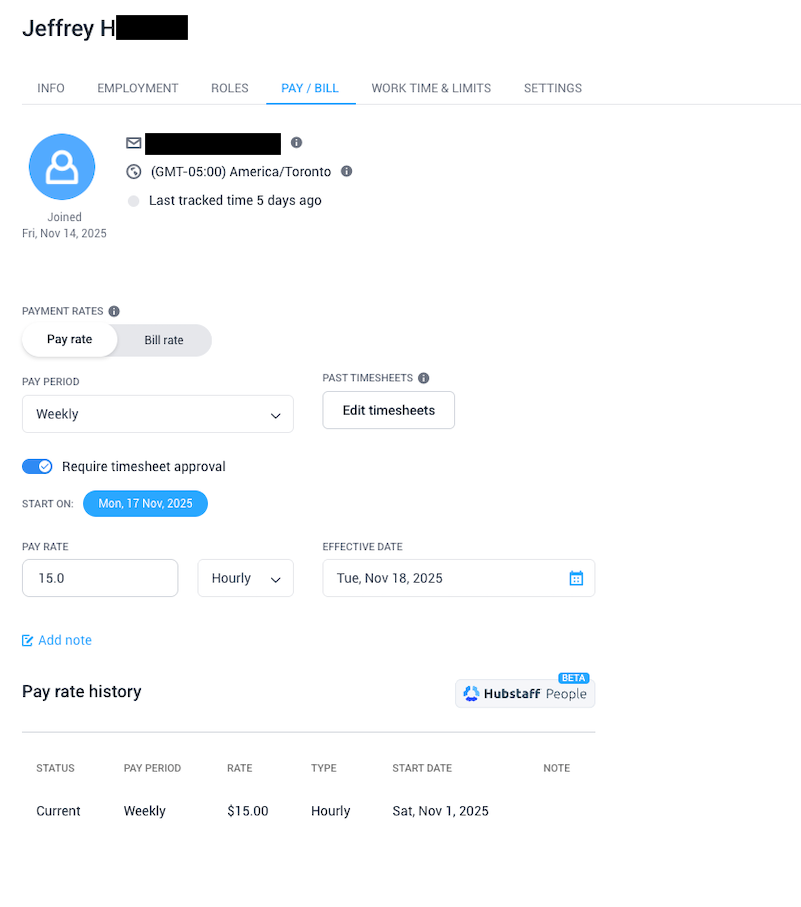
B. Enabling the integration
In order to enable and access the Sprout integration, please contact your Sprout representative and let them know that you wish to use the Sprout integration.
Once approved, the Sprout integration can be accessed from Settings > Integrations.
Only users with the Owner role will be able to access this screen.

Select ‘Connect’ either from the Most Popular section or by searching the list of integrations at the bottom of the screen.
If you are unable to see the Sprout integration on this screen after contacting Sprout with your request, please contact Hubstaff Support.
A wizard will then open and walk you through the setup process. Click ‘Next’.
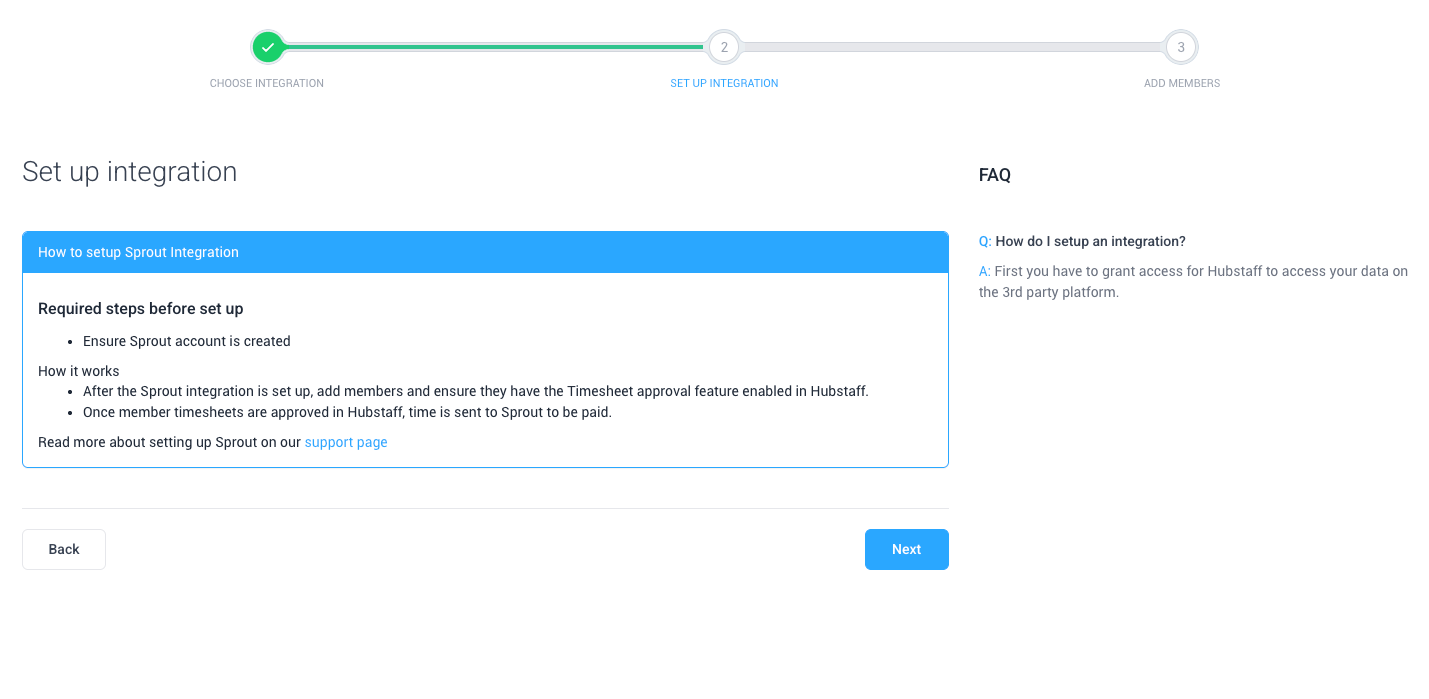
C. Member sync
The integration will then automatically try to find and match any members across systems. You can choose to automatically sync by clicking ‘Sync all’, or manually review and sync members by clicking ‘Select from list’.
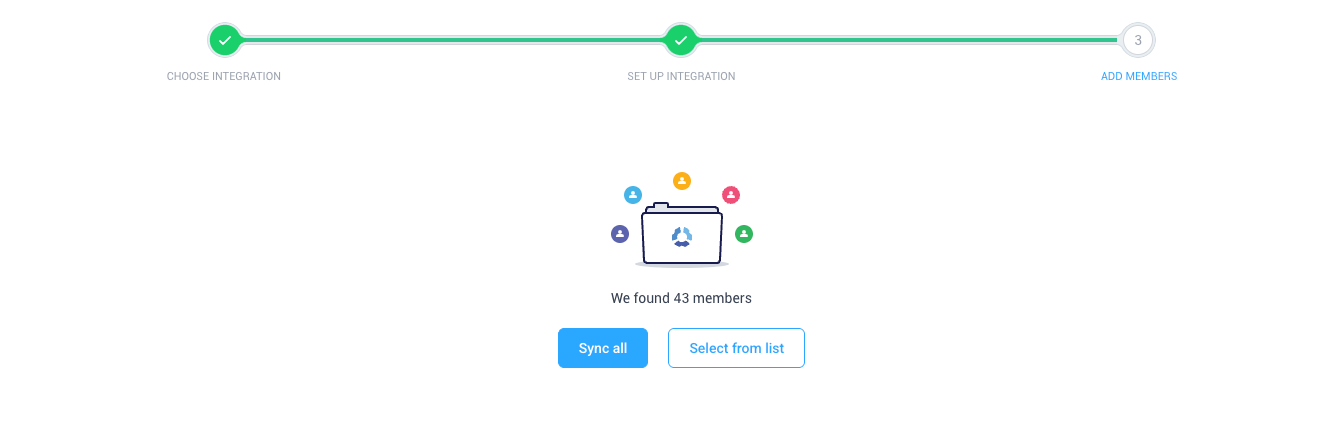
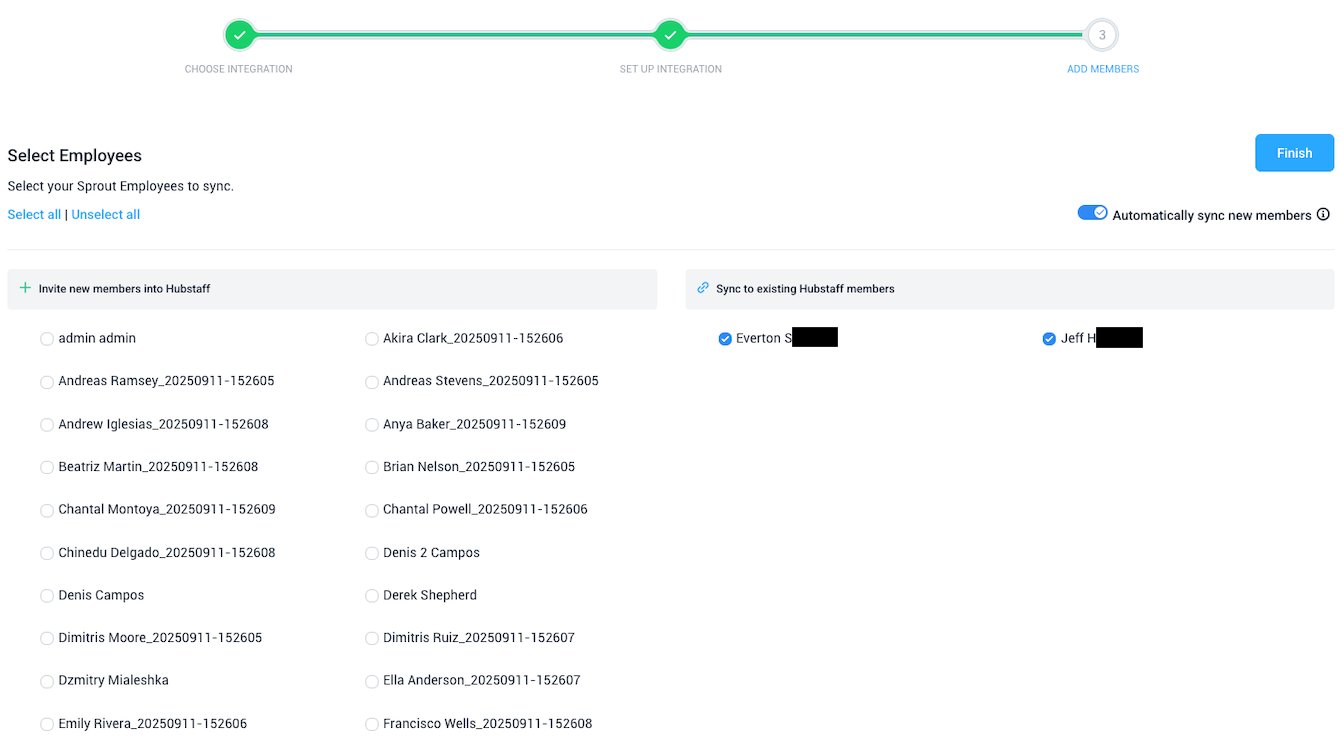
When manually syncing members, there are a few options available:
Automatically sync new members
- When enabled, Hubstaff will attempt to automatically link any new Hubstaff member that is created after initial setup to a Sprout employee with the same email address. This reduces the amount of provisioning required to maintain the integration sync.
Invite Sprout Users to Hubstaff
- The section on the left side of the screen (Invite new members into Hubstaff) represents the members that exist within Sprout, and did not find a match within Hubstaff.
- By selecting any of these members, an email invite will automatically be sent to the associated email address. Upon joining Hubstaff, the sync will automatically match the newly invited user.
Sync Matched Members
- The section on the right-hand side of the screen (Sync to existing Hubstaff Members) represents the members where a match was found between members in Sprout and Hubstaff.
- By selecting any of these members, the match will be made.
Select ‘Finish’ and confirm in the summary modal to complete the member sync utility.
D. Manage Synced Members
If successful, the Sprout Integration and member syncs can be managed by clicking on Sprout in the ‘Connected’ Apps on the Settings > Integration page.

A summary of all synced members can be found on the next page. Click the Actions sub-menu to:
- Edit existing sync details
- Delete synced members
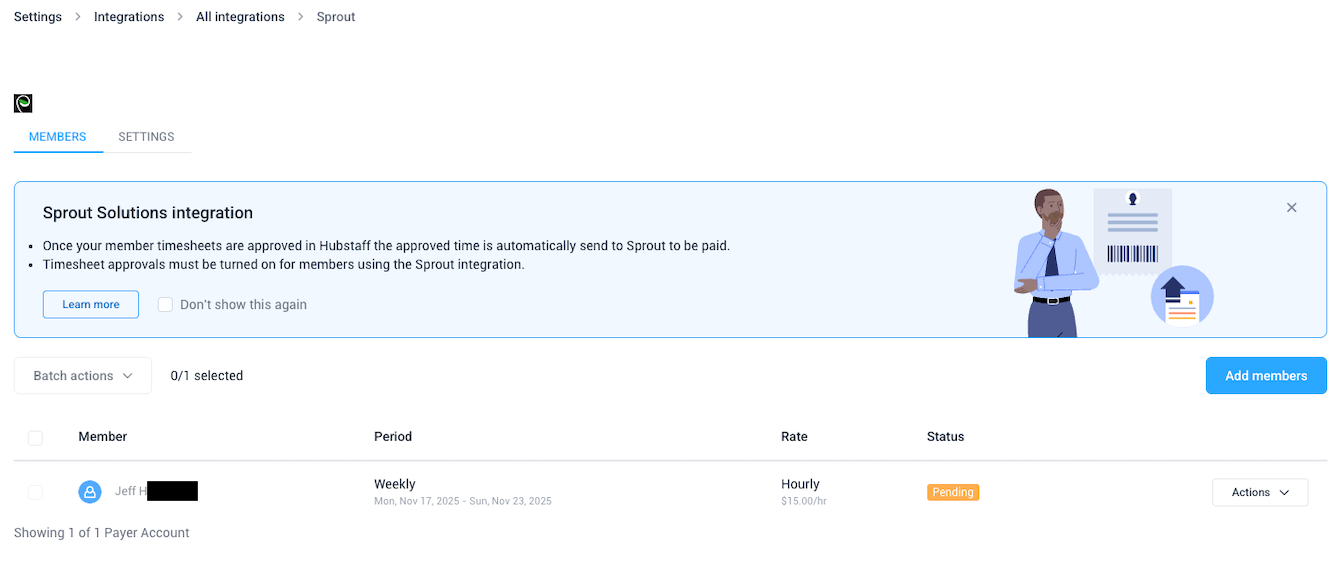
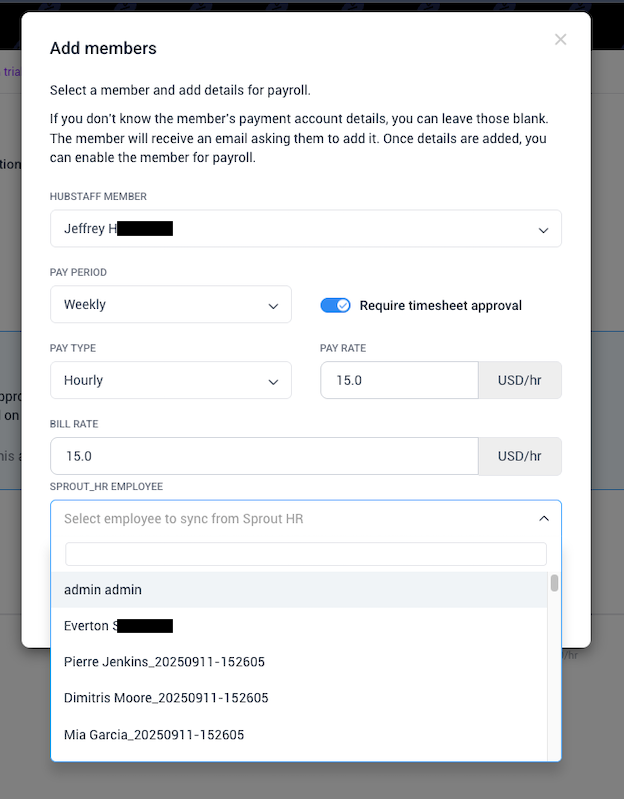
To manually add new synced members, click the ‘Add Members’ button. A modal will appear where you can configure the following information:
- Select which Hubstaff member to associate with a Sprout Member from the ‘Hubstaff Member’ dropdown.
- Pay periods can be set from this screen if they were not previously configured.
- Timesheet Approvals can be enabled or disabled if not previously configured.
- Pay Type, Pay Rate, and Bill Rate can be set, but will not be synced with Sprout.
- Select which Sprout member to associate with the selected Hubstaff member.
Click `Save` to proceed with any changes.
E. Sync Timesheet Data
Have your synced members track time as usual within Hubstaff.
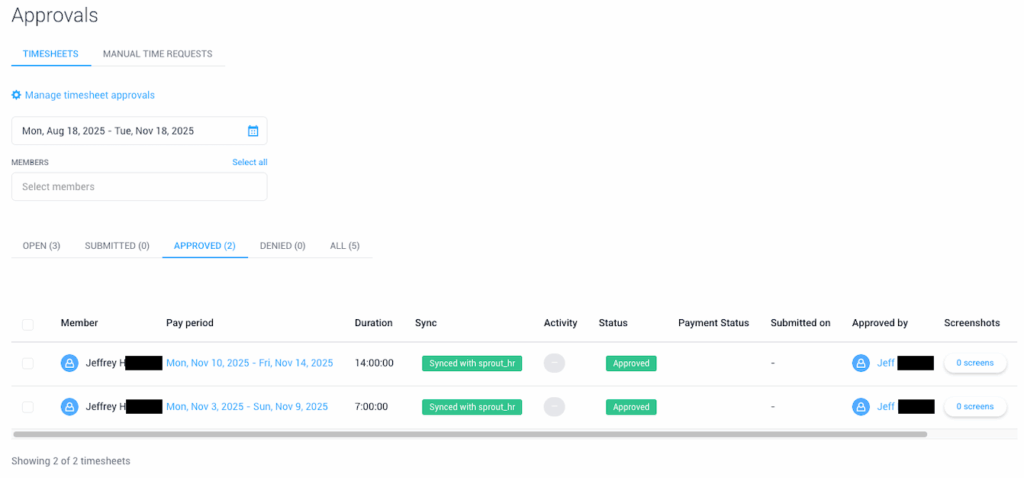
To send time entries to Sprout, you need to approve timesheets for the linked members. Hubstaff does not send any hours until the timesheet approval step has been completed.
- Go to Timesheets › Approvals in Hubstaff.
- Locate the team member whose time you wish to send to Sprout and click Approve.
- If you need to review or edit the member’s entries, do so before approving. Once approved, the timesheet is locked and cannot be changed.
- After approval, Hubstaff packages each time block (including paid breaks) into “Clock In” and “Clock Out” logs and sends them to Sprout.
- You will see the timesheet status change to Synced to Sprout within Hubstaff, indicating that the hours have been sent.
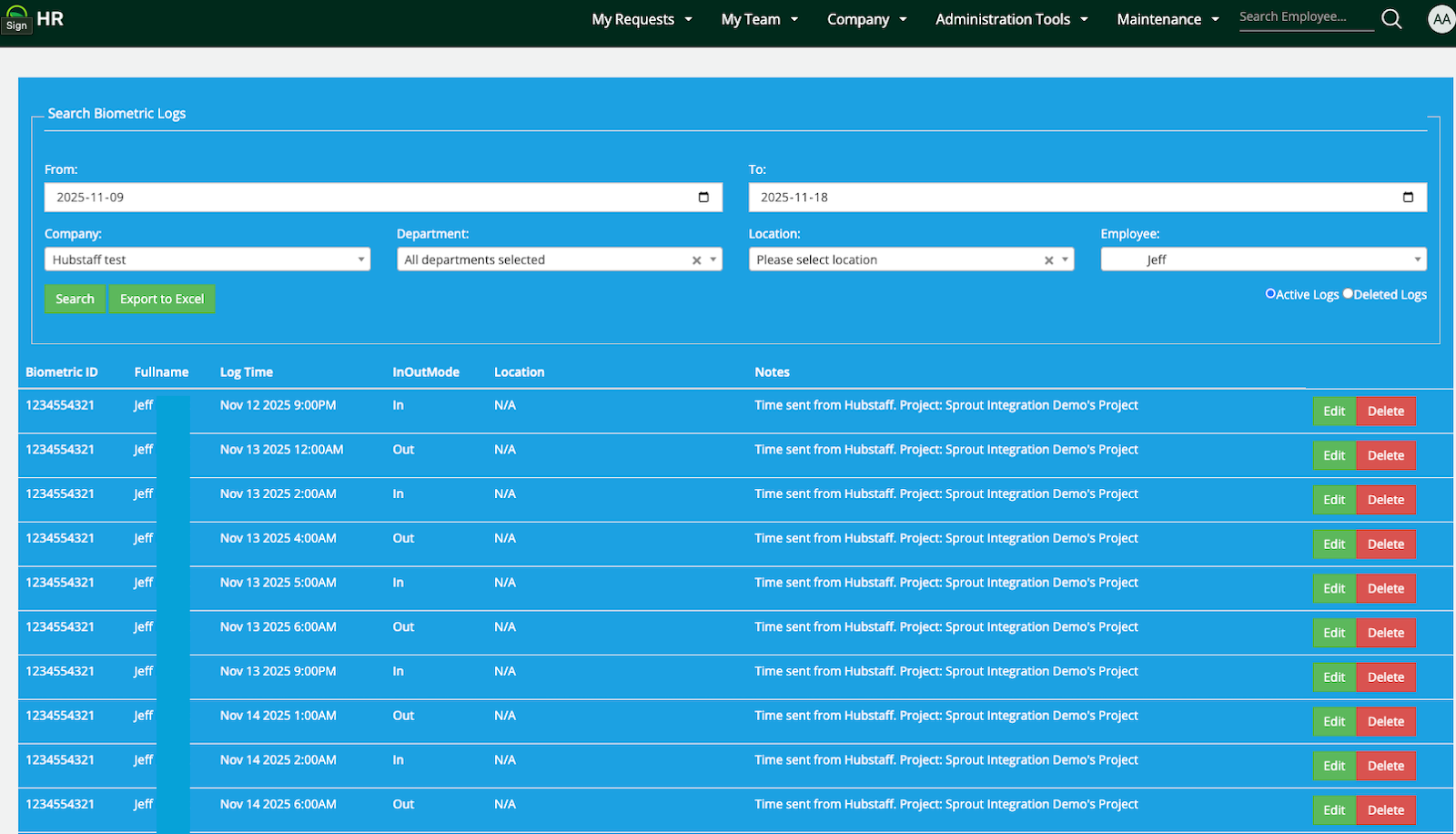
- Reviewed the synced time data within Sprout.
- Any time synced between Hubstaff and Sprout will have a note logging that it was sent from Hubstaff, along with the Organization the information came from.
- Note there may be a timezone difference between your Hubstaff environment and within Sprout, as Sprout uses (GMT+8), and your Hubstaff organization may be using a different one.

- Handle any downstream processes within Sprout as desired.

Frequently Asked Questions (FAQ)
When does time tracking data sync from Hubstaff to Sprout?
Time data only syncs after the timesheet is approved. Until you approve a member’s timesheet, no hours are sent to Sprout.
What data gets sent during timesheet sync?
Hubstaff sends the total hours worked each day, the first clock‑in and last clock‑out for the day, and all intermediate time spans (time blocks) recorded on Hubstaff. Paid breaks within a time block are included, while unpaid breaks are excluded. Sprout will use this information to calculate payroll based on the rates and policies configured in your Sprout account.
What data will not get sent?
Hubstaff does not send pay rates, overtime, paid time off (PTO), holiday hours or leave requests to Sprout. These items are managed directly in Sprout.
What if an email doesn’t match between Hubstaff and Sprout?
If the email address of a Hubstaff member does not match any employee email in Sprout, the integration will then attempt to match on First and Last Name. If no match is found for either option, the member will not auto‑link and their time will not sync. You can manually link the member to the correct Sprout employee in the integration’s configuration screen.
Can members sync payments to multiple downstream solutions?
No. Each Hubstaff member can only be connected to one payroll or payment integration at a time. For example, if a member is linked to Sprout they cannot also be linked to Deel, Gusto, Wise, PayPal or Payoneer for the same pay period. This prevents accidental double payments.
Are there plan limitations?
Yes. The Sprout integration is available on Team and Enterprise plans. Organizations on the Grow plan are limited to one integration; if you are already using another integration you will need to upgrade to enable Sprout.
Does the integration support paid or unpaid breaks?
Hubstaff always sends paid breaks as part of the time data. If your paid break policy allows 15‑minute breaks but a user takes a 20‑minute break, only the 15 minutes will be sent to Sprout. Unpaid breaks are not sent; the time spent on unpaid breaks remains in Hubstaff and is excluded from the synced data.
Do overtime and PTO sync to Sprout?
No. Overtime and PTO must be managed within Sprout. Hubstaff does not sync overtime hours or leave events to Sprout at this time.
What roles/permissions are required?
Only the Owner of a Hubstaff organization can connect and manage the Sprout integration. Owners can assign managers to approve timesheets; however, managers cannot change integration settings.