8 minutes
BambooHR Integration Setup
Hubstaff integrates seamlessly with BambooHR so you can sync approved leave, time off policies, and balances into Hubstaff, and link your BambooHR employees to their Hubstaff members. This makes it easier for you to keep your team’s records accurate without manual data entry.
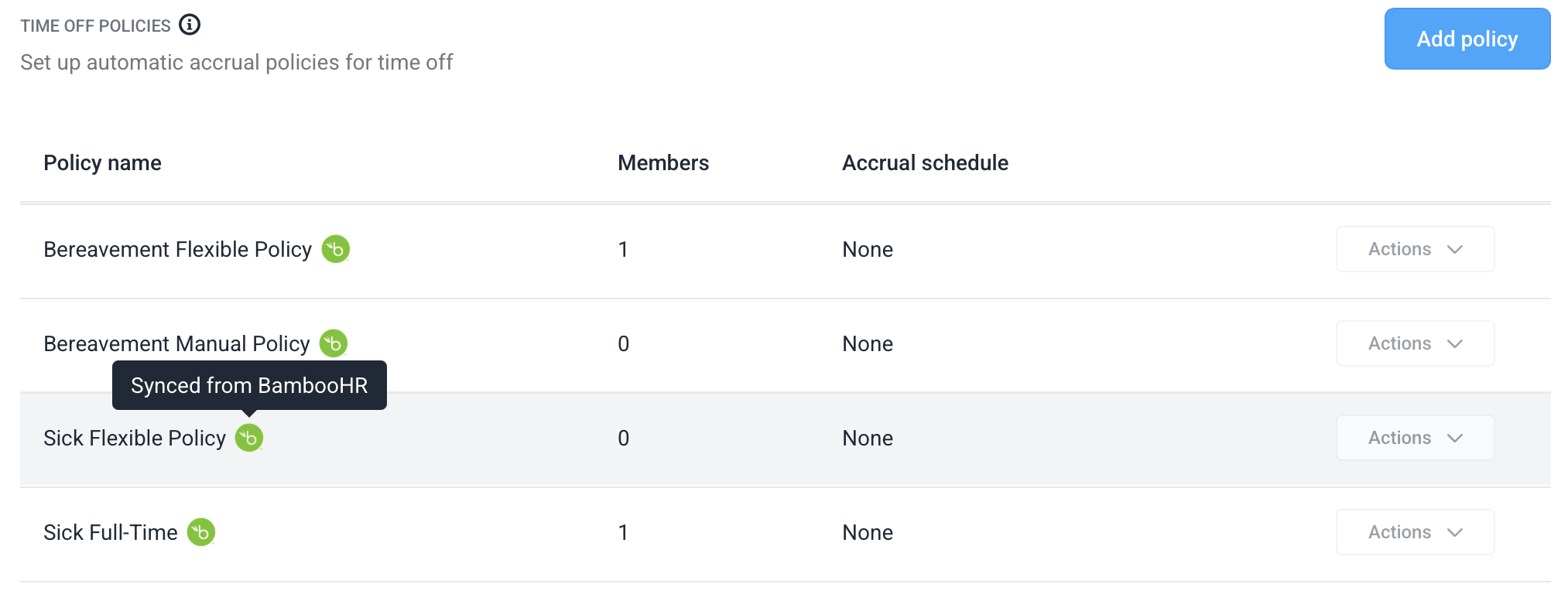
With the BambooHR integration, you can:
- View BambooHR time off policies alongside Hubstaff policies
- See employee balances updated from BambooHR
- See approved time off requests in your calendar
- You need Organization Owner or Organization Manager access in Hubstaff to set up an Integration.
- You need admin access to your Organization’s BambooHR account.
Set up the integration
Step 1
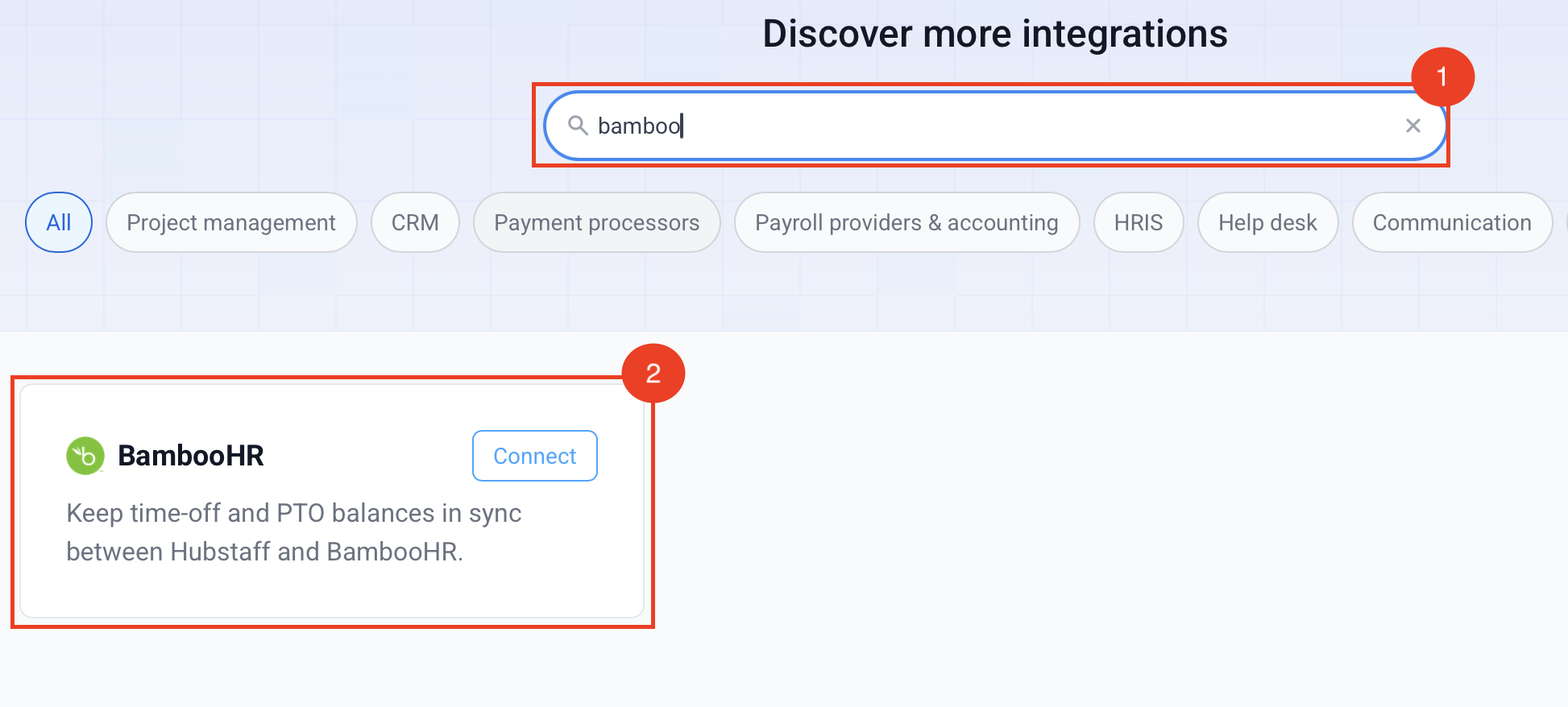
Make sure you have the correct Organization selected, then go to Settings > Integrations. Search for BambooHR and click Connect next to the BambooHR logo.
Step 2
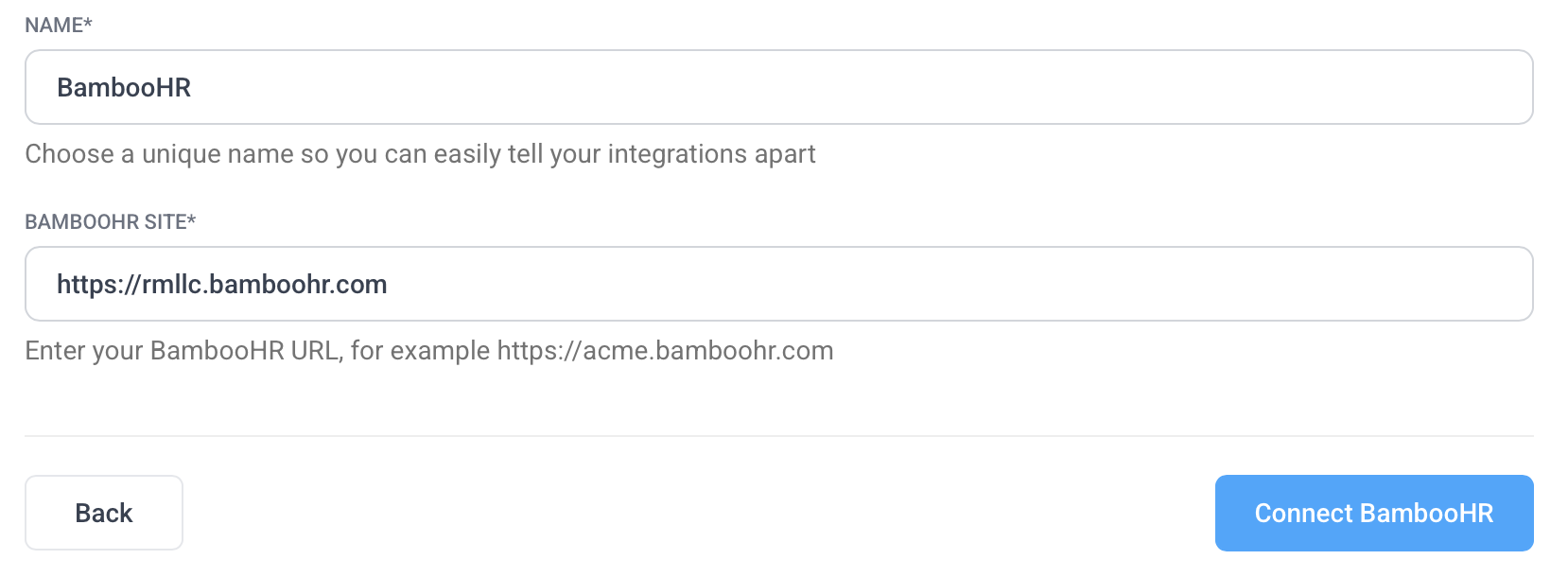
Enter your BambooHR subdomain and click Connect BambooHR.
Step 3
Hubstaff redirects you to BambooHR to authorize the connection, sign in to BambooHR and approve the access request.
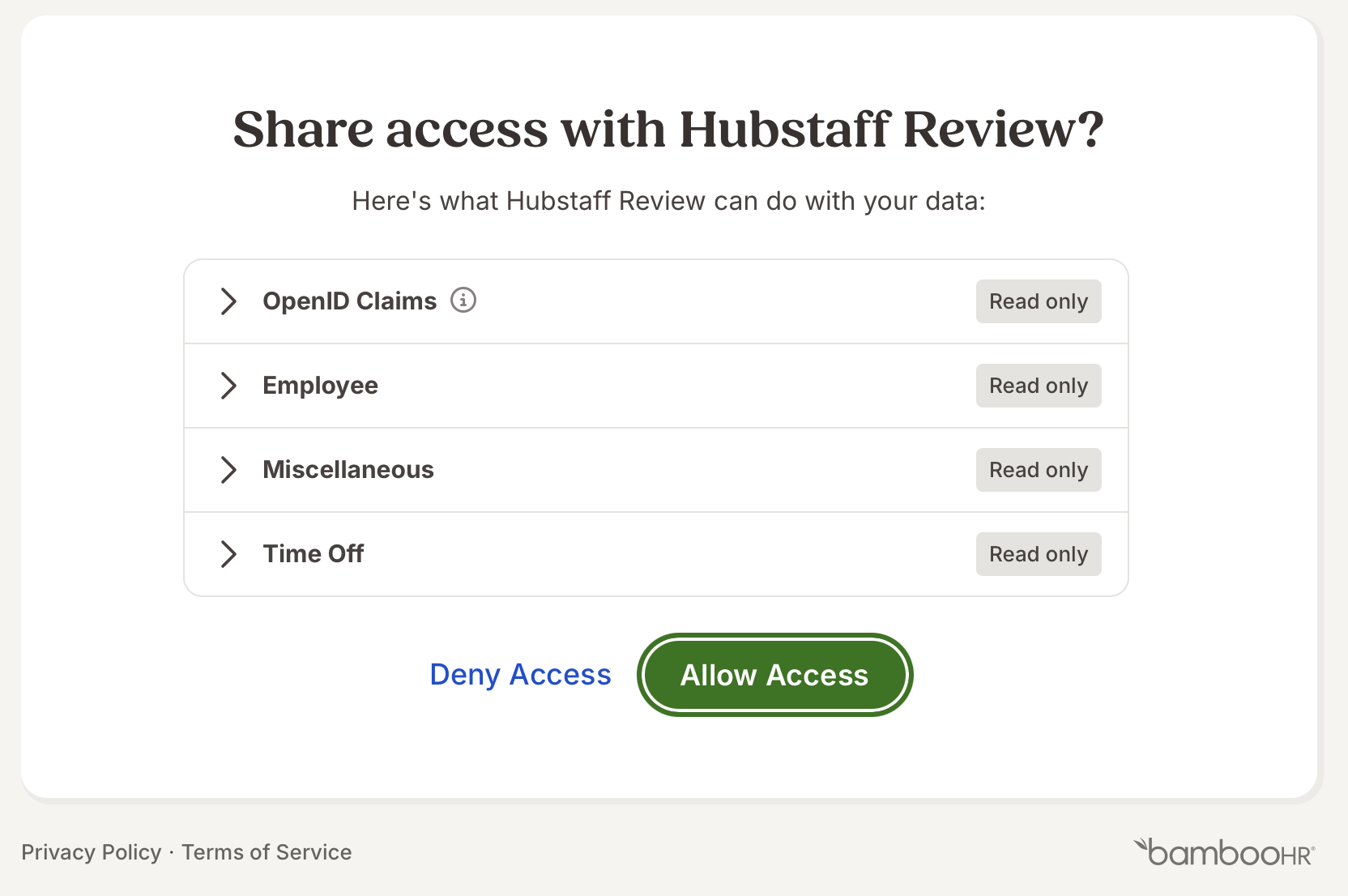
Once authorized, Hubstaff returns you to the setup wizard to continue to sync the members.
Sync members
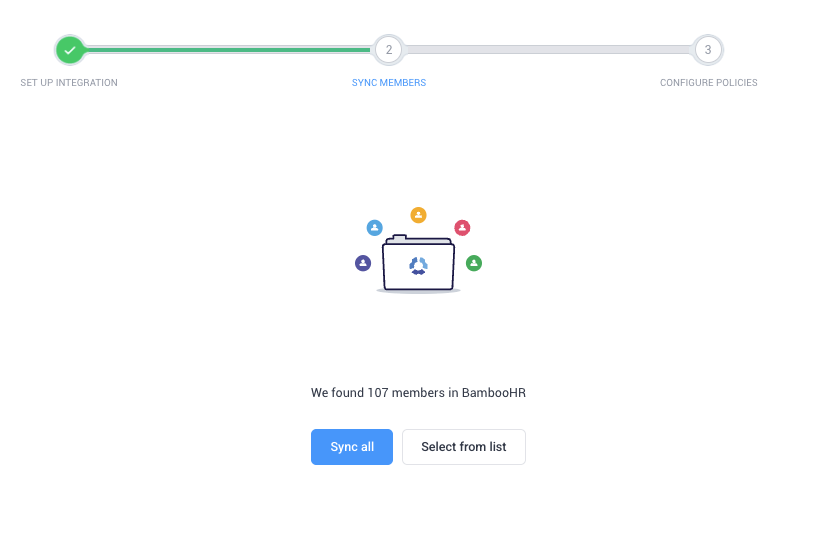
Hubstaff auto-fetches your BambooHR employee list. You can sync all the employees at once or select manually from a list.
Select from list shows two groups: Sync to existing Hubstaff members (employees whose BambooHR work email matches a Hubstaff member) and Invite new members into Hubstaff (everyone else).
Check the employees you want to sync. Unmatched employees you select get an email invite to join Hubstaff and are linked once they accept. Sync all sends an invite to every unmatched employee.
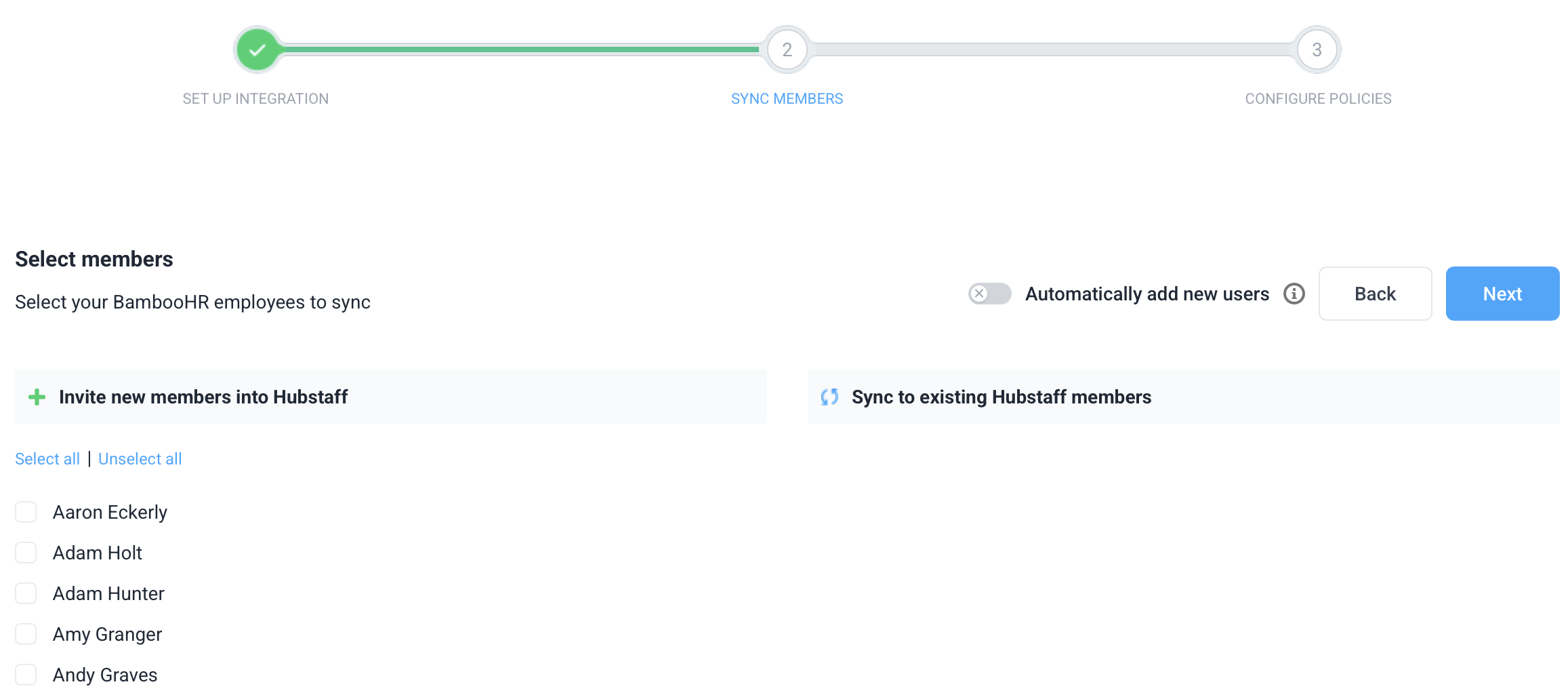
Automatically add new users links people who join your Hubstaff organization later to their BambooHR record when their email matches a BambooHR work email. It doesn’t import new BambooHR hires. Invite them to Hubstaff as usual.
Note: Matching uses the exact work email. If a member uses a different email in Hubstaff, such as a personal address, they won’t be matched. Link them afterwards from Members > Add member. Until they’re linked, their BambooHR time off won’t sync.
Configure policies
Step 1
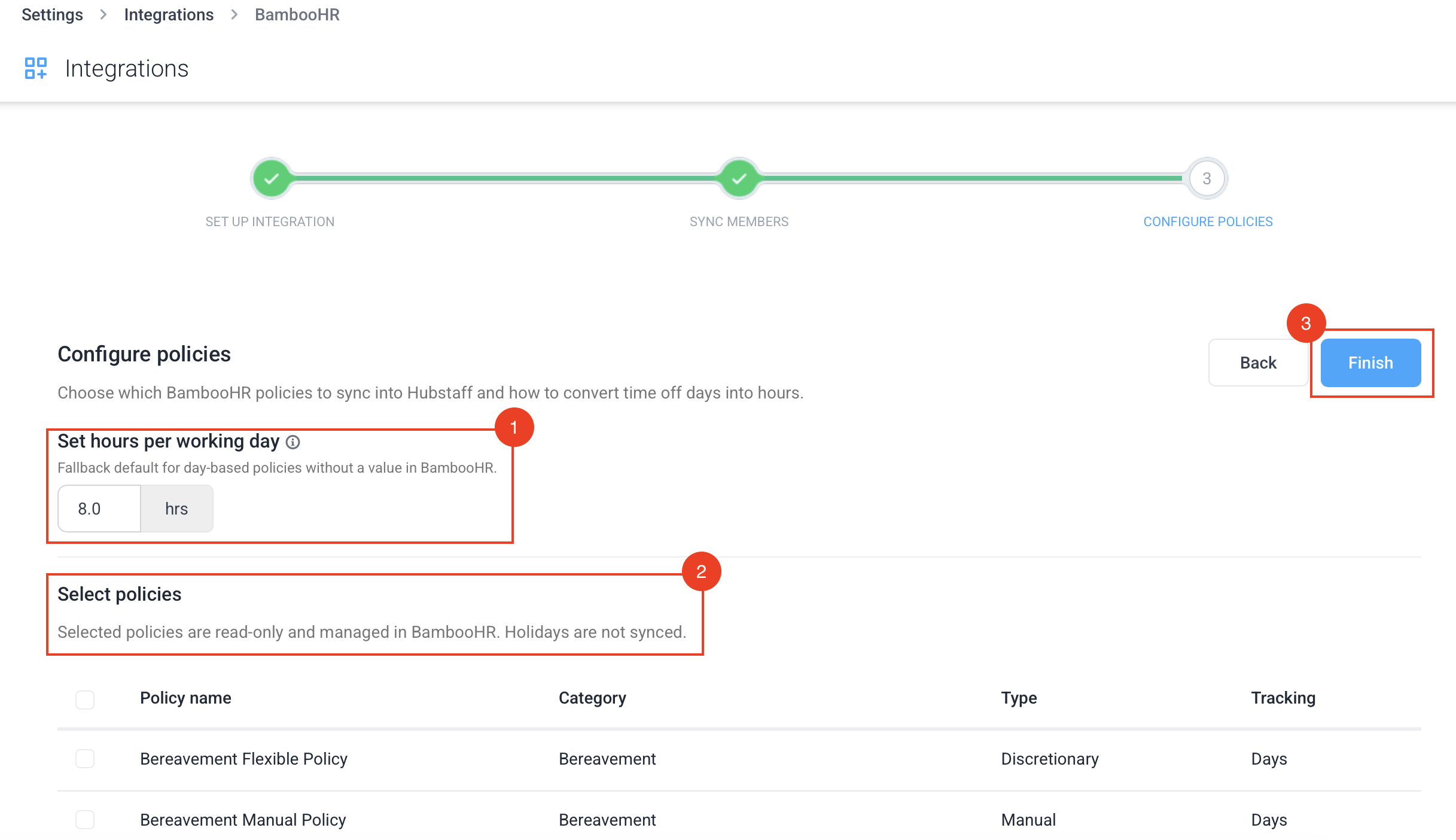
Confirm the number of working hours in a standard day. Hubstaff prefills it from your BambooHR default working hours (8 if none are set) and uses it to convert day-based balances to hours. Day-based time off requests use the working hours BambooHR has set for each weekday.
Step 2
Hubstaff lists the time off policies in your BambooHR account with their category, type, and whether they’re tracked in hours or days. All policies are selected by default; uncheck any you don’t want to sync. Each selected policy is created in Hubstaff as its own read-only policy, separate from your existing Hubstaff policies. If a Hubstaff policy already has the same name, the new one gets “(2)” added.
Step 3
Click Finish to complete the setup.
Additional notes
Sync behavior
- The Hubstaff BambooHR integration only syncs information from BambooHR to Hubstaff, not the other way around.
- Time off requests and policy changes sync about every 15 minutes. Balances refresh at least every 12 hours, and sooner when a member’s requests change. Requests from the last 3 months through the next 3 months are synced. Pending requests appear as Submitted, and denied or canceled requests appear as Denied.
Managed sync data
- Synced policies, balances, and time off requests cannot be edited in Hubstaff. Make any changes directly in BambooHR.
- Deactivating an employee in BambooHR does not currently archive or remove them from Hubstaff. You must also remove the member from Hubstaff separately.
- Each linked member’s profile shows a BambooHR details section with their Department and Reports to, plus an Open in BambooHR link.
Holidays
- BambooHR holidays are not synced with Hubstaff. Set these up separately under Hubstaff’s Holidays settings. See our guide on How to add a Holiday policy.