4 minutes
How Email OTP Verification Works When You Sign In
When you sign in from a browser or device Hubstaff doesn’t recognize, we send an OTP (one-time password) consisting of a 6-digit code to your email address to confirm it’s really you. Enter the code, and you’re in; no extra setup required.
Why you’re seeing this
Hubstaff checks the browser you’re signing in from. If it’s one we haven’t verified before, or if we can’t read your browser’s security details at all (this can happen with ad blockers, privacy tools, or some corporate networks), we ask for a code to confirm the sign-in is really you.
When you won’t see this
- You’re already signed in. This check only runs when you’re actively signing in.
- You’re signing in again from a browser you’ve already verified.
- Your organization signs in through SSO.
How to verify your sign-in
Step 1
Enter your email and password as usual to sign in. You’ll see a page requesting a verification code.
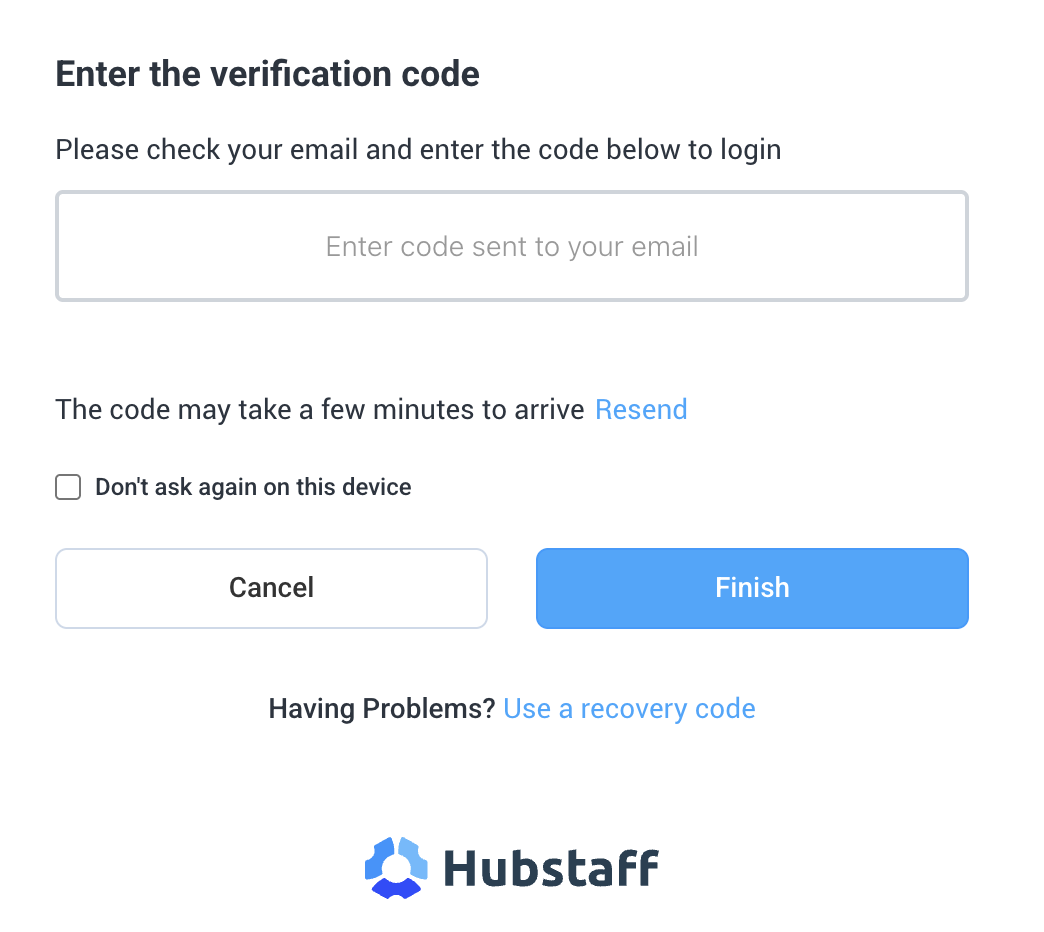
Step 2
Check your email for a code and enter it on the verification screen.
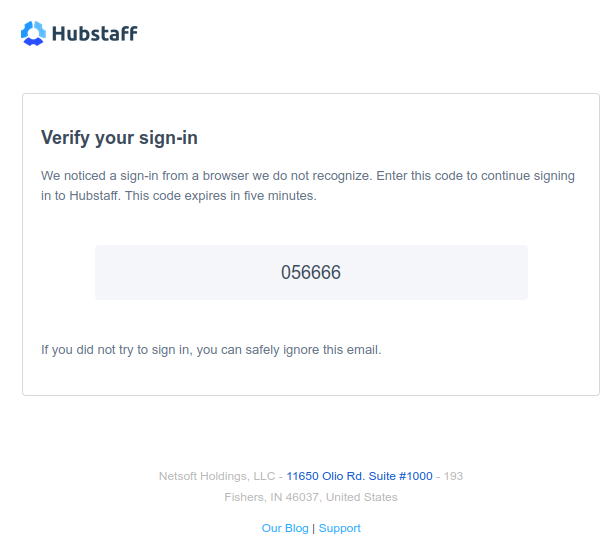
Step 3
Once the code is entered correctly, you’re signed in automatically.
Troubleshooting
The code says it’s invalid.
This means it’s either wrong or expired — Hubstaff doesn’t distinguish between the two. Request a new code and enter it as soon as it arrives.
I’m not receiving the code.
Check your spam folder, and confirm you have access to the email address on your Hubstaff account. If you still don’t receive it after a few tries, wait for the request limit to reset (10 emails every 30 minutes) before trying again.
I keep getting asked for a code every time I sign in.
This usually means Hubstaff can’t consistently recognize your browser, often due to an ad blocker, privacy extension, or network configuration. Try signing in from a different browser or network to see if the prompt stops appearing. If the code still doesn’t arrive after these steps, contact Hubstaff Support.