8 minutes
Manage Your BambooHR Integration: Settings and FAQs
Manage every part of your BambooHR integration, from member matching to policy sync settings, all from one page in Hubstaff. This guide also answers the most common questions about how the integration works, so you can troubleshoot issues without contacting Hubstaff Support.
- ℹ️You need Organization Owner or Organization Manager access in Hubstaff to set up and manage an integration.
Members tab
To access the Members tab, go to Settings > Integrations > BambooHR > Members. Here you see every BambooHR employee that has been linked to a Hubstaff member. You can see the integration status for each member, the BambooHR time off policies currently assigned to them, and the last time the information was synced for each member.
Here you can also review the current state of the Time off policies, Balances, and Requests synced from BambooHR under the Review Synced Data panel.
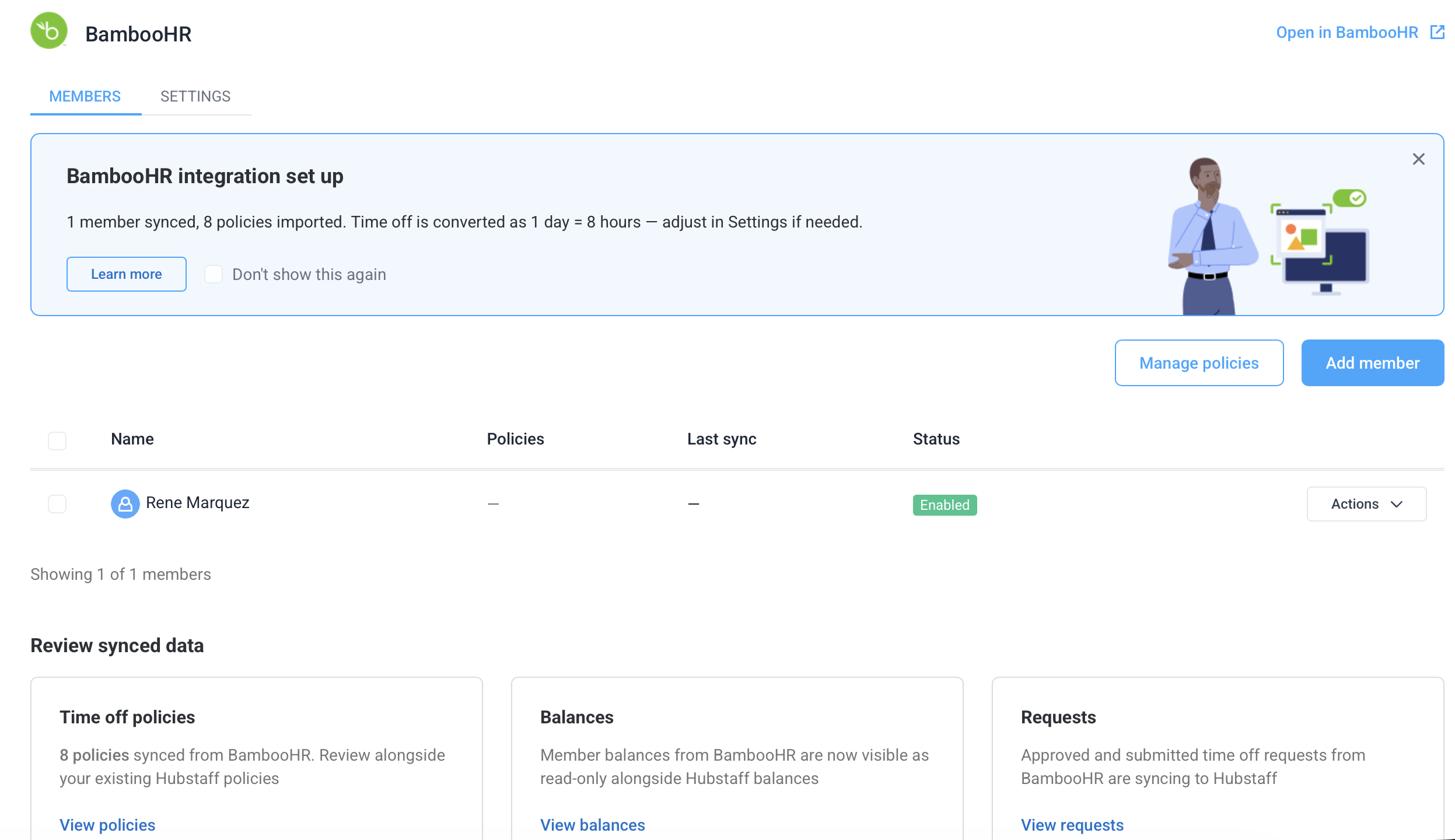
Available actions per member
Link more members at any time with Add member: choose a Hubstaff member and the BambooHR employee to link. Add member only links people already in your Hubstaff organization; invite anyone new first.
By clicking on Actions you have the following options per member:
-
-
- Remap user: This allows you to change the BambooHR employee mapped to the Hubstaff member.
- Disable: This turns off the integration for the Hubstaff member. Their time off requests and balances stop syncing. Anything already synced stays in Hubstaff.
- Disconnect: This disconnects the BambooHR employee from the Hubstaff member. Their synced time off requests stay in Hubstaff as read-only, but their synced balances are removed, so their balance falls back to Hubstaff’s own calculation. You can link them again later.
-
Settings tab
To access the Settings tab, go to Settings > Integrations > BambooHR > Settings. This tab contains organization-level configuration for the BambooHR integration.
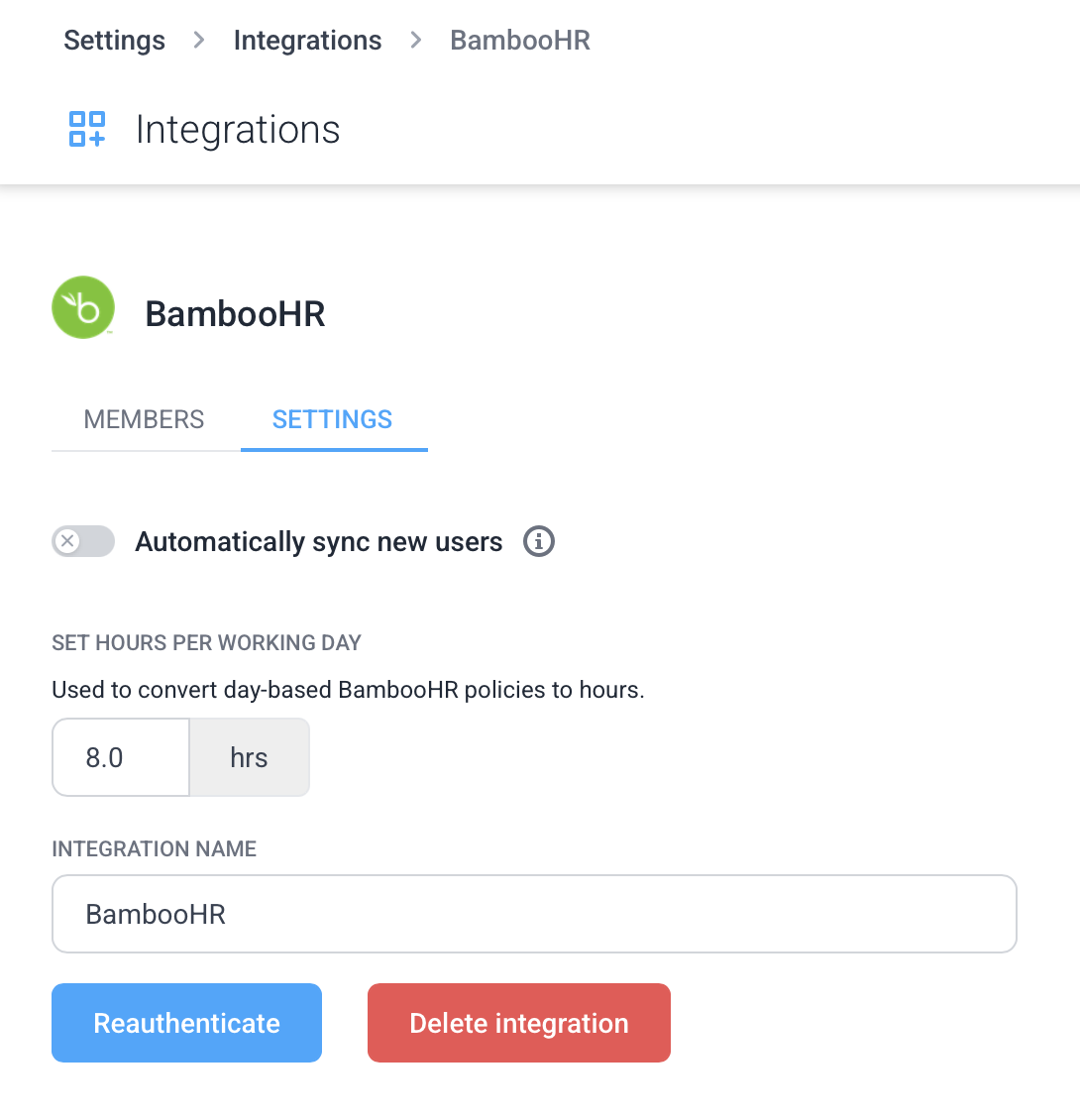
- Automatically sync new users: When someone joins your Hubstaff organization, Hubstaff links them to their BambooHR record if their email matches a BambooHR work email. New BambooHR hires aren’t imported; invite them to Hubstaff as usual.
- Set hours per working day: This option sets the number of working hours in a standard day. It is used to convert day-based BambooHR balances to hours.
- Reauthenticate: Use this if your BambooHR connection breaks or admin credentials change. Reauthenticating refreshes the connection without losing your mappings or policy configurations.
- Delete integration: Disconnects BambooHR and stops all syncing. Synced policies, time off requests, and balances stay in Hubstaff and remain read-only. Reconnecting the same BambooHR account restores your previous setup without creating duplicates.
Troubleshooting the integration
A member appears in BambooHR but not in Hubstaff: BambooHR employees are matched by exact work email. Make sure the person is a member of your Hubstaff organization, then link them from Settings > Integrations > BambooHR > Members > Add member. New BambooHR hires aren’t imported automatically.
A synced time off request isn’t showing in Hubstaff: Check that the member is linked and enabled on the Members tab, the request’s policy is selected under Manage policies, and the request falls between 3 months ago and 3 months from now. Sync runs every 15 minutes. If the integration shows as disconnected, click Reauthenticate.
I see duplicate time off policies: This is expected if you already had matching policies in Hubstaff. BambooHR policies are always imported as separate, read-only policies and aren’t merged with existing ones. If you no longer need your original Hubstaff policy, archive it.
The integration disconnected unexpectedly: Hubstaff refreshes the BambooHR connection automatically. It disconnects if BambooHR rejects access, for example if the app is revoked or the connecting admin loses access. Go to Settings > Integrations > BambooHR > Settings and click Reauthenticate.
FAQ
Does data sync both ways?
No. This is a one-way sync: BambooHR sends data to Hubstaff. Hubstaff does not write back to BambooHR. Any changes to time off, balances, or policies must be made in BambooHR.
How often does data sync?
Time off requests and policy changes sync about every 15 minutes. Balances refresh at least every 12 hours, and sooner when a member’s requests change. The sync is not instant.
Can I edit BambooHR time off balances or policies synced in Hubstaff?
No. Anything synced from BambooHR is read-only in Hubstaff and is visually marked with “Managed in BambooHR.” If a balance or policy needs to be changed, make the update in BambooHR and it will sync across automatically.
Can I still create native Hubstaff time off policies?
Yes. BambooHR policies and native Hubstaff policies coexist. Policies and requests you create directly in Hubstaff are fully editable as normal and are not affected by the BambooHR sync.
What happens when an employee is deactivated in BambooHR?
In the current version of the integration, deactivating an employee in BambooHR does not automatically archive or remove them in Hubstaff. You will need to manage that manually in Hubstaff.
Can new hires be added to Hubstaff automatically?
Not from BambooHR directly. Invite new hires to Hubstaff as usual. When their Hubstaff email matches their BambooHR work email, they’re linked to their BambooHR record automatically. This is on by default and can be turned off in the integration settings.
Do employee emails need to match?
Yes. BambooHR employees are matched to Hubstaff members by work email. If someone uses a different email in Hubstaff, link them from Settings > Integrations > BambooHR > Members. Until they’re linked, their BambooHR time off won’t sync to Hubstaff.