10 minutes
Getting started with the Hubstaff Tasks API
The Hubstaff Tasks API lets you access and manage Hubstaff Tasks data programmatically. You can use it to build integrations, automate task workflows, and work with projects, lists, tasks, comments, labels, and other data stored in Hubstaff Tasks.
Before you begin
- Your role and permissions determine what data your integration can access.
- All API requests must use HTTPS.
- Select only the authentication scopes your integration needs.
- Use tasks:read for read access and tasks:write for write access.
- Hubstaff Time Tracking and Hubstaff Tasks use separate APIs, documentation, and resource IDs. Even linked records can have different IDs across the two products.
- Review the Developer Portal for the latest authentication, pagination, rate limit, and endpoint requirements.
What can you do with the Hubstaff Tasks API?
You can use the Hubstaff Tasks API to:
- Retrieve and manage supported Hubstaff Tasks records.
- Work with projects, folders, lists, tasks, comments, checklists, labels, attachments, members, and time entries.
- Connect Hubstaff Tasks with internal or third-party systems.
- Build custom tools and reporting workflows using Hubstaff Tasks data.
- Automate task and project workflows using API requests.
Open the Hubstaff Tasks Developer Portal
Visit the Hubstaff Tasks API documentation for current information about core concepts, authentication, pagination and rate limits, HTTP status codes, and available endpoints.
The base URL for Hubstaff Tasks API requests is:
https://tasks.hubstaff.com/api
All requests must use HTTPS. Request and response bodies use UTF-8 JSON, and timestamps are returned in ISO 8601 UTC format.
Choose an authentication method
The Hubstaff Tasks API uses the same authentication methods as Hubstaff API v2. Choose the method that best matches how your integration will run.
OAuth 2.0 with OpenID Connect
Use OAuth when your application needs multiple Hubstaff users to sign in and authorize access to their accounts.
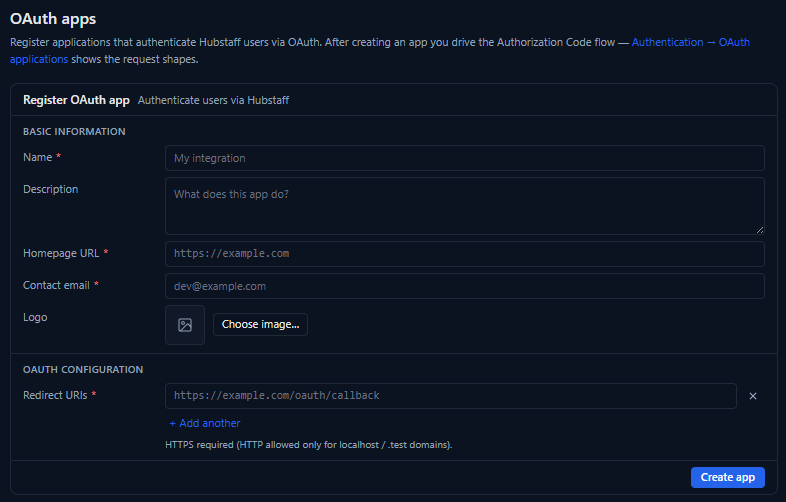
To register an OAuth application, sign in to the developer portal and open Account > Apps, or visit the OAuth apps page. Enter the application information and one or more valid redirect URIs, and then select Create app.
Personal access token
Use a personal access token (PAT) for scripts, internal tools, and other server-side integrations that run as your Hubstaff user.
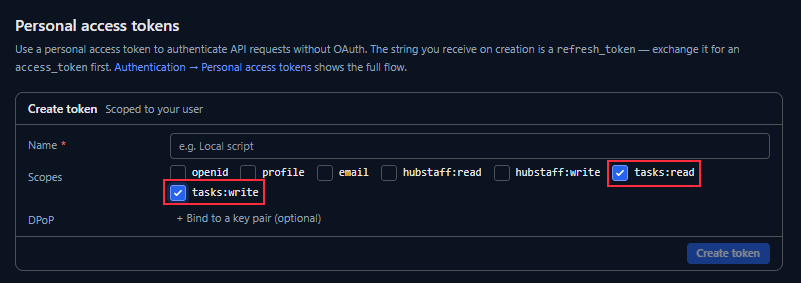
To create one, sign in to the developer portal, open Account > Personal access tokens, enter a descriptive name, and select only the scopes your integration requires. Select tasks:read to read Hubstaff Tasks data and tasks:write to create or update supported Hubstaff Tasks data. Then select Create token.
Organization access token
Use an organization access token for shared, long-running server-side automation that needs to act as a selected member of an organization. Common examples include scheduled scripts, CI jobs, and internal integrations.
An owner, manager, or member with permission to manage IT settings can create an organization access token from the Hubstaff web dashboard following the steps below:
Step 1
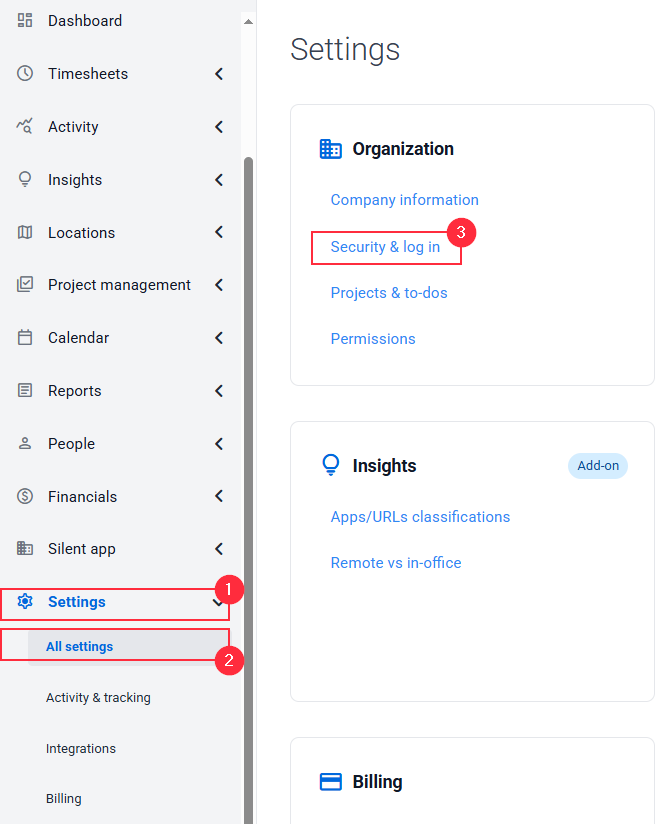
From the left sidebar, click Settings > All Settings. Then, under Organization, click Security & log in.
Step 2
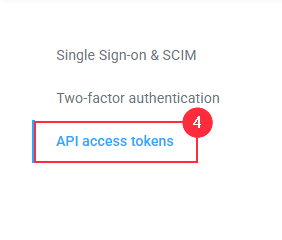
Select API access tokens, and then click Create token.
The organization access token authenticates as the member assigned to it and has the same organization role and access as that member.
Unlike a PAT, an organization access token is sent directly as a bearer credential. It does not require a token exchange, refresh process, or browser authorization flow.
Organization access tokens are created, reassigned, and revoked from the Hubstaff web dashboard. For more information, see Organization access tokens in the developer portal.
Review the Authentication section of the Hubstaff Tasks API documentation for current authorization steps, token requirements, scopes, and request examples.
Find API endpoints
In the Hubstaff Tasks API documentation, general guidance appears near the top of the navigation menu. This includes core concepts, authentication, pagination and rate limits, and HTTP status codes.
Available API resources appear under Endpoints. Select a resource, such as Tasks, to view its supported requests, URLs, parameters, and response details.
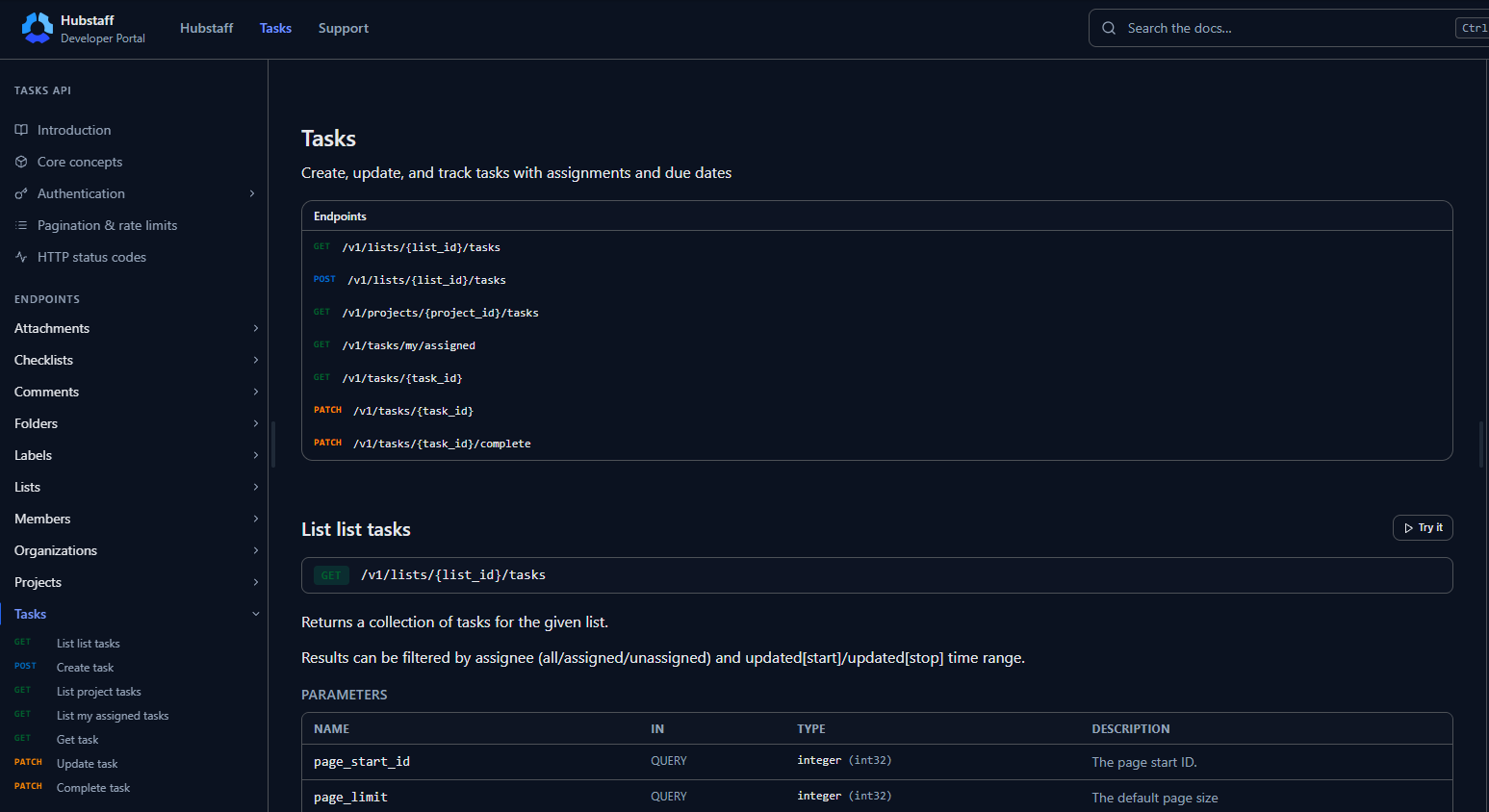
Because endpoint groups and individual requests can change, use the developer portal rather than maintaining a separate list of endpoints in this article.
Using the Hubstaff Time Tracking API?
Before building an integration, confirm whether the data you need belongs to Hubstaff Time Tracking or Hubstaff Tasks. The Tasks endpoints in Hubstaff API v2 manage the tasks or to-dos used for time tracking. They do not create or manage Hubstaff Tasks API records. To work with the full project-management features in Hubstaff Tasks, use the Hubstaff Tasks API.