15 minutes
Team Member’s Guide to Timesheet Approvals
Below is our complete team member’s guide to timesheet approvals. First, what is Timesheet approvals? Timesheet approvals are a workflow process that allows organizations to review and approve submitted timesheets from team members before they’re finalized for either:
- Payroll processing
- Project costing
- Compliance and audit purposes
- Client billing (for billable projects)
How does timesheet approvals work in Hubstaff?
Here’s how timesheet approvals work in Hubstaff:
- First, organization owners need to enable timesheet approvals and add pay periods for each team member or for the entire organization.
- Timesheets are created automatically based on pay periods set once the feature is enabled. Available pay periods are:
- Weekly: Every Monday (by default, or the organization week start day)
- Bi-Weekly: Every other Monday (by default, or the organization week start day)
- Twice per month: The first pay period will start on the first of the month and go to the 15th of the month. The second pay period will start on the 16th and go until the end of the month.
- Monthly: 31st of the month
- If the “require approval” setting is turned on, organization owners/managers/team leads will be required to approve timesheets after a pay period ends for payroll to run.
Where can I see my timesheets?
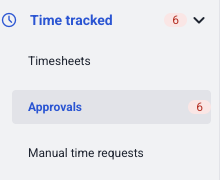
To view your timesheets, navigate to Time tracked > Approvals.
You can select the Open, Submitted, Approved, Denied, or All tabs to see your timesheets by status.
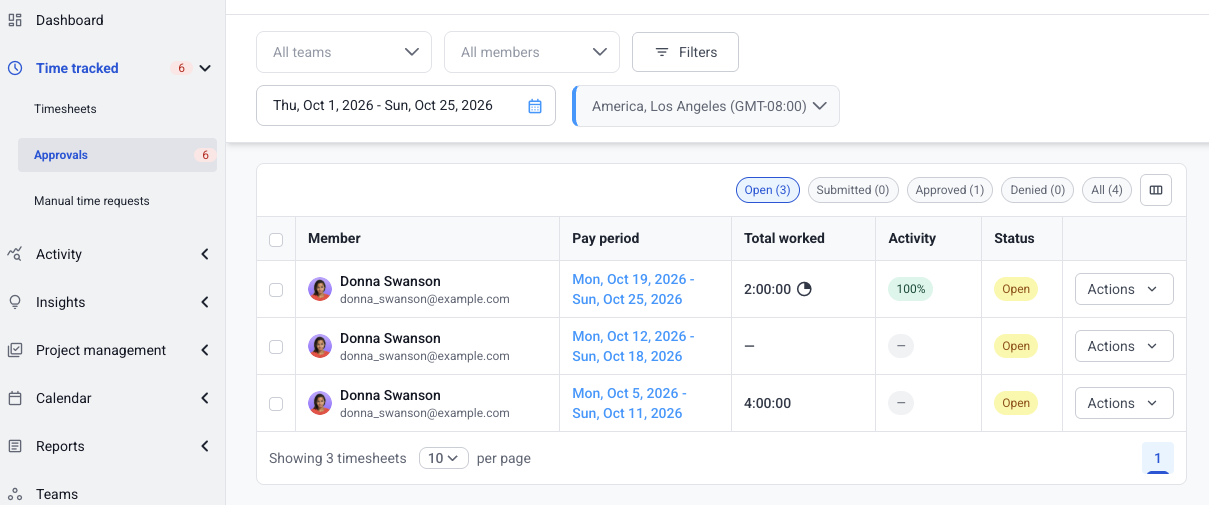
If you don’t see any timesheets on the Approvals page, contact your organization owner and ask them to enable the feature for you or your organization.
The number next to Time tracked and Approvals in the sidebar shows your own timesheets that are ready to submit.
What to check before submitting your timesheet
Before submitting your timesheet, check to see if:
- The pay period is correct. If your company has a monthly payroll and you see a partial pay period, or a period different from yours, please notify your organization owner/managers.
- All the time you worked is included in the timesheet. If you see missing time, either add time (if the setting is allowed in your organization), or contact support.
- There are any open or unapproved manual time additions and/or time off requests. If you see open requests, you may remind your team lead/organization manager/owner to approve them prior to payroll processing. You can check the status of your own requests on Time tracked > Manual time requests.
How to submit a timesheet
To submit a timesheet, follow this guide:
Step 1
First, navigate to Time tracked > Approvals.
Step 2
On the Open tab, click Actions > Submit next to the timesheet you want to submit.

Step 3
You’ll receive a notification that your timesheet is submitted.

When to submit a timesheet?
You need to submit a timesheet ONLY when a pay period has ended. Note that pay periods are based on your organization’s time zone, so you’ll need to submit the timesheet after 11:59 pm on the last day of the pay period, your organization’s time.
For example, your pay period is July 1-15, and your organization’s timezone is in EST, and your personal account’s timezone is set to MNL (MNL is 12 hours ahead of EST), you’ll need to submit your timesheets on July 16, 12nn (or 1 PM, depending on Daylight Saving Time), your local time.
If you submitted your timesheet early, you will NOT be able to track any more time until the pay period has ended.
Unable to track time/Cannot start timer for project because the timesheet is locked
You will receive this error if you’re attempting to track time, but you’ve already submitted your timesheet before the pay period ends.
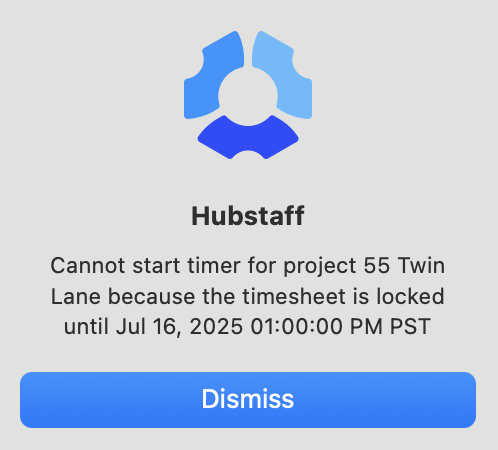
When this happens:
If your timesheet is still in the Submitted tab, you can click on Actions > Unsubmit.

If your timesheet is either in the Approved or Denied tab, you’ll need to contact your organization owner/managers to unsubmit or deny the timesheet for you.
For Owners and Managers:
If a team member reports this error and their timesheet has already been approved, you can unlock it without contacting support. To unlock it:
- Navigate to Time tracked > Approvals and find the member’s timesheet.
- Click Actions > Deny.
This immediately unlocks the timesheet, allowing the team member to continue tracking time for the rest of the pay period. They can then resubmit for approval once the period ends as normal.
Note that denying a timesheet does not delete any tracked time.
How to unsubmit a timesheet
To unsubmit a timesheet:
Step 1
Navigate to Time tracked > Approvals.
Step 2
Click on the Submitted tab.

Step 3
Next to the timesheet you’d like to unsubmit, click on Actions > Unsubmit.
What to expect after submitting your timesheet
Once you’ve submitted your timesheet, your organization owner will receive an email notification to review your timesheets.

If timesheet approvals are on, you’ll need to wait for your organization owner to approve your timesheets.
Please contact your organization’s administrator to check whether payroll is processed through Hubstaff so you can set up your default payment account.
Will I receive notifications when my timesheet is approved or denied?
Yes, when enabled, you will receive an email notification when your timesheet is approved or denied.
Approved

Denied

Frequently asked questions
Can I still add time for a paid timesheet?
No. If you try to add time for a paid timesheet, you’ll receive the following error message: “You cannot add manual time request. The timesheet is paid.”

Will my organization automatically pay me when my timesheet is approved?
That depends on whether your organization is using Hubstaff for payroll and has added a payroll account to your organization. Please contact your organization’s administrator to check whether payroll is processed through Hubstaff so you can set up your default payment account.
Will I be paid for a past unapproved timesheet?
No. If your organization requires approvals for payroll, you will not get paid for an unapproved timesheet. Please reach out to your organization’s administrator to assist you with your payroll.
When will I be paid if my timesheet was approved late?
You will be paid as soon as the timesheet is marked approved. Note that payroll has a scheduled processing time, so the payment will not be immediate.
Can I unsubmit an approved timesheet?
No, this isn’t possible on the user’s end. Please reach out to your organization’s management to reopen the timesheet by denying it, which essentially reopens the timesheet.