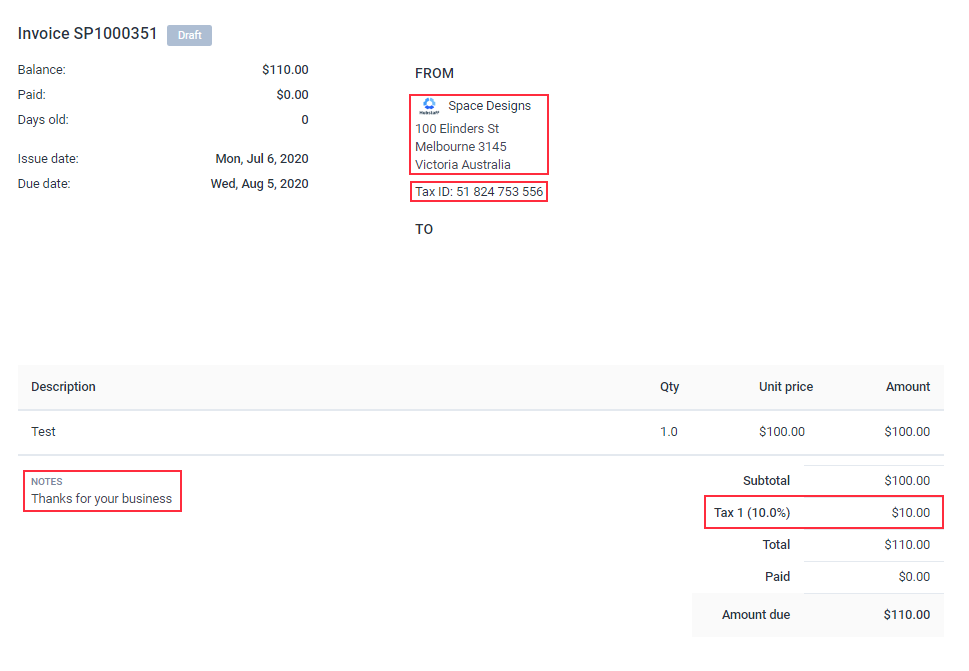
As an organization owner, you can choose to have specific information (like your company address) automatically added on to invoices when they are generated.
This includes information such as your organization’s address, tax information, company logo, and payment terms.
How to change your organization’s invoice settings
Step 1
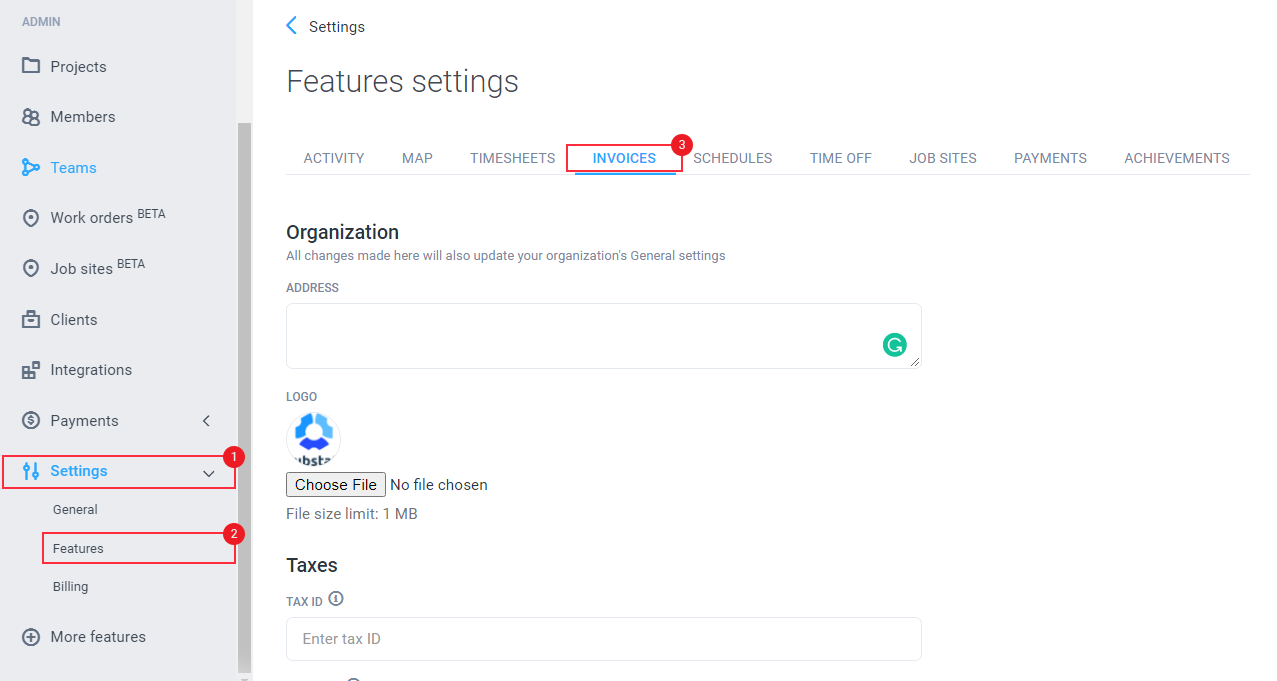
Choose the Settings tab from the left sidebar, then click on Features from the drop-down menu. Choose INVOICES from the Features settings page.
Step 2
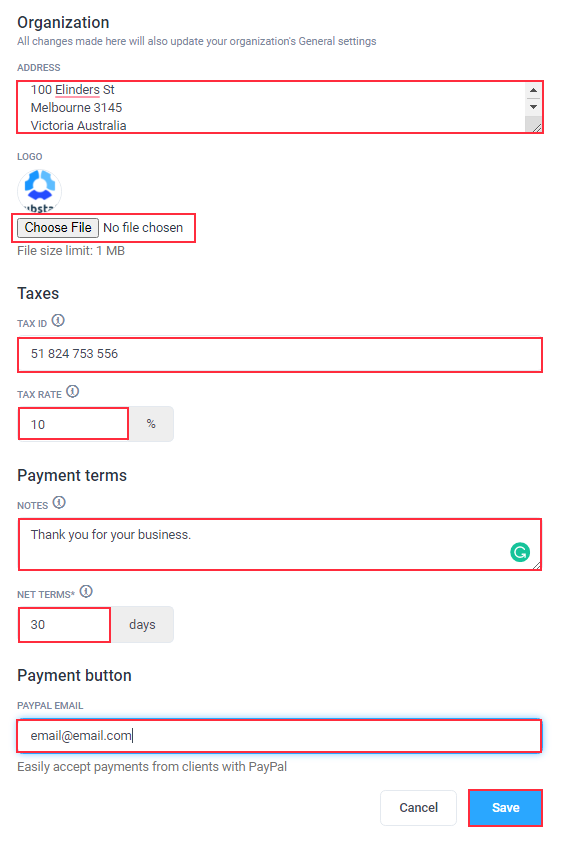
Add the relevant information that you wish to have generated on your invoices. Hit Save to confirm the changes.
How these invoice settings appear on newly created clients & invoices
New Clients
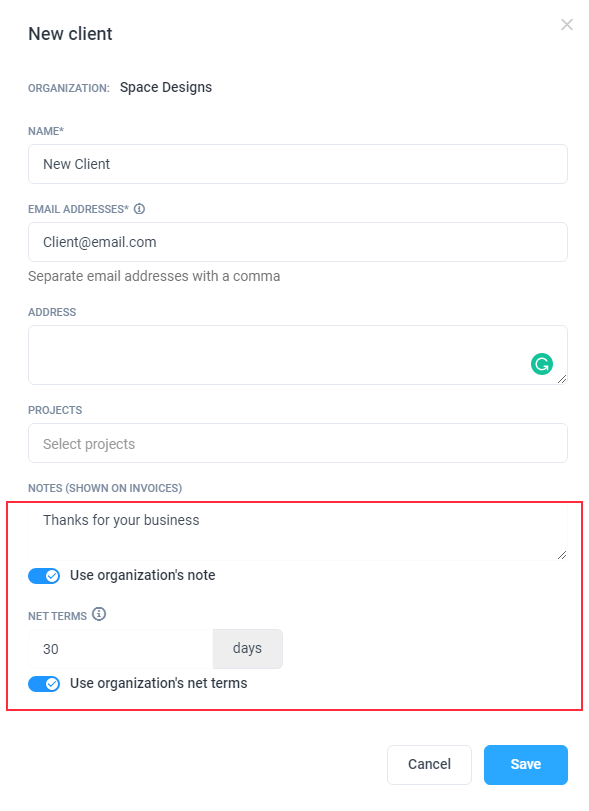
When creating a new client, you can opt for the organization’s notes and net terms to be included on all invoices for that client when they are generated.
Simply select the toggle if you wish for these settings to apply. If you do not, please deselect the toggle.
New Invoices
When new invoices are generated, the organization’s notes and tax information settings will be pre-populated as highlighted below.
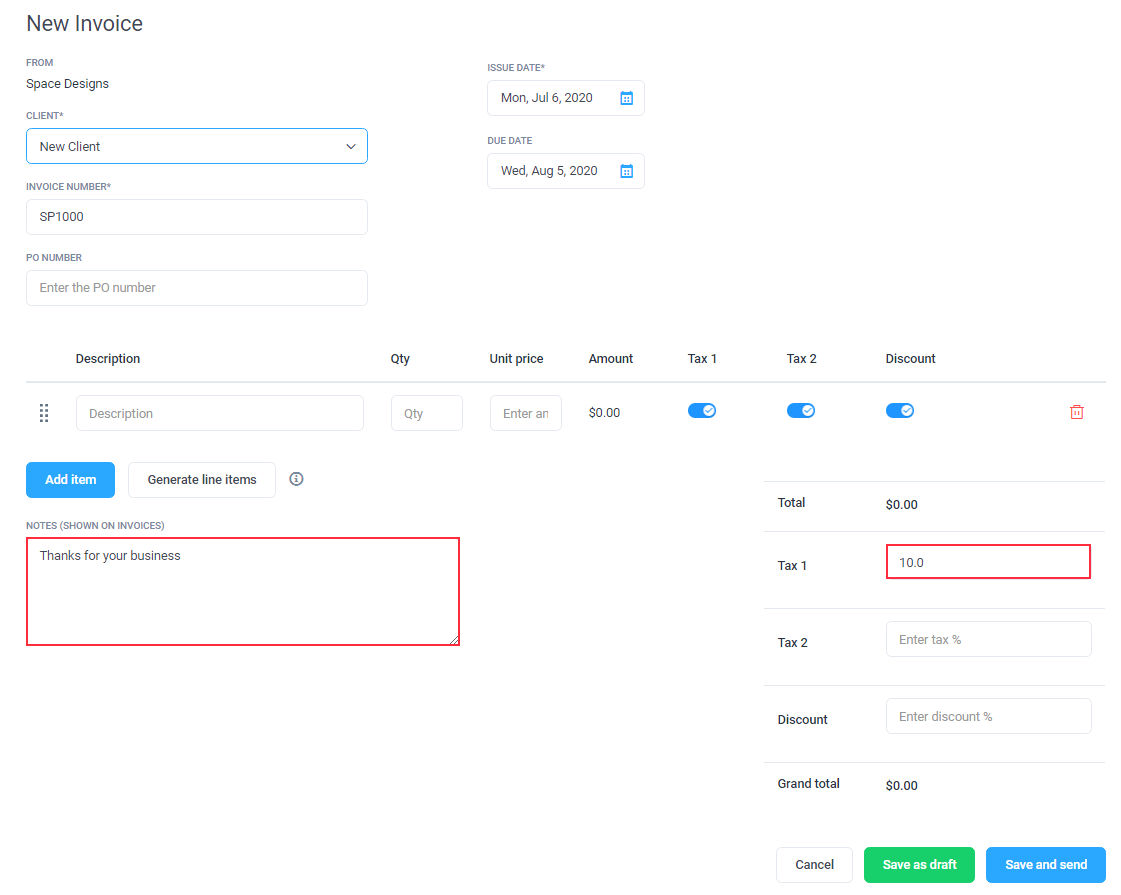
Please also see the draft invoice below, which contains the organization’s company logo, address, tax ID, tax percentage, and notes.