To delete your Hubstaff account, please follow the steps below:
Before you proceed: Please note that account deletion is permanent and irreversible, and erases all of your account data in our servers in compliance with GDPR guidelines. If you are an organization owner, all organizations under your account will be removed once the deletion is processed.
Delete your Hubstaff account
Via the Hubstaff dashboard
Step 1
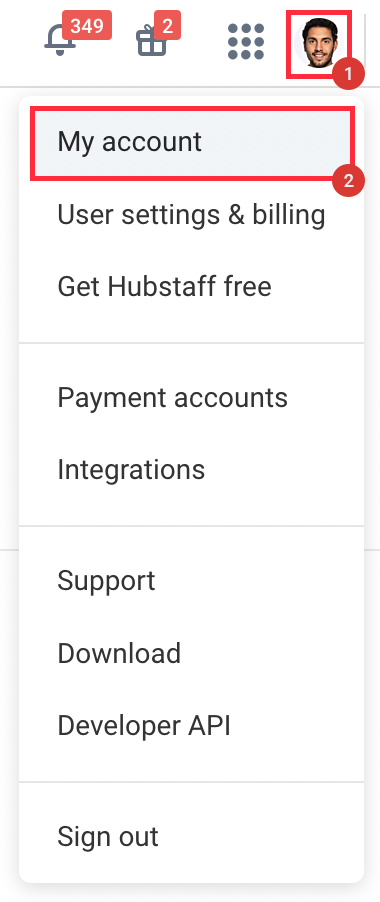
Navigate to the My Account page by either:
- Going to https://account.hubstaff.com/ on your address bar, or
- Clicking on your avatar on the dashboard, then choose My account.
Step 2
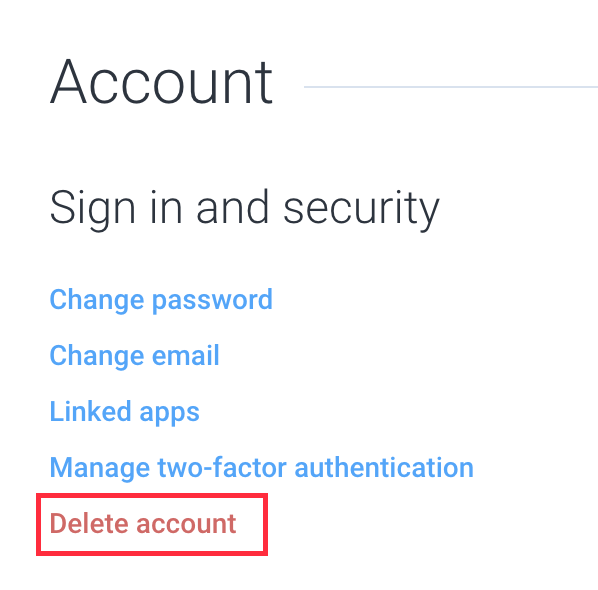
Next click Delete account.
Step 3
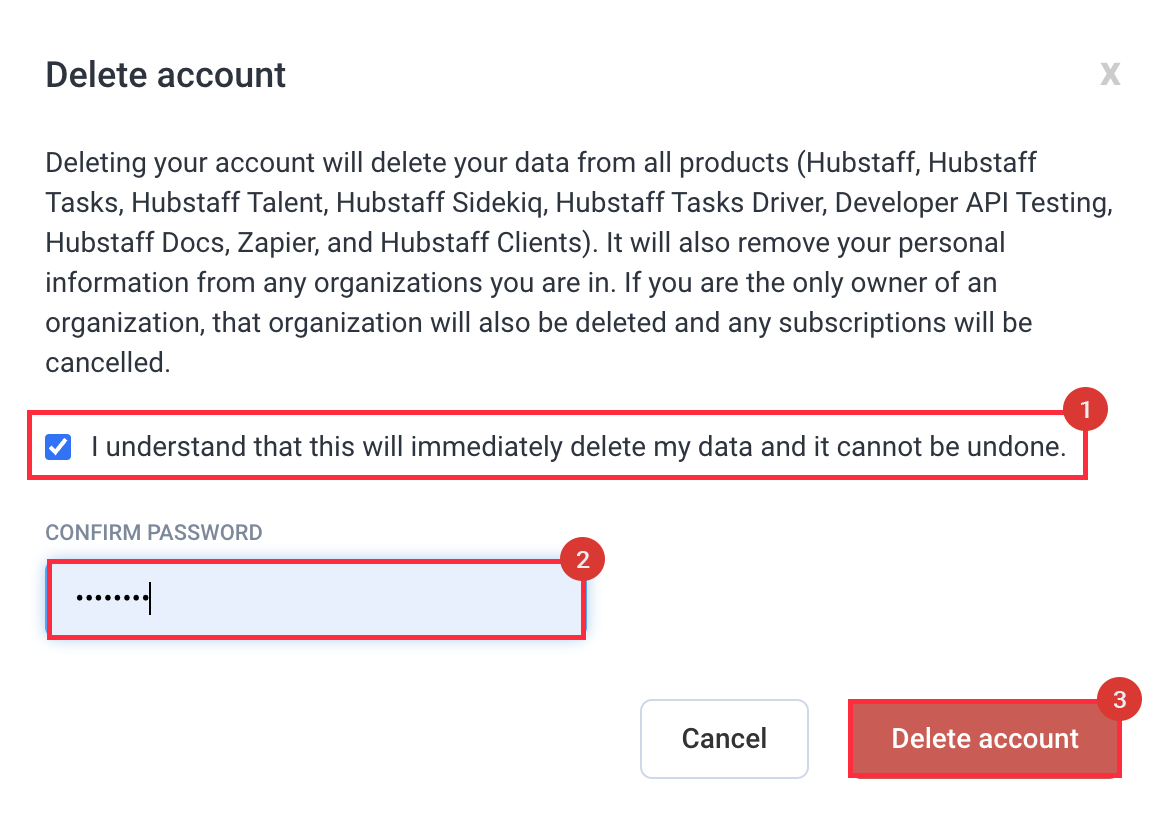
The Delete account dialog will pop up. Place a checkmark on the “I understand this will immediately delete my data and it cannot be undone” prompt, confirm your password, then hit the Delete account button.
Via the iOS application
Step 1
Click on the menu button located in the top left corner of the app.

Step 2
Tap on your avatar in the bottom left corner.

Step 3
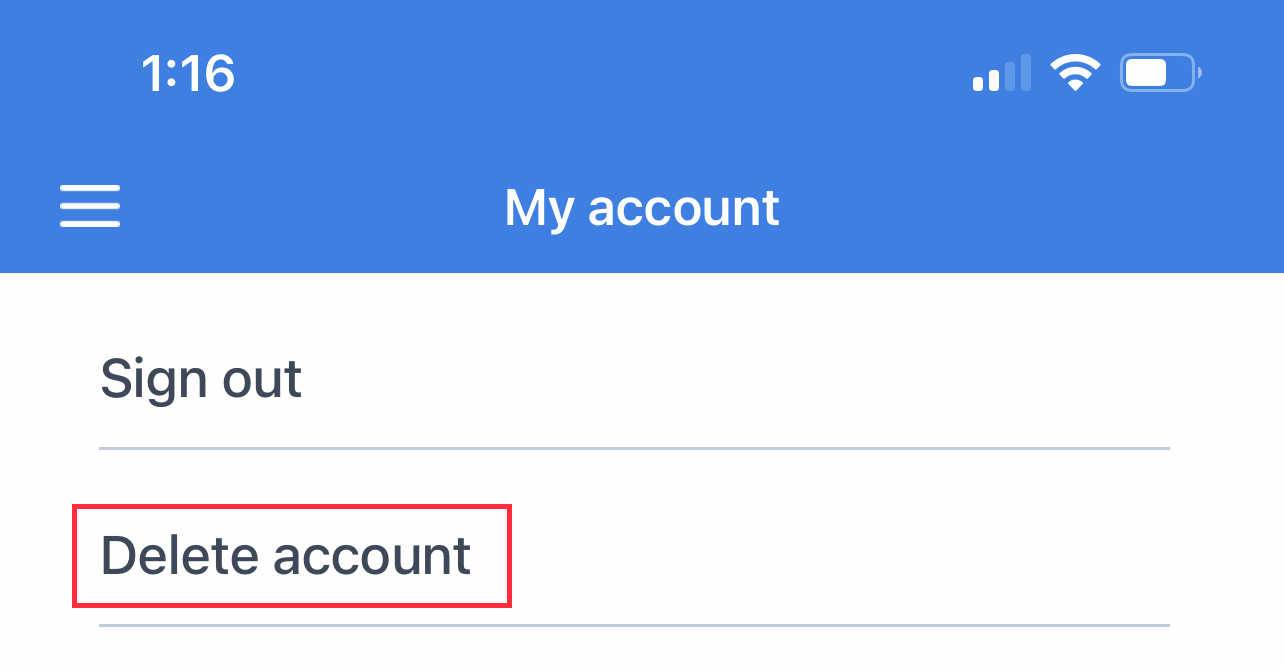
Tap the Delete account button.
Step 4
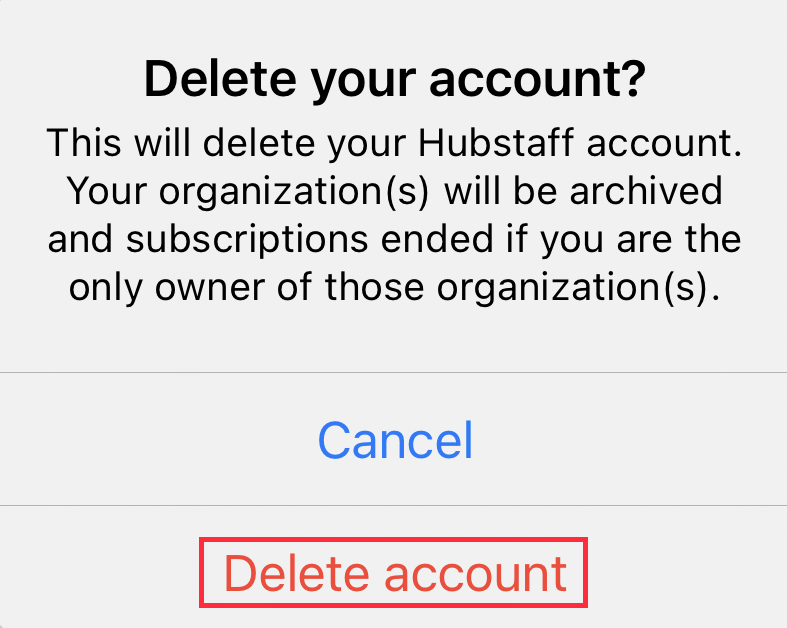
The Delete your account dialog will appear. Tap Delete account to complete the deletion process.
Your login will no longer work once a deletion request has been submitted.
Account deletion takes up to 24 hours to fully process. If you’re still unable to re-register after 24 hours, contact support. Please include the email address used and the approximate date you deleted the account.
If you delete an account and try to re-register using the same email before 24 hours have passed, you will receive an error.
Account deletion takes up to 24 hours to fully process. If you’re still unable to re-register after 24 hours, contact support. Please include the email address used and the approximate date you deleted the account.
If you delete an account and try to re-register using the same email before 24 hours have passed, you will receive an error.