Delaying payroll payments provides organizations with additional time to review and edit timesheets after the pay period ends, enabling staggered approvals and the consolidation of all employees into a single, streamlined payroll run.
How to delay payroll payments
To delay payments, follow this guide:
Step 1
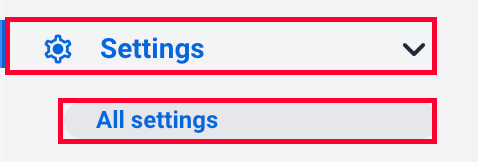
Navigate to Settings > All settings.
Step 2
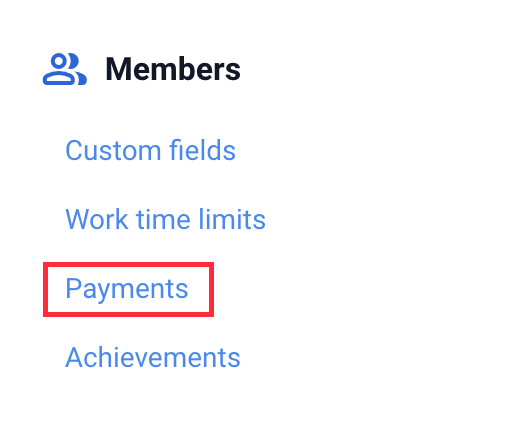
Next, click the Payments option from the Members section.
Step 3
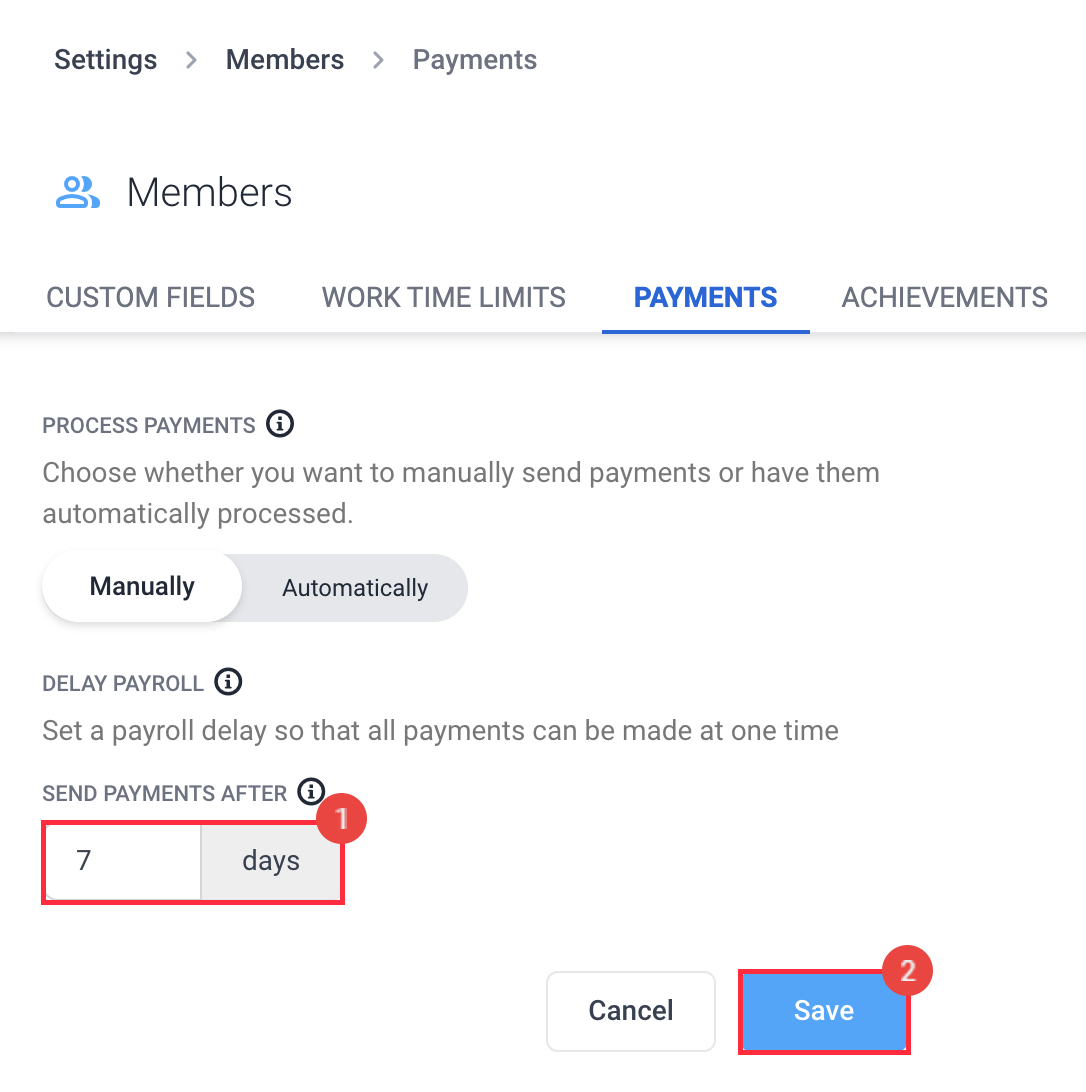
Add the number of days to delay, then hit Save.
When will payments be made after adding a delay?
Hubstaff has 4 pay periods:
Weekly:
Organizations run pay periods from Monday to Sunday (or based on their selected start day). For example, if you add a 3-day delay, you will issue payments on the following Wednesday after the pay period ends.
Bi-weekly:
Organizations run pay periods over two weeks, typically starting on a Monday. For instance, if a pay period begins on July 1 (Monday) and ends on July 15 (Sunday), and you apply a 3-day delay, you will process payroll on July 18.
Twice per month:
Organizations run two pay periods each month—one from the 1st to the 15th, and the other from the 16th to the end of the month. If you add a 3-day delay, you will process payroll on the 18th (for the 1st–15th period) and on the 3rd of the following month (for the 16th–end period).
Monthly:
Organizations run pay periods from the 1st to the last day of each month. If you add a 3-day delay, you will run payroll on the 3rd of the following month.
Where can I view each team member’s payroll run date?
To check when each team member will be paid:
Step 1
Navigate to Financials > Manage payroll.

Step 2
Under the Payroll type column, the pay date should be displayed.
