12 minutes
Outlier FAQs
Below are a few FAQs (Frequently Asked Questions) from Outlier team members.
If you’ve recently joined Outlier, you’ll be using Hubstaff to track your work hours. A lot of new team members run into the same questions at first, so we put together this quick guide to help you get set up without any confusion.
Below are the most common issues Outlier users experience—and how to fix them fast.
Scenario 1: When trying to create an account or log in, you see a message “Your account was already created by your manager”
If you see the message “Your account was already created” it means a company has already set up a Hubstaff account for you using your email address. This usually happens when a company uses Hubstaff’s account provisioning feature to create accounts on behalf of their team members.
Joining Outlier
- If you clicked the Outlier invite link, tried to create an account, and saw the “Your account was already created” message: First log in to your Hubstaff account.
- Then click the Outlier invite link again.
- To confirm you’ve joined, log in to Hubstaff, click the organization selector in the top‑right corner, and check if Outlier appears in the list.
If you can’t log in, reset the password. Here is our guide.
Notes: You should not need to delete your old account to accept the Outlier invitation. You only need to gain access to log in to the account, which can be done via password reset. Some users had issues with this previously, but our team put in place a fix to allow the password reset emails to go through.
Scenario 2: You aren’t receiving the Hubstaff account confirmation email
This usually happens if you signed up for Hubstaff using your @outlier.ai email address instead of the personal email you originally used when registering with Outlier.
Some users get confused by onboarding instructions that say “Use the same email address as your Outlier account.” The intention is for you to use the same personal email you registered with Outlier, not the @outlier.ai email automatically generated for you.
What to do:
- If you accidentally used your
@outlier.aiemail to sign up for Hubstaff, even though your actual primary Outlier login is a personal email, switch to using that personal email instead (use the Hubstaff invite link Outlier sent you to create a new account with that email). This avoids confusion and ensures you’ll receive the confirmation email. - If your primary Outlier login is an
@outlier.aiemail, add a secondary (personal) email to your Outlier account and use that address to sign up for Hubstaff. This ensures you’ll receive the confirmation email and can complete your Hubstaff setup.
Scenario 3: You can’t start tracking time, or your projects/tasks aren’t showing up in the timer app
This usually happens because Outlier adds new team members (like you!) but doesn’t always assign projects right away. Sometimes your time-tracking permissions or project assignments just haven’t been activated yet.
When that happens, you might see your project on the Hubstaff web dashboard, but not in the desktop or mobile app.
What to do:
- This typically resolves on its own within a few hours, though in some cases it may take up to 2 days.
- If it’s been longer—or you were already told you were assigned to the correct projects but still can’t track time—reach out to Outlier Support. They can fix it on their end.
Scenario 4: You deleted your Hubstaff account, but aren’t able to sign back up using the same email
Some people run into problems when trying to join the Outlier Hubstaff account if they already had an existing Hubstaff account with a different company. The usual fix is to delete your old Hubstaff account and then sign up again using the invite link Outlier sent you.
What’s happening:
- When you delete your Hubstaff account, it isn’t gone right away.
- Hubstaff takes about 24 hours to fully remove your account from their system.
- If you try to sign up again with the same email before that time is up, you’ll see an error message.
What you need to do:
- After deleting your account, wait a full 24 hours.
- Once that time has passed, use the Outlier invite link to sign up again with the same email.
- At that point, the sign‑up should work without errors.
Scenario 5: You can track time, but some (or all) of your hours seem to be missing
There are two common causes:
1. Internet connection issues
If your connection is unstable or slow, Hubstaff might not upload your time right away. Don’t worry—your data isn’t lost. It’s stored locally and will upload automatically once you’re back on a stable connection.
Try these steps:
-
After stopping your timer for the day, leave the app open for a couple of minutes so it can finish uploading.
-
Close and reopen the timer app to refresh it.
-
Click the refresh button in the bottom-left corner of the app.
-
Check for any internet issues where you’re working.
2. Time zone differences
Sometimes hours look “missing” simply because they appear under a different day or time. This can happen if:
-
Your time zone is different from Outlier’s, or
-
You tracked time close to midnight, splitting hours between two days.
Everyone sees their own data in their personal time zone, but Outlier’s reports, payments, and dashboard follow the organization’s time zone. Because of this, hours may look shifted even though they’re recorded correctly.
If you would like to learn more, you can refer to our article on viewing data across different time zones. And if your hours still don’t look right, our Missing Time guide can help you troubleshoot further.
3. Time is missing or does not match the time on the Outlier dashboard
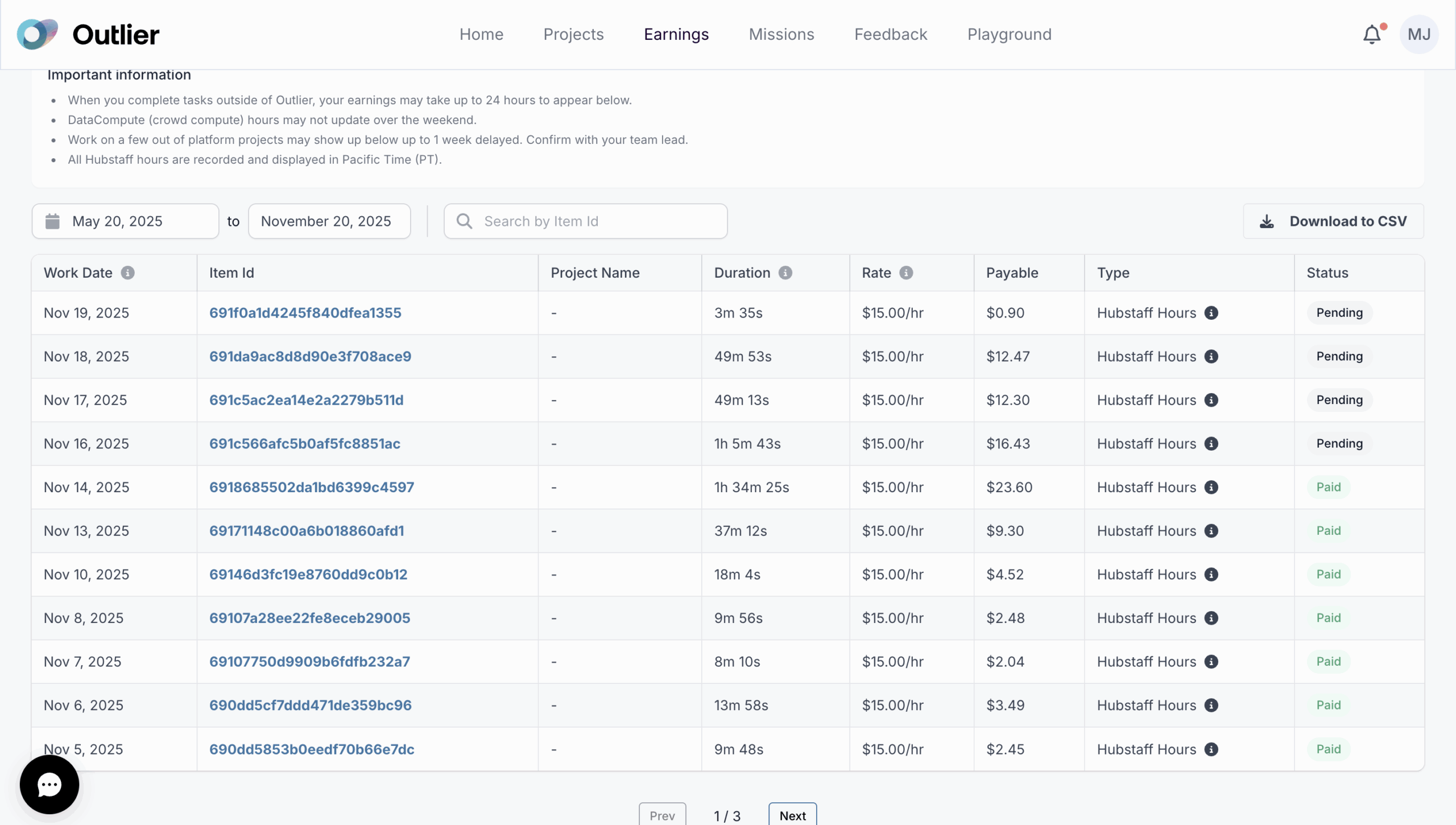
If the time already appears in Hubstaff, please reach out to Outlier support. The issue is most likely caused by a delay in the data upload that wasn’t captured when Outlier pulled the information.
Scenario 6: Not receiving the password reset/“forgot password” email
If you already had a Hubstaff account at the time that you joined Outlier, you should be able to receive our password reset emails.
- Please follow this guide for resetting your password.
- If the password reset does not work, contact Hubstaff Support (support@hubstaff.com) and request assistance. You can also contact us by replying to this email.
If this is your first time using Hubstaff, but you are not receiving the password reset/forgot email:
- If you used your @outlier.ai email to sign up, please note that this email cannot receive emails from Hubstaff. You should sign up for Hubstaff using the personal email address that you used to sign up for Outlier. See Scenario #2 above for more information.
- Contact Hubstaff Support (support@hubstaff.com) and request assistance.
-
Notes: Please do not attempt to create a separate Hubstaff account.
Scenario 7: You can’t click the Start button on the timer
If the Start button isn’t working, the most common reason is that you’re using a non-desktop version of the Hubstaff timer. Outlier requires you to use one of Hubstaff’s desktop apps for Windows, macOS, or Linux.
You can download the desktop version here and install it on your computer.
Other possible causes:
-
You haven’t selected a project before pressing Start (you must select one first).
-
You don’t have any projects assigned—see Scenario #3 if that’s the case.
We hope this clears things up! If you’re still having trouble after trying these steps—or if you’re dealing with a different issue—just contact support. We’re here to help!